
Overview
Similar Products suggests alternative products when a size is out of stock. This feature increases conversions by offering relevant alternatives to customers.Standard installation
Available Display Modes
Configuration
Step 1: Choose the Display Mode
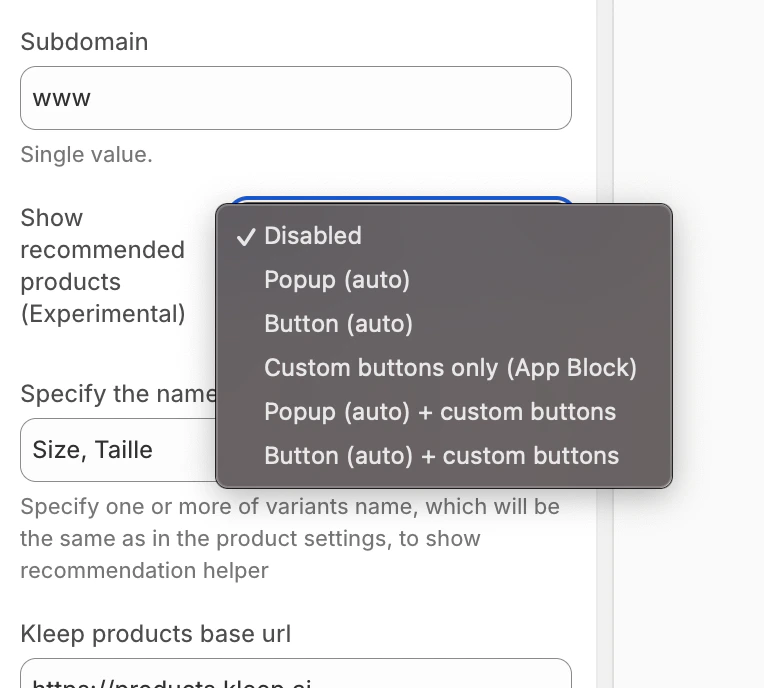
In the Kleep App Embed settings, find the “Show recommended products” option and select your desired mode from the dropdown menu.
- Go to the Product page template in the theme editor
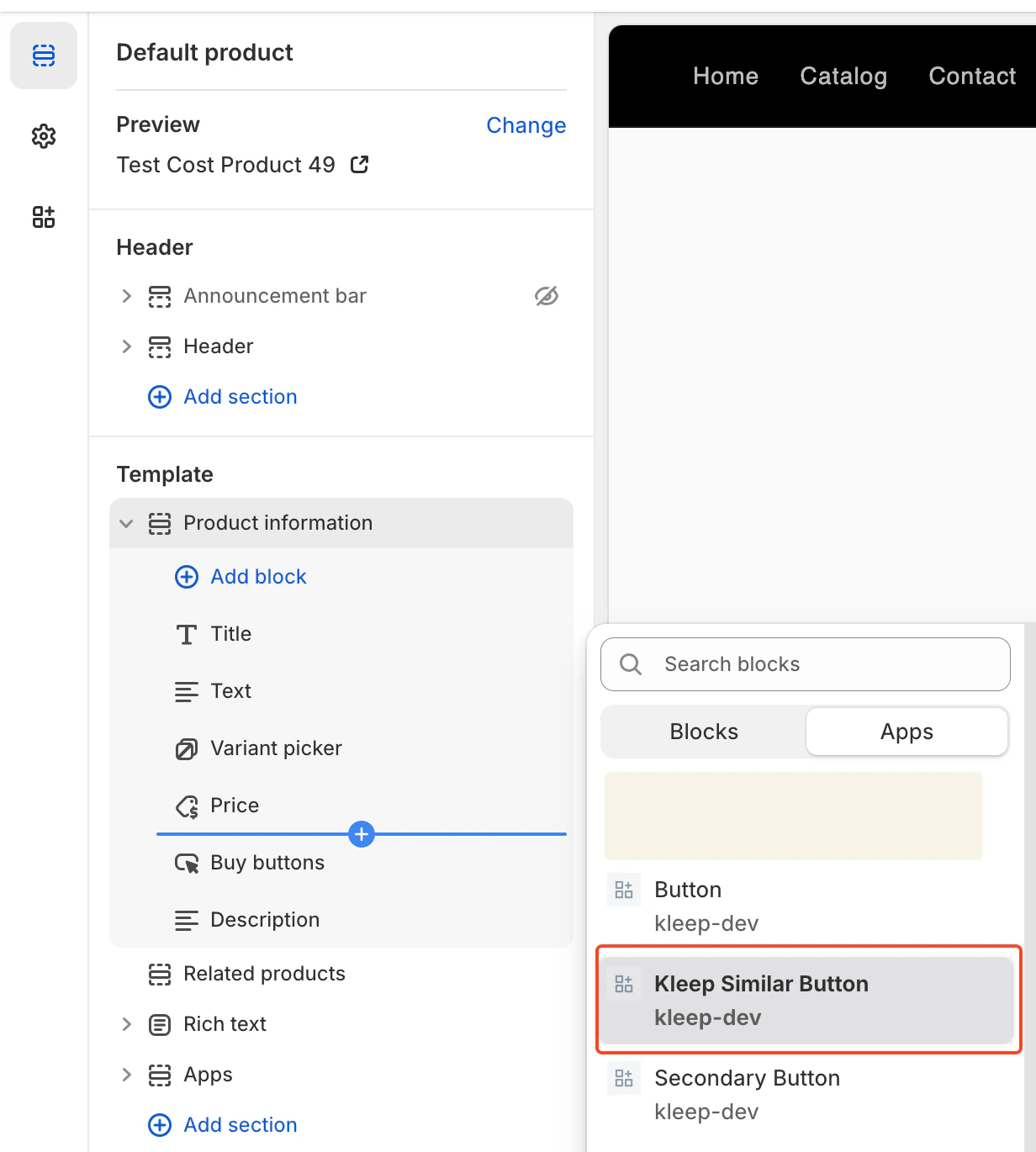
- In the desired section, click Add block
- Click the Apps tab and select “Kleep Similar Button”
- Position the block where you want it and save
custom_buttons, popup+custom, or button+custom.
For OS 2.0 themes:
- Go to Online Store → Customize
- Open the Product page template
- Click Add block → Kleep Similar Button
- Repeat if you want 2+ buttons on the page
Manual installation
Step 1: Create the Snippet Create a filesnippets/kleep-similar-button.liquid with the following code:
Code
Code
Code
Code
custom_buttonspopup+custombutton+custom
Code
Code
Manual installation requires the Kleep translation keys in your theme locale files — see Translations (i18n).
Troubleshooting
Similar Products doesn’t appear- ☑️ Check that the mode isn’t set to “Disabled” in settings
- ☑️ Buttons only appear when a variant is out of stock
- ☑️ For “custom” modes, verify you’ve added an App Block