Overview

Kleep Search replaces the native Shopify search with an optimised search featuring size filters and personalised recommendations.

Installation

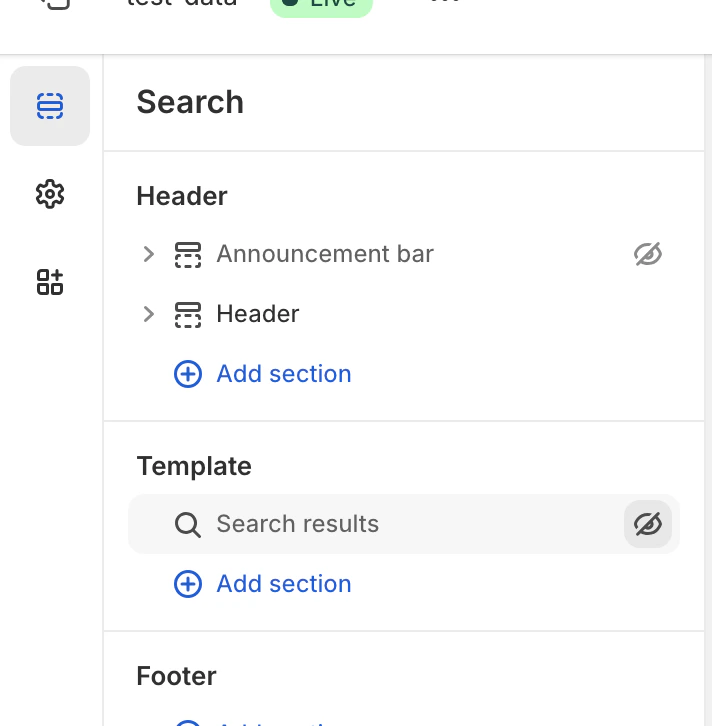
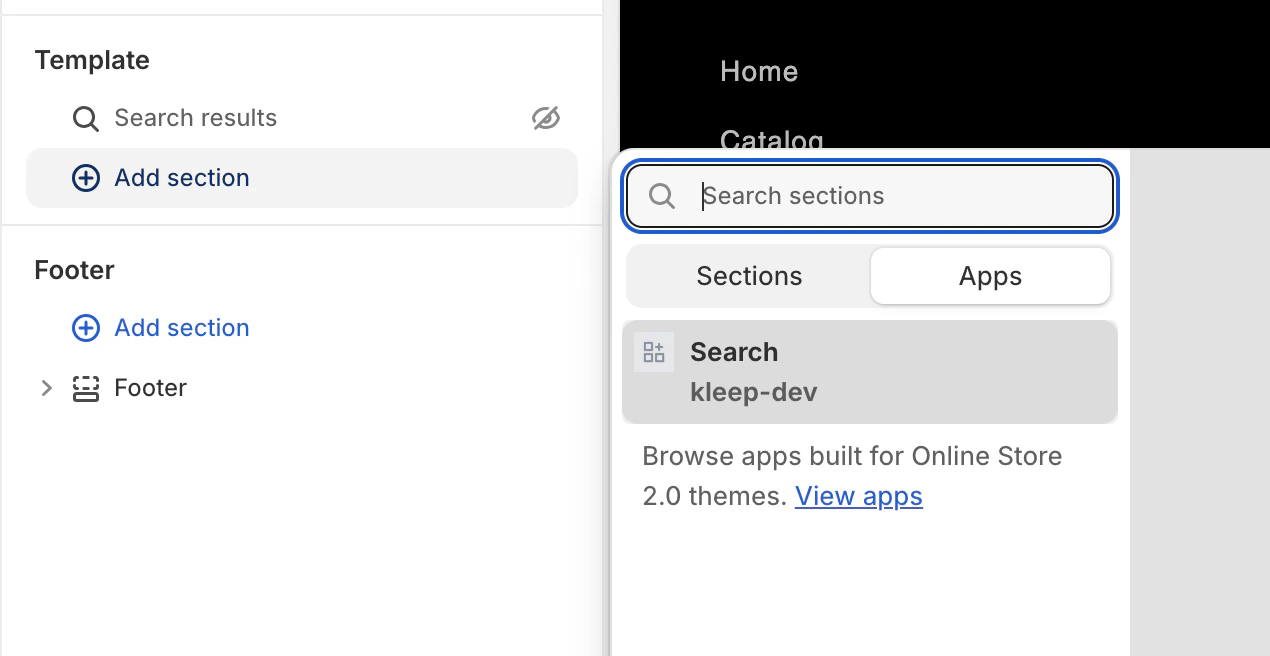
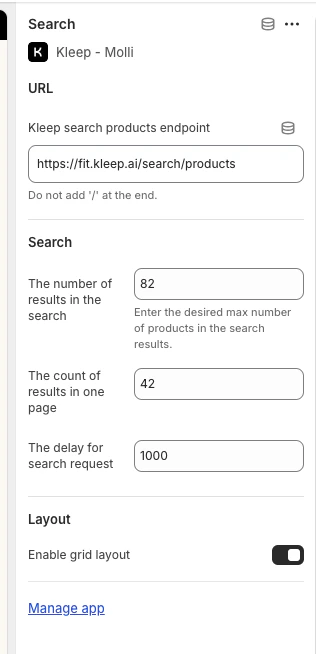
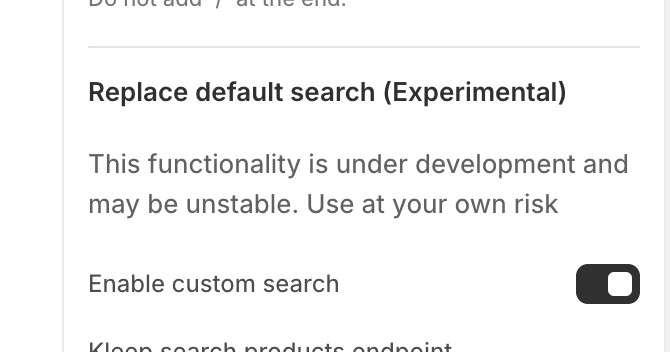
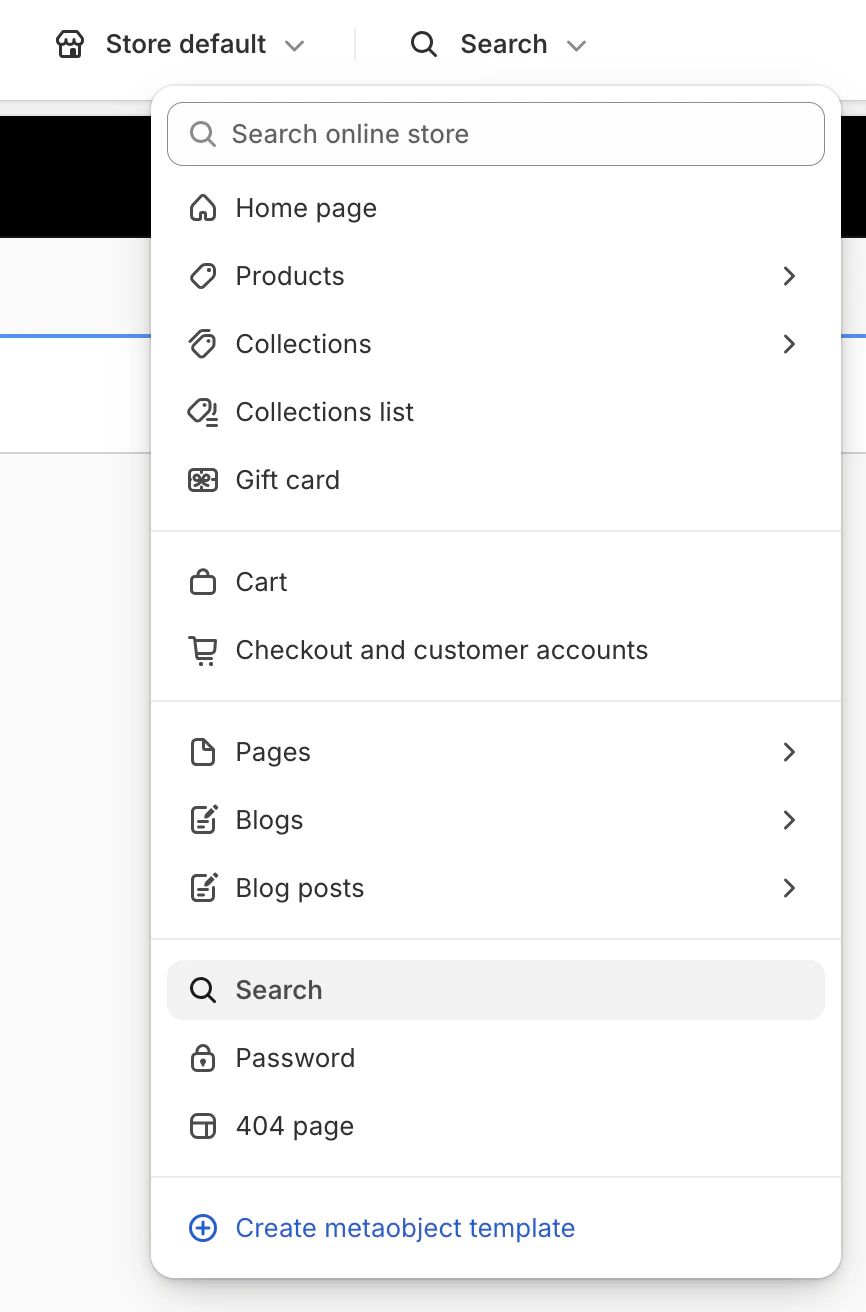
Step 1: Enable Custom Search In the Kleep App Embed settings, enable the “Enable custom search” option. Screenshot_2025-07-28_at_17.17.44.png Enable Custom Search Step 2: Access the Search Template In the theme editor, click the dropdown menu at the top (defaults to “Home page”) and select “Search” from the template list. Screenshot_2025-07-28_at_17.18.59.png Select Search Template Step 3: Hide the Native Search In the Template section, hide or remove the native “Search results” block by clicking the eye icon. Screenshot_2025-07-28_at_17.19.32.png Hide Native Search Step 4: Add the Kleep Search Block Click Add section, then in the Apps tab, select “Search” (kleep-dev). Screenshot_2025-07-28_at_17.19.48.png Add Kleep Search Block Step 5: Configure Options Click the Search block you added to access settings: number of results, grid/list display, search delay, etc. Screenshot_2025-08-13_at_13.29.19.png Search Configuration Options
Troubleshooting

Search isn’t working
  • ☑️ Verify “Enable custom search” is enabled in the App Embed
  • ☑️ Make sure you’ve added the Kleep Search block to the Search template
  • ☑️ Check that the native search is hidden
Still stuck? Contact support@kleep.ai.