
Custom Site Preferences
After metadata import, go to BM > Merchant Tools > Site Preferences > Custom Preferences.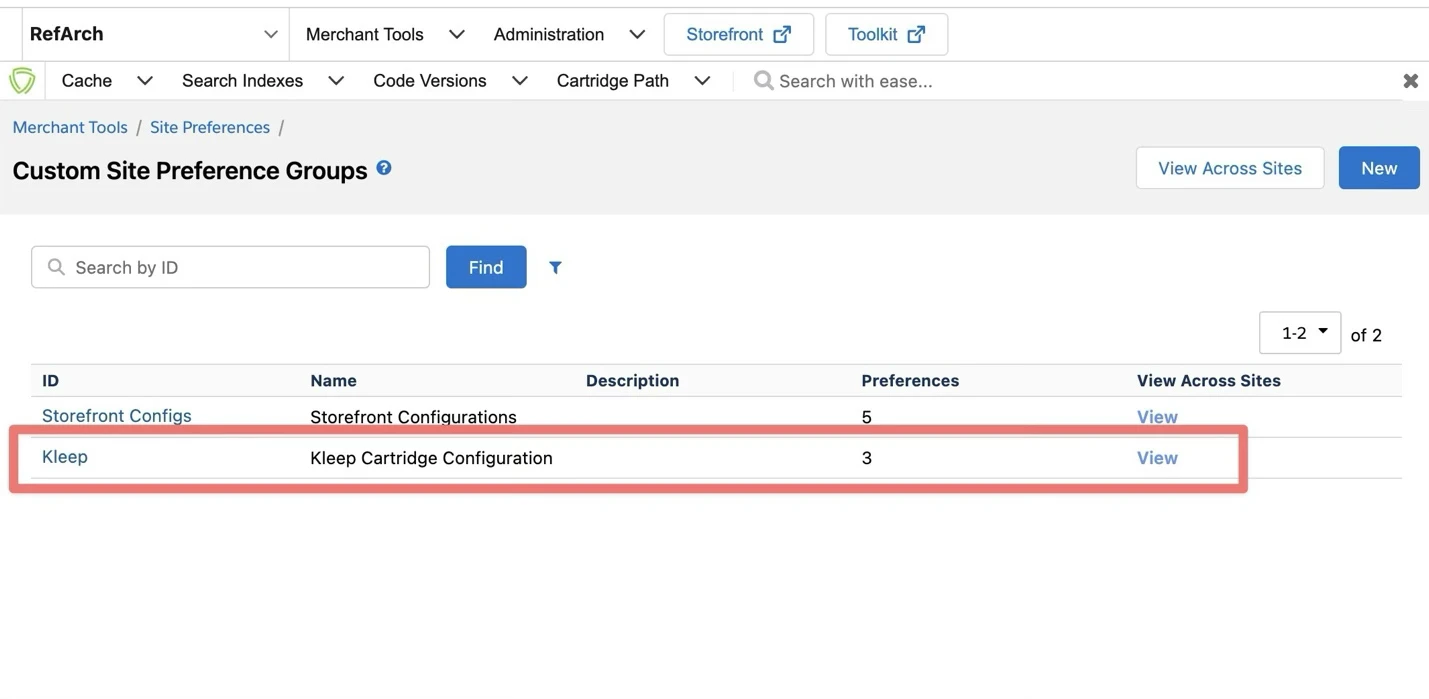
Screenshot — Kleep preferences group
Screenshot — Kleep preferences group
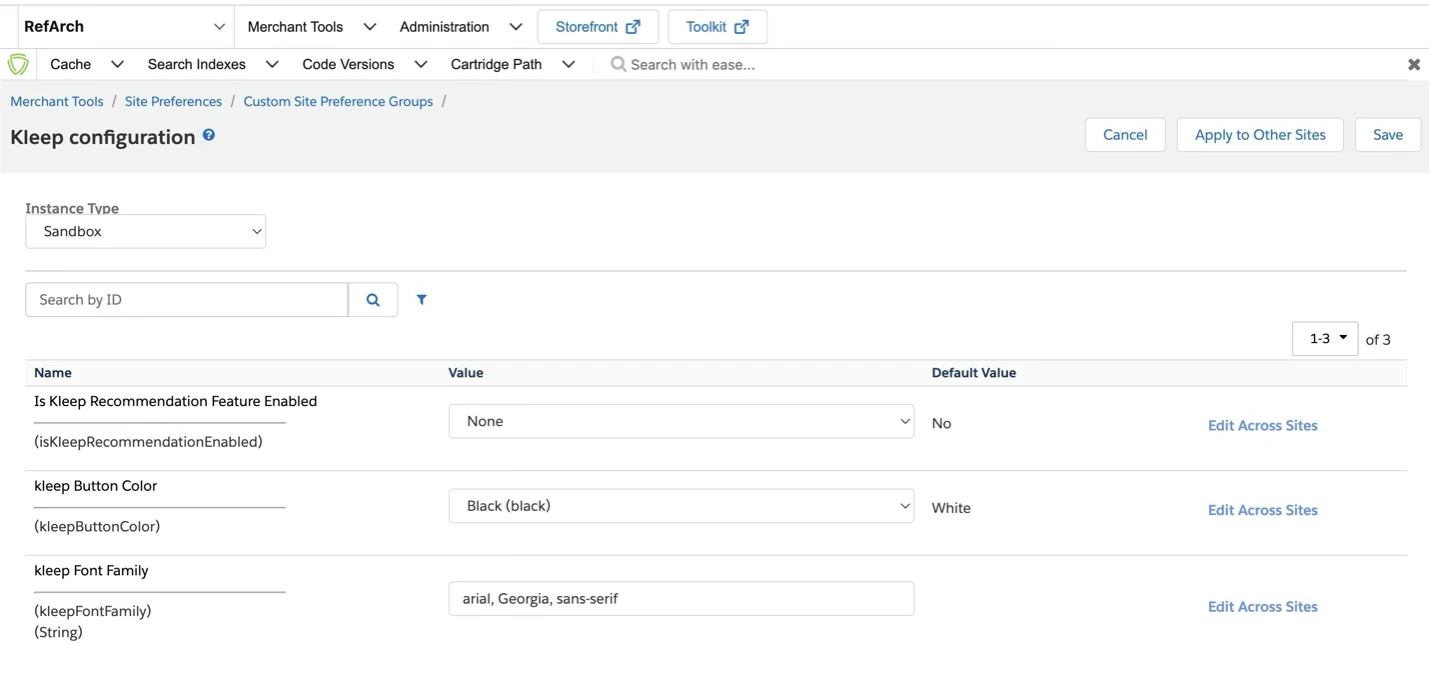
Depending on your cartridge version, you may also see
isKleepSessionEnabled in Business Manager. This preference existed in older cartridge versions to toggle Kleep session tracking; it has been removed in current versions because the session is always active. If it is present, leave it at its default value (Yes).Services
Found in Administration > Operations > Services:Screenshot — Services list
Screenshot — Services list
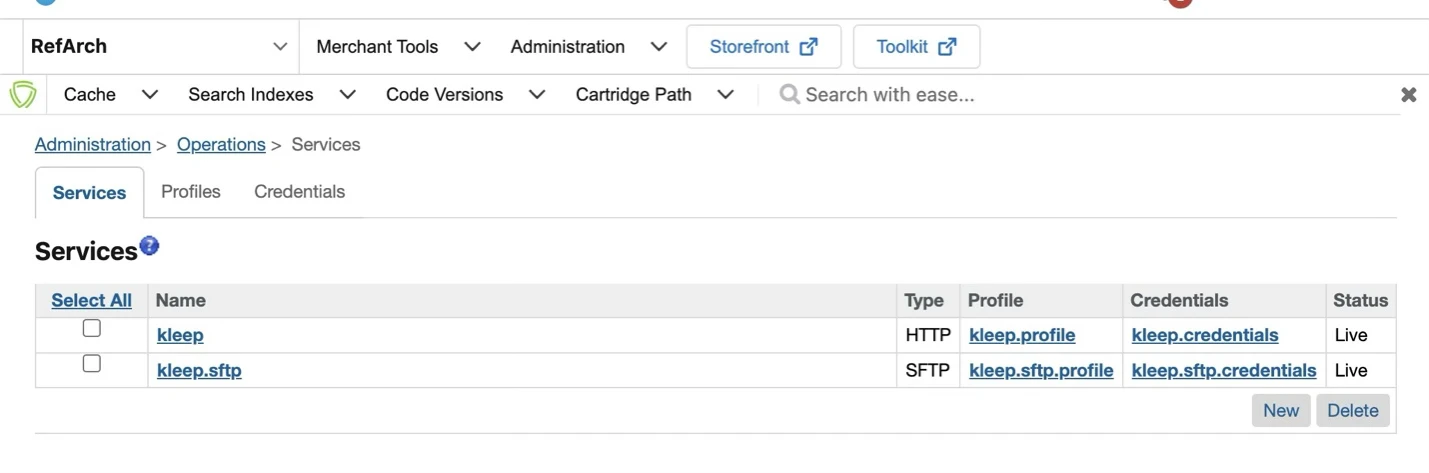
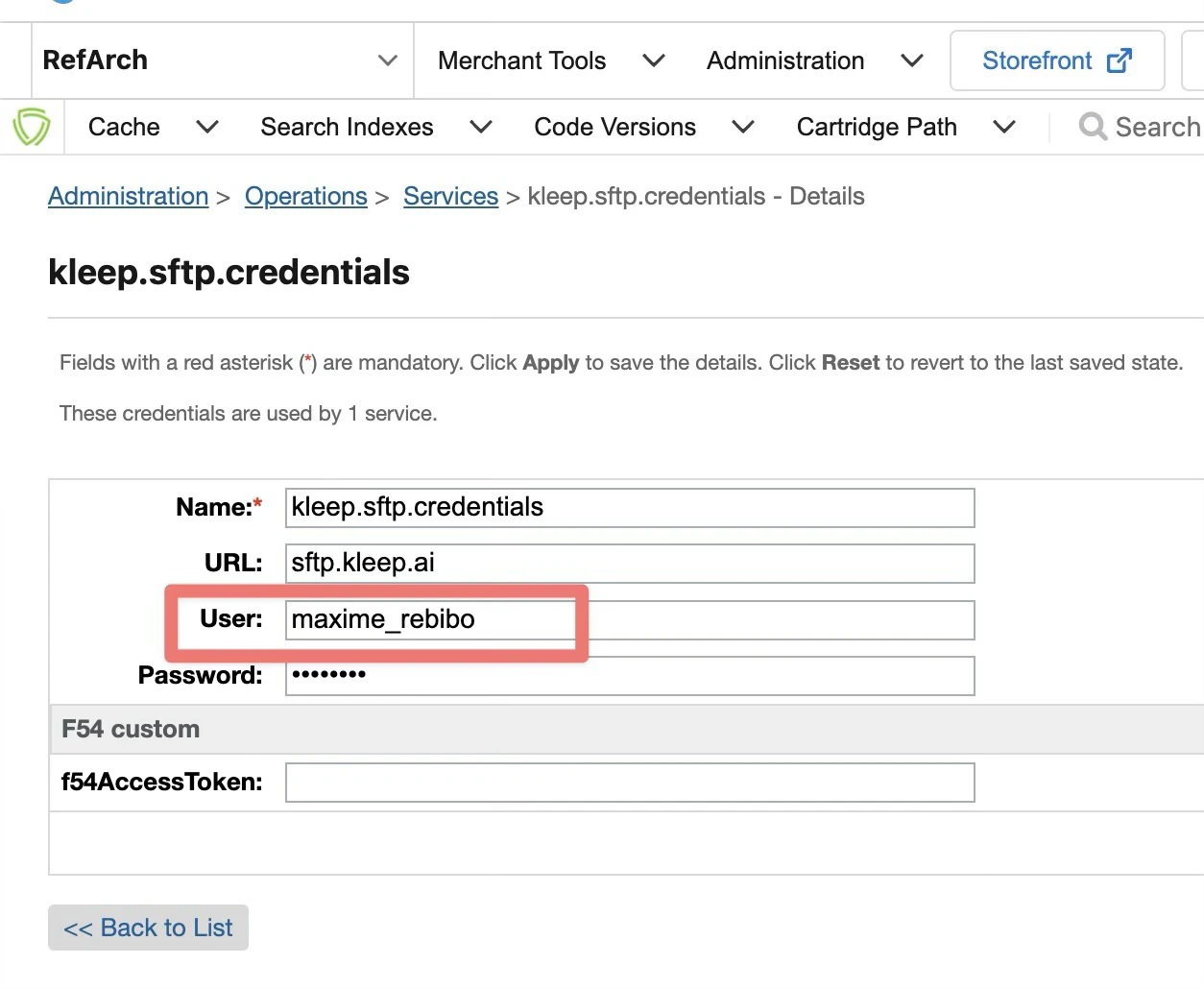
kleep.sftp — Sends export files from SFCC WebDAV to Kleep SFTP. Replace the user with the one provided by Kleep, along with the .p12 certificate. Don’t set any password.
Screenshot — kleep.sftp service details
Screenshot — kleep.sftp service details
kleep — Used for all other features. No user/password needed — the request is authenticated by the kleepRetailerUUID site preference, sent in the payload of every Kleep API call to resolve your account.
Private Key & Certificate
Go to Administration > Operations > Private Keys and Certificates:- Click Import
- Click Select and choose the
.p12file provided by Kleep - Use
kleepas the alias - Click Save
Screenshot — Import certificate
Screenshot — Import certificate
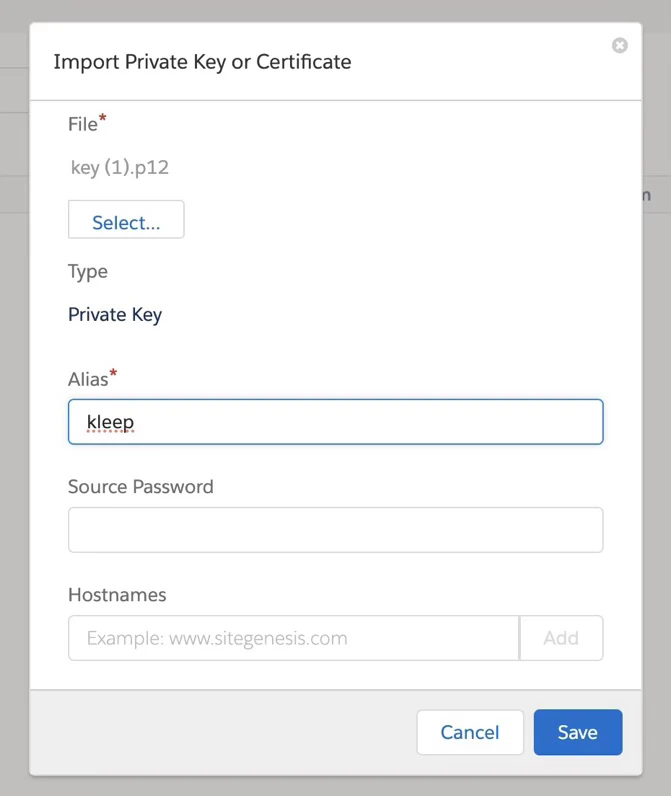
kleep:
Screenshot — Imported certificate
Screenshot — Imported certificate
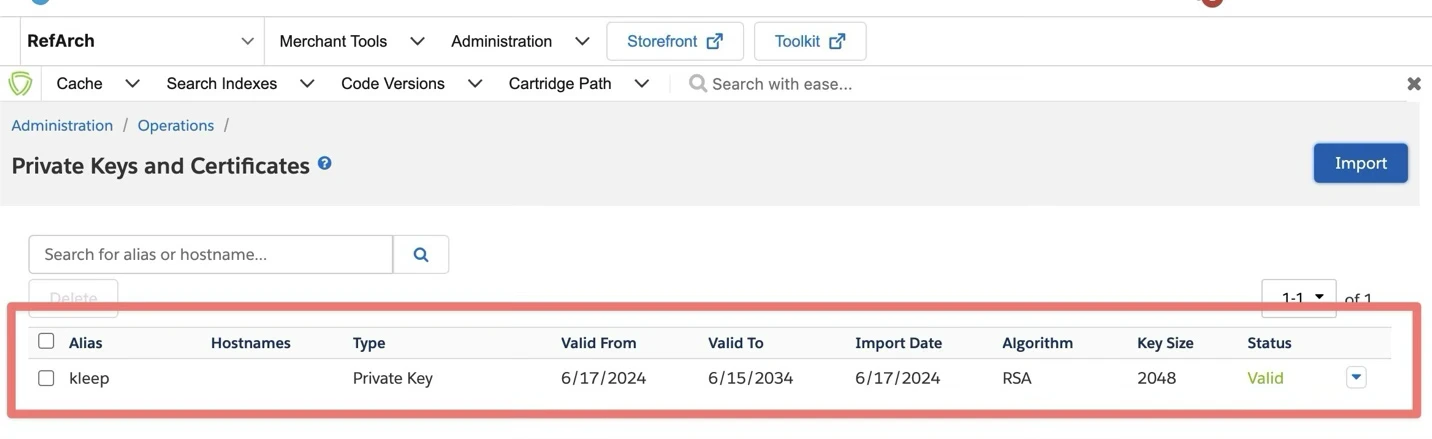
Export Jobs
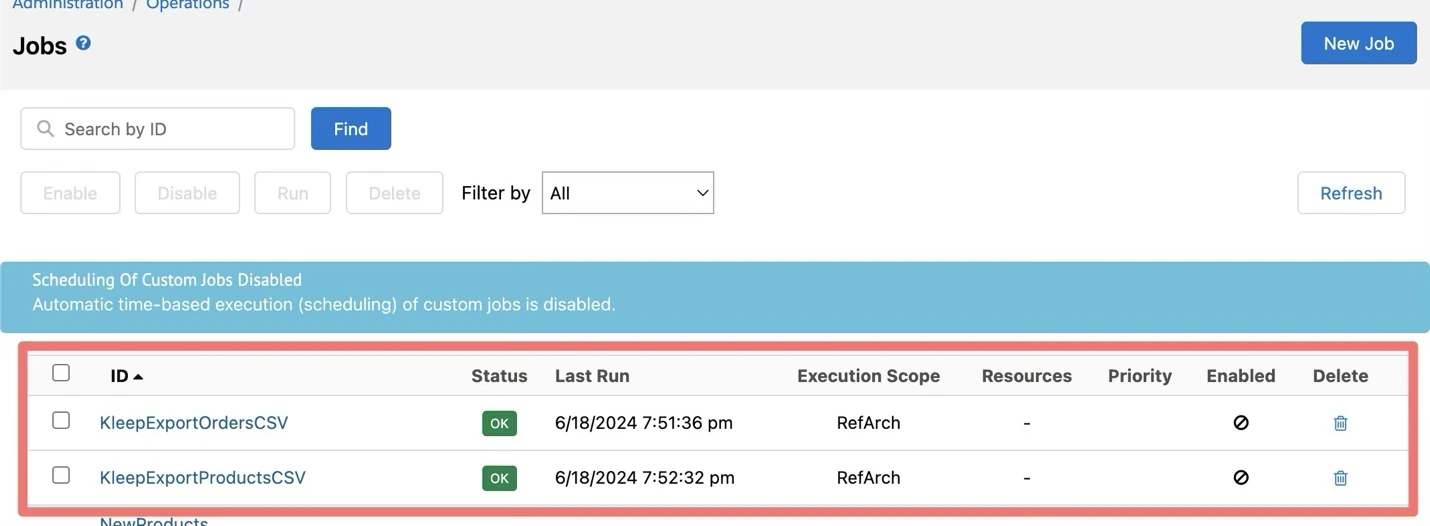
Go to Administration > Operations > Jobs. The cartridge ships three jobs:- KleepExportProductsCSV — exports your site’s products
- KleepExportOrdersCSV — exports your customers’ order history
- KleepResetLastExported — utility job to force a full re-export of orders (details below)
Screenshot — Export jobs list
Screenshot — Export jobs list
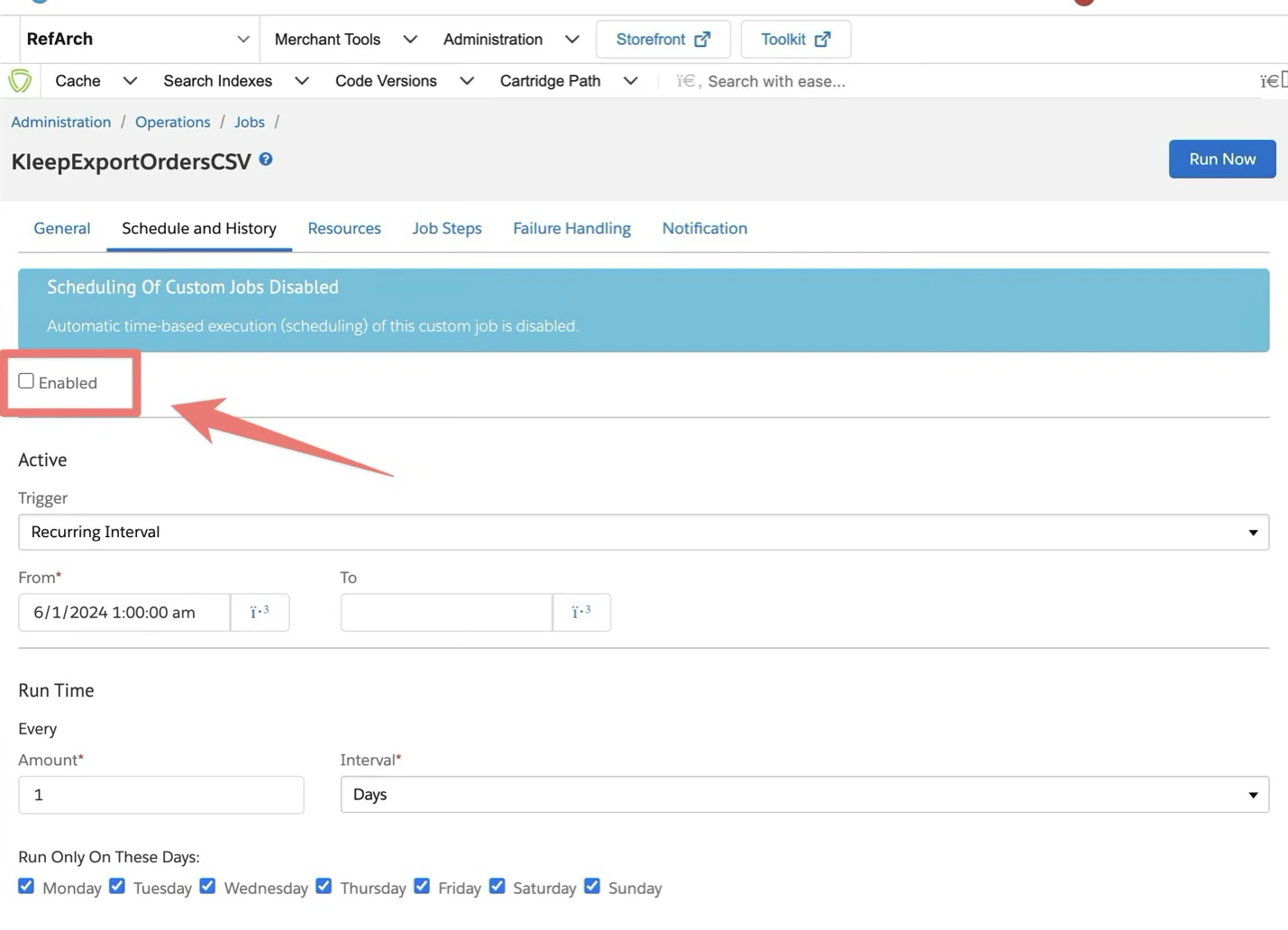
Screenshot — Enabling an export job
Screenshot — Enabling an export job
Site assignment
Both export jobs run in a site context. In the Job Steps tab, click the site scope (shown as RefArch on a fresh install) and select the site(s) where you use Kleep. Each export job has two steps:- A generate step (
Custom.Kleep.GenerateProductsCSVorCustom.Kleep.GenerateOrdersCSV) — writes the CSV file to a WebDAV IMPEX folder - An upload step (
Custom.CSComponents.FtpUpload) — pushes the CSV to the Kleep SFTP server through thekleep.sftpservice, then archives the file
The
TargetFolder parameter of each SFTP upload step must match the folder structure expected by Kleep’s ingestion pipeline. For example, a dev store might use dev/products instead of products. See the SFTP Data Structure documentation for the complete directory layout.KleepExportProductsCSV settings
Screenshot — KleepExportProductsCSV job steps
Screenshot — KleepExportProductsCSV job steps
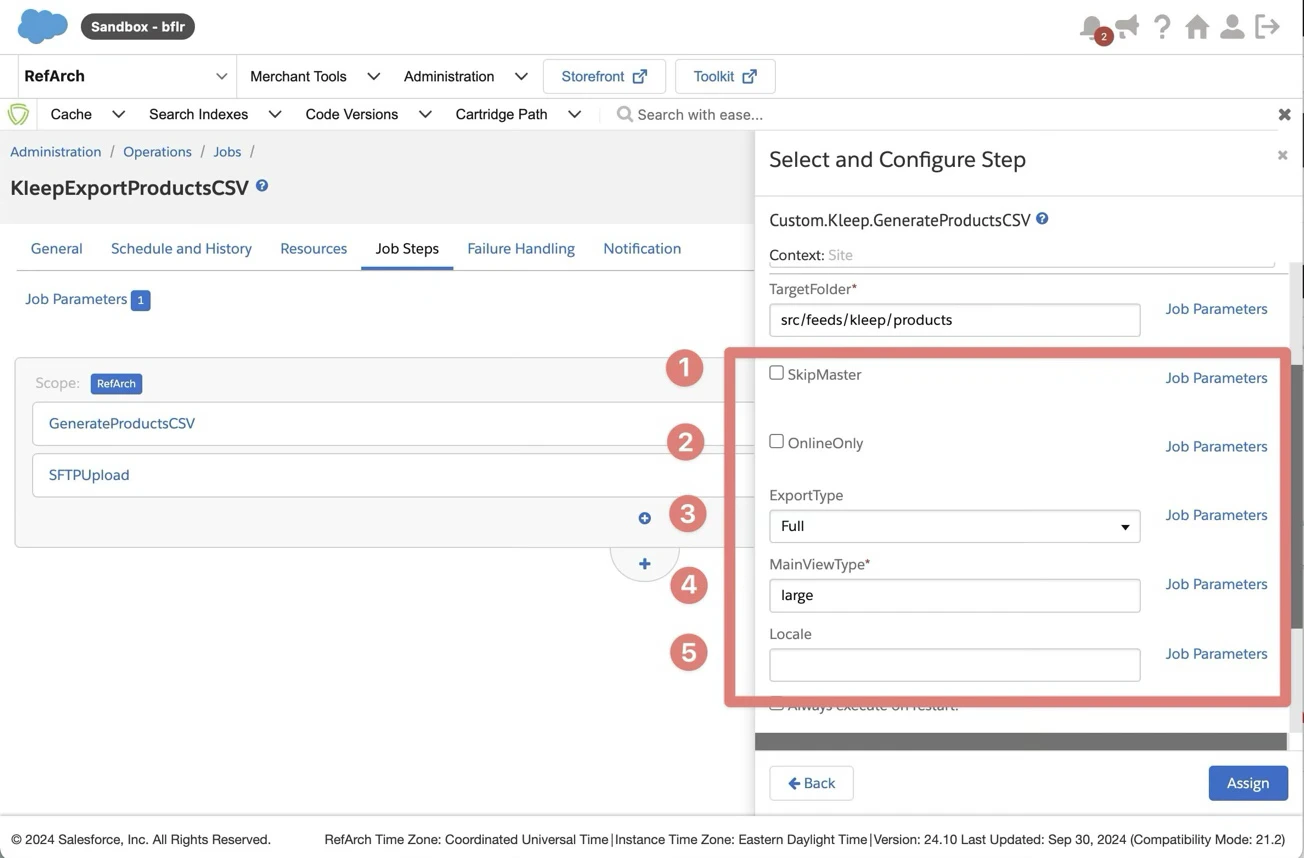
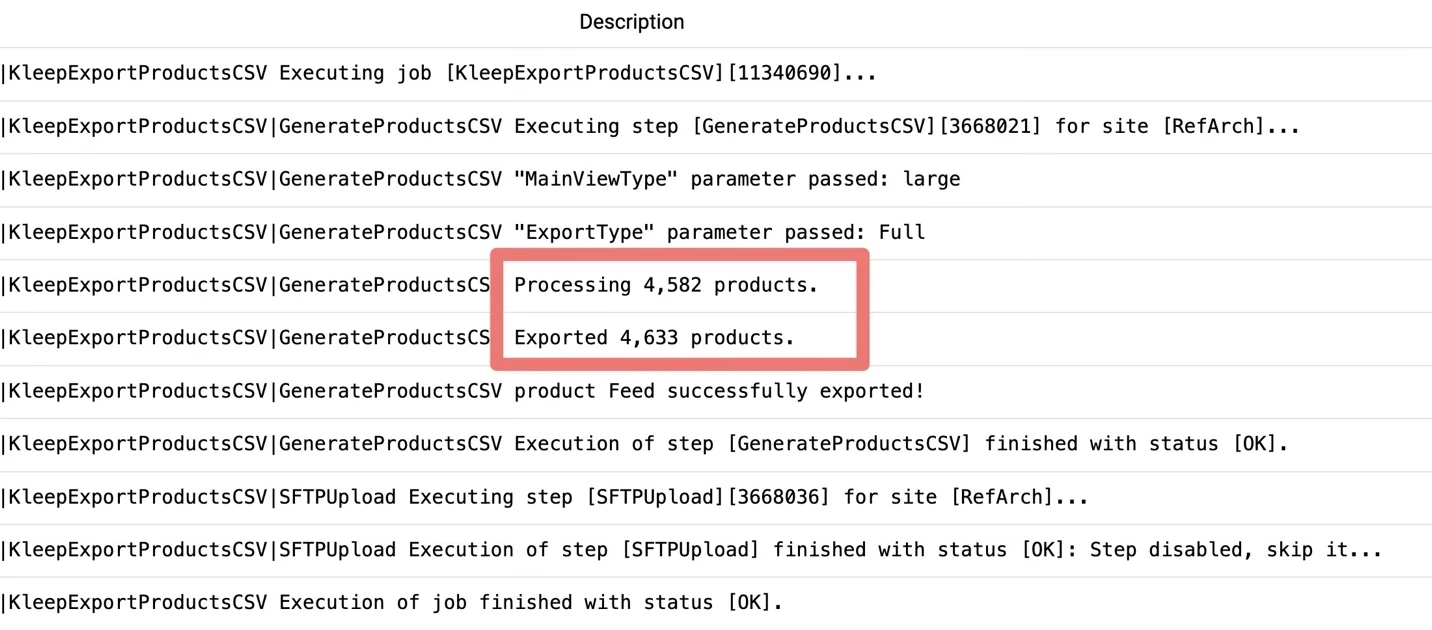
GenerateProductsCSV
The number of exported products may exceed the number processed. This happens when uncategorized products are included through their association with a categorized VariationGroup.
Screenshot — SFTPUpload step parameters (products)
Screenshot — SFTPUpload step parameters (products)
SFTPUpload
KleepExportOrdersCSV settings
Step 1 —GenerateOrdersCSV
Screenshot — GenerateOrdersCSV step parameters
Screenshot — GenerateOrdersCSV step parameters
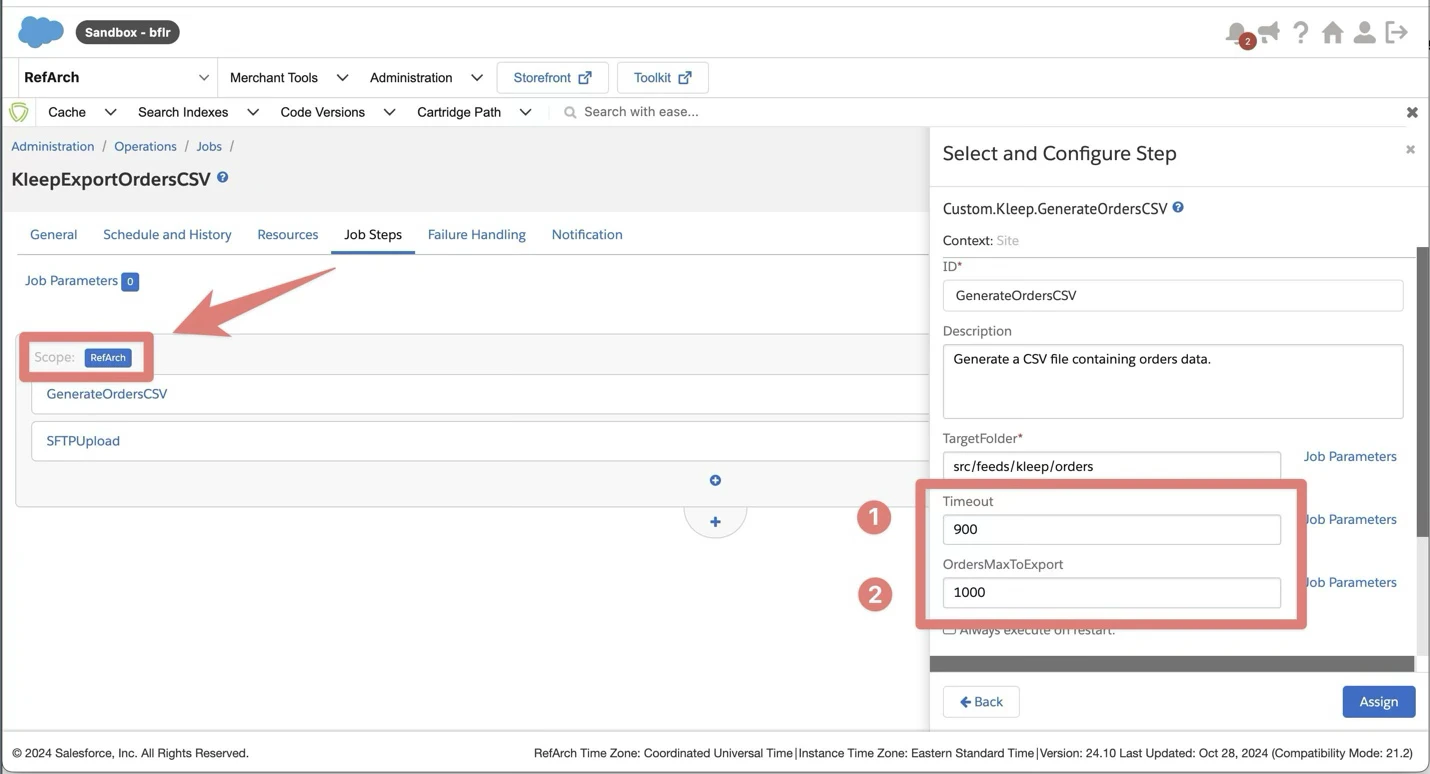
Step 2 —
SFTPUpload
Scheduling and frequency
The exact time does not matter to Kleep — pick a low-traffic window for your instance and keep both export jobs daily. Staggering the two jobs by one hour (as above) avoids concurrent IMPEX and SFTP activity. For error handling, the reference configuration retries a failed run up to 3 times at 1-minute intervals.
At go-live, run
KleepExportProductsCSV once manually with ExportType set to Full, then switch back to Delta for the daily schedule.KleepResetLastExported (utility job)
KleepResetLastExported forces a full re-export of orders. Its single step,Custom.Kleep.ResetKleepExportAttributes, clears the export-tracking attributes on every order (kleepLastExported → empty, isKleepExported → false) so all orders are picked up again by the next KleepExportOrdersCSV runs. It takes no parameters.
Run it only when a full order backfill is needed:
- Kleep asks you to re-send the order history (e.g. after a data reset on the Kleep side)
- You fixed an order export misconfiguration and want previously exported orders to be sent again
KleepExportOrdersCSV exports at most OrdersMaxToExport orders per run (1,000 by default). After a reset, a backfill of N orders therefore takes N / 1,000 runs — trigger the orders job manually several times, or temporarily raise OrdersMaxToExport, then restore it.Live Stock Checks
Kleep queries stocks live to avoid recommending out-of-stock sizes. Configure access using one of the two methods below.We recommend SCAPI (IAS) — it is Salesforce’s modern headless API, delivering faster response times and a more streamlined integration experience. OCAPI remains supported for instances that have not yet migrated to the newer API framework.
- SCAPI — Inventory Availability Service (IAS) (Recommended)
- OCAPI (Open Commerce API)
Use this if your instance uses SCAPI with the Inventory Availability Service (IAS) / Omnichannel Inventory (OCI). This is the preferred method: SCAPI is Salesforce’s modern, high-performance API layer — it offers lower latency, JWT-based authentication, and aligns with Salesforce’s long-term platform direction.Step 1 — Create an API Client
- Log into Salesforce Account Manager.
- Click API Client → Add API Client.
- Display name: e.g.
Kleep Inventory. - Token Endpoint Auth Method:
client_secret_post. - Access Token Format:
JWT. - Allowed Scopes:
sfcc.inventory.availability - Assign to your Organization.
- Save. Copy the Client ID and Client Secret — the secret is shown only once.
Step 3 — Send credentials to Kleep
- Client ID & Client Secret
- Short Code
- Organization ID
- Tenant ID
- Location Group(s) (one per market — provide your mapping)
FAQ
Which parameters do I need to set for each job?
Which parameters do I need to set for each job?
Each export job has two steps — a generate step and an SFTP upload step — and every parameter with its recommended value is listed in KleepExportProductsCSV settings and KleepExportOrdersCSV settings. In practice you only need to review three things: the site assignment in the Job Steps tab,
MainViewType (must match your PDP image view type), and ExportType (Delta daily, one Full run at go-live). Everything else can keep its default value. KleepResetLastExported takes no parameters.What does the KleepResetLastExported job do, and when should I run it?
What does the KleepResetLastExported job do, and when should I run it?
It clears the export-tracking attributes (
kleepLastExported, isKleepExported) on all orders so the next KleepExportOrdersCSV runs re-export the full order history. Run it manually only when a full backfill is needed — typically when Kleep asks for it. Never schedule it. See KleepResetLastExported (utility job).Which site preferences do I need to configure?
Which site preferences do I need to configure?
The minimum working setup is:
kleepRetailerUUID (mandatory — provided by your Kleep Account Manager), isKleepRecommendationEnabled set to Yes, and kleepCountryCode set to your main market. kleepButtonColor and kleepFontFamily are optional styling preferences. See Custom Site Preferences.How often should the jobs run, and at what time?
How often should the jobs run, and at what time?
Both export jobs run once per day, every day. The reference schedule is 04:00 UTC for products and 05:00 UTC for orders, but the exact time does not matter to Kleep — pick a low-traffic window and keep roughly an hour between the two jobs.
KleepResetLastExported is never scheduled. See Scheduling and frequency.I see isKleepSessionEnabled in Business Manager but it is not documented — what is it?
I see isKleepSessionEnabled in Business Manager but it is not documented — what is it?
This preference existed in older cartridge versions to toggle Kleep session tracking. It has been removed in current versions because the session is always active. If your Business Manager still shows it, leave it at its default value (Yes).