跳转到主要内容

Shopify V2 集成指南

本节介绍如何将 Kleep AI Sizing 添加到您的 Shopify 商店。

分步视频演示

参照我们的 Tango 教程,在 Online Store 2.0 主题中将 Kleep 按钮添加到您的商店。

Shopify V1 集成指南

1. 尺码推荐

本节介绍如何将 Kleep AI Sizing 添加到您的 Shopify 代码库。

更喜欢视频演示?

观看在 Shopify V1 商店安装 Kleep 的分步 Tango 教程。

步骤

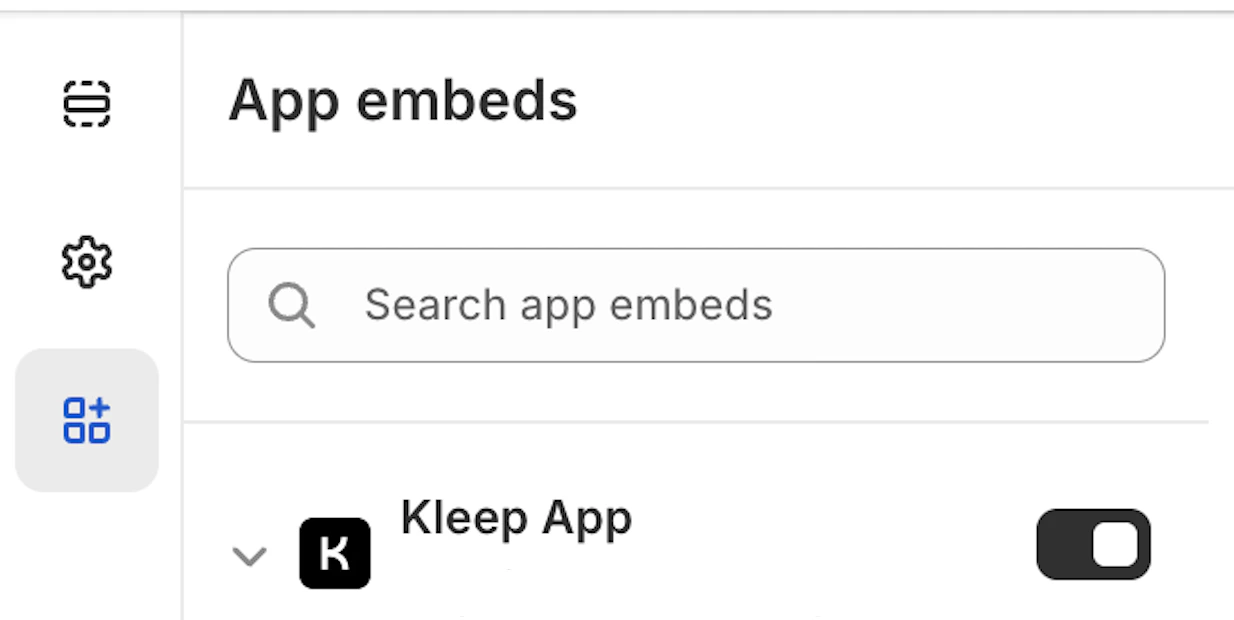
第 1 步:启用 App Embed 确保 Kleep 应用已在您的 App embeds 中激活。 Capture d'écran 2025-08-13 à 14.29.30.png 第 2 步:渲染按钮代码片段 将以下代码粘贴到您希望 Kleep 出现的位置。该代码必须位于 snippets 文件夹内的 Product info 块中。
{% render 'kleep-button', cms: section.settings %}
第 3 步:创建按钮代码片段文件 在您的 snippets 文件夹中创建一个名为 kleep-button.liquid 的新文件,并在其中放入以下内容:
<button
  type="button"
  style="display: none;{% if cms.font_family and cms.default_font_family == false %}font-family: '{{ cms.font_family }}' ;{% endif %}font-style: {{ cms.text_style }}; font-size: {{ cms.text_size }}px; font-weight: {{ cms.text_weight }}; text-transform: {{ cms.text_transform }}; color: {{ cms.text_color }}; background-color: {{ cms.bg_color }}; padding: {{ cms.padding_t }}px {{ cms.padding_r }}px {{ cms.padding_b }}px {{ cms.padding_l }}px;{% if cms.center %} margin: {{ cms.margin_y }}px auto;{% else %} margin: {{ cms.margin_y }}px {{ cms.margin_x }}px;{% endif %}; border: {{ cms.border_color }} {{ cms.border_width }}px solid; border-radius: {{ cms.border_radius }}px;"
  class="kleep-button"
  id="kleep-size-button"
  data-product-id="{{ product.id }}"
>
  <span class="kleep-wrapper-content">
    {% if cms.text_underline %}
      <span
        style="position: absolute; width: calc(100% + 2px); height: 1px; bottom: -{{ cms.text_underline_offset }}px; left: 0; background-color: {{ cms.text_color }};"
      ></span>
    {% endif %}

    {% if cms.image_url != blank %}
      <img
        height="{{ cms.image_size }}"
        width="{{ cms.image_size }}"
        src="{{ cms.image_url }}"
        loading="lazy"
        alt="Kleep button image"
      >
    {% endif %}

    <span class="kleep-btn-text">
      <span class="kleep-default">
        {% if cms.custom_button_text_toggle %}
          {{ cms.custom_find_size_text }}
        {% else %}
          {{ 'blocks.button.text.without_hash' | t }}
        {% endif %}
      </span>
      <span style="display: none;" class="kleep-custom">
        {% if cms.custom_button_text_toggle %}
          {{ cms.custom_recommended_size_text }}{% if localization.language.iso_code == "fr" %}&nbsp;{% endif %}<span class="kleep-colon">:</span>
        {% else %}
          {{ 'blocks.button.text.with_hash' | t }}{% if localization.language.iso_code == "fr" %}&nbsp;{% endif %}<span class="kleep-colon">:</span>
        {% endif %}
        <span class="kleep-custom-res"></span>
      </span>
    </span>
  </span>

  <span
    style="display: none; color: {{ cms.text_color }}; border-top-color: {{ cms.text_color }};"
    class="kleep-spinner"
    id="size-spinner"
  ></span>
</button>
第 4 步:添加设置 schema 选项 在页面末尾的 Settings schema 中添加以下选项:
{
  "type": "header",
  "content": "Button text",
      "info": "If you enable this feature, the button text you enter will be replaced for all languages in your store"
    },
    {
      "type": "checkbox",
      "default": false,
      "id": "custom_button_text_toggle",
      "label": "Enable custom button text"
    },
    {
      "type": "text",
      "id": "custom_find_size_text",
      "label": "Find my best size text",
      "info": "What text will display instead of \"Find my best size\"?"
    },
    {
      "type": "text",
      "id": "custom_recommended_size_text",
      "label": "Recommended size text",
      "info": "What text will display instead of \"Recommended size\"?"
    },
    {
      "type": "header",
      "content": "Image"
    },
    {
      "type": "url",
      "id": "image_url",
      "label": "Url Image"
    },
    {
      "type": "range",
      "id": "image_size",
      "min": 0,
      "max": 80,
      "step": 2,
      "unit": "px",
      "label": "Image size (square)",
      "default": 20
    },
    {
      "type": "header",
      "content": "CSS Styles"
    },
    {
      "type": "checkbox",
      "default": true,
      "id": "default_font_family",
      "label": "Font du thème",
      "info": "Si coché, la variable css `--font-body-family` est utilisée"
    },
    {
      "type": "font_picker",
      "id": "font_family",
      "label": "Font Family",
      "default": "helvetica_n4"
    },
    {
      "type": "select",
      "id": "text_style",
      "label": "Style texte",
      "default": "normal",
      "options": [
        {
          "label": "Normal",
          "value": "normal"
        },
        {
          "label": "Italic",
          "value": "italic"
        },
        {
          "label": "Oblique",
          "value": "oblique"
        }
      ]
    },
    {
      "type": "select",
      "id": "text_transform",
      "label": "Texte transformation",
      "default": "none",
      "options": [
        {
          "label": "Normal",
          "value": "none"
        },
        {
          "label": "Capitalize",
          "value": "capitalize"
        },
        {
          "label": "Uppercase",
          "value": "uppercase"
        },
        {
          "label": "Lowercase",
          "value": "lowercase"
        }
      ]
    },
    {
      "type": "select",
      "id": "text_weight",
      "label": "Poid texte",
      "default": "400",
      "options": [
        {
          "label": "100",
          "value": "100"
        },
        {
          "label": "200",
          "value": "200"
        },
        {
          "label": "300",
          "value": "300"
        },
        {
          "label": "400",
          "value": "400"
        },
        {
          "label": "500",
          "value": "500"
        },
        {
          "label": "600",
          "value": "600"
        },
        {
          "label": "700",
          "value": "700"
        },
        {
          "label": "800",
          "value": "800"
        },
        {
          "label": "900",
          "value": "900"
        }
      ]
    },
    {
      "type": "range",
      "id": "text_size",
      "min": 2,
      "max": 50,
      "step": 2,
      "unit": "px",
      "label": "Taille police",
      "default": 16
    },
    {
      "type": "checkbox",
      "id": "text_underline",
      "label": "Texte soulignage",
      "default": false
    },
    {
      "type": "range",
      "id": "text_underline_offset",
      "min": 1,
      "max": 20,
      "step": 1,
      "unit": "px",
      "label": "Offset underline",
      "default": 2
    },
    {
      "type": "color",
      "id": "text_color",
      "label": "Couleur texte du bouton",
      "default": "#ffffff"
    },
    {
      "type": "color",
      "id": "bg_color",
      "label": "Couleur fond",
      "default": "#000000"
    },
    {
      "type": "color",
      "id": "border_color",
      "label": "Couleur bordures",
      "default": "#000000"
    },
    {
      "type": "range",
      "id": "border_width",
      "min": 0,
      "max": 8,
      "step": 1,
      "unit": "px",
      "label": "Épaisseur bordures",
      "default": 0
    },
    {
      "type": "header",
      "content": "CSS Styles",
      "info": "Espacements"
    },
    {
      "type": "checkbox",
      "id": "center",
      "label": "Centrer le bouton",
      "default": false,
      "info": "Cela remplacera le 'Margin horizontal'"
    },
    {
      "type": "range",
      "id": "margin_y",
      "min": 0,
      "max": 80,
      "step": 2,
      "unit": "px",
      "label": "Margin vertical",
      "default": 0
    },
    {
      "type": "range",
      "id": "margin_x",
      "min": 0,
      "max": 80,
      "step": 2,
      "unit": "px",
      "label": "Margin horizontal",
      "default": 0
    },
    {
      "type": "range",
      "id": "padding_t",
      "min": 0,
      "max": 40,
      "step": 2,
      "unit": "px",
      "label": "Padding top",
      "default": 12
    },
    {
      "type": "range",
      "id": "padding_r",
      "min": 0,
      "max": 40,
      "step": 2,
      "unit": "px",
      "label": "Padding right",
      "default": 16
    },
    {
      "type": "range",
      "id": "padding_b",
      "min": 0,
      "max": 40,
      "step": 2,
      "unit": "px",
      "label": "Padding bottom",
      "default": 12
    },
    {
      "type": "range",
      "id": "padding_l",
      "min": 0,
      "max": 40,
      "step": 2,
      "unit": "px",
      "label": "Padding left",
      "default": 16
    },
    {
      "type": "range",
      "id": "border_radius",
      "min": 0,
      "max": 40,
      "step": 2,
      "unit": "px",
      "label": "Bordures arrondies",
      "default": 0
    }
如需添加自定义 CSS 样式:
  • 若要更改外观(颜色、间距、字体等),请将您的 CSS 粘贴到 Kleep App Embed 设置中的 “Input custom CSS styles” 输入框中。
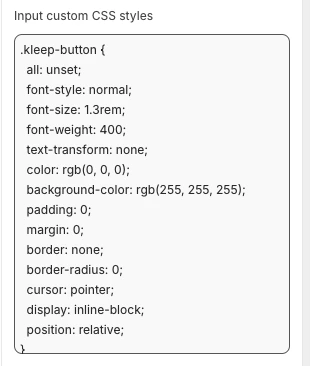
示例: Screenshot 2025-08-13 at 13.25.30.png 第 5 步:添加英文翻译 将英文翻译添加到您的主题语言文件中。
"kleep": {
    "button": {
      "text": {
        "without_hash": "Find my ideal size",
        "with_hash": "Ideal size"
      }
    },
    "recommended": {
      "text": {
        "btn": "View similar",
        "hint": "Size unavailable",
        "link": "See similar products"
      }
    },
    "search": {
      "text": {
        "inputPlaceholder": "Search...",
        "productsBlockTitle": "Products",
        "clearButton": "Clear"
      }
    },
    "searchPage": {
      "text": {
        "header": "search results",
        "query": "Results for",
        "submit": "Search",
        "input": "Search the store",
        "viewProduct": "View product"
      }
    }
  }
第 6 步:添加其他语言翻译 将其他语言翻译添加到您的主题语言文件中。
"kleep": {
    "button": {
      "text": {
        "without_hash": "Trouver ma taille idéale",
        "with_hash": "Taille idéale"
      }
    },
    "recommended": {
      "text": {
        "btn": "Voir similaire",
        "hint": "Taille indisponible",
        "link": "Voir des produits similaires"
      }
    },
    "search": {
      "text": {
        "inputPlaceholder": "Recherche...",
        "productsBlockTitle": "Produits",
        "clearButton": "Effacer"
      }
    },
    "searchPage": {
      "text": {
        "header": "résultats de la recherche",
        "query": "Résultats pour",
        "submit": "Recherche",
        "input": "Rechercher dans la boutique",
        "viewProduct": "Voir le produit"
      }
    }
  }
"kleep": {
  "button": {
    "text": {
      "without_hash": "Trova la mia taglia ideale",
      "with_hash": "Taglia ideale"
    }
  },
  "recommended": {
    "text": {
      "btn": "Visualizza simili",
      "hint": "Taglia non disponibile",
      "link": "Visualizza prodotti simili"
    }
  },
  "search": {
    "text": {
      "inputPlaceholder": "Cerca...",
      "productsBlockTitle": "Prodotti",
      "clearButton": "Cancella"
    }
  },
  "searchPage": {
    "text": {
      "header": "risultati della ricerca",
      "query": "Risultati per",
      "submit": "Cerca",
      "input": "Cerca nel negozio",
      "viewProduct": "Visualizza prodotto"
    }
  }
}
"kleep": {
  "button": {
    "text": {
      "without_hash": "Finde meine ideale Größe",
      "with_hash": "Ideale Größe"
    }
  },
  "recommended": {
    "text": {
      "btn": "Ähnliche Ansicht",
      "hint": "Größe nicht verfügbar",
      "link": "Ähnliche Produkte ansehen"
    }
  },
  "search": {
    "text": {
      "inputPlaceholder": "Suchen...",
      "productsBlockTitle": "Produkte",
      "clearButton": "Klar"
    }
  },
  "searchPage": {
    "text": {
      "header": "Suchergebnisse",
      "query": "Ergebnisse für",
      "submit": "Suchen",
      "input": "Durchsuchen Sie den Shop",
      "viewProduct": "Produkt ansehen"
    }
  }
}
"kleep": {
  "button": {
    "text": {
      "without_hash": "Encontrar mi talla ideal",
      "with_hash": "Talla ideal"
    }
  },
  "recommended": {
    "text": {
      "btn": "Ver similares",
      "hint": "Talla no disponible",
      "link": "Ver productos similares"
    }
  },
  "search": {
    "text": {
      "inputPlaceholder": "Buscar...",
      "productsBlockTitle": "Productos",
      "clearButton": "Borrar"
    }
  },
  "searchPage": {
    "text": {
      "header": "resultados de búsqueda",
      "query": "Resultados para",
      "submit": "Buscar",
      "input": "Buscar en la tienda",
      "viewProduct": "Ver producto"
    }
  }
}
"kleep": {
  "button": {
    "text": {
      "without_hash": "自分に合うサイズを探す",
      "with_hash": "好みのサイズ"
    }
  },
  "recommended": {
    "text": {
      "btn": "類似商品を見る",
      "hint": "サイズがありません",
      "link": "類似商品を見る"
    }
  },
  "search": {
    "text": {
      "inputPlaceholder": "検索...",
      "productsBlockTitle": "商品",
      "clearButton": "クリア"
    }
  },
  "searchPage": {
    "text": {
      "header": "検索結果",
      "query": "検索結果",
      "submit": "検索",
      "input": "ストアを検索",
      "viewProduct": "商品を見る"
    }
  }
}
"kleep": {
  "button": {
    "text": {
      "without_hash": "내 이상적인 사이즈 찾기",
      "with_hash": "추천 사이즈"
    }
  },
  "recommended": {
    "text": {
      "btn": "유사한 상품 보기",
      "hint": "사용 불가",
      "link": "유사한 상품 보기"
    }
  },
  "search": {
    "text": {
      "inputPlaceholder": "검색...",
      "productsBlockTitle": "상품",
      "clearButton": "지우기"
    }
  },
  "searchPage": {
    "text": {
      "header": "검색 결과",
      "query": "다음에 대한 결과",
      "submit": "검색",
      "input": "매장 검색",
      "viewProduct": "상품 보기"
    }
  }
}
"kleep": {
  "button": {
    "text": {
      "without_hash": "Encontrar meu tamanho ideal",
      "with_hash": "Tamanho recomendado"
    }
  },
  "recommended": {
    "text": {
      "btn": "Ver similar",
      "hint": "Tamanho indisponível",
      "link": "Ver produtos similares"
    }
  },
  "search": {
    "text": {
      "inputPlaceholder": "Pesquisar...",
      "productsBlockTitle": "Produtos",
      "clearButton": "Limpar"
    }
  },
  "searchPage": {
    "text": {
      "header": "resultados da pesquisa",
      "query": "Resultados para",
      "submit": "Pesquisar",
      "input": "Pesquisar na loja",
      "viewProduct": "Ver produto"
    }
  }
}
  1. 在 Shopify 主题自定义区域验证更新效果,并在商品信息块设置中配置视觉样式。
  2. 如需添加辅助按钮,请在您的 snippets 文件夹中创建一个名为 kleep-secondary-button.liquid 的新文件,并放入以下内容:
<div class="kleep-secondary-button-box">
    <button
            type="button"
            style="{% if cms.kleep_font_family and cms.kleep_default_font_family == false %}font-family: '{{ cms.kleep_font_family }}' ;{% endif %}font-style: {{ cms.kleep_text_style }}; font-size: {{ cms.kleep_text_size }}px; font-weight: {{ cms.kleep_text_weight }}; text-transform: {{ cms.kleep_text_transform }}; color: {{ cms.kleep_text_color }}; background-color: {{ cms.kleep_bg_color }}; {% if cms.kleep_center %} margin: {{ cms.kleep_margin_y }}px auto;{% else %} margin: {{ cms.kleep_margin_y }}px {{ cms.kleep_margin_x }}px;{% endif %}; border: {{ cms.kleep_border_color }} {{ cms.kleep_border_width }}px solid; border-radius: {{ cms.kleep_border_radius }}px;"
            class="kleep-secondary-button"
            onclick="kleep_cta();"
            data-product-id="{{ product.id }}"
    >
    <span class="kleep-wrapper-content">
      {% if cms.kleep_text_underline %}
          <span style="position: absolute; width: calc(100% + 2px); height: 1px; bottom: -{{ cms.kleep_text_underline_offset }}px; left: 0; background-color: {{ cms.kleep_text_color }};"></span>
      {% endif %}

        {% if cms.kleep_image_url != blank %}
            <img height="{{ cms.kleep_image_size }}" width="{{ cms.kleep_image_size }}" src="{{ cms.kleep_image_url }}"
                 loading="lazy" alt="Kleep button image">
        {% endif %}

      <span class="kleep-secondary-btn-text">
        <span class="kleep-secondary-default">
          {{ 'kleep.button.text.without_hash' | t }}
        </span>
        <span style="display: none;" class="kleep-secondary-custom">
          {{ 'kleep.button.text.with_hash' | t }}:
          <span class="kleep-secondary-custom-res"></span>
        </span>
      </span>
    </span>

        <span
                style="display: none; color: {{ cms.kleep_text_color }}; border-top-color: {{ cms.kleep_text_color }};"
                class="kleep-secondary-spinner"
        ></span>
    </button>
</div>
将以下代码粘贴到您希望 Kleep 出现的位置。该代码必须位于 snippets 文件夹内的 Product info 块中。
{% render 'kleep-secondary-button', cms: section.settings %}

2. 相似商品


为 V1 Shopify 主题安装”相似商品”功能

在此情况下,您必须手动添加 Liquid 代码片段。

第 1 步 - 创建代码片段

创建: snippets/kleep-similar-button.liquid 插入以下代码:
{% assign cms = block.settings %}
{% assign domain = shop.domain %}
{% assign translated_similar = '' %}
{% assign translated_similar_missing = true %}

{%- assign domain_key = domain | prepend: 'www.' | append: '.recommended' -%}
{% assign raw_domain_similar = domain_key | t %}

{% unless raw_domain_similar contains 'Translation missing'
  or raw_domain_similar contains domain
%}
  {% assign translated_similar = raw_domain_similar %}
  {% assign translated_similar_missing = false %}
{% endunless %}

{%- if translated_similar_missing -%}
  {% assign raw_global_similar = 'kleep.recommended.text.btn' | t %}
  {% unless raw_global_similar contains 'Translation missing' %}
    {% assign translated_similar = raw_global_similar %}
    {% assign translated_similar_missing = false %}
  {% endunless %}
{%- endif %}

<button
  type="button"
  class="kleep-similar-btn {{ block.settings.extra_classes }}"
  data-kleep-similar
  data-product-id="{{ product.id }}"
  {% if product.selected_or_first_available_variant %}
    data-variant-id="{{ product.selected_or_first_available_variant.id }}"
  {% endif %}
  style="
    display:none; align-items:center; gap:.5rem;
    {% if block.settings.center %}margin: {{ block.settings.margin_y }}px auto; justify-content:center;{% else %}margin: {{ block.settings.margin_y }}px {{ block.settings.margin_x }}px;{% endif %}
  "
>
  <span>
    {% if cms.custom_text != blank %}
      {{ cms.custom_text }}
    {% else %}
      {% if translated_similar_missing %}
        {{ 'kleep.recommended.text.btn' | t }}
      {% else %}
        {{ translated_similar }}
      {% endif %}
    {% endif %}
  </span>
</button>

第 2 步 - 在商品模板中渲染代码片段

在您希望按钮出现的位置插入以下代码:
{% render 'kleep-similar-button' %}
典型放置位置:规格选择器下方或”加入购物车”表单附近。

第 3 步 - 为 V1 主题启用正确的模式

由于 V1 主题无法插入 OS2.0 块,小部件必须使用以下模式之一:
  • custom_buttons
  • popup+custom
  • button+custom

为 V2(Online Store 2.0)商店安装”相似商品”功能

现代 Shopify 主题支持 App embeds 和自定义块,无需更改代码。

第 1 步 — 启用 Kleep App Embed

  1. 前往 Online Store → Themes → Customize
  2. 打开 App embeds 部分。
  3. 启用 Kleep App
  4. 保存主题。
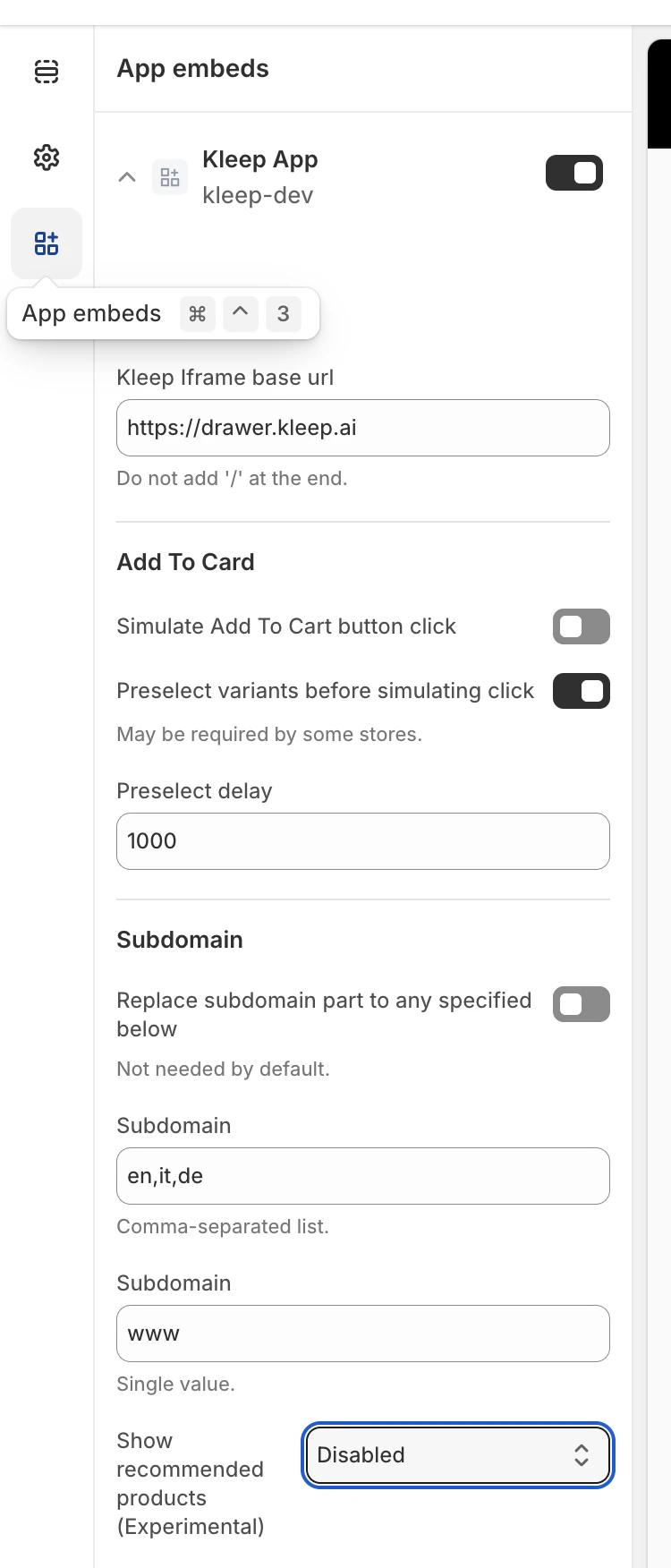
这将激活管理相似商品逻辑的核心脚本。 Screenshot 2025-12-09 at 11.55.25.png 接下来,找到 “Show recommended products” 选项。

第 2 步 — 选择相似商品显示模式

在 Kleep 小部件配置中,选择相似商品在商品页面上的显示方式:
  • disabled – 完全关闭该功能
  • popup – 在桌面端自动在规格/尺码选择器上方添加弹出框,在移动端替换默认按钮
  • button – 当所选规格缺货时,自动在”加入购物车”区域附近插入 CTA 按钮
  • custom_buttons – 禁用所有自动放置;商家必须手动添加一个或多个”Kleep Similar Button”块
  • popup+custom – 保留自动弹出框,同时启用主题中添加的任何自定义按钮
  • button+custom – 保留自动 CTA 按钮,同时启用主题中添加的任何自定义按钮
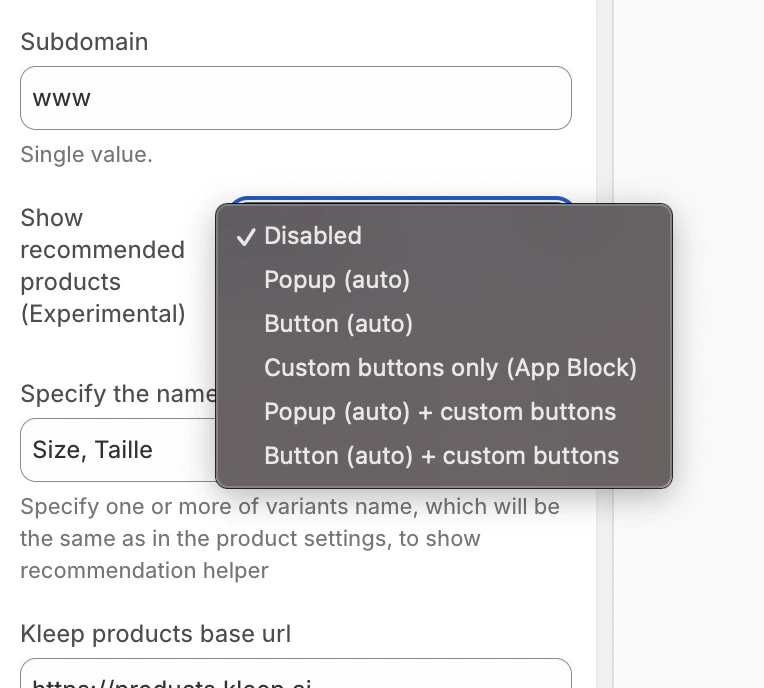
Screenshot 2025-12-09 at 11.48.24.png 保存主题后,相似商品功能将立即显示在您商店的商品页面中。 第 3 步 — 添加自定义按钮(仅适用于 custom_buttons、popup+custom、button+custom) 如果您选择的模式包含自定义按钮:
  1. 打开 Online Store → Customize
  2. 前往 Product page 模板。
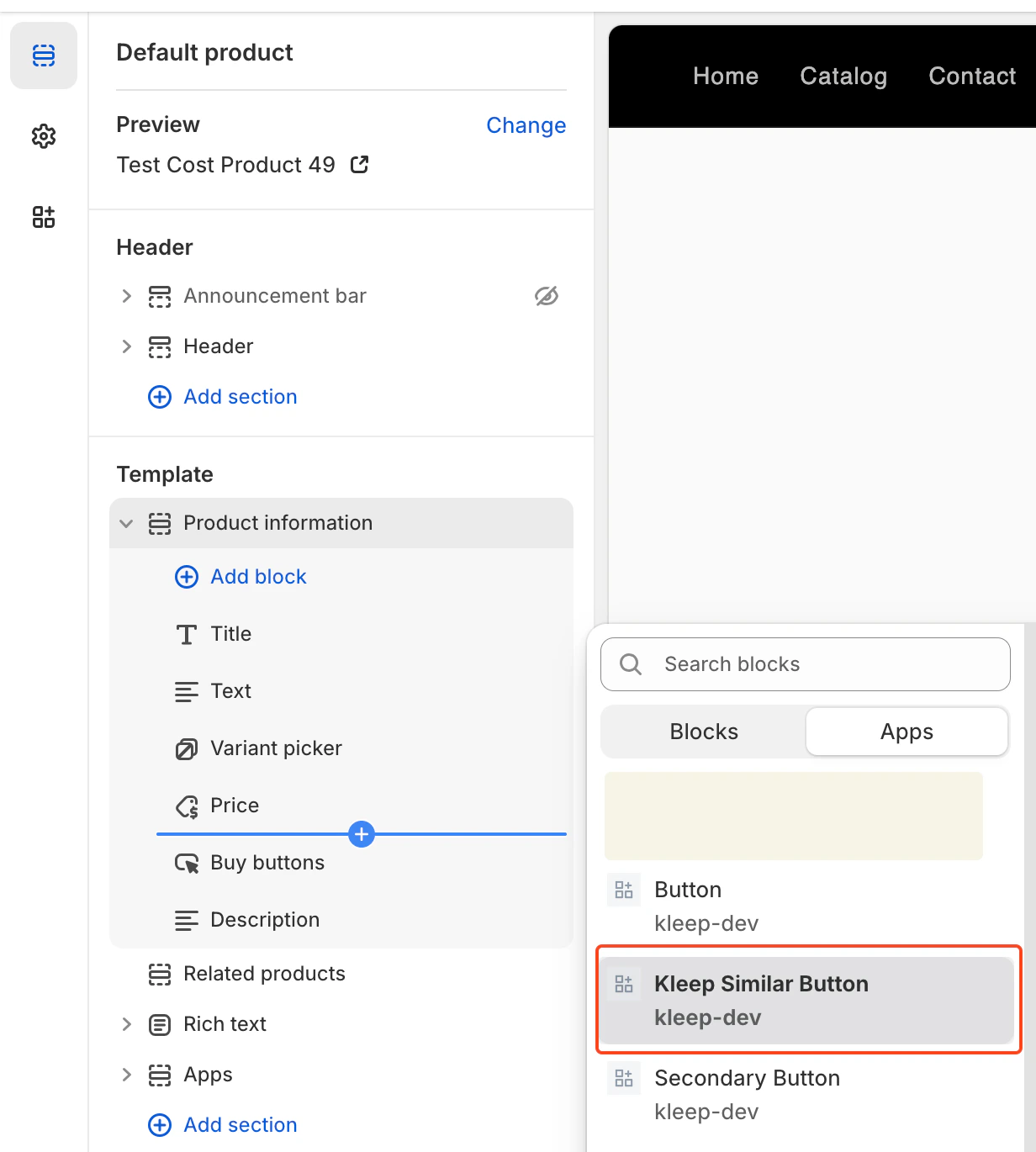
  3. 在所需区域,点击 Add Block
  4. 选择 Kleep Similar Button
  5. 保存主题。
自定义按钮仅在所选规格缺货时显示。 image.png

添加多个”相似商品”按钮(主要按钮与辅助按钮)

您可以在商品页面上添加任意数量的相似商品按钮。 这适用于 OS 2.0 主题和 V1 / 旧版主题。

启用支持自定义按钮的模式

要允许添加多个按钮,小部件必须设置为以下模式之一:
  • custom_buttons
  • popup+custom
  • button+custom
这些模式启用手动放置,商家可以按需插入任意数量的按钮。

适用于 Online Store 2.0(现代主题)

OS 2.0 主题支持通过主题编辑器可视化添加按钮。 步骤:
  • 前往 Online Store → Customize
  • 打开 Product page 模板
  • 点击 Add block → Kleep Similar Button
  • 将按钮添加到所需位置
  • 如需添加 2 个以上按钮,重复上述操作
每个按钮仅在所选规格缺货时自动显示。

适用于 V1 / 旧版主题

旧版主题不支持块,但您可以多次渲染代码片段。 在您希望添加按钮的位置插入以下代码片段: {% render 'kleep-similar-button' %} 如需创建多个按钮,只需将此代码放置在商品模板的不同区域。 每次调用代码片段都会创建一个额外的按钮。

总结

添加多个相似商品按钮的方法: 启用任意包含自定义按钮的模式 → 添加多个 OS 2.0 块或多次调用代码片段 → 所有按钮在规格缺货时自动生效。
CTA 在商品详情页(PDP)的位置 位置由 KleepSDK.getConstants() 内部的 DOM 选择器定义。 targetProductInfoBlockQueries – 商品信息所在位置。这是一个选择器数组,指向商品详情主容器(标题、价格、尺码等)。脚本会遍历这些选择器,并使用找到的第一个作为 CTA 或弹出框的插入点。 targetVariantQueries – 尺码/规格选项所在位置:找到商品信息块后,脚本会在其内部搜索规格元素(如尺码选择器)。每个规格 <label>(或等效元素)都成为附加弹出框 CTA 的目标。 弹出框与按钮(桌面端与移动端) 我们使用 checkIfMobile() 检测设备类型: 该函数将浏览器的 navigator.userAgent 字符串与移动设备列表(如 iPhone、Android、iPad)进行比对。
  • 若为桌面端,CTA 以悬停弹出框的形式显示在规格标签旁。
  • 若为移动端,脚本将悬停弹出框替换为单个按钮,因为触摸屏不支持悬停交互。
自定义
  • 除调整选择器和 CSS 外,不提供其他布局/放置变体。
  • 若要更改外观(颜色、间距、字体等),请将您的 CSS 粘贴到 Kleep App Embed 设置中的 “Input custom CSS styles” 输入框中。 Screenshot 2025-08-13 at 13.25.30.png

3. 搜索功能


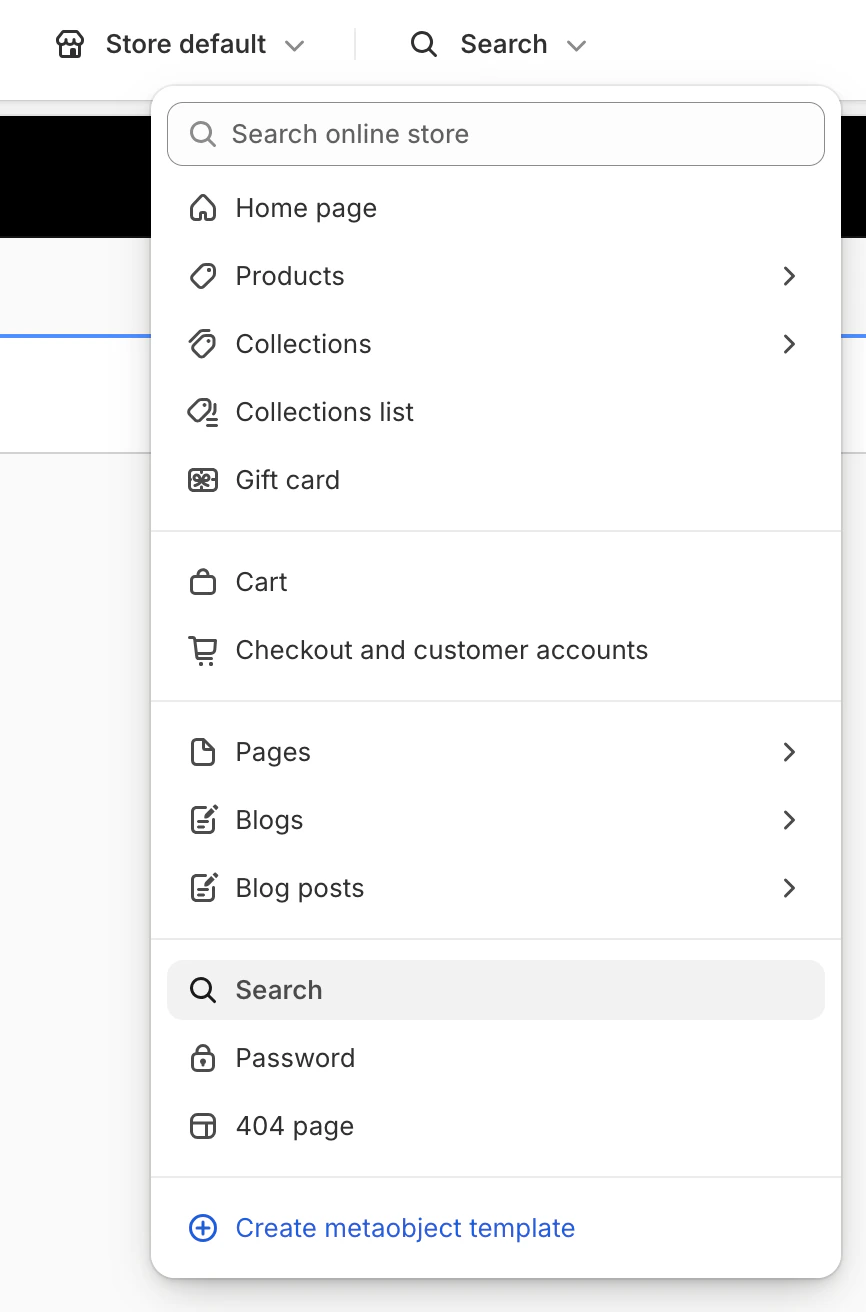
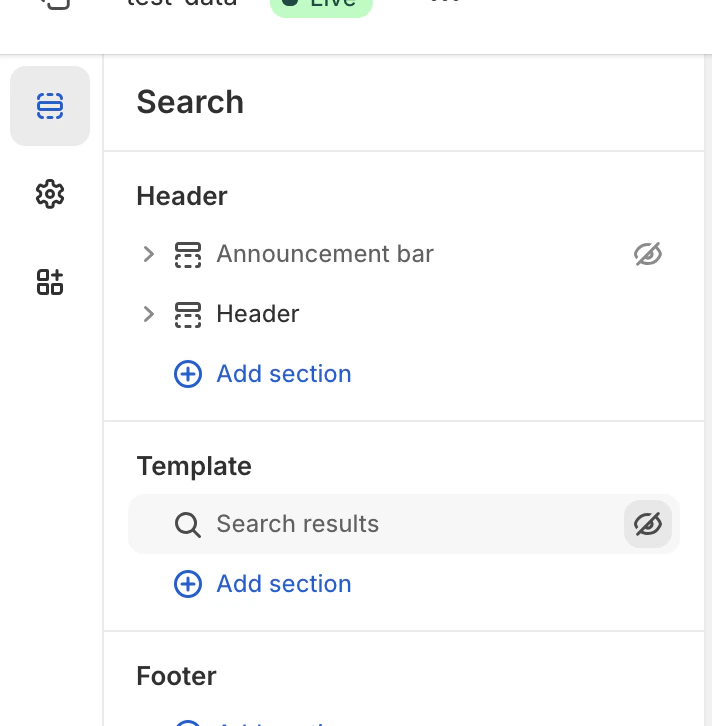
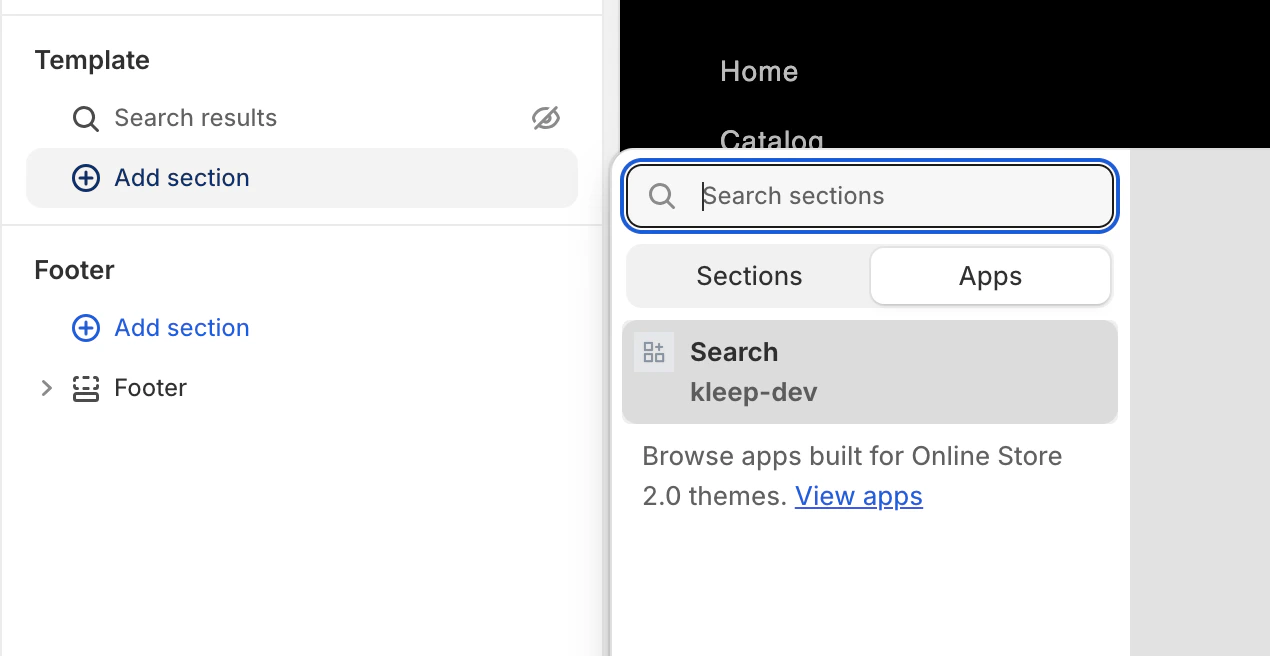
注意: 在 Shopify V1 中设置 Kleep Search 无需更改任何主题代码。 打开主题编辑器,开启 Kleep App Embed,启用自定义搜索,然后将默认搜索块替换为 Kleep Search 块。 若要更改外观(颜色、间距、字体等),请将您的 CSS 粘贴到 Kleep App Embed 设置中的 “Input custom CSS styles” 输入框中。 以下将详细介绍所有操作步骤 打开主题编辑器 前往 Online Store > Themes,找到您要编辑的主题,点击 Customize 启用 Kleep App Embed 打开 App embeds 部分。 找到 Kleep 应用并将其开启。 启用自定义搜索(可选) 在 Kleep 设置中,启用”Enable custom search”。 Screenshot 2025-07-28 at 17.17.44.png 替换默认搜索 在主题编辑器中,打开 Search 模板(导航至搜索页面模板)。 Screenshot 2025-07-28 at 17.18.59.png 从主题中移除或隐藏默认搜索部分。 Screenshot 2025-07-28 at 17.19.32.png 添加 Kleep Search 块(从 Apps 标签中)并将其放置在原默认搜索的位置。 Screenshot 2025-07-28 at 17.19.48.png 保存主题更改。 搜索功能作为 Liquid 区块集成在应用内,而非独立的 Liquid 代码。 激活条件由以下代码控制: {% if block.settings.kleep_enable_custom_search and '[kookai.fr](http://kookai.fr/), [gualap.com](http://gualap.com/), [gualap.fr](http://gualap.fr/), [www.molli.com](http://www.molli.com/), [getkleep.myshopify.com](http://getkleep.myshopify.com/)' contains domain%} 这确保只有特定商店(域名)才能启用搜索功能。布局与样式
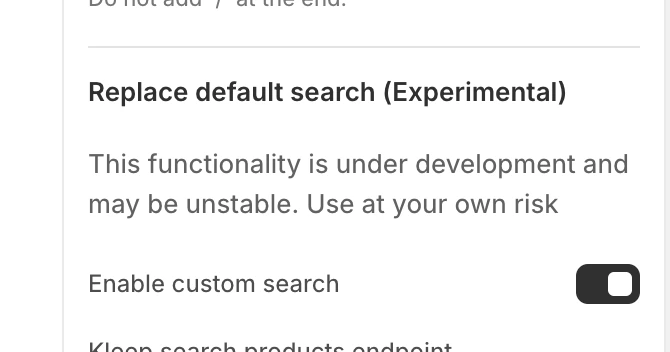
  • 网格视图与列表视图的切换仅通过应用中的 products_search_grid_layout 设置完成。
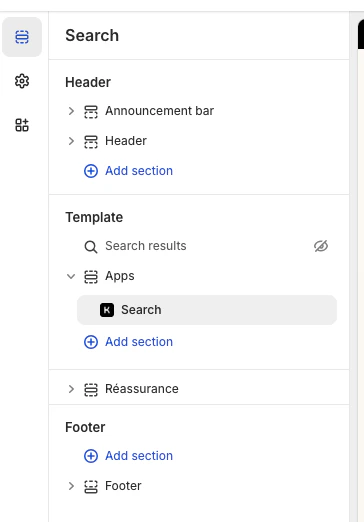
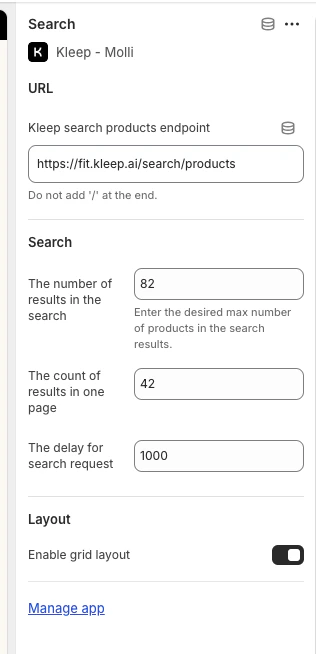
如需配置,请前往您已添加的搜索块,在右侧即可看到配置选项。 Screenshot 2025-08-13 at 13.29.01.png Screenshot 2025-08-13 at 13.29.19.png
  • 如需其他样式(字体、颜色、间距),我们将按商店需求在代码层面为您实现。
  • 所有功能均绑定到此 Liquid 区块,并通过应用中的 kleep_enable_custom_search 启用,而非通过在主题设置中添加 Liquid 代码来实现。
  • 若要更改外观(颜色、间距、字体等),请将您的 CSS 粘贴到 Kleep App Embed 设置中的 “Input custom CSS styles” 输入框中。 Screenshot 2025-08-13 at 13.25.30.png

Kleep 完全依赖访客同意才能运行:脚本仅在您的 CMP 收集同意后才会加载,您必须相应地设置加载条件。有关追踪器完整列表、处理的数据、目的与法律依据、托管、子处理方及安全性的详细信息,请参阅 Cookie、CMP 与数据隐私