
Enabled on request. Web Translations may not be turned on for your account by default. If your Web tab shows “No web translations configured for this retailer”, email support@kleep.ai and our tech team will enable it for your brand.
When to use it
- Fine-tune wording to match your brand voice
- Add or edit translations for any of your supported languages
- Adjust legal or consent copy (for example, the wording of the privacy notice under the intro popup)
How to edit translations
1
Log in to your Kleep Dashboard
Go to dashboard.kleep.ai and sign in with your Kleep credentials.
2
Open Kleep AI Sizing → Integration
In the left sidebar, expand Kleep AI Sizing and click Integration.
3
Switch to the Web tab
At the top of the Integration page, click the Web tab.
4
Pick a language
In the top-right dropdown, select the language you want to edit.
5
Edit the texts
Use the search bar to find the label you want to update, or scroll through the sections (Home screen, etc.). Edit the value in the right column - the key (
common.intro.title, common.intro.description, …) stays as a reference so you know where each string appears.6
Save your changes
Click Save Changes in the top-right. Nothing is persisted until you click it - if you close the page beforehand, your edits are lost.
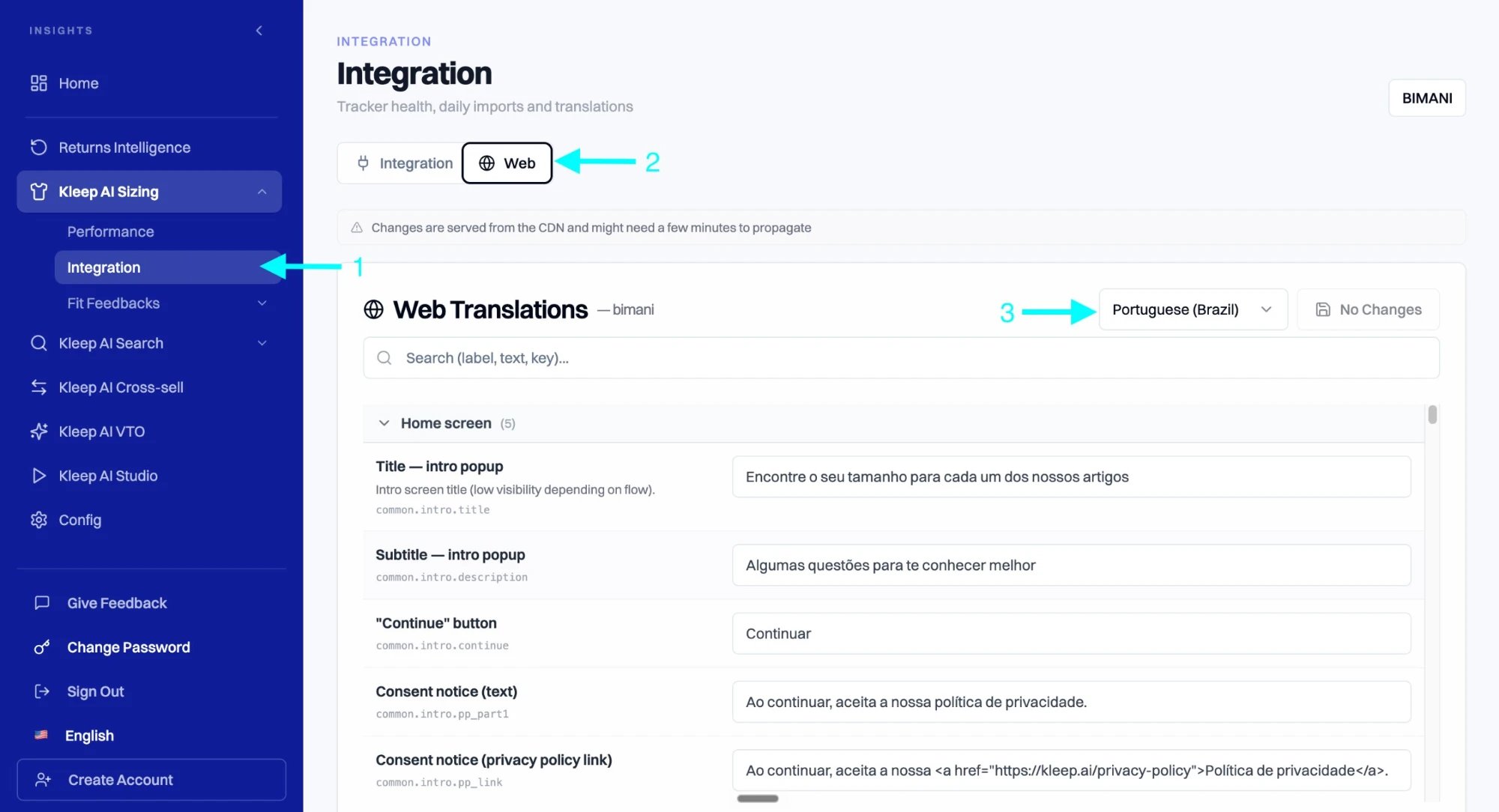
(1) Integration in the sidebar, (2) the Web tab, (3) the language dropdown.
Feature not enabled?
Web Translations is an on-request feature. If you open the Web tab and see the empty state below, email support@kleep.ai and mention which brand / retailer you want the feature enabled on. Our tech team will map your retailer to a translations folder, and the editable interface will appear the next time you refresh the Dashboard.
No web translations configured for this retailer
This retailer’s kleep_retailer_uuid isn’t mapped to a drawer web locale folder yet.