> ## Documentation Index
> Fetch the complete documentation index at: https://docs.kleep.ai/llms.txt
> Use this file to discover all available pages before exploring further.
# Shopify 集成指南
**本指南将引导您在 Shopify 店铺中安装 Kleep。Kleep 提供三项主要功能:智能尺码指南(Kleep Sizing)、相似商品推荐(Kleep Similar Products)以及优化后的商品搜索(Kleep Search)。**
## 集成流程概览
以下是从合同签署到正式上线及后续阶段的完整流程。端到端集成通常需要约 **5–6 周**。
### 入驻准备
合同签署后,您的 Kleep 代表将通过 GoCardless 启动账单流程:[设置自动扣款 →](https://pay.gocardless.com/BRT000352V7T67Q)。
与您的 Kleep 代表进行简短通话,就时间安排、技术联系人及店铺特定需求达成一致,然后开始安装。
启动会议结束后,我们将请您提供公司、账单、店铺环境及退货设置等相关信息,以便我们准备集成工作。
**[填写入驻表单 →](https://ihu3s9tz3r8.typeform.com/to/fYQw9zJ5)**
填写约需 5 分钟。提交后,我们的团队将审核您的回复,并在 1 个工作日内确认后续步骤。
请将您的店铺地址(例如 `your-store.myshopify.com`)以及协作者请求代码发送给我们,以便我们申请访问您的店铺。
**有多个 Shopify 店铺?** 如果您有多个 Shopify 实例(例如不同地区或品牌),请为**每个店铺**提供一个协作者代码——每家店铺需要单独的代码。
不确定在哪里找到这些信息?在您的 Shopify 后台,前往 **设置 → 用户和权限**——顶部显示您的 `myshopify.com` 网址,**协作者请求代码**列在 *协作者* 部分下方。详情请参阅 Shopify 的帮助文章:[协作者账户](https://help.shopify.com/en/manual/your-account/staff-accounts/collaborator-accounts)。
我们将从 Shopify 合作伙伴账户发送协作者访问请求。请在您的 Shopify 后台的 **设置 → 用户和权限 → 协作者** 中批准。
获得协作者访问权限后,我们将为**每家店铺**发送应用安装链接。您需要在每个希望启用 Kleep 的 Shopify 店铺中单独安装 Kleep 应用。
查看我们为"查找我的尺码"按钮建议的位置,并选择最适合您店面的方案:[CTA 定位 Figma →](https://www.figma.com/design/DvsqgNPSjVPVPLjKV2efAY/KLEEP-CTA-POSITIONING-SUGGESTIONS?node-id=0-1\&p=f\&t=92MwlxQkzlfAYyk5-0)。
### 安装与测试
我们的团队会复制您当前的 Shopify 主题,并在副本上安装 Kleep,确保您的线上店面在测试期间保持不变。
我们将向您发送一个私有预览链接,以便您端到端测试集成效果,并提出任何反馈或需要调整的地方。
待您确认后,我们将在您的线上主题中发布 Kleep。
### 集成后
我们为您的团队提供 [Kleep 仪表板](https://dashboard.kleep.ai) 的访问凭据,您可以实时监控 Kleep 的性能 KPI。
我们在您的仪表板中启用 [尺码反馈](/zh/dashboard/fit-feedback),让您的团队能够利用真实的试穿数据优化 Kleep 的尺码建议。
## 1. 功能介绍
Kleep 通过安装事先创建的自定义应用集成到您的店铺中。它允许:
1. 在商品页面上添加"查找我的尺码"CTA 按钮
2. 直接在主题编辑器中自定义其界面
我们的应用还会自动创建商品、订单和退货数据流,以保持数据实时更新。这些数据每天获取一次。
安装后,应用会创建一个 WebPixel,用于跟踪多项指标,以便我们推导出解决方案的投资回报率。
## 2. 相似商品功能
"相似商品"在某个尺码缺货时推荐替代商品,通过向客户提供相关替代品来提升转化率。
**可用显示模式**
| 模式 | 说明 |
| ------------ | --------------------------- |
| **弹窗(自动)** | 鼠标悬停在尺码上时自动弹出(桌面端)/ 按钮(移动端) |
| **按钮(自动)** | 缺货时在购物车附近自动显示 CTA 按钮 |
| **仅自定义按钮** | 您通过主题编辑器手动放置按钮 |
| **弹窗 + 自定义** | 自动弹窗 + 额外自定义按钮 |
| **按钮 + 自定义** | 自动按钮 + 额外自定义按钮 |
**配置**
**第一步:选择显示模式**
在 Kleep 应用嵌入设置中,找到 **"显示推荐商品"** 选项,并从下拉菜单中选择所需模式。
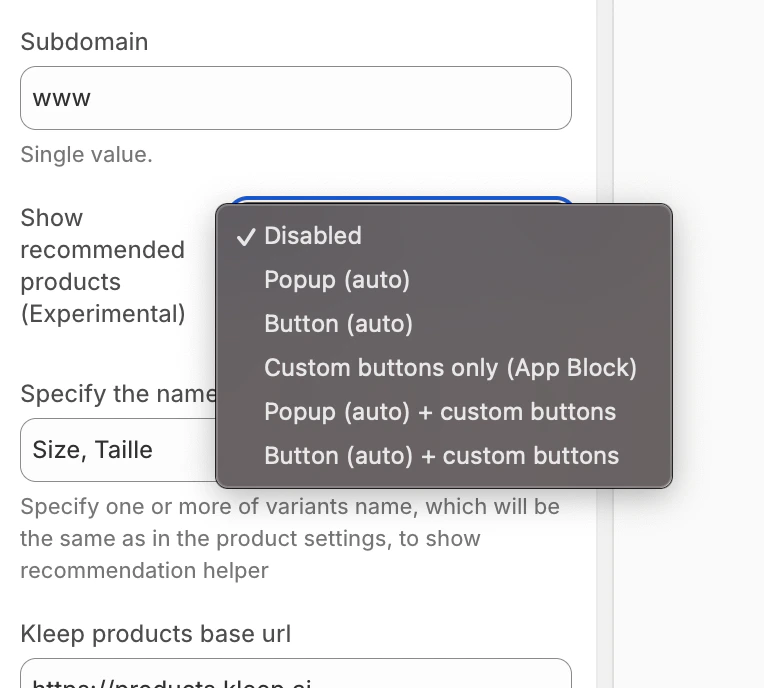 相似商品模式选择
**添加自定义按钮(适用于自定义模式)**
如果您选择了包含"自定义"的模式,可以在特定位置添加按钮:
1. 在主题编辑器中进入 **商品页面** 模板
2. 在所需区域中,点击 **添加区块**
3. 点击 **应用** 标签,选择 **"Kleep Similar Button"**
4. 将区块放置在所需位置并保存
相似商品模式选择
**添加自定义按钮(适用于自定义模式)**
如果您选择了包含"自定义"的模式,可以在特定位置添加按钮:
1. 在主题编辑器中进入 **商品页面** 模板
2. 在所需区域中,点击 **添加区块**
3. 点击 **应用** 标签,选择 **"Kleep Similar Button"**
4. 将区块放置在所需位置并保存
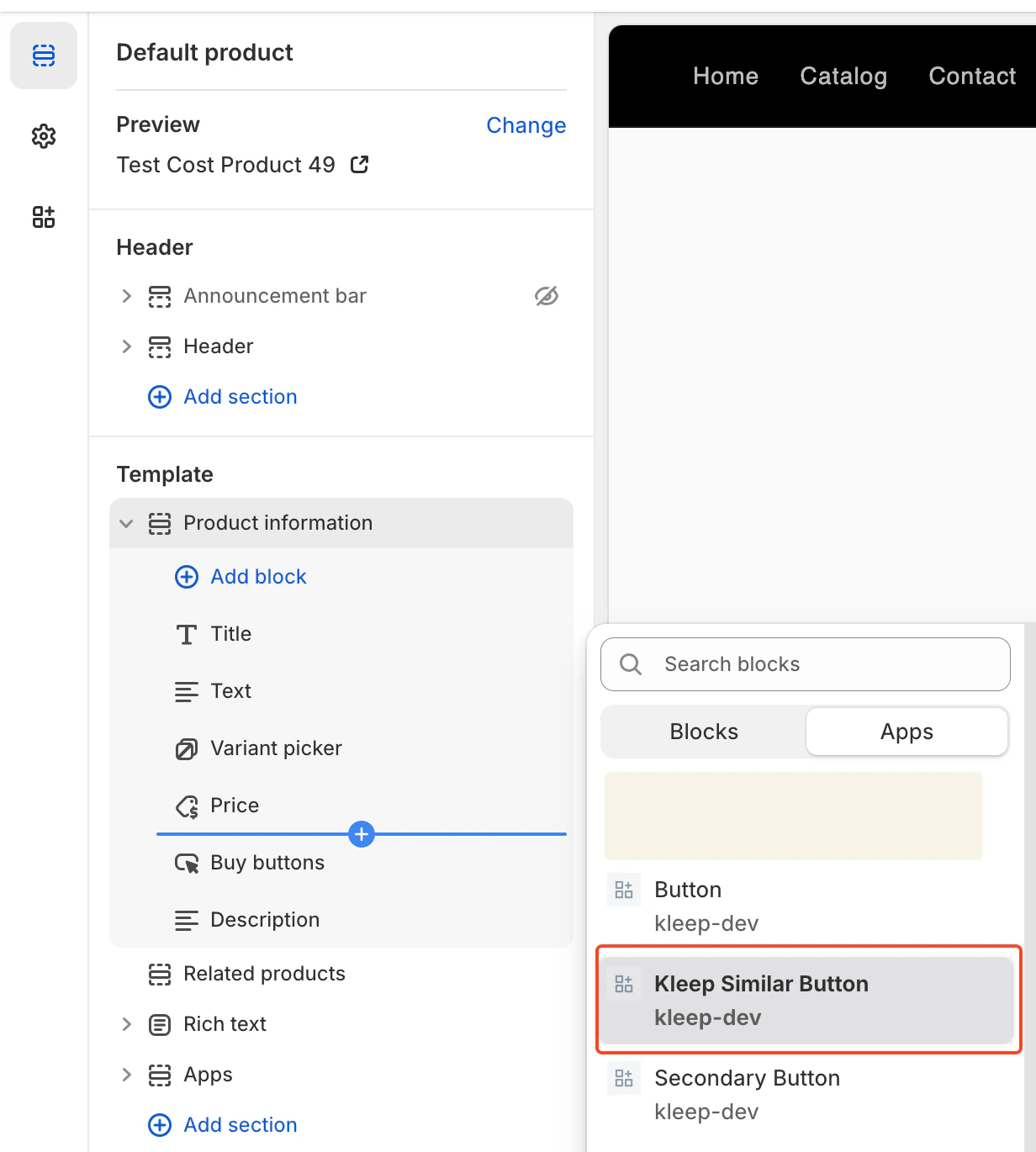 添加 Kleep 相似商品按钮区块
相似商品按钮仅在某个商品规格缺货时显示。如果您在所有商品上都看不到它们,这是正常现象。
**添加多个按钮**
您可以在商品页面上添加任意数量的相似商品按钮。要允许多个按钮,组件必须设置为以下之一:`custom_buttons`、`popup+custom` 或 `button+custom`。
适用于 OS 2.0 主题:
* 前往 **在线商店 → 自定义**
* 打开 **商品页面** 模板
* 点击 **添加区块 → Kleep Similar Button**
* 如需 2 个以上按钮,重复以上操作
每个按钮仅在所选规格缺货时自动显示。
***
## 3. Kleep 搜索功能
Kleep Search 将原生 Shopify 搜索替换为优化后的搜索,具备尺码筛选和个性化推荐功能。
**第一步:启用自定义搜索**
在 Kleep 应用嵌入设置中,启用 **"启用自定义搜索"** 选项。
添加 Kleep 相似商品按钮区块
相似商品按钮仅在某个商品规格缺货时显示。如果您在所有商品上都看不到它们,这是正常现象。
**添加多个按钮**
您可以在商品页面上添加任意数量的相似商品按钮。要允许多个按钮,组件必须设置为以下之一:`custom_buttons`、`popup+custom` 或 `button+custom`。
适用于 OS 2.0 主题:
* 前往 **在线商店 → 自定义**
* 打开 **商品页面** 模板
* 点击 **添加区块 → Kleep Similar Button**
* 如需 2 个以上按钮,重复以上操作
每个按钮仅在所选规格缺货时自动显示。
***
## 3. Kleep 搜索功能
Kleep Search 将原生 Shopify 搜索替换为优化后的搜索,具备尺码筛选和个性化推荐功能。
**第一步:启用自定义搜索**
在 Kleep 应用嵌入设置中,启用 **"启用自定义搜索"** 选项。
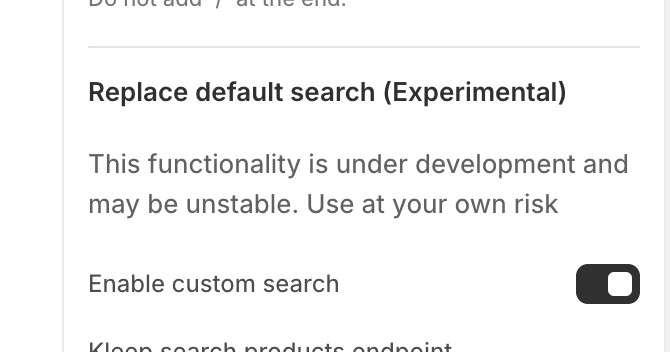 启用自定义搜索
**第二步:访问搜索模板**
在主题编辑器中,点击顶部下拉菜单(默认显示"首页"),从模板列表中选择 **"搜索"**。
启用自定义搜索
**第二步:访问搜索模板**
在主题编辑器中,点击顶部下拉菜单(默认显示"首页"),从模板列表中选择 **"搜索"**。
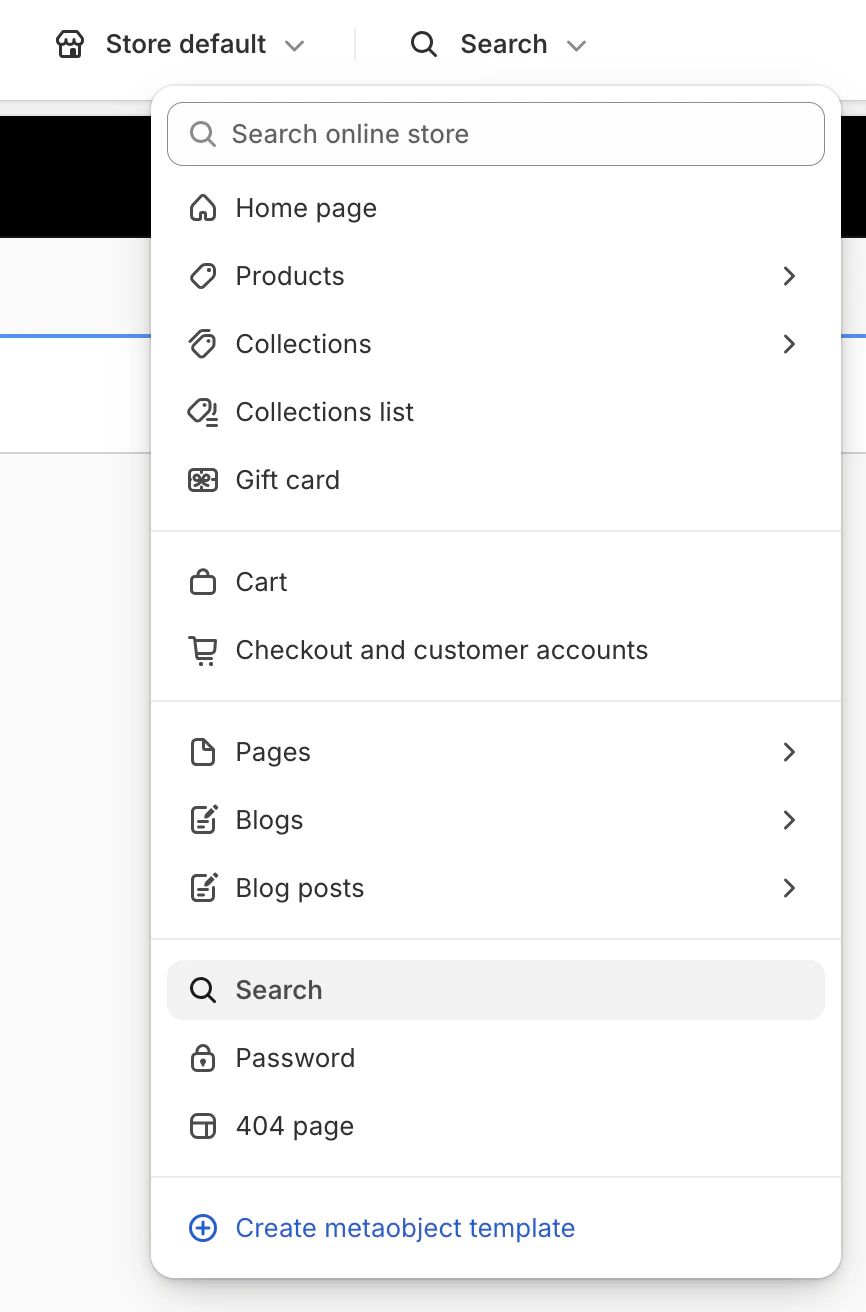 选择搜索模板
**第三步:隐藏原生搜索**
在模板部分,点击眼睛图标隐藏或删除原生 **"搜索结果"** 区块。
选择搜索模板
**第三步:隐藏原生搜索**
在模板部分,点击眼睛图标隐藏或删除原生 **"搜索结果"** 区块。
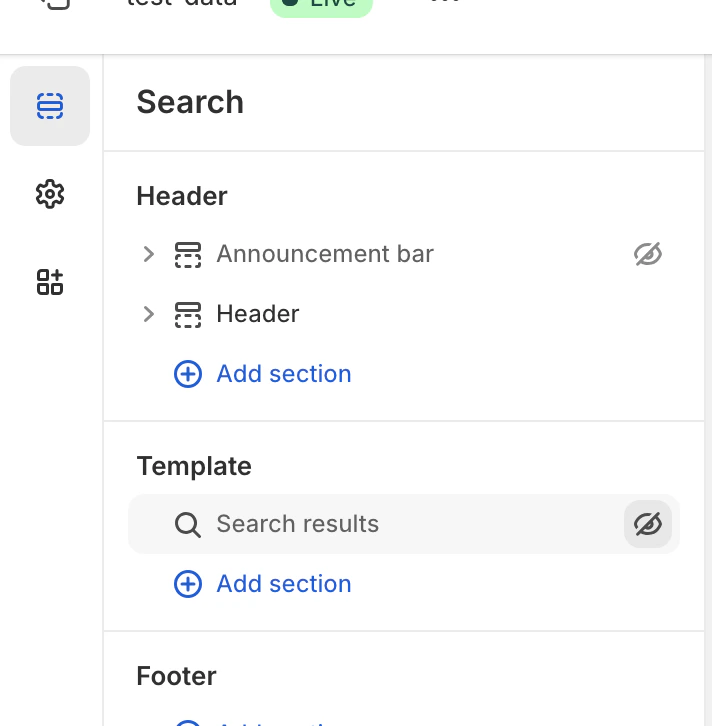 隐藏原生搜索
**第四步:添加 Kleep 搜索区块**
点击 **添加区域**,然后在 **应用** 标签中选择 **"Search"**(kleep-dev)。
隐藏原生搜索
**第四步:添加 Kleep 搜索区块**
点击 **添加区域**,然后在 **应用** 标签中选择 **"Search"**(kleep-dev)。
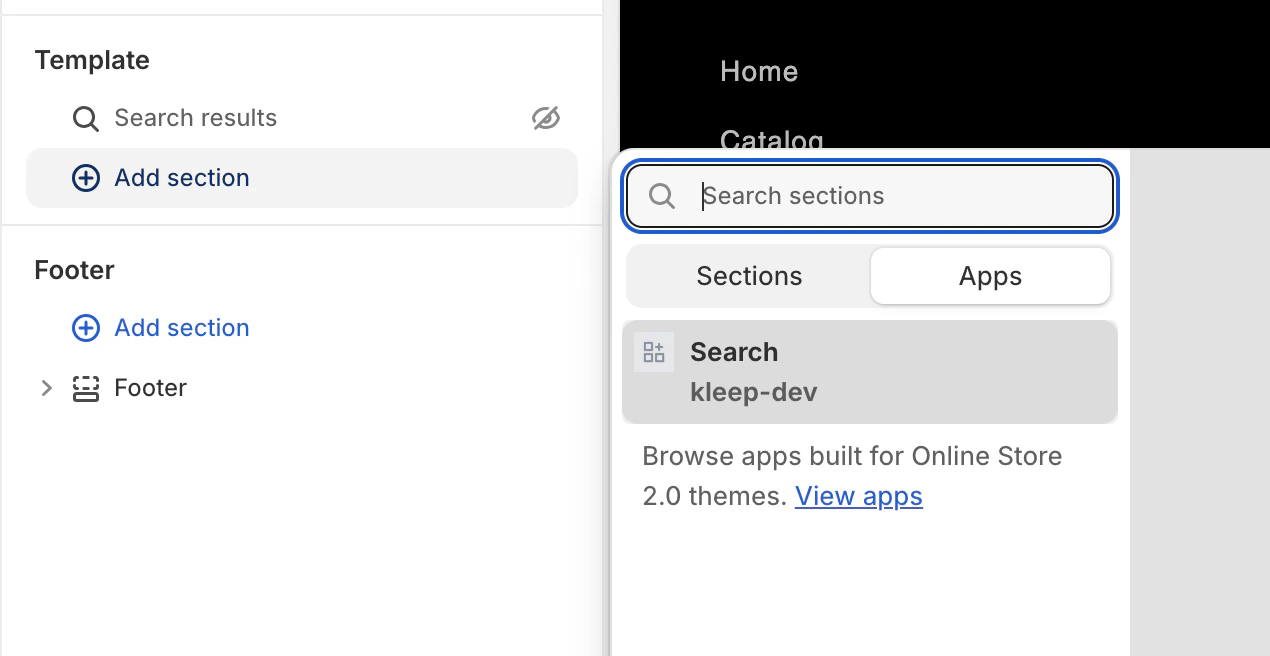 添加 Kleep 搜索区块
**第五步:配置选项**
点击您添加的搜索区块,访问设置:结果数量、网格/列表显示、搜索延迟等。
添加 Kleep 搜索区块
**第五步:配置选项**
点击您添加的搜索区块,访问设置:结果数量、网格/列表显示、搜索延迟等。
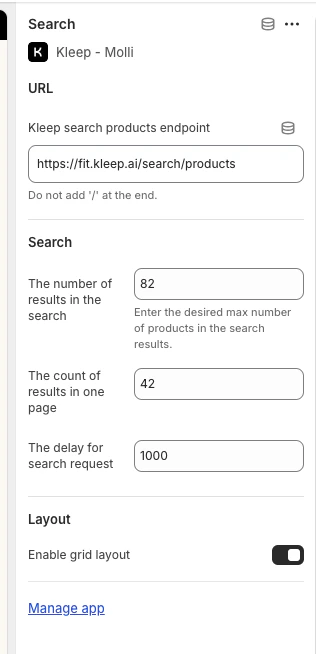 搜索配置选项
## 4. 退货集成(可选)
如果您使用退货管理平台,Kleep 可以集成退货数据以改善尺码建议。
**支持的退货服务商**
* Global-e
* Aftership
* Fast Return
* Return Go
* 其他(请联系我们)
**配置**
1. 在 Kleep 仪表板中,前往 **设置 → 退货**
2. 选择您的退货服务商
3. 按照特定服务商的说明连接您的账户
如果您的服务商未在列表中,请发送邮件至 [support@kleep.ai](mailto:support@kleep.ai) 联系我们——我们可以通过 SFTP 或 API 设置自定义集成。
## 5. 事件跟踪与数据分析
Kleep 自动跟踪用户交互用于数据分析。请确保在上线前跟踪功能正常运行。
**已跟踪事件**
| 事件 | 说明 |
| ------------------------ | -------------------- |
| `kleep_button_click` | 用户点击了尺码指南按钮 |
| `kleep_drawer_open` | 尺码指南抽屉已打开 |
| `kleep_size_recommended` | 已显示尺码建议 |
| `kleep_add_to_cart` | 用户通过 Kleep 将商品添加到购物车 |
| `kleep_similar_click` | 用户点击了相似商品 |
**验证**
要验证事件是否正常触发:
1. 打开浏览器的开发者工具(F12)
2. 前往 **网络** 标签
3. 按"kleep"过滤
4. 与尺码指南按钮交互
5. 您应该能看到每个事件的 API 调用
**上线前:** 确保至少触发 5 个事件且数据有效。完成一次完整的用户旅程(点击按钮 → 尺码建议 → 加入购物车)以验证集成效果。
## 6. CSS 自定义
您可以通过添加自定义 CSS 来自定义 Kleep 元素(按钮、弹窗、搜索)的外观。
**在哪里添加 CSS**
在 Kleep 应用嵌入设置中,您会找到一个 **"输入自定义 CSS 样式"** 字段。将您的自定义 CSS 粘贴到其中。
搜索配置选项
## 4. 退货集成(可选)
如果您使用退货管理平台,Kleep 可以集成退货数据以改善尺码建议。
**支持的退货服务商**
* Global-e
* Aftership
* Fast Return
* Return Go
* 其他(请联系我们)
**配置**
1. 在 Kleep 仪表板中,前往 **设置 → 退货**
2. 选择您的退货服务商
3. 按照特定服务商的说明连接您的账户
如果您的服务商未在列表中,请发送邮件至 [support@kleep.ai](mailto:support@kleep.ai) 联系我们——我们可以通过 SFTP 或 API 设置自定义集成。
## 5. 事件跟踪与数据分析
Kleep 自动跟踪用户交互用于数据分析。请确保在上线前跟踪功能正常运行。
**已跟踪事件**
| 事件 | 说明 |
| ------------------------ | -------------------- |
| `kleep_button_click` | 用户点击了尺码指南按钮 |
| `kleep_drawer_open` | 尺码指南抽屉已打开 |
| `kleep_size_recommended` | 已显示尺码建议 |
| `kleep_add_to_cart` | 用户通过 Kleep 将商品添加到购物车 |
| `kleep_similar_click` | 用户点击了相似商品 |
**验证**
要验证事件是否正常触发:
1. 打开浏览器的开发者工具(F12)
2. 前往 **网络** 标签
3. 按"kleep"过滤
4. 与尺码指南按钮交互
5. 您应该能看到每个事件的 API 调用
**上线前:** 确保至少触发 5 个事件且数据有效。完成一次完整的用户旅程(点击按钮 → 尺码建议 → 加入购物车)以验证集成效果。
## 6. CSS 自定义
您可以通过添加自定义 CSS 来自定义 Kleep 元素(按钮、弹窗、搜索)的外观。
**在哪里添加 CSS**
在 Kleep 应用嵌入设置中,您会找到一个 **"输入自定义 CSS 样式"** 字段。将您的自定义 CSS 粘贴到其中。
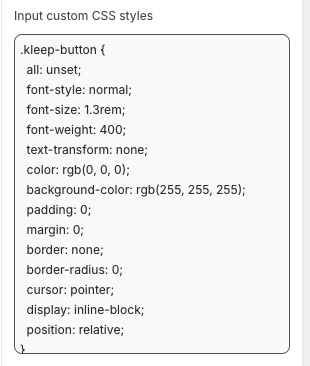 自定义 CSS 字段
**自定义示例**
```css theme={null}
.kleep-button {
all: unset;
font-style: normal;
font-size: 1.3rem;
font-weight: 400;
text-transform: none;
color: rgb(0, 0, 0);
background-color: rgb(255, 255, 255);
padding: 0;
margin: 0;
border: none;
border-radius: 0;
cursor: pointer;
display: inline-block;
position: relative;
}
```
## 7. 多环境配置
如果您有多个 Shopify 环境(开发、预发布、生产),您需要为每个环境配置 Kleep。
**各环境设置**
1. **生产店铺** — 主店铺,完整配置
2. **预发布/开发店铺** — 在推送到生产环境之前用于测试
对于每个环境:
1. 安装 Kleep 应用
2. 启用应用嵌入
3. 联系您的 Kleep CSM 将该环境链接到您的账户
在应用到生产环境之前,始终在预发布环境中测试更改。
**环境专用网址**
请向您的 Kleep CSM 提供:
* 生产网址:`https://www.yourbrand.com`
* 预发布网址:`https://staging.yourbrand.com`(如适用)
* 开发网址:`https://dev.yourbrand.com`(如适用)
## 7.5 CTA 按钮与相似商品 — 完整安装指南
有关安装 Kleep CTA 按钮和相似商品功能的完整技术参考(包括所有 Liquid 代码、设置模式和辅助按钮设置),请参阅以下专属指南:
[CTA 按钮与相似商品 — 完整安装指南](/zh/cms/cta-button)
***
## 8. 经典主题 - 尺码指南设置
经典主题(也称为"旧版"或在 Online Store 2.0 之前创建的主题)不支持应用区块。安装需要修改 Liquid 代码。
本节需要具备 Shopify 开发知识(Liquid)。
**前提条件**
* 可访问主题代码编辑器(**在线商店 → 主题 → 编辑代码**)
* 必须在您的 Shopify 后台启用 Kleep 应用嵌入(**在线商店 → 主题 → 自定义 → 应用嵌入 → Kleep**)
**第一步:启用应用嵌入**
在您的 Shopify 后台,前往 **在线商店 → 主题 → 自定义 → 应用嵌入**,开启 Kleep 应用。
**第二步:调用代码片段**
将以下代码粘贴到您希望 Kleep 显示的位置。它必须是 `snippets` 文件夹内 `Product info` 区块的一部分:
```jsx theme={null}
{% render 'kleep-button', cms: section.settings %}
```
**第三步:创建按钮代码片段**
在您的 `snippets` 文件夹中创建名为 `kleep-button.liquid` 的新文件,并将以下内容放入其中:
```jsx theme={null}
```
**第四步:添加设置模式**
在区域文件末尾将以下选项添加到您的设置模式中:
```json theme={null}
{
"type": "header",
"content": "Button text",
"info": "If you enable this feature, the button text you enter will be replaced for all languages in your store"
},
{
"type": "checkbox",
"default": false,
"id": "custom_button_text_toggle",
"label": "Enable custom button text"
},
{
"type": "text",
"id": "custom_find_size_text",
"label": "Find my best size text",
"info": "What text will display instead of\"Find my best size\"?"
},
{
"type": "text",
"id": "custom_recommended_size_text",
"label": "Recommended size text",
"info": "What text will display instead of\"Recommended size\"?"
},
{
"type": "header",
"content": "Image"
},
{
"type": "url",
"id": "image_url",
"label": "Url Image"
},
{
"type": "range",
"id": "image_size",
"min": 0,
"max": 80,
"step": 2,
"unit": "px",
"label": "Image size (square)",
"default": 20
},
{
"type": "header",
"content": "CSS Styles"
},
{
"type": "checkbox",
"default": true,
"id": "default_font_family",
"label": "Theme font",
"info": "If checked, the css variable `--font-body-family` is used"
},
{
"type": "font_picker",
"id": "font_family",
"label": "Font Family",
"default": "helvetica_n4"
},
{
"type": "select",
"id": "text_style",
"label": "Text style",
"default": "normal",
"options": [
{ "label": "Normal", "value": "normal" },
{ "label": "Italic", "value": "italic" },
{ "label": "Oblique", "value": "oblique" }
]
},
{
"type": "select",
"id": "text_transform",
"label": "Text transformation",
"default": "none",
"options": [
{ "label": "Normal", "value": "none" },
{ "label": "Capitalize", "value": "capitalize" },
{ "label": "Uppercase", "value": "uppercase" },
{ "label": "Lowercase", "value": "lowercase" }
]
},
{
"type": "select",
"id": "text_weight",
"label": "Text weight",
"default": "400",
"options": [
{ "label": "100", "value": "100" },
{ "label": "200", "value": "200" },
{ "label": "300", "value": "300" },
{ "label": "400", "value": "400" },
{ "label": "500", "value": "500" },
{ "label": "600", "value": "600" },
{ "label": "700", "value": "700" },
{ "label": "800", "value": "800" },
{ "label": "900", "value": "900" }
]
},
{
"type": "range",
"id": "text_size",
"min": 2,
"max": 50,
"step": 2,
"unit": "px",
"label": "Font size",
"default": 16
},
{
"type": "checkbox",
"id": "text_underline",
"label": "Text underline",
"default": false
},
{
"type": "range",
"id": "text_underline_offset",
"min": 1,
"max": 20,
"step": 1,
"unit": "px",
"label": "Underline offset",
"default": 2
},
{
"type": "color",
"id": "text_color",
"label": "Button text color",
"default": "#ffffff"
},
{
"type": "color",
"id": "bg_color",
"label": "Background color",
"default": "#000000"
},
{
"type": "color",
"id": "border_color",
"label": "Border color",
"default": "#000000"
},
{
"type": "range",
"id": "border_width",
"min": 0,
"max": 8,
"step": 1,
"unit": "px",
"label": "Border width",
"default": 0
},
{
"type": "header",
"content": "Spacing"
},
{
"type": "checkbox",
"id": "center",
"label": "Center the button",
"default": false,
"info": "This will override 'Horizontal margin'"
},
{
"type": "range",
"id": "margin_y",
"min": 0,
"max": 80,
"step": 2,
"unit": "px",
"label": "Vertical margin",
"default": 0
},
{
"type": "range",
"id": "margin_x",
"min": 0,
"max": 80,
"step": 2,
"unit": "px",
"label": "Horizontal margin",
"default": 0
},
{
"type": "range",
"id": "padding_t",
"min": 0,
"max": 40,
"step": 2,
"unit": "px",
"label": "Padding top",
"default": 12
},
{
"type": "range",
"id": "padding_r",
"min": 0,
"max": 40,
"step": 2,
"unit": "px",
"label": "Padding right",
"default": 16
},
{
"type": "range",
"id": "padding_b",
"min": 0,
"max": 40,
"step": 2,
"unit": "px",
"label": "Padding bottom",
"default": 12
},
{
"type": "range",
"id": "padding_l",
"min": 0,
"max": 40,
"step": 2,
"unit": "px",
"label": "Padding left",
"default": 16
},
{
"type": "range",
"id": "border_radius",
"min": 0,
"max": 40,
"step": 2,
"unit": "px",
"label": "Border radius",
"default": 0
}
```
**第五步:验证**
在 Shopify 主题自定义区域验证更新。在商品信息区块设置中配置视觉效果。
**可选:辅助按钮**
如果您想添加辅助按钮,请在您的 `snippets` 文件夹中创建名为 `kleep-secondary-button.liquid` 的新文件:
```jsx theme={null}
```
将以下代码粘贴到您希望 Kleep 显示的位置。它必须是 `snippets` 文件夹内 `Product info` 区块的一部分。
```jsx theme={null}
{% render 'kleep-secondary-button', cms: section.settings %}
```
***
## 9. 经典主题 - 相似商品设置
**第一步:创建代码片段**
创建文件 `snippets/kleep-similar-button.liquid`,内容如下:
```jsx theme={null}
{% assign cms = block.settings %}
{% assign domain = shop.domain %}
{% assign translated_similar = '' %}
{% assign translated_similar_missing = true %}
{%- assign domain_key = domain | prepend: 'www.' | append: '.recommended' -%}
{% assign raw_domain_similar = domain_key | t %}
{% unless raw_domain_similar contains 'Translation missing'
or raw_domain_similar contains domain
%}
{% assign translated_similar = raw_domain_similar %}
{% assign translated_similar_missing = false %}
{% endunless %}
{%- if translated_similar_missing -%}
{% assign raw_global_similar = 'kleep.recommended.text.btn' | t %}
{% unless raw_global_similar contains 'Translation missing' %}
{% assign translated_similar = raw_global_similar %}
{% assign translated_similar_missing = false %}
{% endunless %}
{%- endif %}
```
**第二步:渲染代码片段**
在您希望按钮显示的位置插入以下代码行:
```jsx theme={null}
{% render 'kleep-similar-button' %}
```
典型放置位置:在规格选择器下方或加入购物车表单附近。
**第三步:启用正确的模式**
由于经典主题无法插入 OS 2.0 区块,组件必须使用以下之一:
* `custom_buttons`
* `popup+custom`
* `button+custom`
**添加多个按钮**
要创建多个按钮,只需在商品模板的不同区域放置代码片段:
```jsx theme={null}
{% render 'kleep-similar-button' %}
```
每次调用代码片段都会创建一个额外的按钮。每个按钮仅在所选规格缺货时自动显示。
***
## 10. 翻译(i18n)
将以下翻译添加到您的主题语言文件中。
**英文(`en.json`)**
```json theme={null}
{
"kleep": {
"button": {
"text": {
"without_hash": "Find my ideal size",
"with_hash": "Ideal size"
}
},
"recommended": {
"text": {
"btn": "View similar",
"hint": "Size unavailable",
"link": "See similar products"
}
},
"search": {
"text": {
"inputPlaceholder": "Search...",
"productsBlockTitle": "Products",
"clearButton": "Clear"
}
},
"searchPage": {
"text": {
"header": "search results",
"query": "Results for",
"submit": "Search",
"input": "Search the store",
"viewProduct": "View product"
}
}
}
}
```
**法文(`fr.json`)**
```json theme={null}
{
"kleep": {
"button": {
"text": {
"without_hash": "Trouver ma taille idéale",
"with_hash": "Taille idéale"
}
},
"recommended": {
"text": {
"btn": "Voir similaire",
"hint": "Taille indisponible",
"link": "Voir des produits similaires"
}
},
"search": {
"text": {
"inputPlaceholder": "Recherche...",
"productsBlockTitle": "Produits",
"clearButton": "Effacer"
}
},
"searchPage": {
"text": {
"header": "résultats de la recherche",
"query": "Résultats pour",
"submit": "Recherche",
"input": "Rechercher dans la boutique",
"viewProduct": "Voir le produit"
}
}
}
}
```
**意大利文(`it.json`)**
```json theme={null}
{
"kleep": {
"button": {
"text": {
"without_hash": "Trova la mia taglia ideale",
"with_hash": "Taglia ideale"
}
},
"recommended": {
"text": {
"btn": "Visualizza simili",
"hint": "Taglia non disponibile",
"link": "Visualizza prodotti simili"
}
},
"search": {
"text": {
"inputPlaceholder": "Cerca...",
"productsBlockTitle": "Prodotti",
"clearButton": "Cancella"
}
},
"searchPage": {
"text": {
"header": "risultati della ricerca",
"query": "Risultati per",
"submit": "Cerca",
"input": "Cerca nel negozio",
"viewProduct": "Visualizza prodotto"
}
}
}
}
```
**德文(`de.json`)**
```json theme={null}
{
"kleep": {
"button": {
"text": {
"without_hash": "Finde meine ideale Größe",
"with_hash": "Ideale Größe"
}
},
"recommended": {
"text": {
"btn": "Ähnliche Ansicht",
"hint": "Größe nicht verfügbar",
"link": "Ähnliche Produkte ansehen"
}
},
"search": {
"text": {
"inputPlaceholder": "Suchen...",
"productsBlockTitle": "Produkte",
"clearButton": "Klar"
}
},
"searchPage": {
"text": {
"header": "Suchergebnisse",
"query": "Ergebnisse für",
"submit": "Suchen",
"input": "Durchsuchen Sie den Shop",
"viewProduct": "Produkt ansehen"
}
}
}
}
```
**西班牙文(`es.json`)**
```json theme={null}
{
"kleep": {
"button": {
"text": {
"without_hash": "Encontrar mi talla ideal",
"with_hash": "Talla ideal"
}
},
"recommended": {
"text": {
"btn": "Ver similares",
"hint": "Talla no disponible",
"link": "Ver productos similares"
}
},
"search": {
"text": {
"inputPlaceholder": "Buscar...",
"productsBlockTitle": "Productos",
"clearButton": "Borrar"
}
},
"searchPage": {
"text": {
"header": "resultados de búsqueda",
"query": "Resultados para",
"submit": "Buscar",
"input": "Buscar en la tienda",
"viewProduct": "Ver producto"
}
}
}
}
```
**日文(`ja.json`)**
```json theme={null}
{
"kleep": {
"button": {
"text": {
"without_hash": "自分に合うサイズを探す",
"with_hash": "好みのサイズ"
}
},
"recommended": {
"text": {
"btn": "類似商品を見る",
"hint": "サイズがありません",
"link": "類似商品を見る"
}
},
"search": {
"text": {
"inputPlaceholder": "検索...",
"productsBlockTitle": "商品",
"clearButton": "クリア"
}
},
"searchPage": {
"text": {
"header": "検索結果",
"query": "検索結果",
"submit": "検索",
"input": "ストアを検索",
"viewProduct": "商品を見る"
}
}
}
}
```
**韩文(`ko.json`)**
```json theme={null}
{
"kleep": {
"button": {
"text": {
"without_hash": "내 이상적인 사이즈 찾기",
"with_hash": "추천 사이즈"
}
},
"recommended": {
"text": {
"btn": "유사한 상품 보기",
"hint": "사용 불가",
"link": "유사한 상품 보기"
}
},
"search": {
"text": {
"inputPlaceholder": "검색...",
"productsBlockTitle": "상품",
"clearButton": "지우기"
}
},
"searchPage": {
"text": {
"header": "검색 결과",
"query": "다음에 대한 결과",
"submit": "검색",
"input": "매장 검색",
"viewProduct": "상품 보기"
}
}
}
}
```
**葡萄牙文(`pt.json`)**
```json theme={null}
{
"kleep": {
"button": {
"text": {
"without_hash": "Encontrar meu tamanho ideal",
"with_hash": "Tamanho recomendado"
}
},
"recommended": {
"text": {
"btn": "Ver similar",
"hint": "Tamanho indisponível",
"link": "Ver produtos similares"
}
},
"search": {
"text": {
"inputPlaceholder": "Pesquisar...",
"productsBlockTitle": "Produtos",
"clearButton": "Limpar"
}
},
"searchPage": {
"text": {
"header": "resultados da pesquisa",
"query": "Resultados para",
"submit": "Pesquisar",
"input": "Pesquisar na loja",
"viewProduct": "Ver produto"
}
}
}
}
```
***
## 11. 技术参考
**CTA 在商品详情页的位置**
位置由 `KleepSDK.getConstants()` 内部的 DOM 选择器定义:
* **`targetProductInfoBlockQueries`** – 指向商品详情主容器(标题、价格、尺码等)的选择器数组。脚本遍历这些选择器,并使用找到的第一个作为 CTA 或弹窗的插入点。
* **`targetVariantQueries`** – 尺码/规格选项所在位置。找到商品信息区块后,脚本在其内部搜索规格元素(如尺码选择器)。每个规格 `
自定义 CSS 字段
**自定义示例**
```css theme={null}
.kleep-button {
all: unset;
font-style: normal;
font-size: 1.3rem;
font-weight: 400;
text-transform: none;
color: rgb(0, 0, 0);
background-color: rgb(255, 255, 255);
padding: 0;
margin: 0;
border: none;
border-radius: 0;
cursor: pointer;
display: inline-block;
position: relative;
}
```
## 7. 多环境配置
如果您有多个 Shopify 环境(开发、预发布、生产),您需要为每个环境配置 Kleep。
**各环境设置**
1. **生产店铺** — 主店铺,完整配置
2. **预发布/开发店铺** — 在推送到生产环境之前用于测试
对于每个环境:
1. 安装 Kleep 应用
2. 启用应用嵌入
3. 联系您的 Kleep CSM 将该环境链接到您的账户
在应用到生产环境之前,始终在预发布环境中测试更改。
**环境专用网址**
请向您的 Kleep CSM 提供:
* 生产网址:`https://www.yourbrand.com`
* 预发布网址:`https://staging.yourbrand.com`(如适用)
* 开发网址:`https://dev.yourbrand.com`(如适用)
## 7.5 CTA 按钮与相似商品 — 完整安装指南
有关安装 Kleep CTA 按钮和相似商品功能的完整技术参考(包括所有 Liquid 代码、设置模式和辅助按钮设置),请参阅以下专属指南:
[CTA 按钮与相似商品 — 完整安装指南](/zh/cms/cta-button)
***
## 8. 经典主题 - 尺码指南设置
经典主题(也称为"旧版"或在 Online Store 2.0 之前创建的主题)不支持应用区块。安装需要修改 Liquid 代码。
本节需要具备 Shopify 开发知识(Liquid)。
**前提条件**
* 可访问主题代码编辑器(**在线商店 → 主题 → 编辑代码**)
* 必须在您的 Shopify 后台启用 Kleep 应用嵌入(**在线商店 → 主题 → 自定义 → 应用嵌入 → Kleep**)
**第一步:启用应用嵌入**
在您的 Shopify 后台,前往 **在线商店 → 主题 → 自定义 → 应用嵌入**,开启 Kleep 应用。
**第二步:调用代码片段**
将以下代码粘贴到您希望 Kleep 显示的位置。它必须是 `snippets` 文件夹内 `Product info` 区块的一部分:
```jsx theme={null}
{% render 'kleep-button', cms: section.settings %}
```
**第三步:创建按钮代码片段**
在您的 `snippets` 文件夹中创建名为 `kleep-button.liquid` 的新文件,并将以下内容放入其中:
```jsx theme={null}
```
**第四步:添加设置模式**
在区域文件末尾将以下选项添加到您的设置模式中:
```json theme={null}
{
"type": "header",
"content": "Button text",
"info": "If you enable this feature, the button text you enter will be replaced for all languages in your store"
},
{
"type": "checkbox",
"default": false,
"id": "custom_button_text_toggle",
"label": "Enable custom button text"
},
{
"type": "text",
"id": "custom_find_size_text",
"label": "Find my best size text",
"info": "What text will display instead of\"Find my best size\"?"
},
{
"type": "text",
"id": "custom_recommended_size_text",
"label": "Recommended size text",
"info": "What text will display instead of\"Recommended size\"?"
},
{
"type": "header",
"content": "Image"
},
{
"type": "url",
"id": "image_url",
"label": "Url Image"
},
{
"type": "range",
"id": "image_size",
"min": 0,
"max": 80,
"step": 2,
"unit": "px",
"label": "Image size (square)",
"default": 20
},
{
"type": "header",
"content": "CSS Styles"
},
{
"type": "checkbox",
"default": true,
"id": "default_font_family",
"label": "Theme font",
"info": "If checked, the css variable `--font-body-family` is used"
},
{
"type": "font_picker",
"id": "font_family",
"label": "Font Family",
"default": "helvetica_n4"
},
{
"type": "select",
"id": "text_style",
"label": "Text style",
"default": "normal",
"options": [
{ "label": "Normal", "value": "normal" },
{ "label": "Italic", "value": "italic" },
{ "label": "Oblique", "value": "oblique" }
]
},
{
"type": "select",
"id": "text_transform",
"label": "Text transformation",
"default": "none",
"options": [
{ "label": "Normal", "value": "none" },
{ "label": "Capitalize", "value": "capitalize" },
{ "label": "Uppercase", "value": "uppercase" },
{ "label": "Lowercase", "value": "lowercase" }
]
},
{
"type": "select",
"id": "text_weight",
"label": "Text weight",
"default": "400",
"options": [
{ "label": "100", "value": "100" },
{ "label": "200", "value": "200" },
{ "label": "300", "value": "300" },
{ "label": "400", "value": "400" },
{ "label": "500", "value": "500" },
{ "label": "600", "value": "600" },
{ "label": "700", "value": "700" },
{ "label": "800", "value": "800" },
{ "label": "900", "value": "900" }
]
},
{
"type": "range",
"id": "text_size",
"min": 2,
"max": 50,
"step": 2,
"unit": "px",
"label": "Font size",
"default": 16
},
{
"type": "checkbox",
"id": "text_underline",
"label": "Text underline",
"default": false
},
{
"type": "range",
"id": "text_underline_offset",
"min": 1,
"max": 20,
"step": 1,
"unit": "px",
"label": "Underline offset",
"default": 2
},
{
"type": "color",
"id": "text_color",
"label": "Button text color",
"default": "#ffffff"
},
{
"type": "color",
"id": "bg_color",
"label": "Background color",
"default": "#000000"
},
{
"type": "color",
"id": "border_color",
"label": "Border color",
"default": "#000000"
},
{
"type": "range",
"id": "border_width",
"min": 0,
"max": 8,
"step": 1,
"unit": "px",
"label": "Border width",
"default": 0
},
{
"type": "header",
"content": "Spacing"
},
{
"type": "checkbox",
"id": "center",
"label": "Center the button",
"default": false,
"info": "This will override 'Horizontal margin'"
},
{
"type": "range",
"id": "margin_y",
"min": 0,
"max": 80,
"step": 2,
"unit": "px",
"label": "Vertical margin",
"default": 0
},
{
"type": "range",
"id": "margin_x",
"min": 0,
"max": 80,
"step": 2,
"unit": "px",
"label": "Horizontal margin",
"default": 0
},
{
"type": "range",
"id": "padding_t",
"min": 0,
"max": 40,
"step": 2,
"unit": "px",
"label": "Padding top",
"default": 12
},
{
"type": "range",
"id": "padding_r",
"min": 0,
"max": 40,
"step": 2,
"unit": "px",
"label": "Padding right",
"default": 16
},
{
"type": "range",
"id": "padding_b",
"min": 0,
"max": 40,
"step": 2,
"unit": "px",
"label": "Padding bottom",
"default": 12
},
{
"type": "range",
"id": "padding_l",
"min": 0,
"max": 40,
"step": 2,
"unit": "px",
"label": "Padding left",
"default": 16
},
{
"type": "range",
"id": "border_radius",
"min": 0,
"max": 40,
"step": 2,
"unit": "px",
"label": "Border radius",
"default": 0
}
```
**第五步:验证**
在 Shopify 主题自定义区域验证更新。在商品信息区块设置中配置视觉效果。
**可选:辅助按钮**
如果您想添加辅助按钮,请在您的 `snippets` 文件夹中创建名为 `kleep-secondary-button.liquid` 的新文件:
```jsx theme={null}
```
将以下代码粘贴到您希望 Kleep 显示的位置。它必须是 `snippets` 文件夹内 `Product info` 区块的一部分。
```jsx theme={null}
{% render 'kleep-secondary-button', cms: section.settings %}
```
***
## 9. 经典主题 - 相似商品设置
**第一步:创建代码片段**
创建文件 `snippets/kleep-similar-button.liquid`,内容如下:
```jsx theme={null}
{% assign cms = block.settings %}
{% assign domain = shop.domain %}
{% assign translated_similar = '' %}
{% assign translated_similar_missing = true %}
{%- assign domain_key = domain | prepend: 'www.' | append: '.recommended' -%}
{% assign raw_domain_similar = domain_key | t %}
{% unless raw_domain_similar contains 'Translation missing'
or raw_domain_similar contains domain
%}
{% assign translated_similar = raw_domain_similar %}
{% assign translated_similar_missing = false %}
{% endunless %}
{%- if translated_similar_missing -%}
{% assign raw_global_similar = 'kleep.recommended.text.btn' | t %}
{% unless raw_global_similar contains 'Translation missing' %}
{% assign translated_similar = raw_global_similar %}
{% assign translated_similar_missing = false %}
{% endunless %}
{%- endif %}
```
**第二步:渲染代码片段**
在您希望按钮显示的位置插入以下代码行:
```jsx theme={null}
{% render 'kleep-similar-button' %}
```
典型放置位置:在规格选择器下方或加入购物车表单附近。
**第三步:启用正确的模式**
由于经典主题无法插入 OS 2.0 区块,组件必须使用以下之一:
* `custom_buttons`
* `popup+custom`
* `button+custom`
**添加多个按钮**
要创建多个按钮,只需在商品模板的不同区域放置代码片段:
```jsx theme={null}
{% render 'kleep-similar-button' %}
```
每次调用代码片段都会创建一个额外的按钮。每个按钮仅在所选规格缺货时自动显示。
***
## 10. 翻译(i18n)
将以下翻译添加到您的主题语言文件中。
**英文(`en.json`)**
```json theme={null}
{
"kleep": {
"button": {
"text": {
"without_hash": "Find my ideal size",
"with_hash": "Ideal size"
}
},
"recommended": {
"text": {
"btn": "View similar",
"hint": "Size unavailable",
"link": "See similar products"
}
},
"search": {
"text": {
"inputPlaceholder": "Search...",
"productsBlockTitle": "Products",
"clearButton": "Clear"
}
},
"searchPage": {
"text": {
"header": "search results",
"query": "Results for",
"submit": "Search",
"input": "Search the store",
"viewProduct": "View product"
}
}
}
}
```
**法文(`fr.json`)**
```json theme={null}
{
"kleep": {
"button": {
"text": {
"without_hash": "Trouver ma taille idéale",
"with_hash": "Taille idéale"
}
},
"recommended": {
"text": {
"btn": "Voir similaire",
"hint": "Taille indisponible",
"link": "Voir des produits similaires"
}
},
"search": {
"text": {
"inputPlaceholder": "Recherche...",
"productsBlockTitle": "Produits",
"clearButton": "Effacer"
}
},
"searchPage": {
"text": {
"header": "résultats de la recherche",
"query": "Résultats pour",
"submit": "Recherche",
"input": "Rechercher dans la boutique",
"viewProduct": "Voir le produit"
}
}
}
}
```
**意大利文(`it.json`)**
```json theme={null}
{
"kleep": {
"button": {
"text": {
"without_hash": "Trova la mia taglia ideale",
"with_hash": "Taglia ideale"
}
},
"recommended": {
"text": {
"btn": "Visualizza simili",
"hint": "Taglia non disponibile",
"link": "Visualizza prodotti simili"
}
},
"search": {
"text": {
"inputPlaceholder": "Cerca...",
"productsBlockTitle": "Prodotti",
"clearButton": "Cancella"
}
},
"searchPage": {
"text": {
"header": "risultati della ricerca",
"query": "Risultati per",
"submit": "Cerca",
"input": "Cerca nel negozio",
"viewProduct": "Visualizza prodotto"
}
}
}
}
```
**德文(`de.json`)**
```json theme={null}
{
"kleep": {
"button": {
"text": {
"without_hash": "Finde meine ideale Größe",
"with_hash": "Ideale Größe"
}
},
"recommended": {
"text": {
"btn": "Ähnliche Ansicht",
"hint": "Größe nicht verfügbar",
"link": "Ähnliche Produkte ansehen"
}
},
"search": {
"text": {
"inputPlaceholder": "Suchen...",
"productsBlockTitle": "Produkte",
"clearButton": "Klar"
}
},
"searchPage": {
"text": {
"header": "Suchergebnisse",
"query": "Ergebnisse für",
"submit": "Suchen",
"input": "Durchsuchen Sie den Shop",
"viewProduct": "Produkt ansehen"
}
}
}
}
```
**西班牙文(`es.json`)**
```json theme={null}
{
"kleep": {
"button": {
"text": {
"without_hash": "Encontrar mi talla ideal",
"with_hash": "Talla ideal"
}
},
"recommended": {
"text": {
"btn": "Ver similares",
"hint": "Talla no disponible",
"link": "Ver productos similares"
}
},
"search": {
"text": {
"inputPlaceholder": "Buscar...",
"productsBlockTitle": "Productos",
"clearButton": "Borrar"
}
},
"searchPage": {
"text": {
"header": "resultados de búsqueda",
"query": "Resultados para",
"submit": "Buscar",
"input": "Buscar en la tienda",
"viewProduct": "Ver producto"
}
}
}
}
```
**日文(`ja.json`)**
```json theme={null}
{
"kleep": {
"button": {
"text": {
"without_hash": "自分に合うサイズを探す",
"with_hash": "好みのサイズ"
}
},
"recommended": {
"text": {
"btn": "類似商品を見る",
"hint": "サイズがありません",
"link": "類似商品を見る"
}
},
"search": {
"text": {
"inputPlaceholder": "検索...",
"productsBlockTitle": "商品",
"clearButton": "クリア"
}
},
"searchPage": {
"text": {
"header": "検索結果",
"query": "検索結果",
"submit": "検索",
"input": "ストアを検索",
"viewProduct": "商品を見る"
}
}
}
}
```
**韩文(`ko.json`)**
```json theme={null}
{
"kleep": {
"button": {
"text": {
"without_hash": "내 이상적인 사이즈 찾기",
"with_hash": "추천 사이즈"
}
},
"recommended": {
"text": {
"btn": "유사한 상품 보기",
"hint": "사용 불가",
"link": "유사한 상품 보기"
}
},
"search": {
"text": {
"inputPlaceholder": "검색...",
"productsBlockTitle": "상품",
"clearButton": "지우기"
}
},
"searchPage": {
"text": {
"header": "검색 결과",
"query": "다음에 대한 결과",
"submit": "검색",
"input": "매장 검색",
"viewProduct": "상품 보기"
}
}
}
}
```
**葡萄牙文(`pt.json`)**
```json theme={null}
{
"kleep": {
"button": {
"text": {
"without_hash": "Encontrar meu tamanho ideal",
"with_hash": "Tamanho recomendado"
}
},
"recommended": {
"text": {
"btn": "Ver similar",
"hint": "Tamanho indisponível",
"link": "Ver produtos similares"
}
},
"search": {
"text": {
"inputPlaceholder": "Pesquisar...",
"productsBlockTitle": "Produtos",
"clearButton": "Limpar"
}
},
"searchPage": {
"text": {
"header": "resultados da pesquisa",
"query": "Resultados para",
"submit": "Pesquisar",
"input": "Pesquisar na loja",
"viewProduct": "Ver produto"
}
}
}
}
```
***
## 11. 技术参考
**CTA 在商品详情页的位置**
位置由 `KleepSDK.getConstants()` 内部的 DOM 选择器定义:
* **`targetProductInfoBlockQueries`** – 指向商品详情主容器(标题、价格、尺码等)的选择器数组。脚本遍历这些选择器,并使用找到的第一个作为 CTA 或弹窗的插入点。
* **`targetVariantQueries`** – 尺码/规格选项所在位置。找到商品信息区块后,脚本在其内部搜索规格元素(如尺码选择器)。每个规格 `