> ## Documentation Index
> Fetch the complete documentation index at: https://docs.kleep.ai/llms.txt
> Use this file to discover all available pages before exploring further.
# Shopify:CTA 按钮与相似商品
## Shopify V2 集成指南
本节介绍如何将 Kleep AI Sizing 添加到您的 Shopify 商店。
参照我们的 Tango 教程,在 Online Store 2.0 主题中将 Kleep 按钮添加到您的商店。
## Shopify V1 集成指南
## 1. 尺码推荐
本节介绍如何将 Kleep AI Sizing 添加到您的 Shopify 代码库。
观看在 Shopify V1 商店安装 Kleep 的分步 Tango 教程。
### 步骤
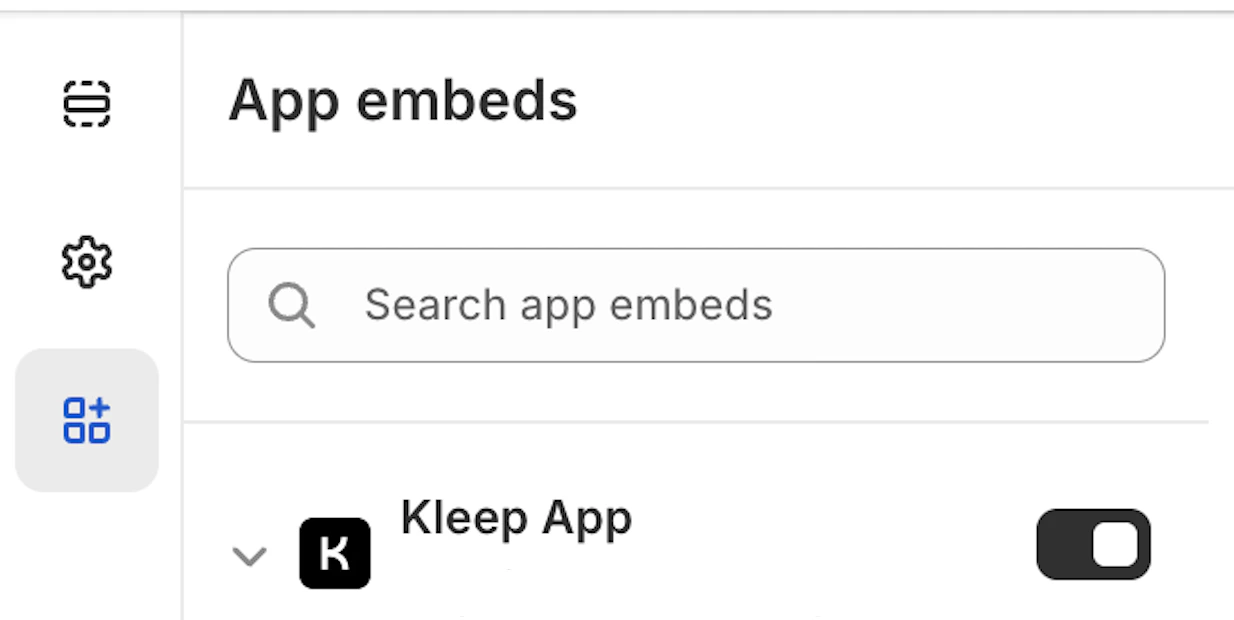
**第 1 步:启用 App Embed**
确保 Kleep 应用已在您的 App embeds 中激活。
 **第 2 步:渲染按钮代码片段**
将以下代码粘贴到您希望 Kleep 出现的位置。该代码必须位于 `snippets` 文件夹内的 `Product info` 块中。
```jsx theme={null}
{% render 'kleep-button', cms: section.settings %}
```
**第 3 步:创建按钮代码片段文件**
在您的 `snippets` 文件夹中创建一个名为 `kleep-button.liquid` 的新文件,并在其中放入以下内容:
```jsx theme={null}
```
**第 4 步:添加设置 schema 选项**
在页面末尾的 Settings schema 中添加以下选项:
```jsx theme={null}
{
"type": "header",
"content": "Button text",
"info": "If you enable this feature, the button text you enter will be replaced for all languages in your store"
},
{
"type": "checkbox",
"default": false,
"id": "custom_button_text_toggle",
"label": "Enable custom button text"
},
{
"type": "text",
"id": "custom_find_size_text",
"label": "Find my best size text",
"info": "What text will display instead of \"Find my best size\"?"
},
{
"type": "text",
"id": "custom_recommended_size_text",
"label": "Recommended size text",
"info": "What text will display instead of \"Recommended size\"?"
},
{
"type": "header",
"content": "Image"
},
{
"type": "url",
"id": "image_url",
"label": "Url Image"
},
{
"type": "range",
"id": "image_size",
"min": 0,
"max": 80,
"step": 2,
"unit": "px",
"label": "Image size (square)",
"default": 20
},
{
"type": "header",
"content": "CSS Styles"
},
{
"type": "checkbox",
"default": true,
"id": "default_font_family",
"label": "Font du thème",
"info": "Si coché, la variable css `--font-body-family` est utilisée"
},
{
"type": "font_picker",
"id": "font_family",
"label": "Font Family",
"default": "helvetica_n4"
},
{
"type": "select",
"id": "text_style",
"label": "Style texte",
"default": "normal",
"options": [
{
"label": "Normal",
"value": "normal"
},
{
"label": "Italic",
"value": "italic"
},
{
"label": "Oblique",
"value": "oblique"
}
]
},
{
"type": "select",
"id": "text_transform",
"label": "Texte transformation",
"default": "none",
"options": [
{
"label": "Normal",
"value": "none"
},
{
"label": "Capitalize",
"value": "capitalize"
},
{
"label": "Uppercase",
"value": "uppercase"
},
{
"label": "Lowercase",
"value": "lowercase"
}
]
},
{
"type": "select",
"id": "text_weight",
"label": "Poid texte",
"default": "400",
"options": [
{
"label": "100",
"value": "100"
},
{
"label": "200",
"value": "200"
},
{
"label": "300",
"value": "300"
},
{
"label": "400",
"value": "400"
},
{
"label": "500",
"value": "500"
},
{
"label": "600",
"value": "600"
},
{
"label": "700",
"value": "700"
},
{
"label": "800",
"value": "800"
},
{
"label": "900",
"value": "900"
}
]
},
{
"type": "range",
"id": "text_size",
"min": 2,
"max": 50,
"step": 2,
"unit": "px",
"label": "Taille police",
"default": 16
},
{
"type": "checkbox",
"id": "text_underline",
"label": "Texte soulignage",
"default": false
},
{
"type": "range",
"id": "text_underline_offset",
"min": 1,
"max": 20,
"step": 1,
"unit": "px",
"label": "Offset underline",
"default": 2
},
{
"type": "color",
"id": "text_color",
"label": "Couleur texte du bouton",
"default": "#ffffff"
},
{
"type": "color",
"id": "bg_color",
"label": "Couleur fond",
"default": "#000000"
},
{
"type": "color",
"id": "border_color",
"label": "Couleur bordures",
"default": "#000000"
},
{
"type": "range",
"id": "border_width",
"min": 0,
"max": 8,
"step": 1,
"unit": "px",
"label": "Épaisseur bordures",
"default": 0
},
{
"type": "header",
"content": "CSS Styles",
"info": "Espacements"
},
{
"type": "checkbox",
"id": "center",
"label": "Centrer le bouton",
"default": false,
"info": "Cela remplacera le 'Margin horizontal'"
},
{
"type": "range",
"id": "margin_y",
"min": 0,
"max": 80,
"step": 2,
"unit": "px",
"label": "Margin vertical",
"default": 0
},
{
"type": "range",
"id": "margin_x",
"min": 0,
"max": 80,
"step": 2,
"unit": "px",
"label": "Margin horizontal",
"default": 0
},
{
"type": "range",
"id": "padding_t",
"min": 0,
"max": 40,
"step": 2,
"unit": "px",
"label": "Padding top",
"default": 12
},
{
"type": "range",
"id": "padding_r",
"min": 0,
"max": 40,
"step": 2,
"unit": "px",
"label": "Padding right",
"default": 16
},
{
"type": "range",
"id": "padding_b",
"min": 0,
"max": 40,
"step": 2,
"unit": "px",
"label": "Padding bottom",
"default": 12
},
{
"type": "range",
"id": "padding_l",
"min": 0,
"max": 40,
"step": 2,
"unit": "px",
"label": "Padding left",
"default": 16
},
{
"type": "range",
"id": "border_radius",
"min": 0,
"max": 40,
"step": 2,
"unit": "px",
"label": "Bordures arrondies",
"default": 0
}
```
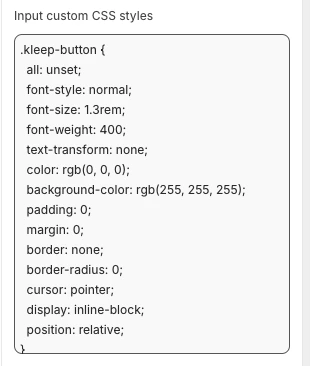
如需添加自定义 CSS 样式:
* 若要更改外观(颜色、间距、字体等),请将您的 CSS 粘贴到 Kleep App Embed 设置中的 **"Input custom CSS styles"** 输入框中。
示例:
**第 2 步:渲染按钮代码片段**
将以下代码粘贴到您希望 Kleep 出现的位置。该代码必须位于 `snippets` 文件夹内的 `Product info` 块中。
```jsx theme={null}
{% render 'kleep-button', cms: section.settings %}
```
**第 3 步:创建按钮代码片段文件**
在您的 `snippets` 文件夹中创建一个名为 `kleep-button.liquid` 的新文件,并在其中放入以下内容:
```jsx theme={null}
```
**第 4 步:添加设置 schema 选项**
在页面末尾的 Settings schema 中添加以下选项:
```jsx theme={null}
{
"type": "header",
"content": "Button text",
"info": "If you enable this feature, the button text you enter will be replaced for all languages in your store"
},
{
"type": "checkbox",
"default": false,
"id": "custom_button_text_toggle",
"label": "Enable custom button text"
},
{
"type": "text",
"id": "custom_find_size_text",
"label": "Find my best size text",
"info": "What text will display instead of \"Find my best size\"?"
},
{
"type": "text",
"id": "custom_recommended_size_text",
"label": "Recommended size text",
"info": "What text will display instead of \"Recommended size\"?"
},
{
"type": "header",
"content": "Image"
},
{
"type": "url",
"id": "image_url",
"label": "Url Image"
},
{
"type": "range",
"id": "image_size",
"min": 0,
"max": 80,
"step": 2,
"unit": "px",
"label": "Image size (square)",
"default": 20
},
{
"type": "header",
"content": "CSS Styles"
},
{
"type": "checkbox",
"default": true,
"id": "default_font_family",
"label": "Font du thème",
"info": "Si coché, la variable css `--font-body-family` est utilisée"
},
{
"type": "font_picker",
"id": "font_family",
"label": "Font Family",
"default": "helvetica_n4"
},
{
"type": "select",
"id": "text_style",
"label": "Style texte",
"default": "normal",
"options": [
{
"label": "Normal",
"value": "normal"
},
{
"label": "Italic",
"value": "italic"
},
{
"label": "Oblique",
"value": "oblique"
}
]
},
{
"type": "select",
"id": "text_transform",
"label": "Texte transformation",
"default": "none",
"options": [
{
"label": "Normal",
"value": "none"
},
{
"label": "Capitalize",
"value": "capitalize"
},
{
"label": "Uppercase",
"value": "uppercase"
},
{
"label": "Lowercase",
"value": "lowercase"
}
]
},
{
"type": "select",
"id": "text_weight",
"label": "Poid texte",
"default": "400",
"options": [
{
"label": "100",
"value": "100"
},
{
"label": "200",
"value": "200"
},
{
"label": "300",
"value": "300"
},
{
"label": "400",
"value": "400"
},
{
"label": "500",
"value": "500"
},
{
"label": "600",
"value": "600"
},
{
"label": "700",
"value": "700"
},
{
"label": "800",
"value": "800"
},
{
"label": "900",
"value": "900"
}
]
},
{
"type": "range",
"id": "text_size",
"min": 2,
"max": 50,
"step": 2,
"unit": "px",
"label": "Taille police",
"default": 16
},
{
"type": "checkbox",
"id": "text_underline",
"label": "Texte soulignage",
"default": false
},
{
"type": "range",
"id": "text_underline_offset",
"min": 1,
"max": 20,
"step": 1,
"unit": "px",
"label": "Offset underline",
"default": 2
},
{
"type": "color",
"id": "text_color",
"label": "Couleur texte du bouton",
"default": "#ffffff"
},
{
"type": "color",
"id": "bg_color",
"label": "Couleur fond",
"default": "#000000"
},
{
"type": "color",
"id": "border_color",
"label": "Couleur bordures",
"default": "#000000"
},
{
"type": "range",
"id": "border_width",
"min": 0,
"max": 8,
"step": 1,
"unit": "px",
"label": "Épaisseur bordures",
"default": 0
},
{
"type": "header",
"content": "CSS Styles",
"info": "Espacements"
},
{
"type": "checkbox",
"id": "center",
"label": "Centrer le bouton",
"default": false,
"info": "Cela remplacera le 'Margin horizontal'"
},
{
"type": "range",
"id": "margin_y",
"min": 0,
"max": 80,
"step": 2,
"unit": "px",
"label": "Margin vertical",
"default": 0
},
{
"type": "range",
"id": "margin_x",
"min": 0,
"max": 80,
"step": 2,
"unit": "px",
"label": "Margin horizontal",
"default": 0
},
{
"type": "range",
"id": "padding_t",
"min": 0,
"max": 40,
"step": 2,
"unit": "px",
"label": "Padding top",
"default": 12
},
{
"type": "range",
"id": "padding_r",
"min": 0,
"max": 40,
"step": 2,
"unit": "px",
"label": "Padding right",
"default": 16
},
{
"type": "range",
"id": "padding_b",
"min": 0,
"max": 40,
"step": 2,
"unit": "px",
"label": "Padding bottom",
"default": 12
},
{
"type": "range",
"id": "padding_l",
"min": 0,
"max": 40,
"step": 2,
"unit": "px",
"label": "Padding left",
"default": 16
},
{
"type": "range",
"id": "border_radius",
"min": 0,
"max": 40,
"step": 2,
"unit": "px",
"label": "Bordures arrondies",
"default": 0
}
```
如需添加自定义 CSS 样式:
* 若要更改外观(颜色、间距、字体等),请将您的 CSS 粘贴到 Kleep App Embed 设置中的 **"Input custom CSS styles"** 输入框中。
示例:
 **第 5 步:添加英文翻译**
将英文翻译添加到您的主题语言文件中。
```jsx theme={null}
"kleep": {
"button": {
"text": {
"without_hash": "Find my ideal size",
"with_hash": "Ideal size"
}
},
"recommended": {
"text": {
"btn": "View similar",
"hint": "Size unavailable",
"link": "See similar products"
}
},
"search": {
"text": {
"inputPlaceholder": "Search...",
"productsBlockTitle": "Products",
"clearButton": "Clear"
}
},
"searchPage": {
"text": {
"header": "search results",
"query": "Results for",
"submit": "Search",
"input": "Search the store",
"viewProduct": "View product"
}
}
}
```
**第 6 步:添加其他语言翻译**
将其他语言翻译添加到您的主题语言文件中。
```jsx theme={null}
"kleep": {
"button": {
"text": {
"without_hash": "Trouver ma taille idéale",
"with_hash": "Taille idéale"
}
},
"recommended": {
"text": {
"btn": "Voir similaire",
"hint": "Taille indisponible",
"link": "Voir des produits similaires"
}
},
"search": {
"text": {
"inputPlaceholder": "Recherche...",
"productsBlockTitle": "Produits",
"clearButton": "Effacer"
}
},
"searchPage": {
"text": {
"header": "résultats de la recherche",
"query": "Résultats pour",
"submit": "Recherche",
"input": "Rechercher dans la boutique",
"viewProduct": "Voir le produit"
}
}
}
```
```jsx theme={null}
"kleep": {
"button": {
"text": {
"without_hash": "Trova la mia taglia ideale",
"with_hash": "Taglia ideale"
}
},
"recommended": {
"text": {
"btn": "Visualizza simili",
"hint": "Taglia non disponibile",
"link": "Visualizza prodotti simili"
}
},
"search": {
"text": {
"inputPlaceholder": "Cerca...",
"productsBlockTitle": "Prodotti",
"clearButton": "Cancella"
}
},
"searchPage": {
"text": {
"header": "risultati della ricerca",
"query": "Risultati per",
"submit": "Cerca",
"input": "Cerca nel negozio",
"viewProduct": "Visualizza prodotto"
}
}
}
```
```jsx theme={null}
"kleep": {
"button": {
"text": {
"without_hash": "Finde meine ideale Größe",
"with_hash": "Ideale Größe"
}
},
"recommended": {
"text": {
"btn": "Ähnliche Ansicht",
"hint": "Größe nicht verfügbar",
"link": "Ähnliche Produkte ansehen"
}
},
"search": {
"text": {
"inputPlaceholder": "Suchen...",
"productsBlockTitle": "Produkte",
"clearButton": "Klar"
}
},
"searchPage": {
"text": {
"header": "Suchergebnisse",
"query": "Ergebnisse für",
"submit": "Suchen",
"input": "Durchsuchen Sie den Shop",
"viewProduct": "Produkt ansehen"
}
}
}
```
```jsx theme={null}
"kleep": {
"button": {
"text": {
"without_hash": "Encontrar mi talla ideal",
"with_hash": "Talla ideal"
}
},
"recommended": {
"text": {
"btn": "Ver similares",
"hint": "Talla no disponible",
"link": "Ver productos similares"
}
},
"search": {
"text": {
"inputPlaceholder": "Buscar...",
"productsBlockTitle": "Productos",
"clearButton": "Borrar"
}
},
"searchPage": {
"text": {
"header": "resultados de búsqueda",
"query": "Resultados para",
"submit": "Buscar",
"input": "Buscar en la tienda",
"viewProduct": "Ver producto"
}
}
}
```
```jsx theme={null}
"kleep": {
"button": {
"text": {
"without_hash": "自分に合うサイズを探す",
"with_hash": "好みのサイズ"
}
},
"recommended": {
"text": {
"btn": "類似商品を見る",
"hint": "サイズがありません",
"link": "類似商品を見る"
}
},
"search": {
"text": {
"inputPlaceholder": "検索...",
"productsBlockTitle": "商品",
"clearButton": "クリア"
}
},
"searchPage": {
"text": {
"header": "検索結果",
"query": "検索結果",
"submit": "検索",
"input": "ストアを検索",
"viewProduct": "商品を見る"
}
}
}
```
```jsx theme={null}
"kleep": {
"button": {
"text": {
"without_hash": "내 이상적인 사이즈 찾기",
"with_hash": "추천 사이즈"
}
},
"recommended": {
"text": {
"btn": "유사한 상품 보기",
"hint": "사용 불가",
"link": "유사한 상품 보기"
}
},
"search": {
"text": {
"inputPlaceholder": "검색...",
"productsBlockTitle": "상품",
"clearButton": "지우기"
}
},
"searchPage": {
"text": {
"header": "검색 결과",
"query": "다음에 대한 결과",
"submit": "검색",
"input": "매장 검색",
"viewProduct": "상품 보기"
}
}
}
```
```jsx theme={null}
"kleep": {
"button": {
"text": {
"without_hash": "Encontrar meu tamanho ideal",
"with_hash": "Tamanho recomendado"
}
},
"recommended": {
"text": {
"btn": "Ver similar",
"hint": "Tamanho indisponível",
"link": "Ver produtos similares"
}
},
"search": {
"text": {
"inputPlaceholder": "Pesquisar...",
"productsBlockTitle": "Produtos",
"clearButton": "Limpar"
}
},
"searchPage": {
"text": {
"header": "resultados da pesquisa",
"query": "Resultados para",
"submit": "Pesquisar",
"input": "Pesquisar na loja",
"viewProduct": "Ver produto"
}
}
}
```
1. 在 Shopify 主题自定义区域验证更新效果,并在商品信息块设置中配置视觉样式。
2. 如需添加辅助按钮,请在您的 `snippets` 文件夹中创建一个名为 `kleep-secondary-button.liquid` 的新文件,并放入以下内容:
```
```
将以下代码粘贴到您希望 Kleep 出现的位置。该代码必须位于 `snippets` 文件夹内的 `Product info` 块中。
```jsx theme={null}
{% render 'kleep-secondary-button', cms: section.settings %}
```
## 2. 相似商品
***
### 为 V1 Shopify 主题安装"相似商品"功能
在此情况下,您必须手动添加 Liquid 代码片段。
### 第 1 步 - 创建代码片段
创建:
`snippets/kleep-similar-button.liquid`
插入以下代码:
```jsx theme={null}
{% assign cms = block.settings %}
{% assign domain = shop.domain %}
{% assign translated_similar = '' %}
{% assign translated_similar_missing = true %}
{%- assign domain_key = domain | prepend: 'www.' | append: '.recommended' -%}
{% assign raw_domain_similar = domain_key | t %}
{% unless raw_domain_similar contains 'Translation missing'
or raw_domain_similar contains domain
%}
{% assign translated_similar = raw_domain_similar %}
{% assign translated_similar_missing = false %}
{% endunless %}
{%- if translated_similar_missing -%}
{% assign raw_global_similar = 'kleep.recommended.text.btn' | t %}
{% unless raw_global_similar contains 'Translation missing' %}
{% assign translated_similar = raw_global_similar %}
{% assign translated_similar_missing = false %}
{% endunless %}
{%- endif %}
```
### 第 2 步 - 在商品模板中渲染代码片段
在您希望按钮出现的位置插入以下代码:
```jsx theme={null}
{% render 'kleep-similar-button' %}
```
典型放置位置:规格选择器下方或"加入购物车"表单附近。
### 第 3 步 - 为 V1 主题启用正确的模式
由于 V1 主题无法插入 OS2.0 块,小部件必须使用以下模式之一:
* `custom_buttons`
* `popup+custom`
* `button+custom`
### **为 V2(Online Store 2.0)商店安装"相似商品"功能**
现代 Shopify 主题支持 App embeds 和自定义块,无需更改代码。
### 第 1 步 — 启用 Kleep App Embed
1. 前往 **Online Store → Themes → Customize**。
2. 打开 **App embeds** 部分。
3. 启用 **Kleep App**。
4. 保存主题。
这将激活管理相似商品逻辑的核心脚本。
**第 5 步:添加英文翻译**
将英文翻译添加到您的主题语言文件中。
```jsx theme={null}
"kleep": {
"button": {
"text": {
"without_hash": "Find my ideal size",
"with_hash": "Ideal size"
}
},
"recommended": {
"text": {
"btn": "View similar",
"hint": "Size unavailable",
"link": "See similar products"
}
},
"search": {
"text": {
"inputPlaceholder": "Search...",
"productsBlockTitle": "Products",
"clearButton": "Clear"
}
},
"searchPage": {
"text": {
"header": "search results",
"query": "Results for",
"submit": "Search",
"input": "Search the store",
"viewProduct": "View product"
}
}
}
```
**第 6 步:添加其他语言翻译**
将其他语言翻译添加到您的主题语言文件中。
```jsx theme={null}
"kleep": {
"button": {
"text": {
"without_hash": "Trouver ma taille idéale",
"with_hash": "Taille idéale"
}
},
"recommended": {
"text": {
"btn": "Voir similaire",
"hint": "Taille indisponible",
"link": "Voir des produits similaires"
}
},
"search": {
"text": {
"inputPlaceholder": "Recherche...",
"productsBlockTitle": "Produits",
"clearButton": "Effacer"
}
},
"searchPage": {
"text": {
"header": "résultats de la recherche",
"query": "Résultats pour",
"submit": "Recherche",
"input": "Rechercher dans la boutique",
"viewProduct": "Voir le produit"
}
}
}
```
```jsx theme={null}
"kleep": {
"button": {
"text": {
"without_hash": "Trova la mia taglia ideale",
"with_hash": "Taglia ideale"
}
},
"recommended": {
"text": {
"btn": "Visualizza simili",
"hint": "Taglia non disponibile",
"link": "Visualizza prodotti simili"
}
},
"search": {
"text": {
"inputPlaceholder": "Cerca...",
"productsBlockTitle": "Prodotti",
"clearButton": "Cancella"
}
},
"searchPage": {
"text": {
"header": "risultati della ricerca",
"query": "Risultati per",
"submit": "Cerca",
"input": "Cerca nel negozio",
"viewProduct": "Visualizza prodotto"
}
}
}
```
```jsx theme={null}
"kleep": {
"button": {
"text": {
"without_hash": "Finde meine ideale Größe",
"with_hash": "Ideale Größe"
}
},
"recommended": {
"text": {
"btn": "Ähnliche Ansicht",
"hint": "Größe nicht verfügbar",
"link": "Ähnliche Produkte ansehen"
}
},
"search": {
"text": {
"inputPlaceholder": "Suchen...",
"productsBlockTitle": "Produkte",
"clearButton": "Klar"
}
},
"searchPage": {
"text": {
"header": "Suchergebnisse",
"query": "Ergebnisse für",
"submit": "Suchen",
"input": "Durchsuchen Sie den Shop",
"viewProduct": "Produkt ansehen"
}
}
}
```
```jsx theme={null}
"kleep": {
"button": {
"text": {
"without_hash": "Encontrar mi talla ideal",
"with_hash": "Talla ideal"
}
},
"recommended": {
"text": {
"btn": "Ver similares",
"hint": "Talla no disponible",
"link": "Ver productos similares"
}
},
"search": {
"text": {
"inputPlaceholder": "Buscar...",
"productsBlockTitle": "Productos",
"clearButton": "Borrar"
}
},
"searchPage": {
"text": {
"header": "resultados de búsqueda",
"query": "Resultados para",
"submit": "Buscar",
"input": "Buscar en la tienda",
"viewProduct": "Ver producto"
}
}
}
```
```jsx theme={null}
"kleep": {
"button": {
"text": {
"without_hash": "自分に合うサイズを探す",
"with_hash": "好みのサイズ"
}
},
"recommended": {
"text": {
"btn": "類似商品を見る",
"hint": "サイズがありません",
"link": "類似商品を見る"
}
},
"search": {
"text": {
"inputPlaceholder": "検索...",
"productsBlockTitle": "商品",
"clearButton": "クリア"
}
},
"searchPage": {
"text": {
"header": "検索結果",
"query": "検索結果",
"submit": "検索",
"input": "ストアを検索",
"viewProduct": "商品を見る"
}
}
}
```
```jsx theme={null}
"kleep": {
"button": {
"text": {
"without_hash": "내 이상적인 사이즈 찾기",
"with_hash": "추천 사이즈"
}
},
"recommended": {
"text": {
"btn": "유사한 상품 보기",
"hint": "사용 불가",
"link": "유사한 상품 보기"
}
},
"search": {
"text": {
"inputPlaceholder": "검색...",
"productsBlockTitle": "상품",
"clearButton": "지우기"
}
},
"searchPage": {
"text": {
"header": "검색 결과",
"query": "다음에 대한 결과",
"submit": "검색",
"input": "매장 검색",
"viewProduct": "상품 보기"
}
}
}
```
```jsx theme={null}
"kleep": {
"button": {
"text": {
"without_hash": "Encontrar meu tamanho ideal",
"with_hash": "Tamanho recomendado"
}
},
"recommended": {
"text": {
"btn": "Ver similar",
"hint": "Tamanho indisponível",
"link": "Ver produtos similares"
}
},
"search": {
"text": {
"inputPlaceholder": "Pesquisar...",
"productsBlockTitle": "Produtos",
"clearButton": "Limpar"
}
},
"searchPage": {
"text": {
"header": "resultados da pesquisa",
"query": "Resultados para",
"submit": "Pesquisar",
"input": "Pesquisar na loja",
"viewProduct": "Ver produto"
}
}
}
```
1. 在 Shopify 主题自定义区域验证更新效果,并在商品信息块设置中配置视觉样式。
2. 如需添加辅助按钮,请在您的 `snippets` 文件夹中创建一个名为 `kleep-secondary-button.liquid` 的新文件,并放入以下内容:
```
```
将以下代码粘贴到您希望 Kleep 出现的位置。该代码必须位于 `snippets` 文件夹内的 `Product info` 块中。
```jsx theme={null}
{% render 'kleep-secondary-button', cms: section.settings %}
```
## 2. 相似商品
***
### 为 V1 Shopify 主题安装"相似商品"功能
在此情况下,您必须手动添加 Liquid 代码片段。
### 第 1 步 - 创建代码片段
创建:
`snippets/kleep-similar-button.liquid`
插入以下代码:
```jsx theme={null}
{% assign cms = block.settings %}
{% assign domain = shop.domain %}
{% assign translated_similar = '' %}
{% assign translated_similar_missing = true %}
{%- assign domain_key = domain | prepend: 'www.' | append: '.recommended' -%}
{% assign raw_domain_similar = domain_key | t %}
{% unless raw_domain_similar contains 'Translation missing'
or raw_domain_similar contains domain
%}
{% assign translated_similar = raw_domain_similar %}
{% assign translated_similar_missing = false %}
{% endunless %}
{%- if translated_similar_missing -%}
{% assign raw_global_similar = 'kleep.recommended.text.btn' | t %}
{% unless raw_global_similar contains 'Translation missing' %}
{% assign translated_similar = raw_global_similar %}
{% assign translated_similar_missing = false %}
{% endunless %}
{%- endif %}
```
### 第 2 步 - 在商品模板中渲染代码片段
在您希望按钮出现的位置插入以下代码:
```jsx theme={null}
{% render 'kleep-similar-button' %}
```
典型放置位置:规格选择器下方或"加入购物车"表单附近。
### 第 3 步 - 为 V1 主题启用正确的模式
由于 V1 主题无法插入 OS2.0 块,小部件必须使用以下模式之一:
* `custom_buttons`
* `popup+custom`
* `button+custom`
### **为 V2(Online Store 2.0)商店安装"相似商品"功能**
现代 Shopify 主题支持 App embeds 和自定义块,无需更改代码。
### 第 1 步 — 启用 Kleep App Embed
1. 前往 **Online Store → Themes → Customize**。
2. 打开 **App embeds** 部分。
3. 启用 **Kleep App**。
4. 保存主题。
这将激活管理相似商品逻辑的核心脚本。
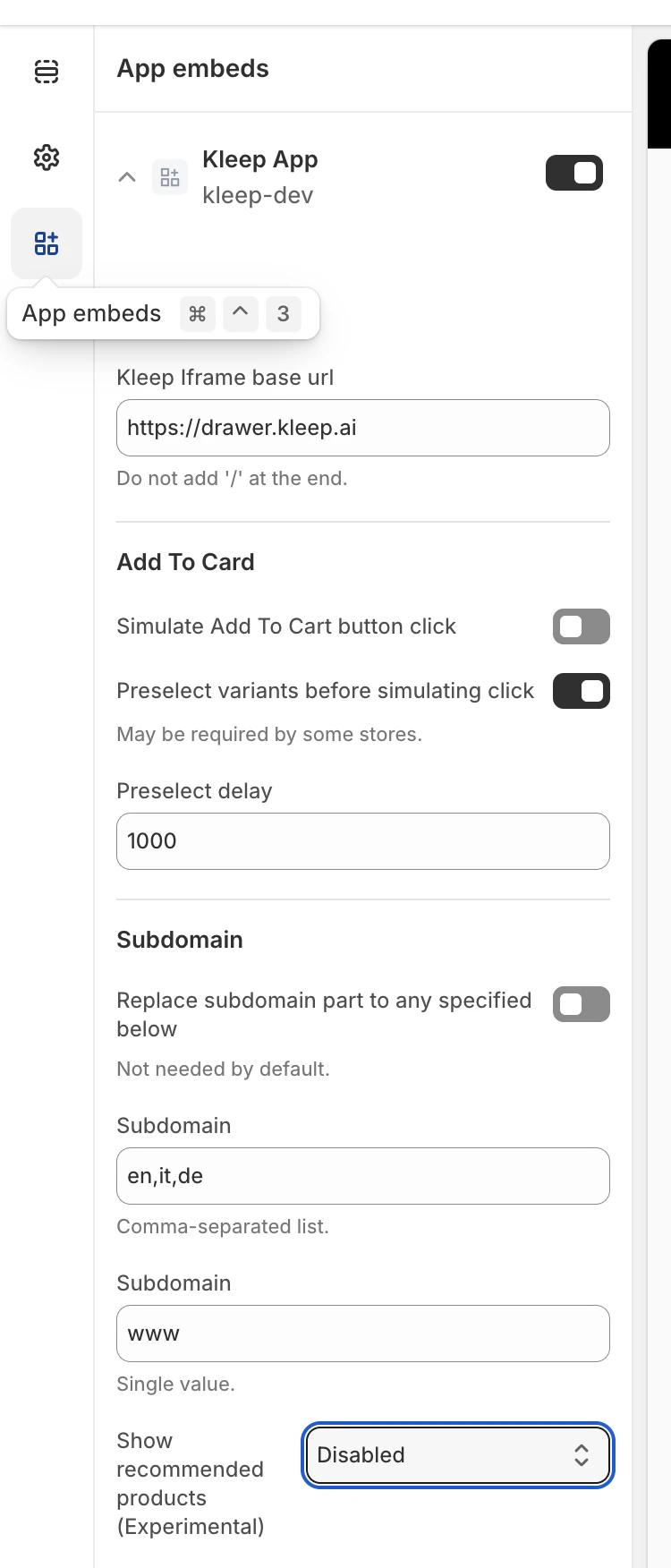 接下来,找到 **"Show recommended products"** 选项。
### 第 2 步 — 选择相似商品显示模式
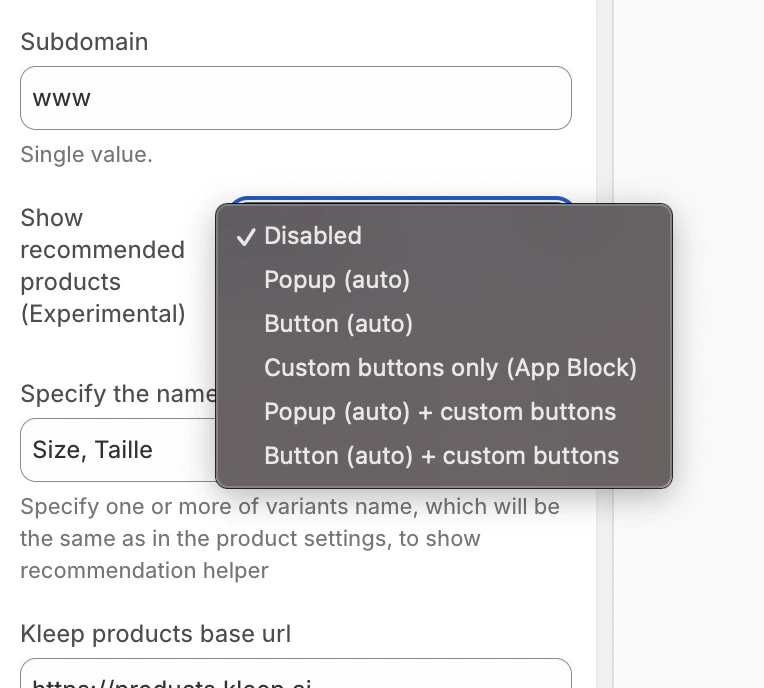
在 Kleep 小部件配置中,选择相似商品在商品页面上的显示方式:
* disabled – 完全关闭该功能
* popup – 在桌面端自动在规格/尺码选择器上方添加弹出框,在移动端替换默认按钮
* button – 当所选规格缺货时,自动在"加入购物车"区域附近插入 CTA 按钮
* custom\_buttons – 禁用所有自动放置;商家必须手动添加一个或多个"Kleep Similar Button"块
* popup+custom – 保留自动弹出框,同时启用主题中添加的任何自定义按钮
* button+custom – 保留自动 CTA 按钮,同时启用主题中添加的任何自定义按钮
接下来,找到 **"Show recommended products"** 选项。
### 第 2 步 — 选择相似商品显示模式
在 Kleep 小部件配置中,选择相似商品在商品页面上的显示方式:
* disabled – 完全关闭该功能
* popup – 在桌面端自动在规格/尺码选择器上方添加弹出框,在移动端替换默认按钮
* button – 当所选规格缺货时,自动在"加入购物车"区域附近插入 CTA 按钮
* custom\_buttons – 禁用所有自动放置;商家必须手动添加一个或多个"Kleep Similar Button"块
* popup+custom – 保留自动弹出框,同时启用主题中添加的任何自定义按钮
* button+custom – 保留自动 CTA 按钮,同时启用主题中添加的任何自定义按钮
 保存主题后,相似商品功能将立即显示在您商店的商品页面中。
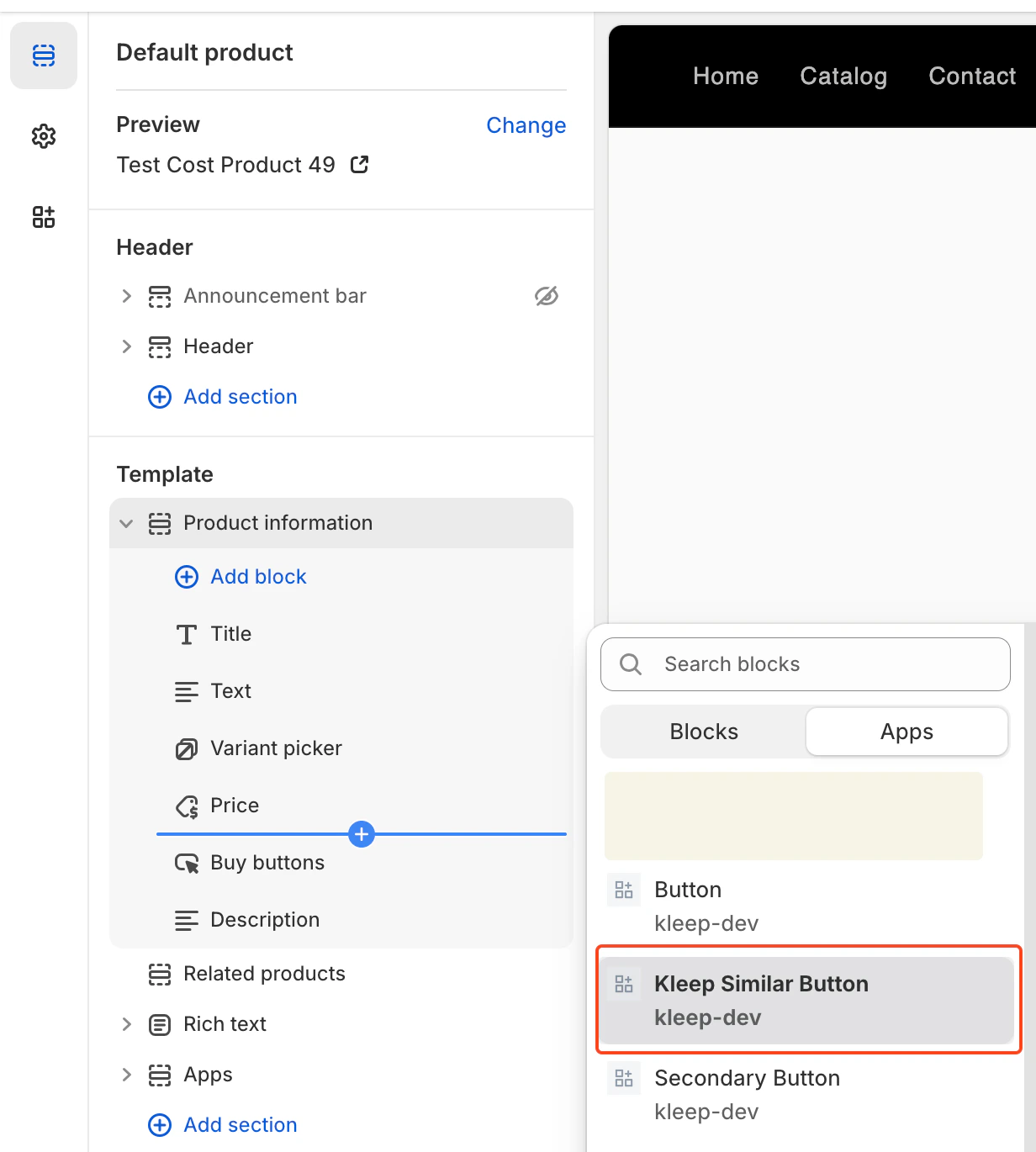
**第 3 步 — 添加自定义按钮(仅适用于 custom\_buttons、popup+custom、button+custom)**
如果您选择的模式包含自定义按钮:
1. 打开 **Online Store → Customize**。
2. 前往 **Product page** 模板。
3. 在所需区域,点击 **Add Block**。
4. 选择 **Kleep Similar Button**。
5. 保存主题。
自定义按钮仅在所选规格缺货时显示。
保存主题后,相似商品功能将立即显示在您商店的商品页面中。
**第 3 步 — 添加自定义按钮(仅适用于 custom\_buttons、popup+custom、button+custom)**
如果您选择的模式包含自定义按钮:
1. 打开 **Online Store → Customize**。
2. 前往 **Product page** 模板。
3. 在所需区域,点击 **Add Block**。
4. 选择 **Kleep Similar Button**。
5. 保存主题。
自定义按钮仅在所选规格缺货时显示。
 ## 添加多个"相似商品"按钮(主要按钮与辅助按钮)
您可以在商品页面上添加任意数量的相似商品按钮。
这适用于 OS 2.0 主题和 V1 / 旧版主题。
## 启用支持自定义按钮的模式
要允许添加多个按钮,小部件必须设置为以下模式之一:
* custom\_buttons
* popup+custom
* button+custom
这些模式启用手动放置,商家可以按需插入任意数量的按钮。
## 适用于 Online Store 2.0(现代主题)
OS 2.0 主题支持通过主题编辑器可视化添加按钮。
步骤:
* 前往 Online Store → Customize
* 打开 Product page 模板
* 点击 Add block → Kleep Similar Button
* 将按钮添加到所需位置
* 如需添加 2 个以上按钮,重复上述操作
每个按钮仅在所选规格缺货时自动显示。
## 适用于 V1 / 旧版主题
旧版主题不支持块,但您可以多次渲染代码片段。
在您希望添加按钮的位置插入以下代码片段:
`{% render 'kleep-similar-button' %}`
如需创建多个按钮,只需将此代码放置在商品模板的不同区域。
每次调用代码片段都会创建一个额外的按钮。
### 总结
添加多个相似商品按钮的方法:
启用任意包含自定义按钮的模式 → 添加多个 OS 2.0 块或多次调用代码片段 → 所有按钮在规格缺货时自动生效。
***
**CTA 在商品详情页(PDP)的位置**
位置由 `KleepSDK.getConstants()` 内部的 DOM 选择器定义。
`targetProductInfoBlockQueries` – 商品信息所在位置。这是一个选择器数组,指向商品详情主容器(标题、价格、尺码等)。脚本会遍历这些选择器,并使用找到的第一个作为 CTA 或弹出框的插入点。
`targetVariantQueries` – 尺码/规格选项所在位置:找到商品信息块后,脚本会在其内部搜索规格元素(如尺码选择器)。每个规格 \
## 添加多个"相似商品"按钮(主要按钮与辅助按钮)
您可以在商品页面上添加任意数量的相似商品按钮。
这适用于 OS 2.0 主题和 V1 / 旧版主题。
## 启用支持自定义按钮的模式
要允许添加多个按钮,小部件必须设置为以下模式之一:
* custom\_buttons
* popup+custom
* button+custom
这些模式启用手动放置,商家可以按需插入任意数量的按钮。
## 适用于 Online Store 2.0(现代主题)
OS 2.0 主题支持通过主题编辑器可视化添加按钮。
步骤:
* 前往 Online Store → Customize
* 打开 Product page 模板
* 点击 Add block → Kleep Similar Button
* 将按钮添加到所需位置
* 如需添加 2 个以上按钮,重复上述操作
每个按钮仅在所选规格缺货时自动显示。
## 适用于 V1 / 旧版主题
旧版主题不支持块,但您可以多次渲染代码片段。
在您希望添加按钮的位置插入以下代码片段:
`{% render 'kleep-similar-button' %}`
如需创建多个按钮,只需将此代码放置在商品模板的不同区域。
每次调用代码片段都会创建一个额外的按钮。
### 总结
添加多个相似商品按钮的方法:
启用任意包含自定义按钮的模式 → 添加多个 OS 2.0 块或多次调用代码片段 → 所有按钮在规格缺货时自动生效。
***
**CTA 在商品详情页(PDP)的位置**
位置由 `KleepSDK.getConstants()` 内部的 DOM 选择器定义。
`targetProductInfoBlockQueries` – 商品信息所在位置。这是一个选择器数组,指向商品详情主容器(标题、价格、尺码等)。脚本会遍历这些选择器,并使用找到的第一个作为 CTA 或弹出框的插入点。
`targetVariantQueries` – 尺码/规格选项所在位置:找到商品信息块后,脚本会在其内部搜索规格元素(如尺码选择器)。每个规格 \