> ## Documentation Index
> Fetch the complete documentation index at: https://docs.kleep.ai/llms.txt
> Use this file to discover all available pages before exploring further.
# Shopify 통합 가이드
**이 가이드는 Shopify 스토어에 Kleep을 설치하는 방법을 안내합니다. Kleep은 세 가지 주요 기능을 제공합니다: 지능형 사이즈 가이드(Kleep Sizing), 유사 상품 추천(Kleep Similar Products), 최적화된 상품 검색(Kleep Search).**
## 통합 프로세스 개요
계약 서명부터 라이브 전환 이후까지의 예상 과정입니다. 전체 통합은 일반적으로 약 **5\~6주**가 소요됩니다.
### 온보딩
계약이 서명되면 Kleep 담당자가 GoCardless를 통해 결제를 시작합니다: [자동이체 설정 →](https://pay.gocardless.com/BRT000352V7T67Q).
설치 시작 전 일정, 기술 담당자, 스토어별 요구 사항을 조율하기 위한 Kleep 담당자와의 짧은 통화입니다.
킥오프 후, 통합을 준비할 수 있도록 회사, 결제, 스토어 환경 및 반품 설정에 대한 몇 가지 세부 정보를 공유해 주시도록 요청드립니다.
**[온보딩 양식 작성 →](https://ihu3s9tz3r8.typeform.com/to/fYQw9zJ5)**
약 5분이 소요됩니다. 제출 후 영업일 기준 1일 이내에 팀에서 응답을 검토하고 다음 단계를 확인해 드립니다.
스토어 주소(예: `your-store.myshopify.com`)와 협력자 요청 코드를 보내주시면 스토어 접근 권한을 요청할 수 있습니다.
**Shopify 스토어가 여러 개인가요?** 여러 Shopify 인스턴스(예: 다른 지역 또는 브랜드)가 있는 경우 **각 쇼핑몰마다** 협력자 코드를 보내주세요 — 스토어당 코드 하나가 필요합니다.
이 정보를 어디서 찾을 수 있는지 모르시나요? Shopify 관리자에서 **설정 → 사용자 및 권한**으로 이동하세요 — `myshopify.com` URL은 상단에 표시되며, **협력자 요청 코드**는 *협력자* 섹션 아래에 나열되어 있습니다. 자세한 내용은 [협력자 계정](https://help.shopify.com/en/manual/your-account/staff-accounts/collaborator-accounts)에 대한 Shopify 도움말 기사를 참조하세요.
Shopify 파트너 계정에서 협력자 접근 요청을 보내드립니다. Shopify 관리자의 **설정 → 사용자 및 권한 → 협력자**에서 승인하세요.
협력자 접근 권한을 얻으면 **각 스토어에 대한** 앱 설치 링크를 보내드립니다. Kleep을 활성화하려는 모든 Shopify 스토어에 Kleep 앱을 별도로 설치해야 합니다.
"내 사이즈 찾기" 버튼의 제안된 위치를 검토하고 스토어프론트에 맞는 것을 선택하세요: [CTA 배치 Figma →](https://www.figma.com/design/DvsqgNPSjVPVPLjKV2efAY/KLEEP-CTA-POSITIONING-SUGGESTIONS?node-id=0-1\&p=f\&t=92MwlxQkzlfAYyk5-0).
### 설치 및 테스트
팀에서 현재 Shopify 테마를 복제하고 복제본에 Kleep을 설치하므로 테스트하는 동안 라이브 스토어프론트는 그대로 유지됩니다.
통합을 처음부터 끝까지 테스트하고 필요한 피드백이나 조정을 공유할 수 있는 비공개 미리보기 링크를 보내드립니다.
최종 승인을 받으면 라이브 테마에 Kleep을 게시합니다.
### 통합 후
[Kleep 대시보드](https://dashboard.kleep.ai)에 접근할 수 있는 팀 자격 증명을 제공합니다. 실시간으로 Kleep 성능 KPI를 모니터링할 수 있습니다.
팀이 실제 피팅 데이터를 사용하여 Kleep의 사이즈 추천을 개선할 수 있도록 대시보드에서 [핏 피드백](/ko/dashboard/fit-feedback)을 활성화합니다.
## 1. 기능
Kleep은 사전에 제작된 커스텀 앱을 설치하여 스토어에 통합됩니다. 이를 통해:
1. 상품 페이지에 "내 사이즈 찾기" CTA를 추가합니다
2. 테마 편집기에서 직접 UI를 커스터마이즈합니다
앱은 또한 최신 상태를 유지하기 위해 상품, 주문 및 반품 데이터의 자동화된 흐름을 생성합니다. 이 데이터는 매일 검색됩니다.
설치 시 앱은 WebPixel을 생성하여 솔루션의 ROI를 도출하는 여러 지표를 추적하는 데 사용됩니다.
## 2. 유사 상품 기능
유사 상품은 사이즈가 품절일 때 대안 상품을 제안합니다. 이 기능은 고객에게 관련 대안을 제공하여 전환율을 높입니다.
**사용 가능한 표시 모드**
| 모드 | 설명 |
| ------------ | -------------------------------- |
| **팝업 (자동)** | 데스크톱에서 사이즈 호버 시 자동 팝업 / 모바일에서 버튼 |
| **버튼 (자동)** | 품절 시 장바구니 근처에 자동 CTA 버튼 |
| **커스텀 버튼만** | 테마 편집기를 통해 직접 버튼 배치 |
| **팝업 + 커스텀** | 자동 팝업 + 추가 커스텀 버튼 |
| **버튼 + 커스텀** | 자동 버튼 + 추가 커스텀 버튼 |
**구성**
**1단계: 표시 모드 선택**
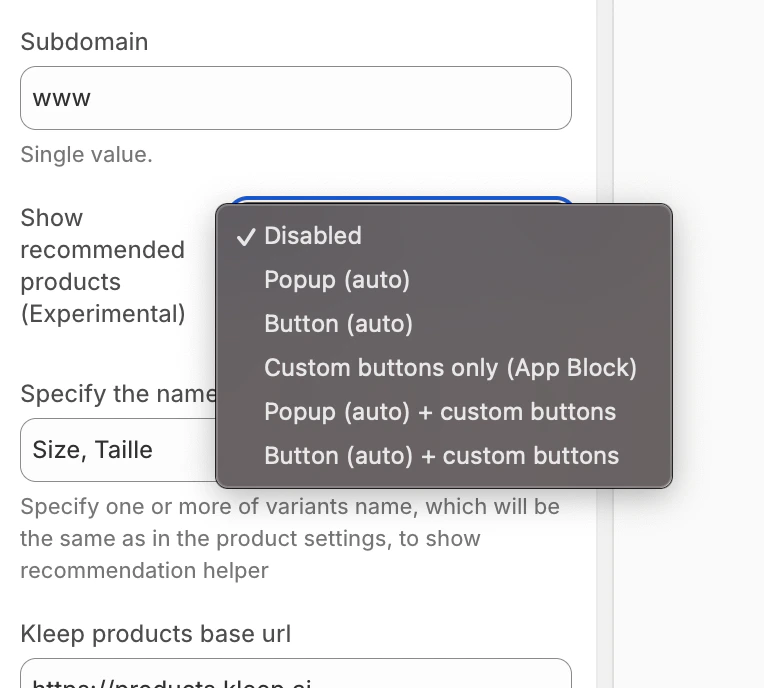
Kleep 앱 임베드 설정에서 **"추천 상품 표시"** 옵션을 찾아 드롭다운 메뉴에서 원하는 모드를 선택하세요.
유사 상품 모드 선택
**커스텀 버튼 추가 (커스텀 모드용)**
"커스텀"이 포함된 모드를 선택한 경우 특정 위치에 버튼을 추가할 수 있습니다:
1. 테마 편집기에서 **상품 페이지** 템플릿으로 이동
2. 원하는 섹션에서 **블록 추가** 클릭
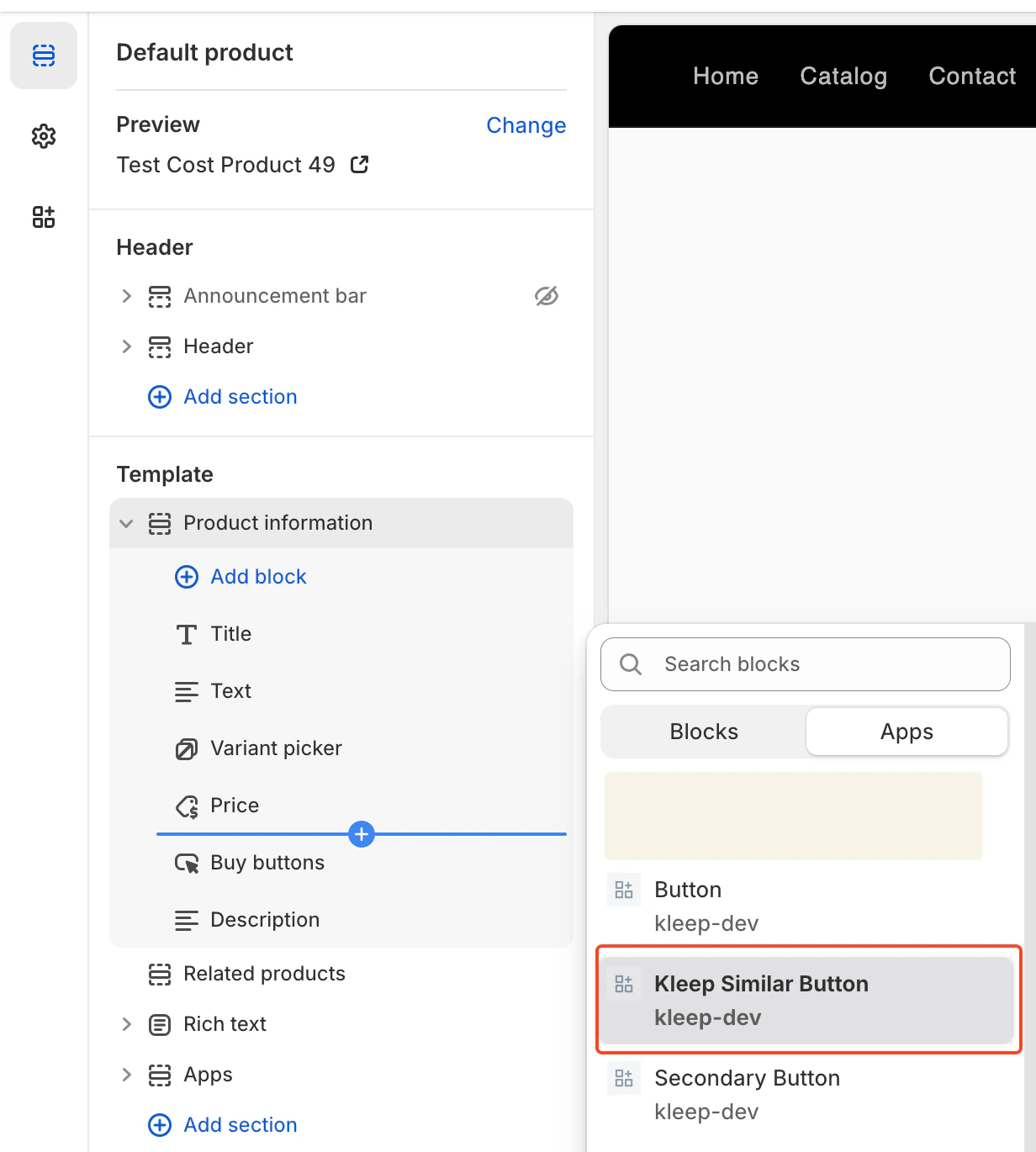
3. **앱** 탭을 클릭하고 **"Kleep Similar Button"** 선택
4. 블록을 원하는 위치에 배치하고 저장
Kleep Similar Button 블록 추가
유사 상품 버튼은 변형이 품절일 때만 나타납니다. 모든 상품에서 보이지 않는 것은 정상입니다.
**여러 버튼 추가**
상품 페이지에 유사 상품 버튼을 원하는 수만큼 추가할 수 있습니다. 여러 버튼을 허용하려면 위젯을 `custom_buttons`, `popup+custom`, 또는 `button+custom` 중 하나로 설정해야 합니다.
OS 2.0 테마의 경우:
* **온라인 스토어 → 커스터마이즈**로 이동
* **상품 페이지** 템플릿 열기
* **블록 추가 → Kleep Similar Button** 클릭
* 페이지에 2개 이상의 버튼을 원하면 반복
모든 버튼은 선택된 변형이 품절일 때만 자동으로 나타납니다.
***
## 3. Kleep 검색 기능
Kleep 검색은 사이즈 필터와 개인화된 추천 기능을 갖춘 최적화된 검색으로 Shopify 기본 검색을 대체합니다.
**1단계: 커스텀 검색 활성화**
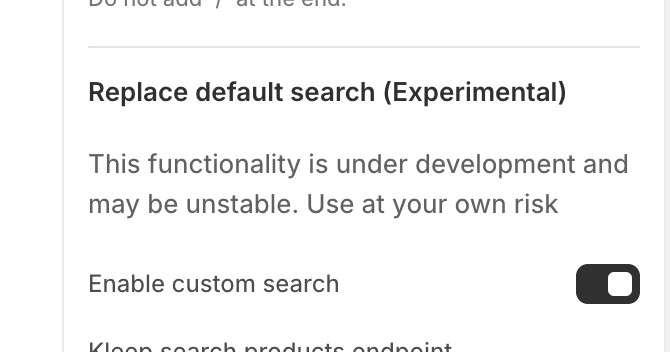
Kleep 앱 임베드 설정에서 **"커스텀 검색 활성화"** 옵션을 활성화하세요.
커스텀 검색 활성화
**2단계: 검색 템플릿 접근**
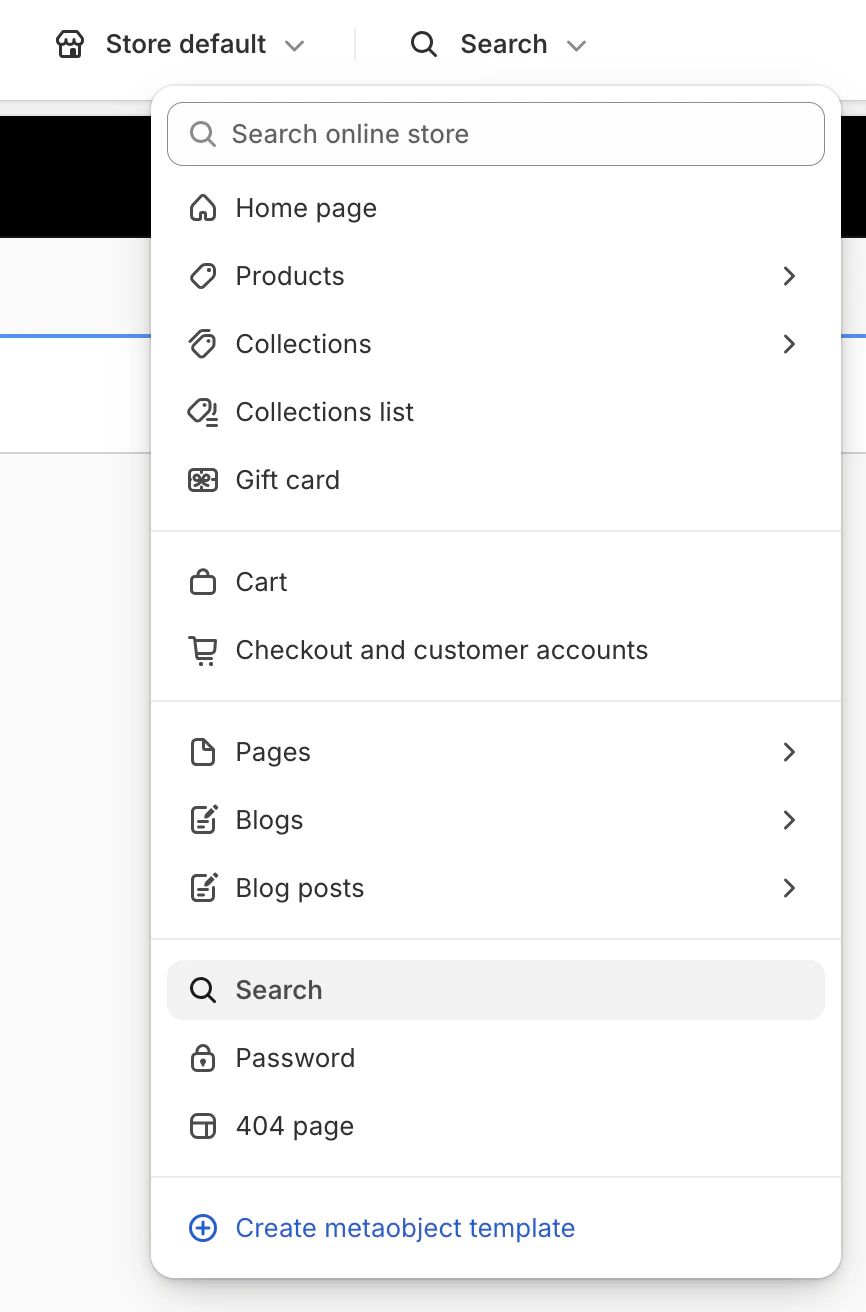
테마 편집기에서 상단 드롭다운 메뉴를 클릭하여 (기본값: "홈 페이지") 템플릿 목록에서 \*\*"검색"\*\*을 선택하세요.
검색 템플릿 선택
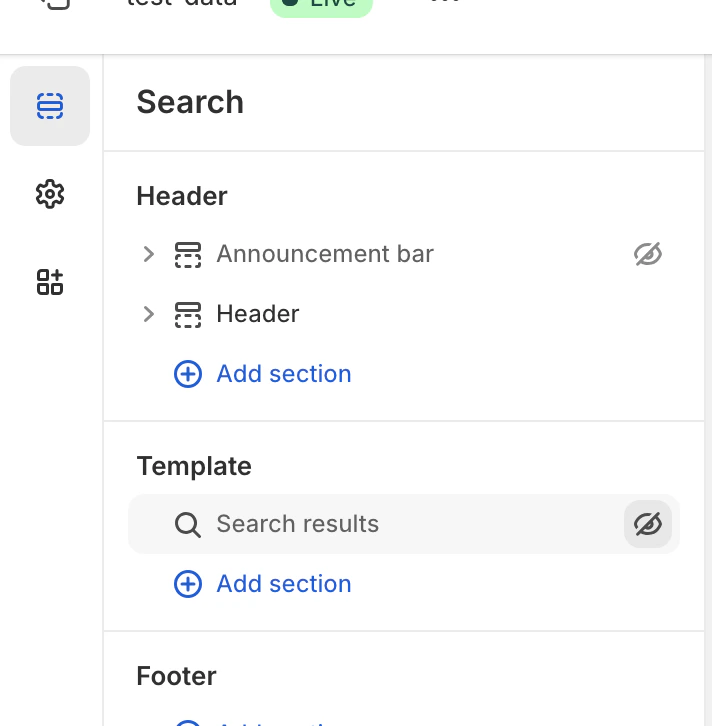
**3단계: 기본 검색 숨기기**
템플릿 섹션에서 눈 아이콘을 클릭하여 기본 **"검색 결과"** 블록을 숨기거나 제거하세요.
기본 검색 숨기기
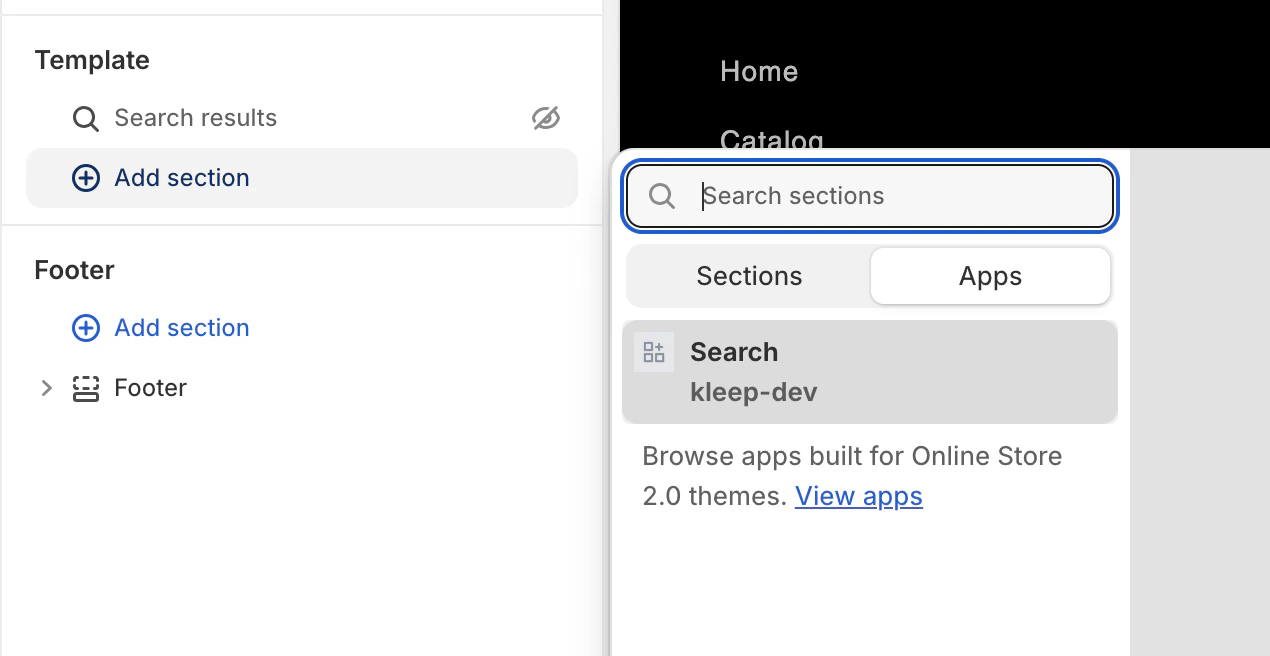
**4단계: Kleep 검색 블록 추가**
**섹션 추가**를 클릭한 후 **앱** 탭에서 **"검색"** (kleep-dev)을 선택하세요.
Kleep 검색 블록 추가
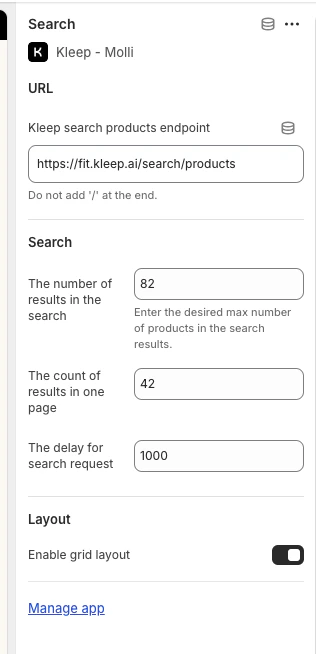
**5단계: 옵션 구성**
추가한 검색 블록을 클릭하여 설정(결과 수, 그리드/목록 표시, 검색 지연 등)에 접근하세요.
검색 구성 옵션
## 4. 반품 통합 (선택 사항)
반품 관리 플랫폼을 사용하는 경우 Kleep은 반품 데이터를 통합하여 사이즈 추천을 개선할 수 있습니다.
**지원되는 반품 제공업체**
* Global-e
* Aftership
* Fast Return
* Return Go
* 기타 (문의하세요)
**구성**
1. Kleep 대시보드에서 **설정 → 반품**으로 이동
2. 반품 제공업체 선택
3. 계정을 연결하기 위한 제공업체별 지침을 따르세요
제공업체가 목록에 없으면 [support@kleep.ai](mailto:support@kleep.ai)로 문의하세요 — SFTP 또는 API를 통해 커스텀 통합을 설정할 수 있습니다.
## 5. 이벤트 추적 및 분석
Kleep은 분석을 위해 사용자 상호작용을 자동으로 추적합니다. 라이브 전환 전 추적이 올바르게 작동하는지 확인하세요.
**추적되는 이벤트**
| 이벤트 | 설명 |
| ------------------------ | ------------------------- |
| `kleep_button_click` | 사용자가 사이즈 가이드 버튼 클릭 |
| `kleep_drawer_open` | 사이즈 가이드 드로어 열림 |
| `kleep_size_recommended` | 사이즈 추천이 표시됨 |
| `kleep_add_to_cart` | 사용자가 Kleep에서 상품을 장바구니에 추가 |
| `kleep_similar_click` | 사용자가 유사 상품 클릭 |
**확인**
이벤트가 올바르게 발생하는지 확인하려면:
1. 브라우저 개발자 도구 열기 (F12)
2. **네트워크** 탭으로 이동
3. "kleep"으로 필터링
4. 사이즈 가이드 버튼과 상호작용
5. 각 이벤트에 대한 API 호출이 보여야 합니다
**라이브 전환 전:** 최소 5개의 이벤트가 트리거되고 페이로드가 유효한지 확인하세요. 통합을 검증하기 위해 전체 사용자 여정(버튼 클릭 → 사이즈 추천 → 장바구니에 추가)을 완료하세요.
## 6. CSS 커스터마이즈
커스텀 CSS를 추가하여 Kleep 요소(버튼, 팝업, 검색)의 외관을 커스터마이즈할 수 있습니다.
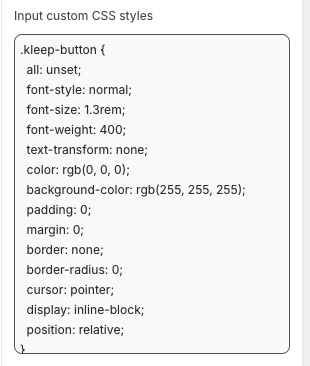
**CSS 추가 위치**
Kleep 앱 임베드 설정에서 **"Input custom CSS styles"** 필드를 찾을 수 있습니다. 커스텀 CSS를 해당 위치에 붙여넣으세요.
커스텀 CSS 필드
**커스터마이즈 예시**
```css theme={null}
.kleep-button {
all: unset;
font-style: normal;
font-size: 1.3rem;
font-weight: 400;
text-transform: none;
color: rgb(0, 0, 0);
background-color: rgb(255, 255, 255);
padding: 0;
margin: 0;
border: none;
border-radius: 0;
cursor: pointer;
display: inline-block;
position: relative;
}
```
## 7. 다중 환경
여러 Shopify 환경(개발, 스테이징, 프로덕션)이 있는 경우 각 환경에 대해 Kleep을 구성해야 합니다.
**각 환경 설정**
1. **프로덕션 스토어** — 메인 스토어, 완전히 구성됨
2. **스테이징/개발 스토어** — 프로덕션에 적용하기 전 테스트용
각 환경에 대해:
1. Kleep 앱 설치
2. 앱 임베드 활성화
3. Kleep CSM에게 연락하여 환경을 계정에 연결
항상 프로덕션에 적용하기 전에 스테이징에서 변경사항을 테스트하세요.
**환경별 URL**
Kleep CSM에게 다음을 제공하세요:
* 프로덕션 URL: `https://www.yourbrand.com`
* 스테이징 URL: `https://staging.yourbrand.com` (해당되는 경우)
* 개발 URL: `https://dev.yourbrand.com` (해당되는 경우)
## 7.5 CTA 버튼 및 유사 상품 — 전체 설치 가이드
Kleep CTA 버튼 및 유사 상품 기능 설치(모든 Liquid 코드, 설정 스키마 및 보조 버튼 설정 포함)에 대한 전체 기술 참조는 아래의 전용 가이드를 참조하세요:
[CTA 버튼 및 유사 상품 — 전체 설치 가이드](/ko/cms/cta-button)
***
## 8. 레거시 테마 - 사이즈 가이드 설정
레거시 테마("레거시"라고도 하거나 Online Store 2.0 이전에 생성된 테마)는 앱 블록을 지원하지 않습니다. 설치 시 Liquid 코드 수정이 필요합니다.
이 섹션은 Shopify 개발 지식(Liquid)이 필요합니다.
**전제 조건**
* 테마 코드 편집기 접근 권한 (**온라인 스토어 → 테마 → 코드 편집**)
* Shopify 관리자에서 Kleep 앱 임베드가 활성화되어 있어야 합니다 (**온라인 스토어 → 테마 → 커스터마이즈 → 앱 임베드 → Kleep**)
**1단계: 앱 임베드 활성화**
Shopify 관리자에서 **온라인 스토어 → 테마 → 커스터마이즈 → 앱 임베드**로 이동하여 Kleep 앱을 켜세요.
**2단계: 스니펫 호출**
Kleep이 표시되길 원하는 곳에 다음 코드를 붙여넣으세요. `snippets` 폴더 내 `Product info` 블록의 일부여야 합니다:
```jsx theme={null}
{% render 'kleep-button', cms: section.settings %}
```
**3단계: 버튼 스니펫 생성**
`snippets` 폴더 내에 `kleep-button.liquid`라는 새 파일을 생성하세요. 다음 내용을 파일에 추가하세요:
```jsx theme={null}
```
**4단계: 설정 스키마 추가**
섹션 파일 끝의 설정 스키마에 다음 옵션을 추가하세요:
```json theme={null}
{
"type": "header",
"content": "Button text",
"info": "If you enable this feature, the button text you enter will be replaced for all languages in your store"
},
{
"type": "checkbox",
"default": false,
"id": "custom_button_text_toggle",
"label": "Enable custom button text"
},
{
"type": "text",
"id": "custom_find_size_text",
"label": "Find my best size text",
"info": "What text will display instead of\"Find my best size\"?"
},
{
"type": "text",
"id": "custom_recommended_size_text",
"label": "Recommended size text",
"info": "What text will display instead of\"Recommended size\"?"
},
{
"type": "header",
"content": "Image"
},
{
"type": "url",
"id": "image_url",
"label": "Url Image"
},
{
"type": "range",
"id": "image_size",
"min": 0,
"max": 80,
"step": 2,
"unit": "px",
"label": "Image size (square)",
"default": 20
},
{
"type": "header",
"content": "CSS Styles"
},
{
"type": "checkbox",
"default": true,
"id": "default_font_family",
"label": "Theme font",
"info": "If checked, the css variable `--font-body-family` is used"
},
{
"type": "font_picker",
"id": "font_family",
"label": "Font Family",
"default": "helvetica_n4"
},
{
"type": "select",
"id": "text_style",
"label": "Text style",
"default": "normal",
"options": [
{ "label": "Normal", "value": "normal" },
{ "label": "Italic", "value": "italic" },
{ "label": "Oblique", "value": "oblique" }
]
},
{
"type": "select",
"id": "text_transform",
"label": "Text transformation",
"default": "none",
"options": [
{ "label": "Normal", "value": "none" },
{ "label": "Capitalize", "value": "capitalize" },
{ "label": "Uppercase", "value": "uppercase" },
{ "label": "Lowercase", "value": "lowercase" }
]
},
{
"type": "select",
"id": "text_weight",
"label": "Text weight",
"default": "400",
"options": [
{ "label": "100", "value": "100" },
{ "label": "200", "value": "200" },
{ "label": "300", "value": "300" },
{ "label": "400", "value": "400" },
{ "label": "500", "value": "500" },
{ "label": "600", "value": "600" },
{ "label": "700", "value": "700" },
{ "label": "800", "value": "800" },
{ "label": "900", "value": "900" }
]
},
{
"type": "range",
"id": "text_size",
"min": 2,
"max": 50,
"step": 2,
"unit": "px",
"label": "Font size",
"default": 16
},
{
"type": "checkbox",
"id": "text_underline",
"label": "Text underline",
"default": false
},
{
"type": "range",
"id": "text_underline_offset",
"min": 1,
"max": 20,
"step": 1,
"unit": "px",
"label": "Underline offset",
"default": 2
},
{
"type": "color",
"id": "text_color",
"label": "Button text color",
"default": "#ffffff"
},
{
"type": "color",
"id": "bg_color",
"label": "Background color",
"default": "#000000"
},
{
"type": "color",
"id": "border_color",
"label": "Border color",
"default": "#000000"
},
{
"type": "range",
"id": "border_width",
"min": 0,
"max": 8,
"step": 1,
"unit": "px",
"label": "Border width",
"default": 0
},
{
"type": "header",
"content": "Spacing"
},
{
"type": "checkbox",
"id": "center",
"label": "Center the button",
"default": false,
"info": "This will override 'Horizontal margin'"
},
{
"type": "range",
"id": "margin_y",
"min": 0,
"max": 80,
"step": 2,
"unit": "px",
"label": "Vertical margin",
"default": 0
},
{
"type": "range",
"id": "margin_x",
"min": 0,
"max": 80,
"step": 2,
"unit": "px",
"label": "Horizontal margin",
"default": 0
},
{
"type": "range",
"id": "padding_t",
"min": 0,
"max": 40,
"step": 2,
"unit": "px",
"label": "Padding top",
"default": 12
},
{
"type": "range",
"id": "padding_r",
"min": 0,
"max": 40,
"step": 2,
"unit": "px",
"label": "Padding right",
"default": 16
},
{
"type": "range",
"id": "padding_b",
"min": 0,
"max": 40,
"step": 2,
"unit": "px",
"label": "Padding bottom",
"default": 12
},
{
"type": "range",
"id": "padding_l",
"min": 0,
"max": 40,
"step": 2,
"unit": "px",
"label": "Padding left",
"default": 16
},
{
"type": "range",
"id": "border_radius",
"min": 0,
"max": 40,
"step": 2,
"unit": "px",
"label": "Border radius",
"default": 0
}
```
**5단계: 유효성 검사**
Shopify 테마 커스터마이즈 영역에서 업데이트를 확인하세요. 상품 정보 블록 설정에서 시각적 요소를 구성하세요.
**선택 사항: 보조 버튼**
보조 버튼을 추가하려면 `snippets` 폴더 내에 `kleep-secondary-button.liquid`라는 새 파일을 생성하세요:
```jsx theme={null}
```
Kleep이 표시되길 원하는 곳에 다음 코드를 붙여넣으세요. `snippets` 폴더 내 `Product info` 블록의 일부여야 합니다.
```jsx theme={null}
{% render 'kleep-secondary-button', cms: section.settings %}
```
***
## 9. 레거시 테마 - 유사 상품 설정
**1단계: 스니펫 생성**
다음 코드로 `snippets/kleep-similar-button.liquid` 파일을 생성하세요:
```jsx theme={null}
{% assign cms = block.settings %}
{% assign domain = shop.domain %}
{% assign translated_similar = '' %}
{% assign translated_similar_missing = true %}
{%- assign domain_key = domain | prepend: 'www.' | append: '.recommended' -%}
{% assign raw_domain_similar = domain_key | t %}
{% unless raw_domain_similar contains 'Translation missing'
or raw_domain_similar contains domain
%}
{% assign translated_similar = raw_domain_similar %}
{% assign translated_similar_missing = false %}
{% endunless %}
{%- if translated_similar_missing -%}
{% assign raw_global_similar = 'kleep.recommended.text.btn' | t %}
{% unless raw_global_similar contains 'Translation missing' %}
{% assign translated_similar = raw_global_similar %}
{% assign translated_similar_missing = false %}
{% endunless %}
{%- endif %}
```
**2단계: 스니펫 렌더링**
버튼이 표시되길 원하는 위치에 이 줄을 삽입하세요:
```jsx theme={null}
{% render 'kleep-similar-button' %}
```
일반적인 배치: 변형 선택기 아래 또는 장바구니에 추가 폼 근처.
**3단계: 올바른 모드 활성화**
레거시 테마는 OS 2.0 블록을 삽입할 수 없으므로 위젯은 다음 중 하나를 사용해야 합니다:
* `custom_buttons`
* `popup+custom`
* `button+custom`
**여러 버튼 추가**
여러 버튼을 생성하려면 상품 템플릿의 다른 영역에 스니펫 코드를 배치하세요:
```jsx theme={null}
{% render 'kleep-similar-button' %}
```
각 스니펫 호출은 추가 버튼을 생성합니다. 모든 버튼은 선택된 변형이 품절일 때만 자동으로 나타납니다.
***
## 10. 번역 (i18n)
테마 로케일 파일에 다음 번역을 추가하세요.
**영어 (`en.json`)**
```json theme={null}
{
"kleep": {
"button": {
"text": {
"without_hash": "Find my ideal size",
"with_hash": "Ideal size"
}
},
"recommended": {
"text": {
"btn": "View similar",
"hint": "Size unavailable",
"link": "See similar products"
}
},
"search": {
"text": {
"inputPlaceholder": "Search...",
"productsBlockTitle": "Products",
"clearButton": "Clear"
}
},
"searchPage": {
"text": {
"header": "search results",
"query": "Results for",
"submit": "Search",
"input": "Search the store",
"viewProduct": "View product"
}
}
}
}
```
**프랑스어 (`fr.json`)**
```json theme={null}
{
"kleep": {
"button": {
"text": {
"without_hash": "Trouver ma taille idéale",
"with_hash": "Taille idéale"
}
},
"recommended": {
"text": {
"btn": "Voir similaire",
"hint": "Taille indisponible",
"link": "Voir des produits similaires"
}
},
"search": {
"text": {
"inputPlaceholder": "Recherche...",
"productsBlockTitle": "Produits",
"clearButton": "Effacer"
}
},
"searchPage": {
"text": {
"header": "résultats de la recherche",
"query": "Résultats pour",
"submit": "Recherche",
"input": "Rechercher dans la boutique",
"viewProduct": "Voir le produit"
}
}
}
}
```
**이탈리아어 (`it.json`)**
```json theme={null}
{
"kleep": {
"button": {
"text": {
"without_hash": "Trova la mia taglia ideale",
"with_hash": "Taglia ideale"
}
},
"recommended": {
"text": {
"btn": "Visualizza simili",
"hint": "Taglia non disponibile",
"link": "Visualizza prodotti simili"
}
},
"search": {
"text": {
"inputPlaceholder": "Cerca...",
"productsBlockTitle": "Prodotti",
"clearButton": "Cancella"
}
},
"searchPage": {
"text": {
"header": "risultati della ricerca",
"query": "Risultati per",
"submit": "Cerca",
"input": "Cerca nel negozio",
"viewProduct": "Visualizza prodotto"
}
}
}
}
```
**독일어 (`de.json`)**
```json theme={null}
{
"kleep": {
"button": {
"text": {
"without_hash": "Finde meine ideale Größe",
"with_hash": "Ideale Größe"
}
},
"recommended": {
"text": {
"btn": "Ähnliche Ansicht",
"hint": "Größe nicht verfügbar",
"link": "Ähnliche Produkte ansehen"
}
},
"search": {
"text": {
"inputPlaceholder": "Suchen...",
"productsBlockTitle": "Produkte",
"clearButton": "Klar"
}
},
"searchPage": {
"text": {
"header": "Suchergebnisse",
"query": "Ergebnisse für",
"submit": "Suchen",
"input": "Durchsuchen Sie den Shop",
"viewProduct": "Produkt ansehen"
}
}
}
}
```
**스페인어 (`es.json`)**
```json theme={null}
{
"kleep": {
"button": {
"text": {
"without_hash": "Encontrar mi talla ideal",
"with_hash": "Talla ideal"
}
},
"recommended": {
"text": {
"btn": "Ver similares",
"hint": "Talla no disponible",
"link": "Ver productos similares"
}
},
"search": {
"text": {
"inputPlaceholder": "Buscar...",
"productsBlockTitle": "Productos",
"clearButton": "Borrar"
}
},
"searchPage": {
"text": {
"header": "resultados de búsqueda",
"query": "Resultados para",
"submit": "Buscar",
"input": "Buscar en la tienda",
"viewProduct": "Ver producto"
}
}
}
}
```
**일본어 (`ja.json`)**
```json theme={null}
{
"kleep": {
"button": {
"text": {
"without_hash": "自分に合うサイズを探す",
"with_hash": "好みのサイズ"
}
},
"recommended": {
"text": {
"btn": "類似商品を見る",
"hint": "サイズがありません",
"link": "類似商品を見る"
}
},
"search": {
"text": {
"inputPlaceholder": "検索...",
"productsBlockTitle": "商品",
"clearButton": "クリア"
}
},
"searchPage": {
"text": {
"header": "検索結果",
"query": "検索結果",
"submit": "検索",
"input": "ストアを検索",
"viewProduct": "商品を見る"
}
}
}
}
```
**한국어 (`ko.json`)**
```json theme={null}
{
"kleep": {
"button": {
"text": {
"without_hash": "내 이상적인 사이즈 찾기",
"with_hash": "추천 사이즈"
}
},
"recommended": {
"text": {
"btn": "유사한 상품 보기",
"hint": "사용 불가",
"link": "유사한 상품 보기"
}
},
"search": {
"text": {
"inputPlaceholder": "검색...",
"productsBlockTitle": "상품",
"clearButton": "지우기"
}
},
"searchPage": {
"text": {
"header": "검색 결과",
"query": "다음에 대한 결과",
"submit": "검색",
"input": "매장 검색",
"viewProduct": "상품 보기"
}
}
}
}
```
**포르투갈어 (`pt.json`)**
```json theme={null}
{
"kleep": {
"button": {
"text": {
"without_hash": "Encontrar meu tamanho ideal",
"with_hash": "Tamanho recomendado"
}
},
"recommended": {
"text": {
"btn": "Ver similar",
"hint": "Tamanho indisponível",
"link": "Ver produtos similares"
}
},
"search": {
"text": {
"inputPlaceholder": "Pesquisar...",
"productsBlockTitle": "Produtos",
"clearButton": "Limpar"
}
},
"searchPage": {
"text": {
"header": "resultados da pesquisa",
"query": "Resultados para",
"submit": "Pesquisar",
"input": "Pesquisar na loja",
"viewProduct": "Ver produto"
}
}
}
}
```
***
## 11. 기술 참조
**PDP의 CTA 위치**
위치는 `KleepSDK.getConstants()` 내의 DOM 셀렉터로 정의됩니다:
* **`targetProductInfoBlockQueries`** – 상품 세부 정보(제목, 가격, 사이즈 등)의 메인 컨테이너를 가리키는 셀렉터 배열. 스크립트는 이 셀렉터들을 반복하여 CTA 또는 팝업의 삽입 지점으로 첫 번째 발견된 것을 사용합니다.
* **`targetVariantQueries`** – 사이즈/변형 옵션이 있는 위치. 상품 정보 블록이 발견되면 스크립트는 그 안에서 변형 요소(사이즈 선택기 등)를 검색합니다. 각 변형 `
 유사 상품 모드 선택
**커스텀 버튼 추가 (커스텀 모드용)**
"커스텀"이 포함된 모드를 선택한 경우 특정 위치에 버튼을 추가할 수 있습니다:
1. 테마 편집기에서 **상품 페이지** 템플릿으로 이동
2. 원하는 섹션에서 **블록 추가** 클릭
3. **앱** 탭을 클릭하고 **"Kleep Similar Button"** 선택
4. 블록을 원하는 위치에 배치하고 저장
유사 상품 모드 선택
**커스텀 버튼 추가 (커스텀 모드용)**
"커스텀"이 포함된 모드를 선택한 경우 특정 위치에 버튼을 추가할 수 있습니다:
1. 테마 편집기에서 **상품 페이지** 템플릿으로 이동
2. 원하는 섹션에서 **블록 추가** 클릭
3. **앱** 탭을 클릭하고 **"Kleep Similar Button"** 선택
4. 블록을 원하는 위치에 배치하고 저장
 Kleep Similar Button 블록 추가
 커스텀 검색 활성화
**2단계: 검색 템플릿 접근**
테마 편집기에서 상단 드롭다운 메뉴를 클릭하여 (기본값: "홈 페이지") 템플릿 목록에서 \*\*"검색"\*\*을 선택하세요.
커스텀 검색 활성화
**2단계: 검색 템플릿 접근**
테마 편집기에서 상단 드롭다운 메뉴를 클릭하여 (기본값: "홈 페이지") 템플릿 목록에서 \*\*"검색"\*\*을 선택하세요.
 검색 템플릿 선택
**3단계: 기본 검색 숨기기**
템플릿 섹션에서 눈 아이콘을 클릭하여 기본 **"검색 결과"** 블록을 숨기거나 제거하세요.
검색 템플릿 선택
**3단계: 기본 검색 숨기기**
템플릿 섹션에서 눈 아이콘을 클릭하여 기본 **"검색 결과"** 블록을 숨기거나 제거하세요.
 기본 검색 숨기기
**4단계: Kleep 검색 블록 추가**
**섹션 추가**를 클릭한 후 **앱** 탭에서 **"검색"** (kleep-dev)을 선택하세요.
기본 검색 숨기기
**4단계: Kleep 검색 블록 추가**
**섹션 추가**를 클릭한 후 **앱** 탭에서 **"검색"** (kleep-dev)을 선택하세요.
 Kleep 검색 블록 추가
**5단계: 옵션 구성**
추가한 검색 블록을 클릭하여 설정(결과 수, 그리드/목록 표시, 검색 지연 등)에 접근하세요.
Kleep 검색 블록 추가
**5단계: 옵션 구성**
추가한 검색 블록을 클릭하여 설정(결과 수, 그리드/목록 표시, 검색 지연 등)에 접근하세요.
 검색 구성 옵션
## 4. 반품 통합 (선택 사항)
반품 관리 플랫폼을 사용하는 경우 Kleep은 반품 데이터를 통합하여 사이즈 추천을 개선할 수 있습니다.
**지원되는 반품 제공업체**
* Global-e
* Aftership
* Fast Return
* Return Go
* 기타 (문의하세요)
**구성**
1. Kleep 대시보드에서 **설정 → 반품**으로 이동
2. 반품 제공업체 선택
3. 계정을 연결하기 위한 제공업체별 지침을 따르세요
검색 구성 옵션
## 4. 반품 통합 (선택 사항)
반품 관리 플랫폼을 사용하는 경우 Kleep은 반품 데이터를 통합하여 사이즈 추천을 개선할 수 있습니다.
**지원되는 반품 제공업체**
* Global-e
* Aftership
* Fast Return
* Return Go
* 기타 (문의하세요)
**구성**
1. Kleep 대시보드에서 **설정 → 반품**으로 이동
2. 반품 제공업체 선택
3. 계정을 연결하기 위한 제공업체별 지침을 따르세요
 커스텀 CSS 필드
**커스터마이즈 예시**
커스텀 CSS 필드
**커스터마이즈 예시**