> ## Documentation Index
> Fetch the complete documentation index at: https://docs.kleep.ai/llms.txt
> Use this file to discover all available pages before exploring further.
# Shopify 導入ガイド
**このガイドでは、Kleep を Shopify ストアにインストールする手順を説明します。Kleep は主に 3 つの機能を提供します:インテリジェントなサイズガイド(Kleep Sizing)、類似商品のレコメンド(Kleep Similar Products)、最適化された商品検索(Kleep Search)。**
## 導入プロセスの概要
契約署名から本番公開まで、およびその後の流れをご説明します。エンドツーエンドの導入は通常、**5〜6 週間**かかります。
### オンボーディング
契約が締結されると、Kleep 担当者が GoCardless を通じて請求手続きを開始します:[口座振替を設定する →](https://pay.gocardless.com/BRT000352V7T67Q)
Kleep 担当者との短いミーティングで、タイムライン・技術担当者・ストア固有の要件についてすり合わせを行います(インストール開始前)。
キックオフ後、会社情報・請求先・ストア環境・返品設定に関する詳細をご共有いただくようお願いします。
**[オンボーディングフォームを記入する →](https://ihu3s9tz3r8.typeform.com/to/fYQw9zJ5)**
所要時間は約 5 分です。送信後、弊社チームが回答内容を確認し、1 営業日以内に次のステップをご案内します。
ストアアドレス(例:`your-store.myshopify.com`)とコラボレーターリクエストコードをお送りください。
**複数の Shopify ストアをお持ちの場合**、複数の Shopify インスタンス(例:異なる地域やブランド)がある場合は、**各ショップ**のコラボレーターコードをお送りください。ストアごとに 1 つのコードが必要です。
場所がわからない場合は、Shopify 管理画面で **設定 → ユーザーと権限** を開いてください。上部に `myshopify.com` の URL が表示され、**コラボレーター** セクションの下に**コラボレーターリクエストコード**があります。詳細は Shopify のヘルプ記事「[コラボレーターアカウント](https://help.shopify.com/en/manual/your-account/staff-accounts/collaborator-accounts)」をご参照ください。
弊社の Shopify パートナーアカウントからコラボレーターアクセスリクエストを送信します。Shopify 管理画面の **設定 → ユーザーと権限 → コラボレーター** から承認してください。
コラボレーターアクセスが付与されたら、**各ストア**のアプリインストールリンクをお送りします。Kleep を有効にしたいすべての Shopify ストアに個別にインストールする必要があります。
「自分のサイズを見つける」ボタンの推奨配置を確認し、ストアフロントに合ったものを選んでください:[CTA 配置 Figma →](https://www.figma.com/design/DvsqgNPSjVPVPLjKV2efAY/KLEEP-CTA-POSITIONING-SUGGESTIONS?node-id=0-1\&p=f\&t=92MwlxQkzlfAYyk5-0)
### インストール&テスト
弊社チームが現在の Shopify テーマを複製し、複製されたテーマに Kleep をインストールします。テスト中はライブストアに影響を与えません。
エンドツーエンドで統合をテストするためのプライベートプレビューリンクをお送りします。フィードバックや修正が必要な点をお知らせください。
承認後、ライブテーマに Kleep を公開します。
### 導入後
[Kleep ダッシュボード](https://dashboard.kleep.ai)へのアクセス認証情報をチームに提供します。ここでリアルタイムに Kleep のパフォーマンス KPI を監視できます。
[フィットフィードバック](/ja/dashboard/fit-feedback)をダッシュボードで有効化します。チームはリアルワールドのフィッティングデータを使って Kleep のサイズレコメンドを改善できます。
## 1. 機能
Kleep は、事前に作成されたカスタムアプリをインストールすることでストアに統合されます。以下が可能になります:
1. 商品ページに「自分のサイズを見つける」CTA を追加
2. テーマエディタで UI を直接カスタマイズ
アプリは、商品・注文・返品データの自動フローも作成し、常に最新の状態を維持します。データは毎日取得されます。
インストール時、アプリは WebPixel を作成し、ソリューションの ROI を算出するための各種指標を追跡します。
## 2. 類似商品機能
類似商品は、サイズが在庫切れの場合に代替商品を提案します。この機能は、関連する代替品を顧客に提供することでコンバージョンを向上させます。
**利用可能な表示モード**
| モード | 説明 |
| --------------- | ---------------------------------- |
| **ポップアップ(自動)** | サイズホバー時の自動ポップアップ(デスクトップ)/ボタン(モバイル) |
| **ボタン(自動)** | 在庫切れ時にカート付近に自動的に CTA ボタンを表示 |
| **カスタムボタンのみ** | テーマエディタで手動でボタンを配置 |
| **ポップアップ+カスタム** | 自動ポップアップ+追加のカスタムボタン |
| **ボタン+カスタム** | 自動ボタン+追加のカスタムボタン |
**設定**
**ステップ 1:表示モードの選択**
Kleep アプリ埋め込み設定で、\*\*「おすすめ商品を表示」\*\*オプションを見つけ、ドロップダウンメニューから希望のモードを選択します。
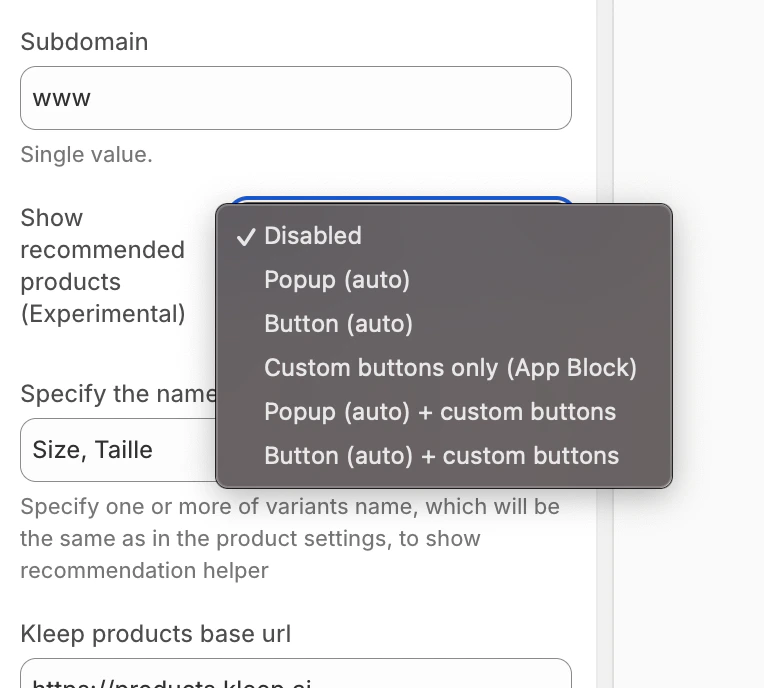 類似商品モード選択
**カスタムボタンの追加(カスタムモードの場合)**
「カスタム」を含むモードを選択した場合、特定の場所にボタンを追加できます:
1. テーマエディタで**商品ページ**テンプレートを開く
2. 任意のセクションで **ブロックを追加** をクリック
3. **アプリ** タブをクリックして **「Kleep Similar Button」** を選択
4. ブロックを好きな位置に配置して保存
類似商品モード選択
**カスタムボタンの追加(カスタムモードの場合)**
「カスタム」を含むモードを選択した場合、特定の場所にボタンを追加できます:
1. テーマエディタで**商品ページ**テンプレートを開く
2. 任意のセクションで **ブロックを追加** をクリック
3. **アプリ** タブをクリックして **「Kleep Similar Button」** を選択
4. ブロックを好きな位置に配置して保存
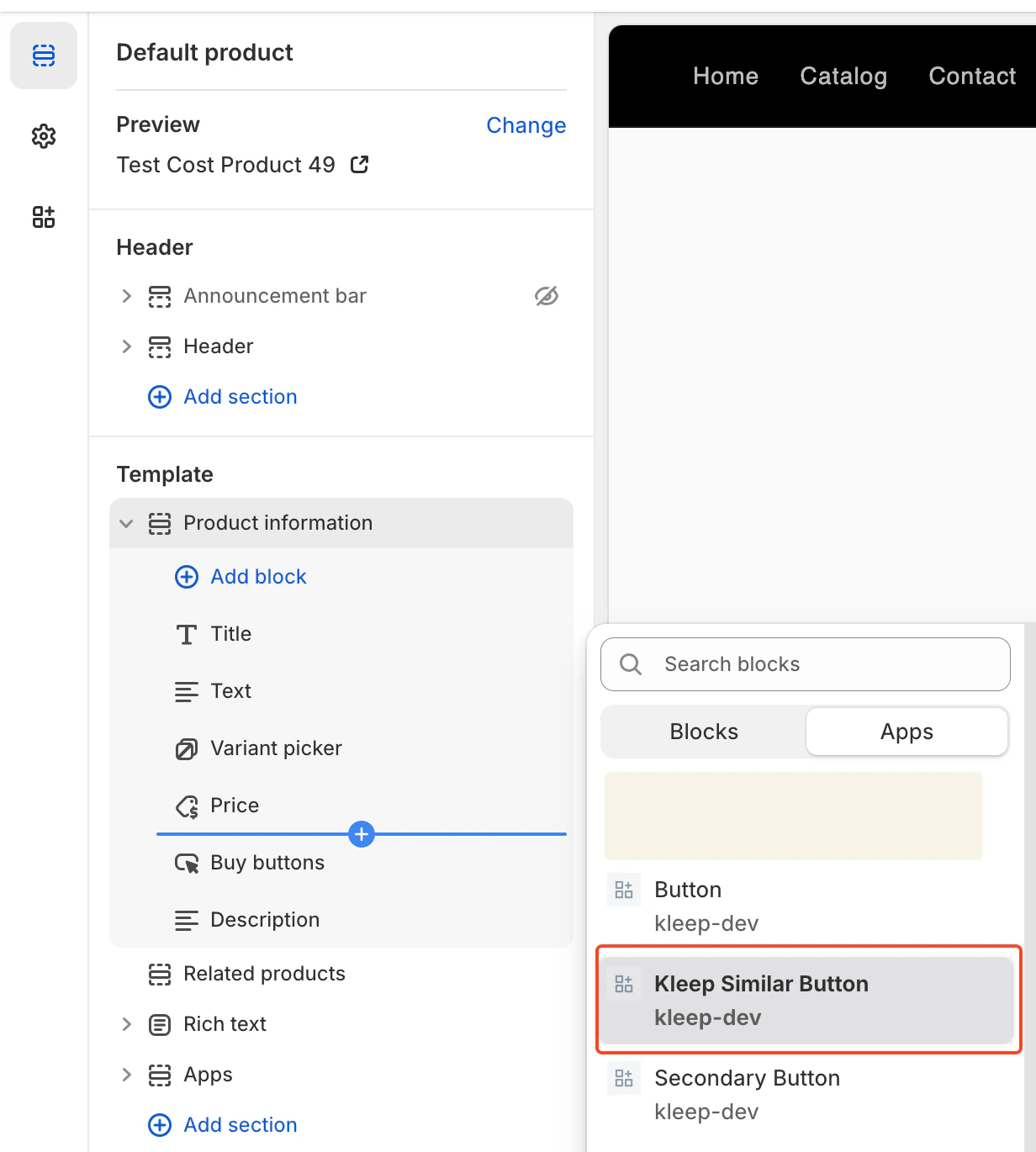 Kleep Similar Button ブロックの追加
類似商品ボタンは、バリアントが在庫切れの場合にのみ表示されます。すべての商品に表示されなくても正常です。
**複数ボタンの追加**
商品ページには任意の数の類似商品ボタンを追加できます。複数ボタンを許可するには、ウィジェットを次のいずれかのモードに設定する必要があります:`custom_buttons`、`popup+custom`、`button+custom`。
OS 2.0 テーマの場合:
* **オンラインストア → カスタマイズ** に移動
* **商品ページ**テンプレートを開く
* **ブロックを追加 → Kleep Similar Button** をクリック
* 2 つ以上のボタンを追加したい場合は繰り返す
各ボタンは、選択されたバリアントが在庫切れの場合にのみ自動的に表示されます。
***
## 3. Kleep Search 機能
Kleep Search は Shopify のネイティブ検索をサイズフィルターとパーソナライズされたレコメンドを備えた最適化検索に置き換えます。
**ステップ 1:カスタム検索を有効にする**
Kleep アプリ埋め込み設定で、\*\*「カスタム検索を有効にする」\*\*オプションを有効にします。
Kleep Similar Button ブロックの追加
類似商品ボタンは、バリアントが在庫切れの場合にのみ表示されます。すべての商品に表示されなくても正常です。
**複数ボタンの追加**
商品ページには任意の数の類似商品ボタンを追加できます。複数ボタンを許可するには、ウィジェットを次のいずれかのモードに設定する必要があります:`custom_buttons`、`popup+custom`、`button+custom`。
OS 2.0 テーマの場合:
* **オンラインストア → カスタマイズ** に移動
* **商品ページ**テンプレートを開く
* **ブロックを追加 → Kleep Similar Button** をクリック
* 2 つ以上のボタンを追加したい場合は繰り返す
各ボタンは、選択されたバリアントが在庫切れの場合にのみ自動的に表示されます。
***
## 3. Kleep Search 機能
Kleep Search は Shopify のネイティブ検索をサイズフィルターとパーソナライズされたレコメンドを備えた最適化検索に置き換えます。
**ステップ 1:カスタム検索を有効にする**
Kleep アプリ埋め込み設定で、\*\*「カスタム検索を有効にする」\*\*オプションを有効にします。
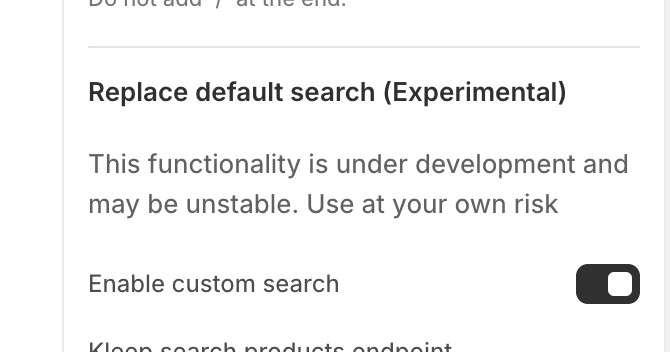 カスタム検索を有効にする
**ステップ 2:検索テンプレートへのアクセス**
テーマエディタで上部のドロップダウンメニュー(デフォルトで「ホームページ」)をクリックし、テンプレートリストから **「検索」** を選択します。
カスタム検索を有効にする
**ステップ 2:検索テンプレートへのアクセス**
テーマエディタで上部のドロップダウンメニュー(デフォルトで「ホームページ」)をクリックし、テンプレートリストから **「検索」** を選択します。
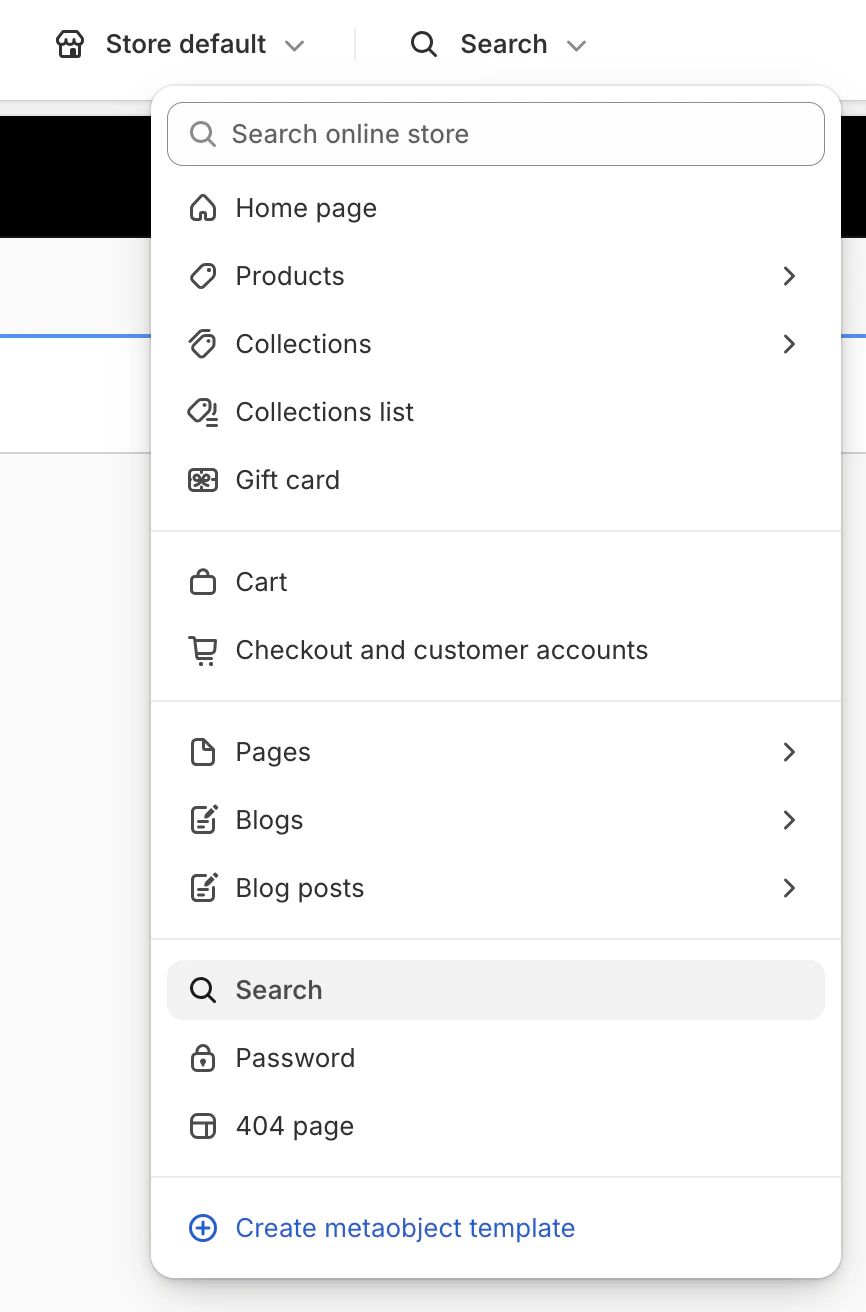 検索テンプレートを選択
**ステップ 3:ネイティブ検索を非表示にする**
テンプレートセクションで、目のアイコンをクリックしてネイティブの **「検索結果」** ブロックを非表示または削除します。
検索テンプレートを選択
**ステップ 3:ネイティブ検索を非表示にする**
テンプレートセクションで、目のアイコンをクリックしてネイティブの **「検索結果」** ブロックを非表示または削除します。
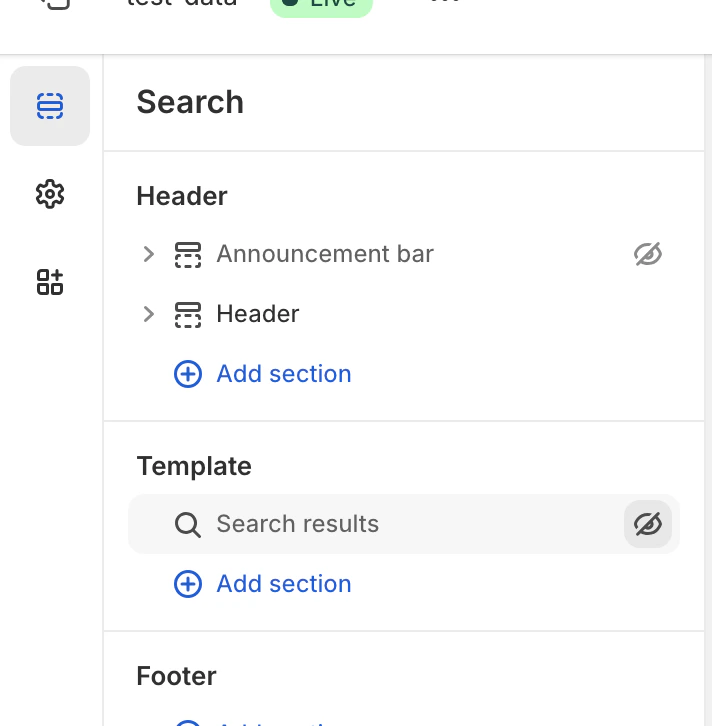 ネイティブ検索を非表示にする
**ステップ 4:Kleep Search ブロックを追加する**
**セクションを追加** をクリックし、**アプリ** タブで **「Search」**(kleep-dev)を選択します。
ネイティブ検索を非表示にする
**ステップ 4:Kleep Search ブロックを追加する**
**セクションを追加** をクリックし、**アプリ** タブで **「Search」**(kleep-dev)を選択します。
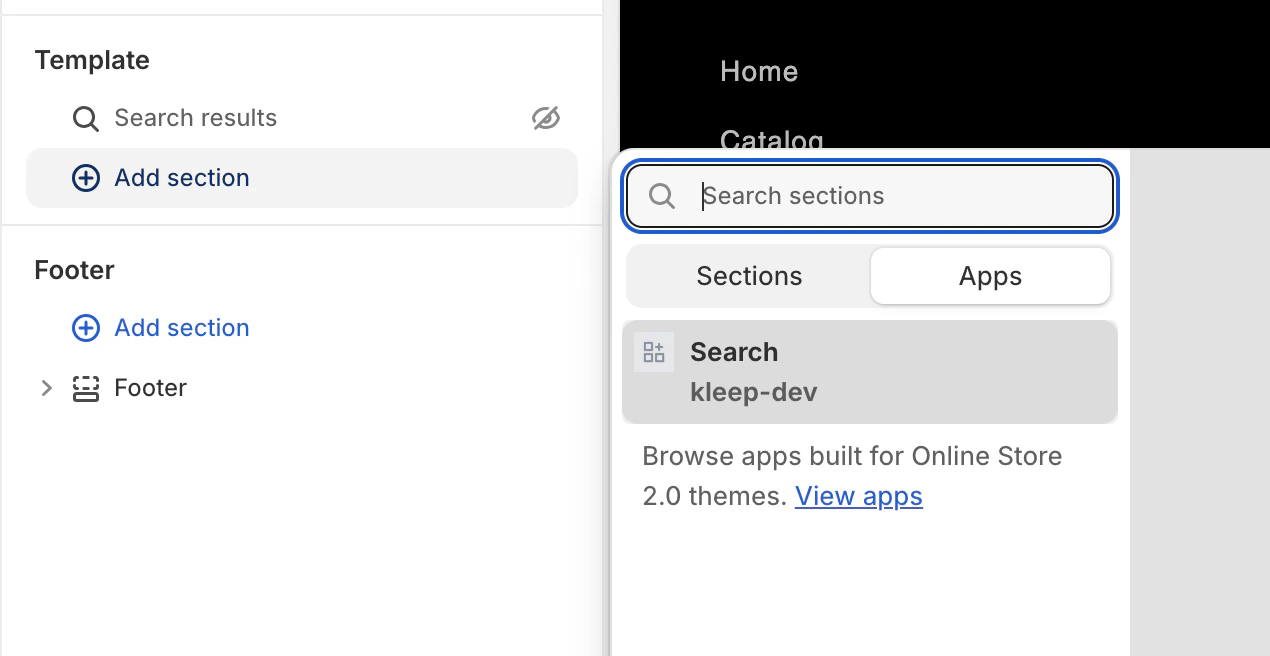 Kleep Search ブロックを追加
**ステップ 5:オプションの設定**
追加した Search ブロックをクリックして設定にアクセスします:結果数、グリッド/リスト表示、検索遅延など。
Kleep Search ブロックを追加
**ステップ 5:オプションの設定**
追加した Search ブロックをクリックして設定にアクセスします:結果数、グリッド/リスト表示、検索遅延など。
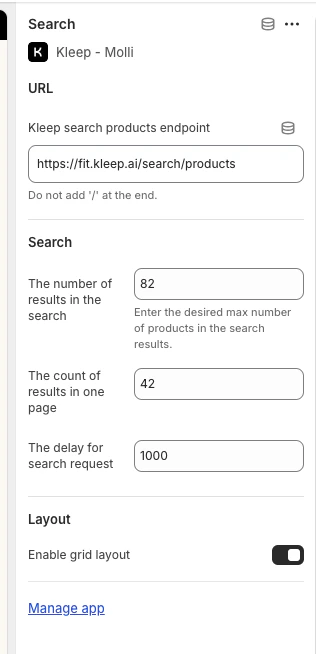 検索設定オプション
## 4. 返品統合(オプション)
返品管理プラットフォームをご利用の場合、Kleep は返品データを統合してサイズレコメンドを改善できます。
**対応返品プロバイダー**
* Global-e
* Aftership
* Fast Return
* Return Go
* その他(お問い合わせください)
**設定**
1. Kleep ダッシュボードで **設定 → 返品** に移動
2. 返品プロバイダーを選択
3. プロバイダー固有の手順に従ってアカウントを連携
お使いのプロバイダーがリストにない場合は、[support@kleep.ai](mailto:support@kleep.ai) までご連絡ください。SFTP または API を通じたカスタム統合を設定できます。
## 5. イベントトラッキング&アナリティクス
Kleep はアナリティクスのためにユーザーインタラクションを自動的に追跡します。本番公開前にトラッキングが正しく機能していることを確認してください。
**追跡されるイベント**
| イベント | 説明 |
| ------------------------ | ------------------------- |
| `kleep_button_click` | ユーザーがサイズガイドボタンをクリックした |
| `kleep_drawer_open` | サイズガイドのドロワーが開かれた |
| `kleep_size_recommended` | サイズレコメンドが表示された |
| `kleep_add_to_cart` | ユーザーが Kleep からカートに商品を追加した |
| `kleep_similar_click` | ユーザーが類似商品をクリックした |
**確認方法**
イベントが正しく発火していることを確認するには:
1. ブラウザの開発者ツール(F12)を開く
2. **ネットワーク** タブに移動
3. 「kleep」でフィルタリング
4. サイズガイドボタンを操作
5. 各イベントの API コールが表示されるはずです
**本番公開前:** 少なくとも 5 つのイベントが発火し、ペイロードが有効であることを確認してください。統合の検証のために、1 つの完全なユーザージャーニー(ボタンクリック → サイズレコメンド → カートに追加)を完了してください。
## 6. CSS カスタマイズ
Kleep 要素(ボタン、ポップアップ、検索)の外観をカスタム CSS で変更できます。
**CSS の追加場所**
Kleep アプリ埋め込み設定に **「カスタム CSS スタイルを入力」** フィールドがあります。そこにカスタム CSS を貼り付けてください。
検索設定オプション
## 4. 返品統合(オプション)
返品管理プラットフォームをご利用の場合、Kleep は返品データを統合してサイズレコメンドを改善できます。
**対応返品プロバイダー**
* Global-e
* Aftership
* Fast Return
* Return Go
* その他(お問い合わせください)
**設定**
1. Kleep ダッシュボードで **設定 → 返品** に移動
2. 返品プロバイダーを選択
3. プロバイダー固有の手順に従ってアカウントを連携
お使いのプロバイダーがリストにない場合は、[support@kleep.ai](mailto:support@kleep.ai) までご連絡ください。SFTP または API を通じたカスタム統合を設定できます。
## 5. イベントトラッキング&アナリティクス
Kleep はアナリティクスのためにユーザーインタラクションを自動的に追跡します。本番公開前にトラッキングが正しく機能していることを確認してください。
**追跡されるイベント**
| イベント | 説明 |
| ------------------------ | ------------------------- |
| `kleep_button_click` | ユーザーがサイズガイドボタンをクリックした |
| `kleep_drawer_open` | サイズガイドのドロワーが開かれた |
| `kleep_size_recommended` | サイズレコメンドが表示された |
| `kleep_add_to_cart` | ユーザーが Kleep からカートに商品を追加した |
| `kleep_similar_click` | ユーザーが類似商品をクリックした |
**確認方法**
イベントが正しく発火していることを確認するには:
1. ブラウザの開発者ツール(F12)を開く
2. **ネットワーク** タブに移動
3. 「kleep」でフィルタリング
4. サイズガイドボタンを操作
5. 各イベントの API コールが表示されるはずです
**本番公開前:** 少なくとも 5 つのイベントが発火し、ペイロードが有効であることを確認してください。統合の検証のために、1 つの完全なユーザージャーニー(ボタンクリック → サイズレコメンド → カートに追加)を完了してください。
## 6. CSS カスタマイズ
Kleep 要素(ボタン、ポップアップ、検索)の外観をカスタム CSS で変更できます。
**CSS の追加場所**
Kleep アプリ埋め込み設定に **「カスタム CSS スタイルを入力」** フィールドがあります。そこにカスタム CSS を貼り付けてください。
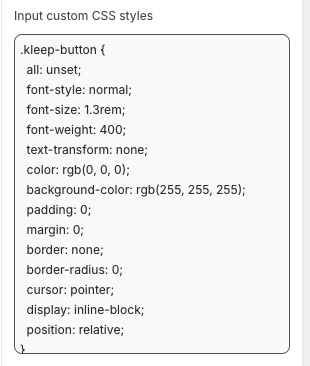 カスタム CSS フィールド
**カスタマイズ例**
```css theme={null}
.kleep-button {
all: unset;
font-style: normal;
font-size: 1.3rem;
font-weight: 400;
text-transform: none;
color: rgb(0, 0, 0);
background-color: rgb(255, 255, 255);
padding: 0;
margin: 0;
border: none;
border-radius: 0;
cursor: pointer;
display: inline-block;
position: relative;
}
```
## 7. 複数環境
複数の Shopify 環境(開発・ステージング・本番)がある場合、それぞれに Kleep を設定する必要があります。
**各環境の設定**
1. **本番ストア** — メインストア、完全に設定済み
2. **ステージング/開発ストア** — 本番環境に反映する前のテスト用
各環境で:
1. Kleep アプリをインストール
2. アプリ埋め込みを有効にする
3. Kleep CSM に連絡して環境をアカウントにリンク
常にステージングで変更をテストしてから本番に適用してください。
**環境固有の URL**
Kleep CSM に以下を提供してください:
* 本番 URL:`https://www.yourbrand.com`
* ステージング URL:`https://staging.yourbrand.com`(該当する場合)
* 開発 URL:`https://dev.yourbrand.com`(該当する場合)
## 7.5 CTA ボタン&類似商品 — 完全インストールガイド
Kleep CTA ボタンと類似商品機能のインストールに関する完全なテクニカルリファレンス(すべての Liquid コード、設定スキーマ、セカンダリボタンの設定を含む)については、以下の専用ガイドをご参照ください:
[CTA ボタン&類似商品 — 完全インストールガイド](/ja/cms/cta-button)
***
## 8. ビンテージテーマ — サイズガイドのセットアップ
ビンテージテーマ(「レガシー」とも呼ばれる、Online Store 2.0 以前に作成されたもの)はアプリブロックをサポートしていません。インストールには Liquid コードの修正が必要です。
このセクションには Shopify 開発知識(Liquid)が必要です。
**前提条件**
* テーマコードエディタへのアクセス(**オンラインストア → テーマ → コードを編集**)
* Shopify 管理画面で Kleep アプリ埋め込みが有効になっていること(**オンラインストア → テーマ → カスタマイズ → アプリ埋め込み → Kleep**)
**ステップ 1:アプリ埋め込みを有効にする**
Shopify 管理画面で **オンラインストア → テーマ → カスタマイズ → アプリ埋め込み** に移動し、Kleep アプリをオンに切り替えます。
**ステップ 2:スニペットを呼び出す**
Kleep を表示したい場所に以下のコードを貼り付けます。`snippets` フォルダ内の `Product info` ブロックの一部である必要があります:
```jsx theme={null}
{% render 'kleep-button', cms: section.settings %}
```
**ステップ 3:ボタンスニペットを作成する**
`snippets` フォルダ内に `kleep-button.liquid` という名前の新しいファイルを作成し、以下の内容を記述します:
```jsx theme={null}
```
**ステップ 4:設定スキーマを追加する**
セクションファイルの末尾にある設定スキーマに以下のオプションを追加します:
```json theme={null}
{
"type": "header",
"content": "Button text",
"info": "If you enable this feature, the button text you enter will be replaced for all languages in your store"
},
{
"type": "checkbox",
"default": false,
"id": "custom_button_text_toggle",
"label": "Enable custom button text"
},
{
"type": "text",
"id": "custom_find_size_text",
"label": "Find my best size text",
"info": "What text will display instead of\"Find my best size\"?"
},
{
"type": "text",
"id": "custom_recommended_size_text",
"label": "Recommended size text",
"info": "What text will display instead of\"Recommended size\"?"
},
{
"type": "header",
"content": "Image"
},
{
"type": "url",
"id": "image_url",
"label": "Url Image"
},
{
"type": "range",
"id": "image_size",
"min": 0,
"max": 80,
"step": 2,
"unit": "px",
"label": "Image size (square)",
"default": 20
},
{
"type": "header",
"content": "CSS Styles"
},
{
"type": "checkbox",
"default": true,
"id": "default_font_family",
"label": "Theme font",
"info": "If checked, the css variable `--font-body-family` is used"
},
{
"type": "font_picker",
"id": "font_family",
"label": "Font Family",
"default": "helvetica_n4"
},
{
"type": "select",
"id": "text_style",
"label": "Text style",
"default": "normal",
"options": [
{ "label": "Normal", "value": "normal" },
{ "label": "Italic", "value": "italic" },
{ "label": "Oblique", "value": "oblique" }
]
},
{
"type": "select",
"id": "text_transform",
"label": "Text transformation",
"default": "none",
"options": [
{ "label": "Normal", "value": "none" },
{ "label": "Capitalize", "value": "capitalize" },
{ "label": "Uppercase", "value": "uppercase" },
{ "label": "Lowercase", "value": "lowercase" }
]
},
{
"type": "select",
"id": "text_weight",
"label": "Text weight",
"default": "400",
"options": [
{ "label": "100", "value": "100" },
{ "label": "200", "value": "200" },
{ "label": "300", "value": "300" },
{ "label": "400", "value": "400" },
{ "label": "500", "value": "500" },
{ "label": "600", "value": "600" },
{ "label": "700", "value": "700" },
{ "label": "800", "value": "800" },
{ "label": "900", "value": "900" }
]
},
{
"type": "range",
"id": "text_size",
"min": 2,
"max": 50,
"step": 2,
"unit": "px",
"label": "Font size",
"default": 16
},
{
"type": "checkbox",
"id": "text_underline",
"label": "Text underline",
"default": false
},
{
"type": "range",
"id": "text_underline_offset",
"min": 1,
"max": 20,
"step": 1,
"unit": "px",
"label": "Underline offset",
"default": 2
},
{
"type": "color",
"id": "text_color",
"label": "Button text color",
"default": "#ffffff"
},
{
"type": "color",
"id": "bg_color",
"label": "Background color",
"default": "#000000"
},
{
"type": "color",
"id": "border_color",
"label": "Border color",
"default": "#000000"
},
{
"type": "range",
"id": "border_width",
"min": 0,
"max": 8,
"step": 1,
"unit": "px",
"label": "Border width",
"default": 0
},
{
"type": "header",
"content": "Spacing"
},
{
"type": "checkbox",
"id": "center",
"label": "Center the button",
"default": false,
"info": "This will override 'Horizontal margin'"
},
{
"type": "range",
"id": "margin_y",
"min": 0,
"max": 80,
"step": 2,
"unit": "px",
"label": "Vertical margin",
"default": 0
},
{
"type": "range",
"id": "margin_x",
"min": 0,
"max": 80,
"step": 2,
"unit": "px",
"label": "Horizontal margin",
"default": 0
},
{
"type": "range",
"id": "padding_t",
"min": 0,
"max": 40,
"step": 2,
"unit": "px",
"label": "Padding top",
"default": 12
},
{
"type": "range",
"id": "padding_r",
"min": 0,
"max": 40,
"step": 2,
"unit": "px",
"label": "Padding right",
"default": 16
},
{
"type": "range",
"id": "padding_b",
"min": 0,
"max": 40,
"step": 2,
"unit": "px",
"label": "Padding bottom",
"default": 12
},
{
"type": "range",
"id": "padding_l",
"min": 0,
"max": 40,
"step": 2,
"unit": "px",
"label": "Padding left",
"default": 16
},
{
"type": "range",
"id": "border_radius",
"min": 0,
"max": 40,
"step": 2,
"unit": "px",
"label": "Border radius",
"default": 0
}
```
**ステップ 5:確認**
Shopify テーマのカスタマイズエリアで更新を確認します。商品情報ブロックの設定内でビジュアルを設定します。
**オプション:セカンダリボタン**
セカンダリボタンを追加したい場合、`snippets` フォルダ内に `kleep-secondary-button.liquid` という名前の新しいファイルを作成します:
```jsx theme={null}
```
Kleep を表示したい場所に以下のコードを貼り付けます。`snippets` フォルダ内の `Product info` ブロックの一部である必要があります。
```jsx theme={null}
{% render 'kleep-secondary-button', cms: section.settings %}
```
***
## 9. ビンテージテーマ — 類似商品のセットアップ
**ステップ 1:スニペットを作成する**
以下のコードを含む `snippets/kleep-similar-button.liquid` ファイルを作成します:
```jsx theme={null}
{% assign cms = block.settings %}
{% assign domain = shop.domain %}
{% assign translated_similar = '' %}
{% assign translated_similar_missing = true %}
{%- assign domain_key = domain | prepend: 'www.' | append: '.recommended' -%}
{% assign raw_domain_similar = domain_key | t %}
{% unless raw_domain_similar contains 'Translation missing'
or raw_domain_similar contains domain
%}
{% assign translated_similar = raw_domain_similar %}
{% assign translated_similar_missing = false %}
{% endunless %}
{%- if translated_similar_missing -%}
{% assign raw_global_similar = 'kleep.recommended.text.btn' | t %}
{% unless raw_global_similar contains 'Translation missing' %}
{% assign translated_similar = raw_global_similar %}
{% assign translated_similar_missing = false %}
{% endunless %}
{%- endif %}
```
**ステップ 2:スニペットをレンダリングする**
ボタンを表示したい場所に次の行を挿入します:
```jsx theme={null}
{% render 'kleep-similar-button' %}
```
標準的な配置場所:バリアントセレクターの下またはカートに追加フォームの近く。
**ステップ 3:正しいモードを有効にする**
ビンテージテーマは OS 2.0 ブロックを挿入できないため、ウィジェットは次のいずれかのモードを使用する必要があります:
* `custom_buttons`
* `popup+custom`
* `button+custom`
**複数ボタンの追加**
複数のボタンを作成するには、商品テンプレートの異なる場所にスニペットコードを配置するだけです:
```jsx theme={null}
{% render 'kleep-similar-button' %}
```
各スニペット呼び出しで追加のボタンが作成されます。各ボタンは、選択されたバリアントが在庫切れの場合にのみ自動的に表示されます。
***
## 10. 翻訳(i18n)
テーマのロケールファイルに以下の翻訳を追加します。
**英語(`en.json`)**
```json theme={null}
{
"kleep": {
"button": {
"text": {
"without_hash": "Find my ideal size",
"with_hash": "Ideal size"
}
},
"recommended": {
"text": {
"btn": "View similar",
"hint": "Size unavailable",
"link": "See similar products"
}
},
"search": {
"text": {
"inputPlaceholder": "Search...",
"productsBlockTitle": "Products",
"clearButton": "Clear"
}
},
"searchPage": {
"text": {
"header": "search results",
"query": "Results for",
"submit": "Search",
"input": "Search the store",
"viewProduct": "View product"
}
}
}
}
```
**フランス語(`fr.json`)**
```json theme={null}
{
"kleep": {
"button": {
"text": {
"without_hash": "Trouver ma taille idéale",
"with_hash": "Taille idéale"
}
},
"recommended": {
"text": {
"btn": "Voir similaire",
"hint": "Taille indisponible",
"link": "Voir des produits similaires"
}
},
"search": {
"text": {
"inputPlaceholder": "Recherche...",
"productsBlockTitle": "Produits",
"clearButton": "Effacer"
}
},
"searchPage": {
"text": {
"header": "résultats de la recherche",
"query": "Résultats pour",
"submit": "Recherche",
"input": "Rechercher dans la boutique",
"viewProduct": "Voir le produit"
}
}
}
}
```
**イタリア語(`it.json`)**
```json theme={null}
{
"kleep": {
"button": {
"text": {
"without_hash": "Trova la mia taglia ideale",
"with_hash": "Taglia ideale"
}
},
"recommended": {
"text": {
"btn": "Visualizza simili",
"hint": "Taglia non disponibile",
"link": "Visualizza prodotti simili"
}
},
"search": {
"text": {
"inputPlaceholder": "Cerca...",
"productsBlockTitle": "Prodotti",
"clearButton": "Cancella"
}
},
"searchPage": {
"text": {
"header": "risultati della ricerca",
"query": "Risultati per",
"submit": "Cerca",
"input": "Cerca nel negozio",
"viewProduct": "Visualizza prodotto"
}
}
}
}
```
**ドイツ語(`de.json`)**
```json theme={null}
{
"kleep": {
"button": {
"text": {
"without_hash": "Finde meine ideale Größe",
"with_hash": "Ideale Größe"
}
},
"recommended": {
"text": {
"btn": "Ähnliche Ansicht",
"hint": "Größe nicht verfügbar",
"link": "Ähnliche Produkte ansehen"
}
},
"search": {
"text": {
"inputPlaceholder": "Suchen...",
"productsBlockTitle": "Produkte",
"clearButton": "Klar"
}
},
"searchPage": {
"text": {
"header": "Suchergebnisse",
"query": "Ergebnisse für",
"submit": "Suchen",
"input": "Durchsuchen Sie den Shop",
"viewProduct": "Produkt ansehen"
}
}
}
}
```
**スペイン語(`es.json`)**
```json theme={null}
{
"kleep": {
"button": {
"text": {
"without_hash": "Encontrar mi talla ideal",
"with_hash": "Talla ideal"
}
},
"recommended": {
"text": {
"btn": "Ver similares",
"hint": "Talla no disponible",
"link": "Ver productos similares"
}
},
"search": {
"text": {
"inputPlaceholder": "Buscar...",
"productsBlockTitle": "Productos",
"clearButton": "Borrar"
}
},
"searchPage": {
"text": {
"header": "resultados de búsqueda",
"query": "Resultados para",
"submit": "Buscar",
"input": "Buscar en la tienda",
"viewProduct": "Ver producto"
}
}
}
}
```
**日本語(`ja.json`)**
```json theme={null}
{
"kleep": {
"button": {
"text": {
"without_hash": "自分に合うサイズを探す",
"with_hash": "好みのサイズ"
}
},
"recommended": {
"text": {
"btn": "類似商品を見る",
"hint": "サイズがありません",
"link": "類似商品を見る"
}
},
"search": {
"text": {
"inputPlaceholder": "検索...",
"productsBlockTitle": "商品",
"clearButton": "クリア"
}
},
"searchPage": {
"text": {
"header": "検索結果",
"query": "検索結果",
"submit": "検索",
"input": "ストアを検索",
"viewProduct": "商品を見る"
}
}
}
}
```
**韓国語(`ko.json`)**
```json theme={null}
{
"kleep": {
"button": {
"text": {
"without_hash": "내 이상적인 사이즈 찾기",
"with_hash": "추천 사이즈"
}
},
"recommended": {
"text": {
"btn": "유사한 상품 보기",
"hint": "사용 불가",
"link": "유사한 상품 보기"
}
},
"search": {
"text": {
"inputPlaceholder": "검색...",
"productsBlockTitle": "상품",
"clearButton": "지우기"
}
},
"searchPage": {
"text": {
"header": "검색 결과",
"query": "다음에 대한 결과",
"submit": "검색",
"input": "매장 검색",
"viewProduct": "상품 보기"
}
}
}
}
```
**ポルトガル語(`pt.json`)**
```json theme={null}
{
"kleep": {
"button": {
"text": {
"without_hash": "Encontrar meu tamanho ideal",
"with_hash": "Tamanho recomendado"
}
},
"recommended": {
"text": {
"btn": "Ver similar",
"hint": "Tamanho indisponível",
"link": "Ver produtos similares"
}
},
"search": {
"text": {
"inputPlaceholder": "Pesquisar...",
"productsBlockTitle": "Produtos",
"clearButton": "Limpar"
}
},
"searchPage": {
"text": {
"header": "resultados da pesquisa",
"query": "Resultados para",
"submit": "Pesquisar",
"input": "Pesquisar na loja",
"viewProduct": "Ver produto"
}
}
}
}
```
***
## 11. テクニカルリファレンス
**PDP 上の CTA 位置**
位置は `KleepSDK.getConstants()` 内の DOM セレクターによって定義されます:
* **`targetProductInfoBlockQueries`** — 商品詳細のメインコンテナ(タイトル、価格、サイズなど)を指すセレクターの配列。スクリプトはこれらのセレクターを順に検索し、最初に見つかったものを CTA またはポップアップの挿入ポイントとして使用します。
* **`targetVariantQueries`** — サイズ/バリアントオプションの場所。商品情報ブロックが見つかると、スクリプトはその中でバリアント要素(サイズセレクターなど)を検索します。各バリアントの `
カスタム CSS フィールド
**カスタマイズ例**
```css theme={null}
.kleep-button {
all: unset;
font-style: normal;
font-size: 1.3rem;
font-weight: 400;
text-transform: none;
color: rgb(0, 0, 0);
background-color: rgb(255, 255, 255);
padding: 0;
margin: 0;
border: none;
border-radius: 0;
cursor: pointer;
display: inline-block;
position: relative;
}
```
## 7. 複数環境
複数の Shopify 環境(開発・ステージング・本番)がある場合、それぞれに Kleep を設定する必要があります。
**各環境の設定**
1. **本番ストア** — メインストア、完全に設定済み
2. **ステージング/開発ストア** — 本番環境に反映する前のテスト用
各環境で:
1. Kleep アプリをインストール
2. アプリ埋め込みを有効にする
3. Kleep CSM に連絡して環境をアカウントにリンク
常にステージングで変更をテストしてから本番に適用してください。
**環境固有の URL**
Kleep CSM に以下を提供してください:
* 本番 URL:`https://www.yourbrand.com`
* ステージング URL:`https://staging.yourbrand.com`(該当する場合)
* 開発 URL:`https://dev.yourbrand.com`(該当する場合)
## 7.5 CTA ボタン&類似商品 — 完全インストールガイド
Kleep CTA ボタンと類似商品機能のインストールに関する完全なテクニカルリファレンス(すべての Liquid コード、設定スキーマ、セカンダリボタンの設定を含む)については、以下の専用ガイドをご参照ください:
[CTA ボタン&類似商品 — 完全インストールガイド](/ja/cms/cta-button)
***
## 8. ビンテージテーマ — サイズガイドのセットアップ
ビンテージテーマ(「レガシー」とも呼ばれる、Online Store 2.0 以前に作成されたもの)はアプリブロックをサポートしていません。インストールには Liquid コードの修正が必要です。
このセクションには Shopify 開発知識(Liquid)が必要です。
**前提条件**
* テーマコードエディタへのアクセス(**オンラインストア → テーマ → コードを編集**)
* Shopify 管理画面で Kleep アプリ埋め込みが有効になっていること(**オンラインストア → テーマ → カスタマイズ → アプリ埋め込み → Kleep**)
**ステップ 1:アプリ埋め込みを有効にする**
Shopify 管理画面で **オンラインストア → テーマ → カスタマイズ → アプリ埋め込み** に移動し、Kleep アプリをオンに切り替えます。
**ステップ 2:スニペットを呼び出す**
Kleep を表示したい場所に以下のコードを貼り付けます。`snippets` フォルダ内の `Product info` ブロックの一部である必要があります:
```jsx theme={null}
{% render 'kleep-button', cms: section.settings %}
```
**ステップ 3:ボタンスニペットを作成する**
`snippets` フォルダ内に `kleep-button.liquid` という名前の新しいファイルを作成し、以下の内容を記述します:
```jsx theme={null}
```
**ステップ 4:設定スキーマを追加する**
セクションファイルの末尾にある設定スキーマに以下のオプションを追加します:
```json theme={null}
{
"type": "header",
"content": "Button text",
"info": "If you enable this feature, the button text you enter will be replaced for all languages in your store"
},
{
"type": "checkbox",
"default": false,
"id": "custom_button_text_toggle",
"label": "Enable custom button text"
},
{
"type": "text",
"id": "custom_find_size_text",
"label": "Find my best size text",
"info": "What text will display instead of\"Find my best size\"?"
},
{
"type": "text",
"id": "custom_recommended_size_text",
"label": "Recommended size text",
"info": "What text will display instead of\"Recommended size\"?"
},
{
"type": "header",
"content": "Image"
},
{
"type": "url",
"id": "image_url",
"label": "Url Image"
},
{
"type": "range",
"id": "image_size",
"min": 0,
"max": 80,
"step": 2,
"unit": "px",
"label": "Image size (square)",
"default": 20
},
{
"type": "header",
"content": "CSS Styles"
},
{
"type": "checkbox",
"default": true,
"id": "default_font_family",
"label": "Theme font",
"info": "If checked, the css variable `--font-body-family` is used"
},
{
"type": "font_picker",
"id": "font_family",
"label": "Font Family",
"default": "helvetica_n4"
},
{
"type": "select",
"id": "text_style",
"label": "Text style",
"default": "normal",
"options": [
{ "label": "Normal", "value": "normal" },
{ "label": "Italic", "value": "italic" },
{ "label": "Oblique", "value": "oblique" }
]
},
{
"type": "select",
"id": "text_transform",
"label": "Text transformation",
"default": "none",
"options": [
{ "label": "Normal", "value": "none" },
{ "label": "Capitalize", "value": "capitalize" },
{ "label": "Uppercase", "value": "uppercase" },
{ "label": "Lowercase", "value": "lowercase" }
]
},
{
"type": "select",
"id": "text_weight",
"label": "Text weight",
"default": "400",
"options": [
{ "label": "100", "value": "100" },
{ "label": "200", "value": "200" },
{ "label": "300", "value": "300" },
{ "label": "400", "value": "400" },
{ "label": "500", "value": "500" },
{ "label": "600", "value": "600" },
{ "label": "700", "value": "700" },
{ "label": "800", "value": "800" },
{ "label": "900", "value": "900" }
]
},
{
"type": "range",
"id": "text_size",
"min": 2,
"max": 50,
"step": 2,
"unit": "px",
"label": "Font size",
"default": 16
},
{
"type": "checkbox",
"id": "text_underline",
"label": "Text underline",
"default": false
},
{
"type": "range",
"id": "text_underline_offset",
"min": 1,
"max": 20,
"step": 1,
"unit": "px",
"label": "Underline offset",
"default": 2
},
{
"type": "color",
"id": "text_color",
"label": "Button text color",
"default": "#ffffff"
},
{
"type": "color",
"id": "bg_color",
"label": "Background color",
"default": "#000000"
},
{
"type": "color",
"id": "border_color",
"label": "Border color",
"default": "#000000"
},
{
"type": "range",
"id": "border_width",
"min": 0,
"max": 8,
"step": 1,
"unit": "px",
"label": "Border width",
"default": 0
},
{
"type": "header",
"content": "Spacing"
},
{
"type": "checkbox",
"id": "center",
"label": "Center the button",
"default": false,
"info": "This will override 'Horizontal margin'"
},
{
"type": "range",
"id": "margin_y",
"min": 0,
"max": 80,
"step": 2,
"unit": "px",
"label": "Vertical margin",
"default": 0
},
{
"type": "range",
"id": "margin_x",
"min": 0,
"max": 80,
"step": 2,
"unit": "px",
"label": "Horizontal margin",
"default": 0
},
{
"type": "range",
"id": "padding_t",
"min": 0,
"max": 40,
"step": 2,
"unit": "px",
"label": "Padding top",
"default": 12
},
{
"type": "range",
"id": "padding_r",
"min": 0,
"max": 40,
"step": 2,
"unit": "px",
"label": "Padding right",
"default": 16
},
{
"type": "range",
"id": "padding_b",
"min": 0,
"max": 40,
"step": 2,
"unit": "px",
"label": "Padding bottom",
"default": 12
},
{
"type": "range",
"id": "padding_l",
"min": 0,
"max": 40,
"step": 2,
"unit": "px",
"label": "Padding left",
"default": 16
},
{
"type": "range",
"id": "border_radius",
"min": 0,
"max": 40,
"step": 2,
"unit": "px",
"label": "Border radius",
"default": 0
}
```
**ステップ 5:確認**
Shopify テーマのカスタマイズエリアで更新を確認します。商品情報ブロックの設定内でビジュアルを設定します。
**オプション:セカンダリボタン**
セカンダリボタンを追加したい場合、`snippets` フォルダ内に `kleep-secondary-button.liquid` という名前の新しいファイルを作成します:
```jsx theme={null}
```
Kleep を表示したい場所に以下のコードを貼り付けます。`snippets` フォルダ内の `Product info` ブロックの一部である必要があります。
```jsx theme={null}
{% render 'kleep-secondary-button', cms: section.settings %}
```
***
## 9. ビンテージテーマ — 類似商品のセットアップ
**ステップ 1:スニペットを作成する**
以下のコードを含む `snippets/kleep-similar-button.liquid` ファイルを作成します:
```jsx theme={null}
{% assign cms = block.settings %}
{% assign domain = shop.domain %}
{% assign translated_similar = '' %}
{% assign translated_similar_missing = true %}
{%- assign domain_key = domain | prepend: 'www.' | append: '.recommended' -%}
{% assign raw_domain_similar = domain_key | t %}
{% unless raw_domain_similar contains 'Translation missing'
or raw_domain_similar contains domain
%}
{% assign translated_similar = raw_domain_similar %}
{% assign translated_similar_missing = false %}
{% endunless %}
{%- if translated_similar_missing -%}
{% assign raw_global_similar = 'kleep.recommended.text.btn' | t %}
{% unless raw_global_similar contains 'Translation missing' %}
{% assign translated_similar = raw_global_similar %}
{% assign translated_similar_missing = false %}
{% endunless %}
{%- endif %}
```
**ステップ 2:スニペットをレンダリングする**
ボタンを表示したい場所に次の行を挿入します:
```jsx theme={null}
{% render 'kleep-similar-button' %}
```
標準的な配置場所:バリアントセレクターの下またはカートに追加フォームの近く。
**ステップ 3:正しいモードを有効にする**
ビンテージテーマは OS 2.0 ブロックを挿入できないため、ウィジェットは次のいずれかのモードを使用する必要があります:
* `custom_buttons`
* `popup+custom`
* `button+custom`
**複数ボタンの追加**
複数のボタンを作成するには、商品テンプレートの異なる場所にスニペットコードを配置するだけです:
```jsx theme={null}
{% render 'kleep-similar-button' %}
```
各スニペット呼び出しで追加のボタンが作成されます。各ボタンは、選択されたバリアントが在庫切れの場合にのみ自動的に表示されます。
***
## 10. 翻訳(i18n)
テーマのロケールファイルに以下の翻訳を追加します。
**英語(`en.json`)**
```json theme={null}
{
"kleep": {
"button": {
"text": {
"without_hash": "Find my ideal size",
"with_hash": "Ideal size"
}
},
"recommended": {
"text": {
"btn": "View similar",
"hint": "Size unavailable",
"link": "See similar products"
}
},
"search": {
"text": {
"inputPlaceholder": "Search...",
"productsBlockTitle": "Products",
"clearButton": "Clear"
}
},
"searchPage": {
"text": {
"header": "search results",
"query": "Results for",
"submit": "Search",
"input": "Search the store",
"viewProduct": "View product"
}
}
}
}
```
**フランス語(`fr.json`)**
```json theme={null}
{
"kleep": {
"button": {
"text": {
"without_hash": "Trouver ma taille idéale",
"with_hash": "Taille idéale"
}
},
"recommended": {
"text": {
"btn": "Voir similaire",
"hint": "Taille indisponible",
"link": "Voir des produits similaires"
}
},
"search": {
"text": {
"inputPlaceholder": "Recherche...",
"productsBlockTitle": "Produits",
"clearButton": "Effacer"
}
},
"searchPage": {
"text": {
"header": "résultats de la recherche",
"query": "Résultats pour",
"submit": "Recherche",
"input": "Rechercher dans la boutique",
"viewProduct": "Voir le produit"
}
}
}
}
```
**イタリア語(`it.json`)**
```json theme={null}
{
"kleep": {
"button": {
"text": {
"without_hash": "Trova la mia taglia ideale",
"with_hash": "Taglia ideale"
}
},
"recommended": {
"text": {
"btn": "Visualizza simili",
"hint": "Taglia non disponibile",
"link": "Visualizza prodotti simili"
}
},
"search": {
"text": {
"inputPlaceholder": "Cerca...",
"productsBlockTitle": "Prodotti",
"clearButton": "Cancella"
}
},
"searchPage": {
"text": {
"header": "risultati della ricerca",
"query": "Risultati per",
"submit": "Cerca",
"input": "Cerca nel negozio",
"viewProduct": "Visualizza prodotto"
}
}
}
}
```
**ドイツ語(`de.json`)**
```json theme={null}
{
"kleep": {
"button": {
"text": {
"without_hash": "Finde meine ideale Größe",
"with_hash": "Ideale Größe"
}
},
"recommended": {
"text": {
"btn": "Ähnliche Ansicht",
"hint": "Größe nicht verfügbar",
"link": "Ähnliche Produkte ansehen"
}
},
"search": {
"text": {
"inputPlaceholder": "Suchen...",
"productsBlockTitle": "Produkte",
"clearButton": "Klar"
}
},
"searchPage": {
"text": {
"header": "Suchergebnisse",
"query": "Ergebnisse für",
"submit": "Suchen",
"input": "Durchsuchen Sie den Shop",
"viewProduct": "Produkt ansehen"
}
}
}
}
```
**スペイン語(`es.json`)**
```json theme={null}
{
"kleep": {
"button": {
"text": {
"without_hash": "Encontrar mi talla ideal",
"with_hash": "Talla ideal"
}
},
"recommended": {
"text": {
"btn": "Ver similares",
"hint": "Talla no disponible",
"link": "Ver productos similares"
}
},
"search": {
"text": {
"inputPlaceholder": "Buscar...",
"productsBlockTitle": "Productos",
"clearButton": "Borrar"
}
},
"searchPage": {
"text": {
"header": "resultados de búsqueda",
"query": "Resultados para",
"submit": "Buscar",
"input": "Buscar en la tienda",
"viewProduct": "Ver producto"
}
}
}
}
```
**日本語(`ja.json`)**
```json theme={null}
{
"kleep": {
"button": {
"text": {
"without_hash": "自分に合うサイズを探す",
"with_hash": "好みのサイズ"
}
},
"recommended": {
"text": {
"btn": "類似商品を見る",
"hint": "サイズがありません",
"link": "類似商品を見る"
}
},
"search": {
"text": {
"inputPlaceholder": "検索...",
"productsBlockTitle": "商品",
"clearButton": "クリア"
}
},
"searchPage": {
"text": {
"header": "検索結果",
"query": "検索結果",
"submit": "検索",
"input": "ストアを検索",
"viewProduct": "商品を見る"
}
}
}
}
```
**韓国語(`ko.json`)**
```json theme={null}
{
"kleep": {
"button": {
"text": {
"without_hash": "내 이상적인 사이즈 찾기",
"with_hash": "추천 사이즈"
}
},
"recommended": {
"text": {
"btn": "유사한 상품 보기",
"hint": "사용 불가",
"link": "유사한 상품 보기"
}
},
"search": {
"text": {
"inputPlaceholder": "검색...",
"productsBlockTitle": "상품",
"clearButton": "지우기"
}
},
"searchPage": {
"text": {
"header": "검색 결과",
"query": "다음에 대한 결과",
"submit": "검색",
"input": "매장 검색",
"viewProduct": "상품 보기"
}
}
}
}
```
**ポルトガル語(`pt.json`)**
```json theme={null}
{
"kleep": {
"button": {
"text": {
"without_hash": "Encontrar meu tamanho ideal",
"with_hash": "Tamanho recomendado"
}
},
"recommended": {
"text": {
"btn": "Ver similar",
"hint": "Tamanho indisponível",
"link": "Ver produtos similares"
}
},
"search": {
"text": {
"inputPlaceholder": "Pesquisar...",
"productsBlockTitle": "Produtos",
"clearButton": "Limpar"
}
},
"searchPage": {
"text": {
"header": "resultados da pesquisa",
"query": "Resultados para",
"submit": "Pesquisar",
"input": "Pesquisar na loja",
"viewProduct": "Ver produto"
}
}
}
}
```
***
## 11. テクニカルリファレンス
**PDP 上の CTA 位置**
位置は `KleepSDK.getConstants()` 内の DOM セレクターによって定義されます:
* **`targetProductInfoBlockQueries`** — 商品詳細のメインコンテナ(タイトル、価格、サイズなど)を指すセレクターの配列。スクリプトはこれらのセレクターを順に検索し、最初に見つかったものを CTA またはポップアップの挿入ポイントとして使用します。
* **`targetVariantQueries`** — サイズ/バリアントオプションの場所。商品情報ブロックが見つかると、スクリプトはその中でバリアント要素(サイズセレクターなど)を検索します。各バリアントの `