> ## Documentation Index
> Fetch the complete documentation index at: https://docs.kleep.ai/llms.txt
> Use this file to discover all available pages before exploring further.
# Shopify:CTA ボタン&類似商品
## Shopify V2 導入ガイド
このセクションでは、Shopify ストアに Kleep AI Sizing を追加する方法を説明します。
Tango チュートリアルに従って、Online Store 2.0 テーマのショップに Kleep ボタンを追加します。
## Shopify V1 導入ガイド
## 1. サイジング
このセクションでは、Shopify コードベースに Kleep AI Sizing を追加する方法を説明します。
Shopify V1 ストアに Kleep をインストールするためのステップバイステップ Tango チュートリアルをご覧ください。
### 手順
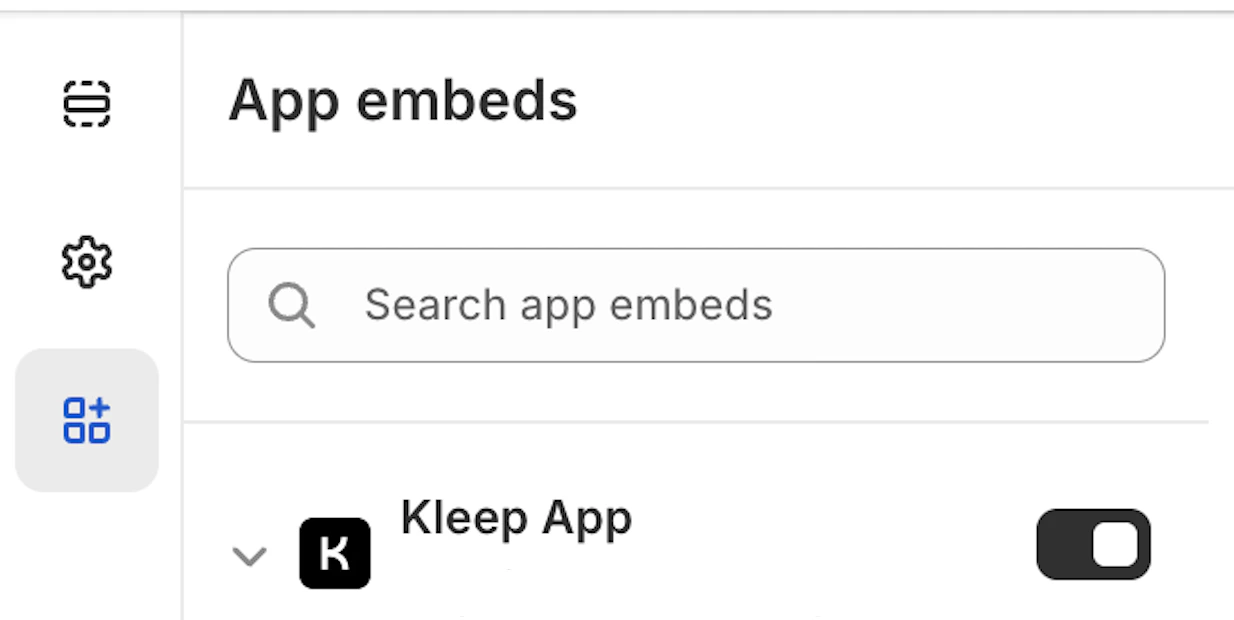
**ステップ 1:アプリ埋め込みを有効にする**
アプリ埋め込みで Kleep アプリが有効になっていることを確認します。
 **ステップ 2:ボタンスニペットをレンダリングする**
Kleep を表示したい場所に以下のコードを貼り付けます。`snippets` フォルダ内の `Product info` ブロックの一部である必要があります。
```jsx theme={null}
{% render 'kleep-button', cms: section.settings %}
```
**ステップ 3:ボタンスニペットファイルを作成する**
`snippets` フォルダ内に `kleep-button.liquid` という名前の新しいファイルを作成し、以下の内容を記述します:
```jsx theme={null}
```
**ステップ 4:設定スキーマのオプションを追加する**
ページの末尾にある設定スキーマに以下のオプションを追加します:
```jsx theme={null}
{
"type": "header",
"content": "Button text",
"info": "If you enable this feature, the button text you enter will be replaced for all languages in your store"
},
{
"type": "checkbox",
"default": false,
"id": "custom_button_text_toggle",
"label": "Enable custom button text"
},
{
"type": "text",
"id": "custom_find_size_text",
"label": "Find my best size text",
"info": "What text will display instead of \"Find my best size\"?"
},
{
"type": "text",
"id": "custom_recommended_size_text",
"label": "Recommended size text",
"info": "What text will display instead of \"Recommended size\"?"
},
{
"type": "header",
"content": "Image"
},
{
"type": "url",
"id": "image_url",
"label": "Url Image"
},
{
"type": "range",
"id": "image_size",
"min": 0,
"max": 80,
"step": 2,
"unit": "px",
"label": "Image size (square)",
"default": 20
},
{
"type": "header",
"content": "CSS Styles"
},
{
"type": "checkbox",
"default": true,
"id": "default_font_family",
"label": "Font du thème",
"info": "Si coché, la variable css `--font-body-family` est utilisée"
},
{
"type": "font_picker",
"id": "font_family",
"label": "Font Family",
"default": "helvetica_n4"
},
{
"type": "select",
"id": "text_style",
"label": "Style texte",
"default": "normal",
"options": [
{
"label": "Normal",
"value": "normal"
},
{
"label": "Italic",
"value": "italic"
},
{
"label": "Oblique",
"value": "oblique"
}
]
},
{
"type": "select",
"id": "text_transform",
"label": "Texte transformation",
"default": "none",
"options": [
{
"label": "Normal",
"value": "none"
},
{
"label": "Capitalize",
"value": "capitalize"
},
{
"label": "Uppercase",
"value": "uppercase"
},
{
"label": "Lowercase",
"value": "lowercase"
}
]
},
{
"type": "select",
"id": "text_weight",
"label": "Poid texte",
"default": "400",
"options": [
{
"label": "100",
"value": "100"
},
{
"label": "200",
"value": "200"
},
{
"label": "300",
"value": "300"
},
{
"label": "400",
"value": "400"
},
{
"label": "500",
"value": "500"
},
{
"label": "600",
"value": "600"
},
{
"label": "700",
"value": "700"
},
{
"label": "800",
"value": "800"
},
{
"label": "900",
"value": "900"
}
]
},
{
"type": "range",
"id": "text_size",
"min": 2,
"max": 50,
"step": 2,
"unit": "px",
"label": "Taille police",
"default": 16
},
{
"type": "checkbox",
"id": "text_underline",
"label": "Texte soulignage",
"default": false
},
{
"type": "range",
"id": "text_underline_offset",
"min": 1,
"max": 20,
"step": 1,
"unit": "px",
"label": "Offset underline",
"default": 2
},
{
"type": "color",
"id": "text_color",
"label": "Couleur texte du bouton",
"default": "#ffffff"
},
{
"type": "color",
"id": "bg_color",
"label": "Couleur fond",
"default": "#000000"
},
{
"type": "color",
"id": "border_color",
"label": "Couleur bordures",
"default": "#000000"
},
{
"type": "range",
"id": "border_width",
"min": 0,
"max": 8,
"step": 1,
"unit": "px",
"label": "Épaisseur bordures",
"default": 0
},
{
"type": "header",
"content": "CSS Styles",
"info": "Espacements"
},
{
"type": "checkbox",
"id": "center",
"label": "Centrer le bouton",
"default": false,
"info": "Cela remplacera le 'Margin horizontal'"
},
{
"type": "range",
"id": "margin_y",
"min": 0,
"max": 80,
"step": 2,
"unit": "px",
"label": "Margin vertical",
"default": 0
},
{
"type": "range",
"id": "margin_x",
"min": 0,
"max": 80,
"step": 2,
"unit": "px",
"label": "Margin horizontal",
"default": 0
},
{
"type": "range",
"id": "padding_t",
"min": 0,
"max": 40,
"step": 2,
"unit": "px",
"label": "Padding top",
"default": 12
},
{
"type": "range",
"id": "padding_r",
"min": 0,
"max": 40,
"step": 2,
"unit": "px",
"label": "Padding right",
"default": 16
},
{
"type": "range",
"id": "padding_b",
"min": 0,
"max": 40,
"step": 2,
"unit": "px",
"label": "Padding bottom",
"default": 12
},
{
"type": "range",
"id": "padding_l",
"min": 0,
"max": 40,
"step": 2,
"unit": "px",
"label": "Padding left",
"default": 16
},
{
"type": "range",
"id": "border_radius",
"min": 0,
"max": 40,
"step": 2,
"unit": "px",
"label": "Bordures arrondies",
"default": 0
}
```
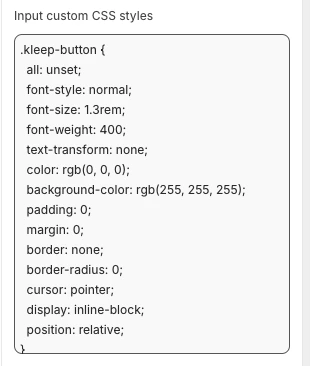
独自の CSS スタイルを追加するには:
* 外観(色、スペーシング、フォントなど)を変更するには、Kleep アプリ埋め込み設定の **「カスタム CSS スタイルを入力」** ボックスに CSS を貼り付けます。
例:
**ステップ 2:ボタンスニペットをレンダリングする**
Kleep を表示したい場所に以下のコードを貼り付けます。`snippets` フォルダ内の `Product info` ブロックの一部である必要があります。
```jsx theme={null}
{% render 'kleep-button', cms: section.settings %}
```
**ステップ 3:ボタンスニペットファイルを作成する**
`snippets` フォルダ内に `kleep-button.liquid` という名前の新しいファイルを作成し、以下の内容を記述します:
```jsx theme={null}
```
**ステップ 4:設定スキーマのオプションを追加する**
ページの末尾にある設定スキーマに以下のオプションを追加します:
```jsx theme={null}
{
"type": "header",
"content": "Button text",
"info": "If you enable this feature, the button text you enter will be replaced for all languages in your store"
},
{
"type": "checkbox",
"default": false,
"id": "custom_button_text_toggle",
"label": "Enable custom button text"
},
{
"type": "text",
"id": "custom_find_size_text",
"label": "Find my best size text",
"info": "What text will display instead of \"Find my best size\"?"
},
{
"type": "text",
"id": "custom_recommended_size_text",
"label": "Recommended size text",
"info": "What text will display instead of \"Recommended size\"?"
},
{
"type": "header",
"content": "Image"
},
{
"type": "url",
"id": "image_url",
"label": "Url Image"
},
{
"type": "range",
"id": "image_size",
"min": 0,
"max": 80,
"step": 2,
"unit": "px",
"label": "Image size (square)",
"default": 20
},
{
"type": "header",
"content": "CSS Styles"
},
{
"type": "checkbox",
"default": true,
"id": "default_font_family",
"label": "Font du thème",
"info": "Si coché, la variable css `--font-body-family` est utilisée"
},
{
"type": "font_picker",
"id": "font_family",
"label": "Font Family",
"default": "helvetica_n4"
},
{
"type": "select",
"id": "text_style",
"label": "Style texte",
"default": "normal",
"options": [
{
"label": "Normal",
"value": "normal"
},
{
"label": "Italic",
"value": "italic"
},
{
"label": "Oblique",
"value": "oblique"
}
]
},
{
"type": "select",
"id": "text_transform",
"label": "Texte transformation",
"default": "none",
"options": [
{
"label": "Normal",
"value": "none"
},
{
"label": "Capitalize",
"value": "capitalize"
},
{
"label": "Uppercase",
"value": "uppercase"
},
{
"label": "Lowercase",
"value": "lowercase"
}
]
},
{
"type": "select",
"id": "text_weight",
"label": "Poid texte",
"default": "400",
"options": [
{
"label": "100",
"value": "100"
},
{
"label": "200",
"value": "200"
},
{
"label": "300",
"value": "300"
},
{
"label": "400",
"value": "400"
},
{
"label": "500",
"value": "500"
},
{
"label": "600",
"value": "600"
},
{
"label": "700",
"value": "700"
},
{
"label": "800",
"value": "800"
},
{
"label": "900",
"value": "900"
}
]
},
{
"type": "range",
"id": "text_size",
"min": 2,
"max": 50,
"step": 2,
"unit": "px",
"label": "Taille police",
"default": 16
},
{
"type": "checkbox",
"id": "text_underline",
"label": "Texte soulignage",
"default": false
},
{
"type": "range",
"id": "text_underline_offset",
"min": 1,
"max": 20,
"step": 1,
"unit": "px",
"label": "Offset underline",
"default": 2
},
{
"type": "color",
"id": "text_color",
"label": "Couleur texte du bouton",
"default": "#ffffff"
},
{
"type": "color",
"id": "bg_color",
"label": "Couleur fond",
"default": "#000000"
},
{
"type": "color",
"id": "border_color",
"label": "Couleur bordures",
"default": "#000000"
},
{
"type": "range",
"id": "border_width",
"min": 0,
"max": 8,
"step": 1,
"unit": "px",
"label": "Épaisseur bordures",
"default": 0
},
{
"type": "header",
"content": "CSS Styles",
"info": "Espacements"
},
{
"type": "checkbox",
"id": "center",
"label": "Centrer le bouton",
"default": false,
"info": "Cela remplacera le 'Margin horizontal'"
},
{
"type": "range",
"id": "margin_y",
"min": 0,
"max": 80,
"step": 2,
"unit": "px",
"label": "Margin vertical",
"default": 0
},
{
"type": "range",
"id": "margin_x",
"min": 0,
"max": 80,
"step": 2,
"unit": "px",
"label": "Margin horizontal",
"default": 0
},
{
"type": "range",
"id": "padding_t",
"min": 0,
"max": 40,
"step": 2,
"unit": "px",
"label": "Padding top",
"default": 12
},
{
"type": "range",
"id": "padding_r",
"min": 0,
"max": 40,
"step": 2,
"unit": "px",
"label": "Padding right",
"default": 16
},
{
"type": "range",
"id": "padding_b",
"min": 0,
"max": 40,
"step": 2,
"unit": "px",
"label": "Padding bottom",
"default": 12
},
{
"type": "range",
"id": "padding_l",
"min": 0,
"max": 40,
"step": 2,
"unit": "px",
"label": "Padding left",
"default": 16
},
{
"type": "range",
"id": "border_radius",
"min": 0,
"max": 40,
"step": 2,
"unit": "px",
"label": "Bordures arrondies",
"default": 0
}
```
独自の CSS スタイルを追加するには:
* 外観(色、スペーシング、フォントなど)を変更するには、Kleep アプリ埋め込み設定の **「カスタム CSS スタイルを入力」** ボックスに CSS を貼り付けます。
例:
 **ステップ 5:英語翻訳を追加する**
テーマのロケールに英語翻訳を追加します。
```jsx theme={null}
"kleep": {
"button": {
"text": {
"without_hash": "Find my ideal size",
"with_hash": "Ideal size"
}
},
"recommended": {
"text": {
"btn": "View similar",
"hint": "Size unavailable",
"link": "See similar products"
}
},
"search": {
"text": {
"inputPlaceholder": "Search...",
"productsBlockTitle": "Products",
"clearButton": "Clear"
}
},
"searchPage": {
"text": {
"header": "search results",
"query": "Results for",
"submit": "Search",
"input": "Search the store",
"viewProduct": "View product"
}
}
}
```
**ステップ 6:その他の言語翻訳を追加する**
テーマのロケールに他の翻訳を追加します。
```jsx theme={null}
"kleep": {
"button": {
"text": {
"without_hash": "Trouver ma taille idéale",
"with_hash": "Taille idéale"
}
},
"recommended": {
"text": {
"btn": "Voir similaire",
"hint": "Taille indisponible",
"link": "Voir des produits similaires"
}
},
"search": {
"text": {
"inputPlaceholder": "Recherche...",
"productsBlockTitle": "Produits",
"clearButton": "Effacer"
}
},
"searchPage": {
"text": {
"header": "résultats de la recherche",
"query": "Résultats pour",
"submit": "Recherche",
"input": "Rechercher dans la boutique",
"viewProduct": "Voir le produit"
}
}
}
```
```jsx theme={null}
"kleep": {
"button": {
"text": {
"without_hash": "Trova la mia taglia ideale",
"with_hash": "Taglia ideale"
}
},
"recommended": {
"text": {
"btn": "Visualizza simili",
"hint": "Taglia non disponibile",
"link": "Visualizza prodotti simili"
}
},
"search": {
"text": {
"inputPlaceholder": "Cerca...",
"productsBlockTitle": "Prodotti",
"clearButton": "Cancella"
}
},
"searchPage": {
"text": {
"header": "risultati della ricerca",
"query": "Risultati per",
"submit": "Cerca",
"input": "Cerca nel negozio",
"viewProduct": "Visualizza prodotto"
}
}
}
```
```jsx theme={null}
"kleep": {
"button": {
"text": {
"without_hash": "Finde meine ideale Größe",
"with_hash": "Ideale Größe"
}
},
"recommended": {
"text": {
"btn": "Ähnliche Ansicht",
"hint": "Größe nicht verfügbar",
"link": "Ähnliche Produkte ansehen"
}
},
"search": {
"text": {
"inputPlaceholder": "Suchen...",
"productsBlockTitle": "Produkte",
"clearButton": "Klar"
}
},
"searchPage": {
"text": {
"header": "Suchergebnisse",
"query": "Ergebnisse für",
"submit": "Suchen",
"input": "Durchsuchen Sie den Shop",
"viewProduct": "Produkt ansehen"
}
}
}
```
```jsx theme={null}
"kleep": {
"button": {
"text": {
"without_hash": "Encontrar mi talla ideal",
"with_hash": "Talla ideal"
}
},
"recommended": {
"text": {
"btn": "Ver similares",
"hint": "Talla no disponible",
"link": "Ver productos similares"
}
},
"search": {
"text": {
"inputPlaceholder": "Buscar...",
"productsBlockTitle": "Productos",
"clearButton": "Borrar"
}
},
"searchPage": {
"text": {
"header": "resultados de búsqueda",
"query": "Resultados para",
"submit": "Buscar",
"input": "Buscar en la tienda",
"viewProduct": "Ver producto"
}
}
}
```
```jsx theme={null}
"kleep": {
"button": {
"text": {
"without_hash": "自分に合うサイズを探す",
"with_hash": "好みのサイズ"
}
},
"recommended": {
"text": {
"btn": "類似商品を見る",
"hint": "サイズがありません",
"link": "類似商品を見る"
}
},
"search": {
"text": {
"inputPlaceholder": "検索...",
"productsBlockTitle": "商品",
"clearButton": "クリア"
}
},
"searchPage": {
"text": {
"header": "検索結果",
"query": "検索結果",
"submit": "検索",
"input": "ストアを検索",
"viewProduct": "商品を見る"
}
}
}
```
```jsx theme={null}
"kleep": {
"button": {
"text": {
"without_hash": "내 이상적인 사이즈 찾기",
"with_hash": "추천 사이즈"
}
},
"recommended": {
"text": {
"btn": "유사한 상품 보기",
"hint": "사용 불가",
"link": "유사한 상품 보기"
}
},
"search": {
"text": {
"inputPlaceholder": "검색...",
"productsBlockTitle": "상품",
"clearButton": "지우기"
}
},
"searchPage": {
"text": {
"header": "검색 결과",
"query": "다음에 대한 결과",
"submit": "검색",
"input": "매장 검색",
"viewProduct": "상품 보기"
}
}
}
```
```jsx theme={null}
"kleep": {
"button": {
"text": {
"without_hash": "Encontrar meu tamanho ideal",
"with_hash": "Tamanho recomendado"
}
},
"recommended": {
"text": {
"btn": "Ver similar",
"hint": "Tamanho indisponível",
"link": "Ver produtos similares"
}
},
"search": {
"text": {
"inputPlaceholder": "Pesquisar...",
"productsBlockTitle": "Produtos",
"clearButton": "Limpar"
}
},
"searchPage": {
"text": {
"header": "resultados da pesquisa",
"query": "Resultados para",
"submit": "Pesquisar",
"input": "Pesquisar na loja",
"viewProduct": "Ver produto"
}
}
}
```
1. Shopify テーマのカスタマイズエリアで更新を確認します。商品情報ブロックの設定内でビジュアルを設定します。
2. セカンダリボタンを追加したい場合は、`snippets` フォルダ内に `kleep-secondary-button.liquid` という名前の新しいファイルを作成し、以下の内容を記述します:
```
```
Kleep を表示したい場所に以下のコードを貼り付けます。`snippets` フォルダ内の `Product info` ブロックの一部である必要があります。
```jsx theme={null}
{% render 'kleep-secondary-button', cms: section.settings %}
```
## 2. 類似商品
***
### V1 Shopify テーマへの「類似商品」のインストール
この場合、Liquid スニペットを手動で追加する必要があります。
### ステップ 1 — スニペットを作成する
以下を作成します:
`snippets/kleep-similar-button.liquid`
以下のコードを挿入します:
```jsx theme={null}
{% assign cms = block.settings %}
{% assign domain = shop.domain %}
{% assign translated_similar = '' %}
{% assign translated_similar_missing = true %}
{%- assign domain_key = domain | prepend: 'www.' | append: '.recommended' -%}
{% assign raw_domain_similar = domain_key | t %}
{% unless raw_domain_similar contains 'Translation missing'
or raw_domain_similar contains domain
%}
{% assign translated_similar = raw_domain_similar %}
{% assign translated_similar_missing = false %}
{% endunless %}
{%- if translated_similar_missing -%}
{% assign raw_global_similar = 'kleep.recommended.text.btn' | t %}
{% unless raw_global_similar contains 'Translation missing' %}
{% assign translated_similar = raw_global_similar %}
{% assign translated_similar_missing = false %}
{% endunless %}
{%- endif %}
```
### ステップ 2 — 商品テンプレート内でスニペットをレンダリングする
ボタンを表示したい場所に次の行を挿入します:
```jsx theme={null}
{% render 'kleep-similar-button' %}
```
標準的な配置場所:バリアントセレクターの下またはカートに追加フォームの近く。
### ステップ 3 — V1 テーマの正しいモードを有効にする
V1 テーマは OS2.0 ブロックを挿入できないため、ウィジェットは次のいずれかのモードを使用する必要があります:
* `custom_buttons`
* `popup+custom`
* `button+custom`
### **V2(Online Store 2.0)ストアへの「類似商品」のインストール**
最新の Shopify テーマはアプリ埋め込みとカスタムブロックをサポートしています。コードの変更は不要です。
### ステップ 1 — Kleep アプリ埋め込みを有効にする
1. **オンラインストア → テーマ → カスタマイズ** に移動します。
2. **アプリ埋め込み** セクションを開きます。
3. **Kleep アプリ**を有効にします。
4. テーマを保存します。
これにより、類似商品ロジックを管理するコアスクリプトが有効化されます。
**ステップ 5:英語翻訳を追加する**
テーマのロケールに英語翻訳を追加します。
```jsx theme={null}
"kleep": {
"button": {
"text": {
"without_hash": "Find my ideal size",
"with_hash": "Ideal size"
}
},
"recommended": {
"text": {
"btn": "View similar",
"hint": "Size unavailable",
"link": "See similar products"
}
},
"search": {
"text": {
"inputPlaceholder": "Search...",
"productsBlockTitle": "Products",
"clearButton": "Clear"
}
},
"searchPage": {
"text": {
"header": "search results",
"query": "Results for",
"submit": "Search",
"input": "Search the store",
"viewProduct": "View product"
}
}
}
```
**ステップ 6:その他の言語翻訳を追加する**
テーマのロケールに他の翻訳を追加します。
```jsx theme={null}
"kleep": {
"button": {
"text": {
"without_hash": "Trouver ma taille idéale",
"with_hash": "Taille idéale"
}
},
"recommended": {
"text": {
"btn": "Voir similaire",
"hint": "Taille indisponible",
"link": "Voir des produits similaires"
}
},
"search": {
"text": {
"inputPlaceholder": "Recherche...",
"productsBlockTitle": "Produits",
"clearButton": "Effacer"
}
},
"searchPage": {
"text": {
"header": "résultats de la recherche",
"query": "Résultats pour",
"submit": "Recherche",
"input": "Rechercher dans la boutique",
"viewProduct": "Voir le produit"
}
}
}
```
```jsx theme={null}
"kleep": {
"button": {
"text": {
"without_hash": "Trova la mia taglia ideale",
"with_hash": "Taglia ideale"
}
},
"recommended": {
"text": {
"btn": "Visualizza simili",
"hint": "Taglia non disponibile",
"link": "Visualizza prodotti simili"
}
},
"search": {
"text": {
"inputPlaceholder": "Cerca...",
"productsBlockTitle": "Prodotti",
"clearButton": "Cancella"
}
},
"searchPage": {
"text": {
"header": "risultati della ricerca",
"query": "Risultati per",
"submit": "Cerca",
"input": "Cerca nel negozio",
"viewProduct": "Visualizza prodotto"
}
}
}
```
```jsx theme={null}
"kleep": {
"button": {
"text": {
"without_hash": "Finde meine ideale Größe",
"with_hash": "Ideale Größe"
}
},
"recommended": {
"text": {
"btn": "Ähnliche Ansicht",
"hint": "Größe nicht verfügbar",
"link": "Ähnliche Produkte ansehen"
}
},
"search": {
"text": {
"inputPlaceholder": "Suchen...",
"productsBlockTitle": "Produkte",
"clearButton": "Klar"
}
},
"searchPage": {
"text": {
"header": "Suchergebnisse",
"query": "Ergebnisse für",
"submit": "Suchen",
"input": "Durchsuchen Sie den Shop",
"viewProduct": "Produkt ansehen"
}
}
}
```
```jsx theme={null}
"kleep": {
"button": {
"text": {
"without_hash": "Encontrar mi talla ideal",
"with_hash": "Talla ideal"
}
},
"recommended": {
"text": {
"btn": "Ver similares",
"hint": "Talla no disponible",
"link": "Ver productos similares"
}
},
"search": {
"text": {
"inputPlaceholder": "Buscar...",
"productsBlockTitle": "Productos",
"clearButton": "Borrar"
}
},
"searchPage": {
"text": {
"header": "resultados de búsqueda",
"query": "Resultados para",
"submit": "Buscar",
"input": "Buscar en la tienda",
"viewProduct": "Ver producto"
}
}
}
```
```jsx theme={null}
"kleep": {
"button": {
"text": {
"without_hash": "自分に合うサイズを探す",
"with_hash": "好みのサイズ"
}
},
"recommended": {
"text": {
"btn": "類似商品を見る",
"hint": "サイズがありません",
"link": "類似商品を見る"
}
},
"search": {
"text": {
"inputPlaceholder": "検索...",
"productsBlockTitle": "商品",
"clearButton": "クリア"
}
},
"searchPage": {
"text": {
"header": "検索結果",
"query": "検索結果",
"submit": "検索",
"input": "ストアを検索",
"viewProduct": "商品を見る"
}
}
}
```
```jsx theme={null}
"kleep": {
"button": {
"text": {
"without_hash": "내 이상적인 사이즈 찾기",
"with_hash": "추천 사이즈"
}
},
"recommended": {
"text": {
"btn": "유사한 상품 보기",
"hint": "사용 불가",
"link": "유사한 상품 보기"
}
},
"search": {
"text": {
"inputPlaceholder": "검색...",
"productsBlockTitle": "상품",
"clearButton": "지우기"
}
},
"searchPage": {
"text": {
"header": "검색 결과",
"query": "다음에 대한 결과",
"submit": "검색",
"input": "매장 검색",
"viewProduct": "상품 보기"
}
}
}
```
```jsx theme={null}
"kleep": {
"button": {
"text": {
"without_hash": "Encontrar meu tamanho ideal",
"with_hash": "Tamanho recomendado"
}
},
"recommended": {
"text": {
"btn": "Ver similar",
"hint": "Tamanho indisponível",
"link": "Ver produtos similares"
}
},
"search": {
"text": {
"inputPlaceholder": "Pesquisar...",
"productsBlockTitle": "Produtos",
"clearButton": "Limpar"
}
},
"searchPage": {
"text": {
"header": "resultados da pesquisa",
"query": "Resultados para",
"submit": "Pesquisar",
"input": "Pesquisar na loja",
"viewProduct": "Ver produto"
}
}
}
```
1. Shopify テーマのカスタマイズエリアで更新を確認します。商品情報ブロックの設定内でビジュアルを設定します。
2. セカンダリボタンを追加したい場合は、`snippets` フォルダ内に `kleep-secondary-button.liquid` という名前の新しいファイルを作成し、以下の内容を記述します:
```
```
Kleep を表示したい場所に以下のコードを貼り付けます。`snippets` フォルダ内の `Product info` ブロックの一部である必要があります。
```jsx theme={null}
{% render 'kleep-secondary-button', cms: section.settings %}
```
## 2. 類似商品
***
### V1 Shopify テーマへの「類似商品」のインストール
この場合、Liquid スニペットを手動で追加する必要があります。
### ステップ 1 — スニペットを作成する
以下を作成します:
`snippets/kleep-similar-button.liquid`
以下のコードを挿入します:
```jsx theme={null}
{% assign cms = block.settings %}
{% assign domain = shop.domain %}
{% assign translated_similar = '' %}
{% assign translated_similar_missing = true %}
{%- assign domain_key = domain | prepend: 'www.' | append: '.recommended' -%}
{% assign raw_domain_similar = domain_key | t %}
{% unless raw_domain_similar contains 'Translation missing'
or raw_domain_similar contains domain
%}
{% assign translated_similar = raw_domain_similar %}
{% assign translated_similar_missing = false %}
{% endunless %}
{%- if translated_similar_missing -%}
{% assign raw_global_similar = 'kleep.recommended.text.btn' | t %}
{% unless raw_global_similar contains 'Translation missing' %}
{% assign translated_similar = raw_global_similar %}
{% assign translated_similar_missing = false %}
{% endunless %}
{%- endif %}
```
### ステップ 2 — 商品テンプレート内でスニペットをレンダリングする
ボタンを表示したい場所に次の行を挿入します:
```jsx theme={null}
{% render 'kleep-similar-button' %}
```
標準的な配置場所:バリアントセレクターの下またはカートに追加フォームの近く。
### ステップ 3 — V1 テーマの正しいモードを有効にする
V1 テーマは OS2.0 ブロックを挿入できないため、ウィジェットは次のいずれかのモードを使用する必要があります:
* `custom_buttons`
* `popup+custom`
* `button+custom`
### **V2(Online Store 2.0)ストアへの「類似商品」のインストール**
最新の Shopify テーマはアプリ埋め込みとカスタムブロックをサポートしています。コードの変更は不要です。
### ステップ 1 — Kleep アプリ埋め込みを有効にする
1. **オンラインストア → テーマ → カスタマイズ** に移動します。
2. **アプリ埋め込み** セクションを開きます。
3. **Kleep アプリ**を有効にします。
4. テーマを保存します。
これにより、類似商品ロジックを管理するコアスクリプトが有効化されます。
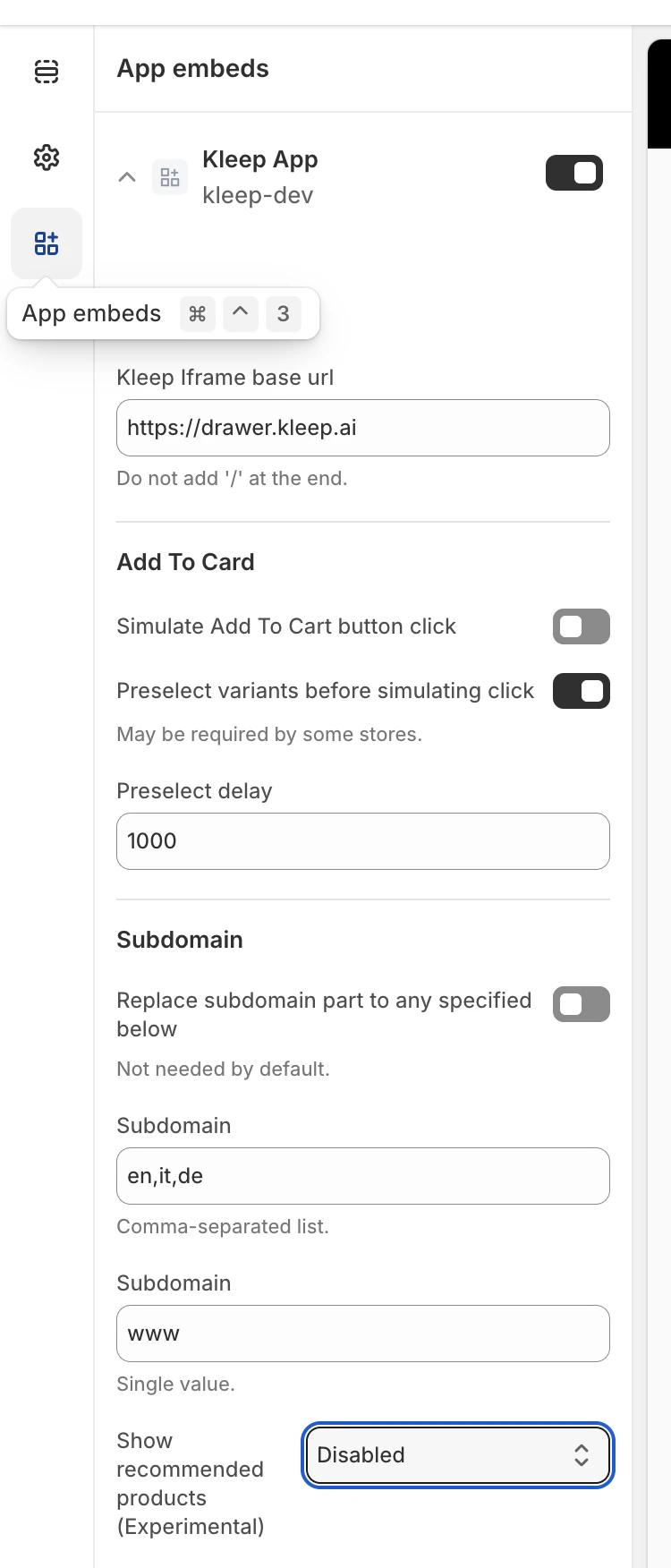 次に、\*\*「おすすめ商品を表示」\*\*を見つけます
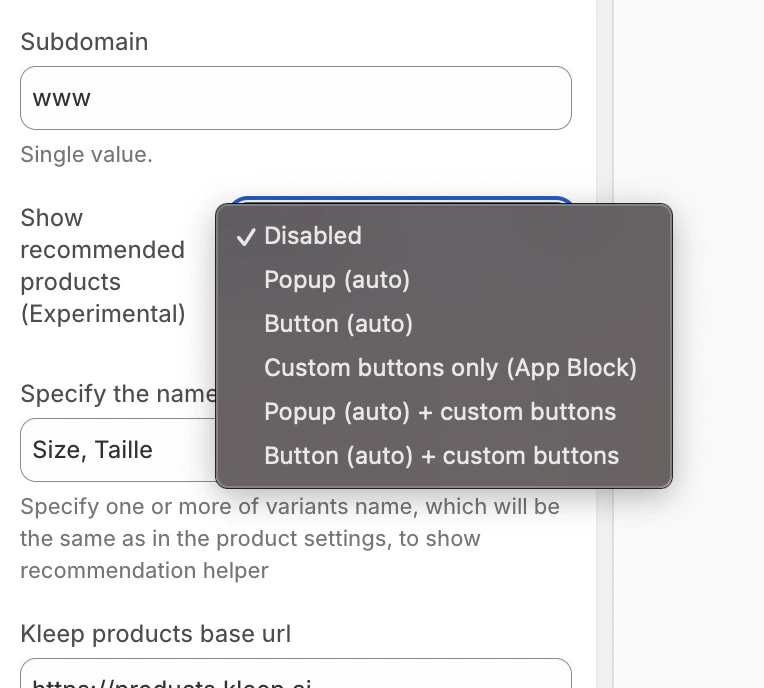
### ステップ 2 — 類似商品の表示モードを選択する
Kleep ウィジェット設定内で、商品ページに類似商品をどのように表示するかを選択します:
* disabled – 機能を完全に無効にする
* popup – デスクトップではバリアント/サイズセレクターの上に自動的にポップアップを追加し、モバイルではデフォルトボタンを置き換える
* button – 選択されたバリアントが在庫切れの場合にカートに追加エリアの近くに CTA ボタンを自動的に挿入する
* custom\_buttons – すべての自動配置を無効にする;マーチャントが 1 つ以上の「Kleep Similar Button」ブロックを手動で追加する必要がある
* popup+custom – 自動ポップアップを保持し、テーマに追加されたカスタムボタンも有効にする
* button+custom – 自動 CTA ボタンを保持し、テーマに追加されたカスタムボタンも有効にする
次に、\*\*「おすすめ商品を表示」\*\*を見つけます
### ステップ 2 — 類似商品の表示モードを選択する
Kleep ウィジェット設定内で、商品ページに類似商品をどのように表示するかを選択します:
* disabled – 機能を完全に無効にする
* popup – デスクトップではバリアント/サイズセレクターの上に自動的にポップアップを追加し、モバイルではデフォルトボタンを置き換える
* button – 選択されたバリアントが在庫切れの場合にカートに追加エリアの近くに CTA ボタンを自動的に挿入する
* custom\_buttons – すべての自動配置を無効にする;マーチャントが 1 つ以上の「Kleep Similar Button」ブロックを手動で追加する必要がある
* popup+custom – 自動ポップアップを保持し、テーマに追加されたカスタムボタンも有効にする
* button+custom – 自動 CTA ボタンを保持し、テーマに追加されたカスタムボタンも有効にする
 その後、テーマを保存するだけで、すぐにストア(商品ページ)に表示されます。
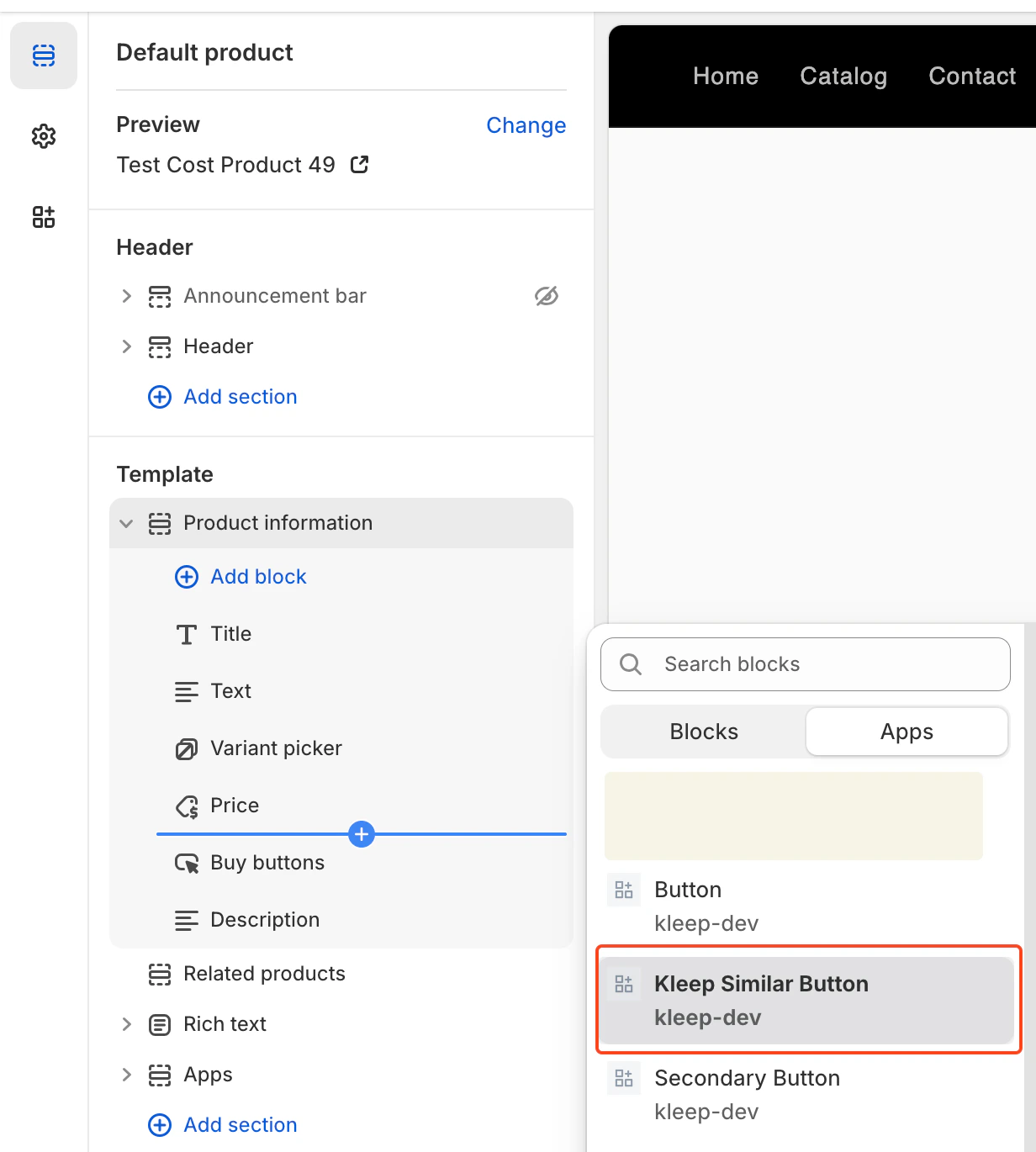
**ステップ 3 — カスタムボタンを追加する(custom\_buttons、popup+custom、button+custom の場合のみ)**
選択したモードにカスタムボタンが含まれる場合:
1. **オンラインストア → カスタマイズ** を開きます。
2. **商品ページ**テンプレートに移動します。
3. 任意のセクションで **ブロックを追加** をクリックします。
4. **Kleep Similar Button** を選択します。
5. テーマを保存します。
カスタムボタンは、選択されたバリアントが在庫切れの場合にのみ表示されます。
その後、テーマを保存するだけで、すぐにストア(商品ページ)に表示されます。
**ステップ 3 — カスタムボタンを追加する(custom\_buttons、popup+custom、button+custom の場合のみ)**
選択したモードにカスタムボタンが含まれる場合:
1. **オンラインストア → カスタマイズ** を開きます。
2. **商品ページ**テンプレートに移動します。
3. 任意のセクションで **ブロックを追加** をクリックします。
4. **Kleep Similar Button** を選択します。
5. テーマを保存します。
カスタムボタンは、選択されたバリアントが在庫切れの場合にのみ表示されます。
 ## 複数の「類似商品」ボタンの追加(プライマリ&セカンダリ)
商品ページには任意の数の類似商品ボタンを追加できます。
これは OS 2.0 テーマと V1 / レガシーテーマの両方で機能します。
## カスタムボタンをサポートするモードを有効にする
複数のボタンを許可するには、ウィジェットを次のいずれかのモードに設定する必要があります:
* custom\_buttons
* popup+custom
* button+custom
これらのモードは手動配置を有効にするため、マーチャントは必要なだけボタンを挿入できます。
## Online Store 2.0(最新テーマ)の場合
OS 2.0 テーマでは、テーマエディタでビジュアルにボタンを追加できます。
手順:
* オンラインストア → カスタマイズ に移動
* 商品ページテンプレートを開く
* ブロックを追加 → Kleep Similar Button をクリック
* ボタンを好きな場所に追加
* 2 つ以上のボタンが必要な場合は繰り返す
各ボタンは、選択されたバリアントが在庫切れの場合にのみ自動的に表示されます。
## V1 / レガシーテーマの場合
レガシーテーマはブロックをサポートしていませんが、スニペットを複数回レンダリングできます。
ボタンを表示したい場所にこのスニペットを挿入します:
`{% render 'kleep-similar-button' %}`
複数のボタンを作成するには、このコードを商品テンプレートの異なる場所に配置するだけです。
各スニペット呼び出しで追加のボタンが作成されます。
### まとめ
複数の類似商品ボタンを追加するには:
カスタムボタンのいずれかのモードを有効にする → 複数の OS 2.0 ブロックまたは複数のスニペット呼び出しを追加する → バリアントが在庫切れの場合にすべてのボタンが自動的に機能します。
***
**PDP 上の CTA 位置**
位置は `KleepSDK.getConstants().` 内の DOM セレクターによって定義されます。
`targetProductInfoBlockQueries` — 商品情報の場所。これは商品詳細のメインコンテナ(タイトル、価格、サイズなど)を指すセレクターの配列です。スクリプトはこれらのセレクターを順に検索し、最初に見つかったものを CTA またはポップアップの挿入ポイントとして使用します。
`targetVariantQueries` — サイズ/バリアントオプションの場所:商品情報ブロックが見つかると、スクリプトはその中でバリアント要素(サイズセレクターなど)を検索します。各バリアントの \
## 複数の「類似商品」ボタンの追加(プライマリ&セカンダリ)
商品ページには任意の数の類似商品ボタンを追加できます。
これは OS 2.0 テーマと V1 / レガシーテーマの両方で機能します。
## カスタムボタンをサポートするモードを有効にする
複数のボタンを許可するには、ウィジェットを次のいずれかのモードに設定する必要があります:
* custom\_buttons
* popup+custom
* button+custom
これらのモードは手動配置を有効にするため、マーチャントは必要なだけボタンを挿入できます。
## Online Store 2.0(最新テーマ)の場合
OS 2.0 テーマでは、テーマエディタでビジュアルにボタンを追加できます。
手順:
* オンラインストア → カスタマイズ に移動
* 商品ページテンプレートを開く
* ブロックを追加 → Kleep Similar Button をクリック
* ボタンを好きな場所に追加
* 2 つ以上のボタンが必要な場合は繰り返す
各ボタンは、選択されたバリアントが在庫切れの場合にのみ自動的に表示されます。
## V1 / レガシーテーマの場合
レガシーテーマはブロックをサポートしていませんが、スニペットを複数回レンダリングできます。
ボタンを表示したい場所にこのスニペットを挿入します:
`{% render 'kleep-similar-button' %}`
複数のボタンを作成するには、このコードを商品テンプレートの異なる場所に配置するだけです。
各スニペット呼び出しで追加のボタンが作成されます。
### まとめ
複数の類似商品ボタンを追加するには:
カスタムボタンのいずれかのモードを有効にする → 複数の OS 2.0 ブロックまたは複数のスニペット呼び出しを追加する → バリアントが在庫切れの場合にすべてのボタンが自動的に機能します。
***
**PDP 上の CTA 位置**
位置は `KleepSDK.getConstants().` 内の DOM セレクターによって定義されます。
`targetProductInfoBlockQueries` — 商品情報の場所。これは商品詳細のメインコンテナ(タイトル、価格、サイズなど)を指すセレクターの配列です。スクリプトはこれらのセレクターを順に検索し、最初に見つかったものを CTA またはポップアップの挿入ポイントとして使用します。
`targetVariantQueries` — サイズ/バリアントオプションの場所:商品情報ブロックが見つかると、スクリプトはその中でバリアント要素(サイズセレクターなど)を検索します。各バリアントの \