> ## Documentation Index
> Fetch the complete documentation index at: https://docs.kleep.ai/llms.txt
> Use this file to discover all available pages before exploring further.
# Web Translations
> Edit the Kleep widget's text - in every supported language - directly from your Kleep Dashboard.
**Enabled on request.** Web Translations may not be turned on for your account by default. If your **Web** tab shows *"No web translations configured for this retailer"*, email **[support@kleep.ai](mailto:support@kleep.ai)** and our tech team will enable it for your brand.
Web Translations lets you edit every piece of Kleep widget copy - button labels, intro text, consent notices, and everything in between - directly from the Kleep Dashboard, in each of your supported languages. No redeploy needed on your storefront - the widget picks up the new copy automatically.
## When to use it
* **Fine-tune wording** to match your brand voice
* **Add or edit translations** for any of your supported languages
* **Adjust legal or consent copy** (for example, the wording of the privacy notice under the intro popup)
## How to edit translations
Go to [dashboard.kleep.ai](https://dashboard.kleep.ai) and sign in with your Kleep credentials.
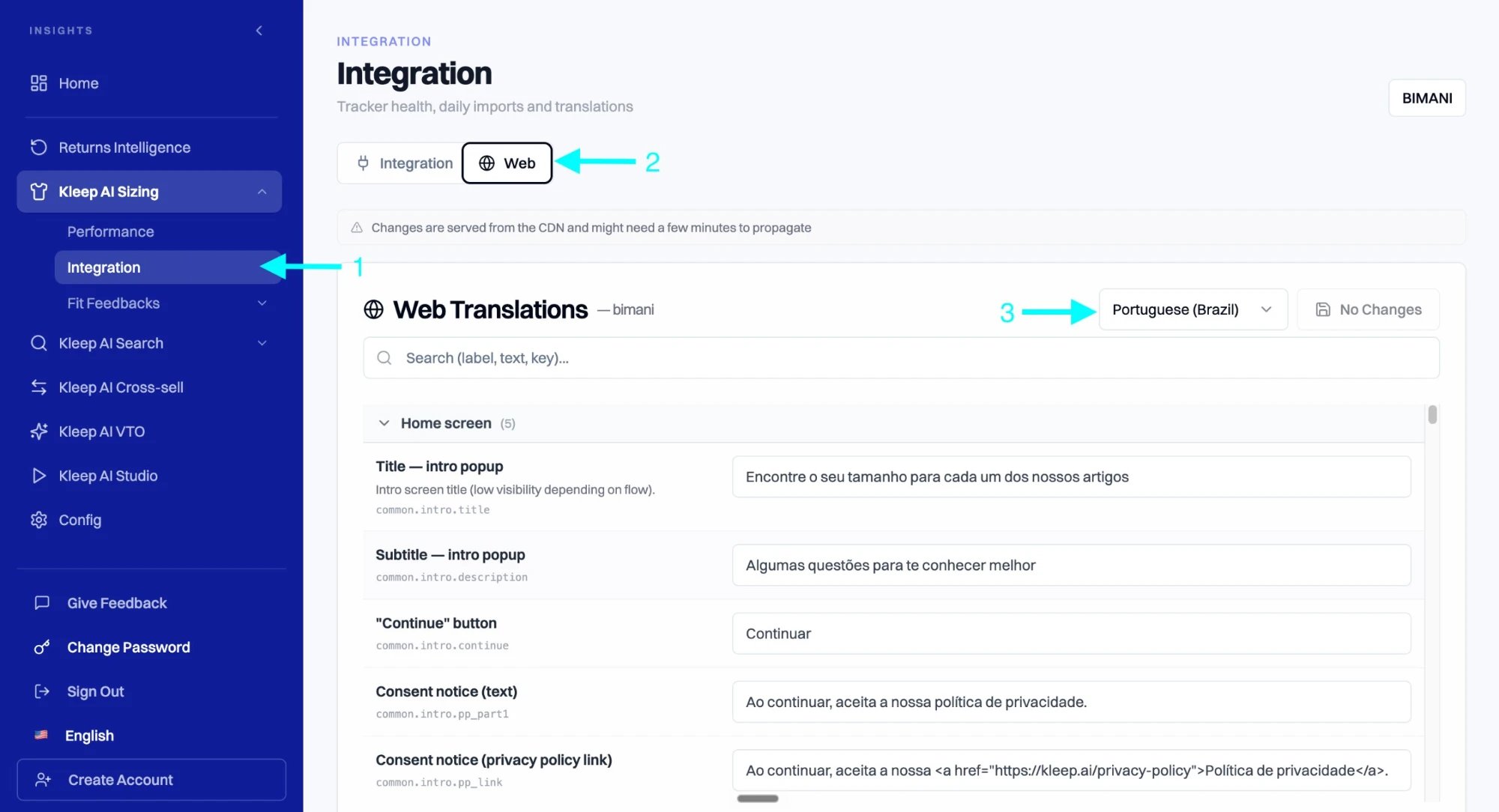
In the left sidebar, expand **Kleep AI Sizing** and click **Integration**.
At the top of the Integration page, click the **Web** tab.
In the top-right dropdown, select the language you want to edit.
Use the search bar to find the label you want to update, or scroll through the sections (Home screen, etc.). Edit the value in the right column - the key (`common.intro.title`, `common.intro.description`, ...) stays as a reference so you know where each string appears.
Click **Save Changes** in the top-right. Nothing is persisted until you click it - if you close the page beforehand, your edits are lost.
 ## Feature not enabled?
Web Translations is an on-request feature. If you open the **Web** tab and see the empty state below, email **[support@kleep.ai](mailto:support@kleep.ai)** and mention which brand / retailer you want the feature enabled on. Our tech team will map your retailer to a translations folder, and the editable interface will appear the next time you refresh the Dashboard.
> **No web translations configured for this retailer**
> This retailer's `kleep_retailer_uuid` isn't mapped to a drawer web locale folder yet.
**Propagation delay.** Changes are served from the Kleep CDN, so they can take a few minutes to appear on your storefront. Refresh with cache disabled if you don't see the update immediately.
***
## Cookies & data privacy
Kleep is fully gated by visitor consent: the script only loads **after** consent is collected through your CMP, and you must condition its loading accordingly. For the complete list of trackers, the data processed, the purposes and legal bases, hosting, subprocessors and security, see [Cookies, CMP & Data Privacy](/cookie-consent).
## Feature not enabled?
Web Translations is an on-request feature. If you open the **Web** tab and see the empty state below, email **[support@kleep.ai](mailto:support@kleep.ai)** and mention which brand / retailer you want the feature enabled on. Our tech team will map your retailer to a translations folder, and the editable interface will appear the next time you refresh the Dashboard.
> **No web translations configured for this retailer**
> This retailer's `kleep_retailer_uuid` isn't mapped to a drawer web locale folder yet.
**Propagation delay.** Changes are served from the Kleep CDN, so they can take a few minutes to appear on your storefront. Refresh with cache disabled if you don't see the update immediately.
***
## Cookies & data privacy
Kleep is fully gated by visitor consent: the script only loads **after** consent is collected through your CMP, and you must condition its loading accordingly. For the complete list of trackers, the data processed, the purposes and legal bases, hosting, subprocessors and security, see [Cookies, CMP & Data Privacy](/cookie-consent).