> ## Documentation Index
> Fetch the complete documentation index at: https://docs.kleep.ai/llms.txt
> Use this file to discover all available pages before exploring further.
# Installation
> Importér cartridges, tildel dem til dit site og importér metadata
## Importér Cartridges
1. Download cartridge-kildekoden.
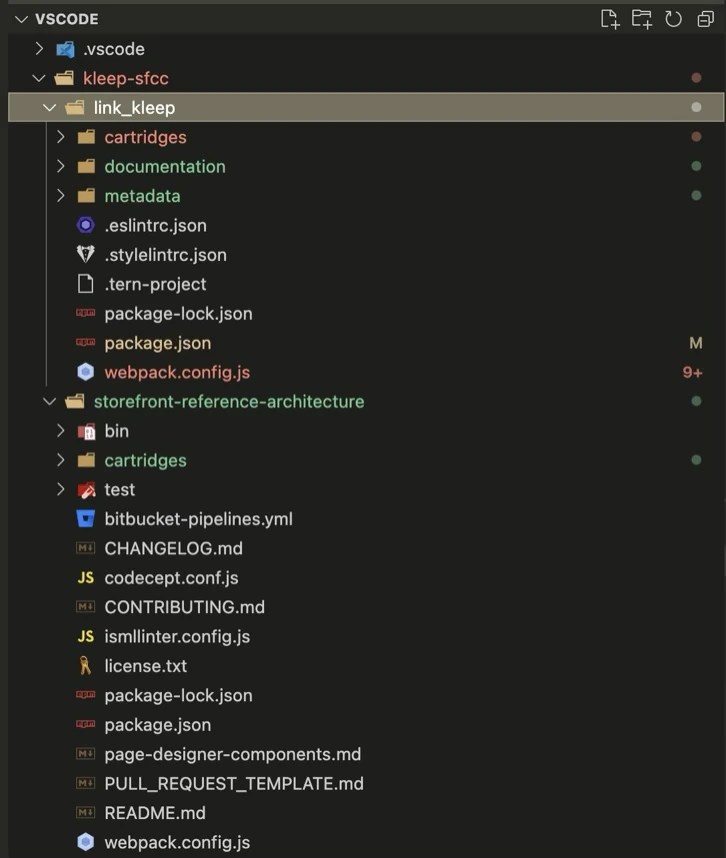
2. Udpak mappen og flyt **link\_kleep**-mappen på samme niveau som SFRA.
3. Du kan fjerne SFRA-projektet fra Kleep-connectoren (`storefront-reference-architecture`-mappen) — det bruges kun til testning.
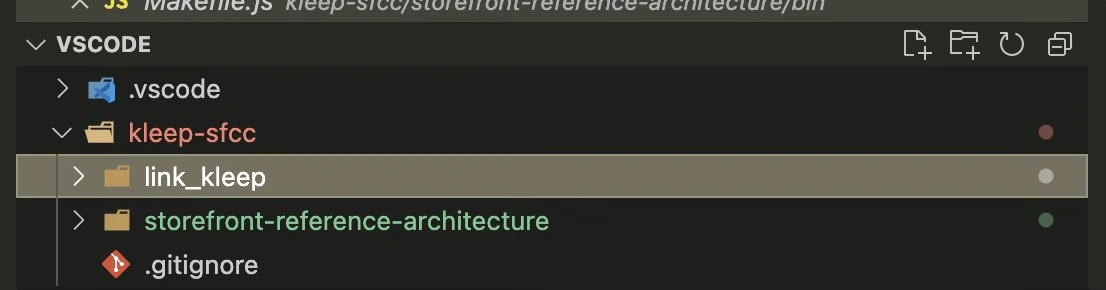 Dette bør være den renderede cartridge-struktur:
 4. Installér afhængigheder:
```bash theme={null}
cd /path/to/link_kleep
npm install
```
5. Kompilér frontend:
```bash theme={null}
npm run compile
```
6. Opret en `dw.json`-fil i samme mappe:
```json theme={null}
{
"hostname": "...",
"username": "...",
"password": "...",
"version": "..."
}
```
* **hostname** — dit sandbox, f.eks. `zzaa-001.sandbox.us01.dx.commercecloud.salesforce.com`
* **username / password** — dine account manager-legitimationsoplysninger
* **version** — den aktive kodeversion i **Administration > Code Deployment**, f.eks. `version1`
7. Upload cartridges:
```bash theme={null}
npm run uploadCartridges
```
8. Gå til **Administration > Development Setup > Folder Browser > Cartridges** og verificér uploaden.
## Tildel Cartridges til sitet
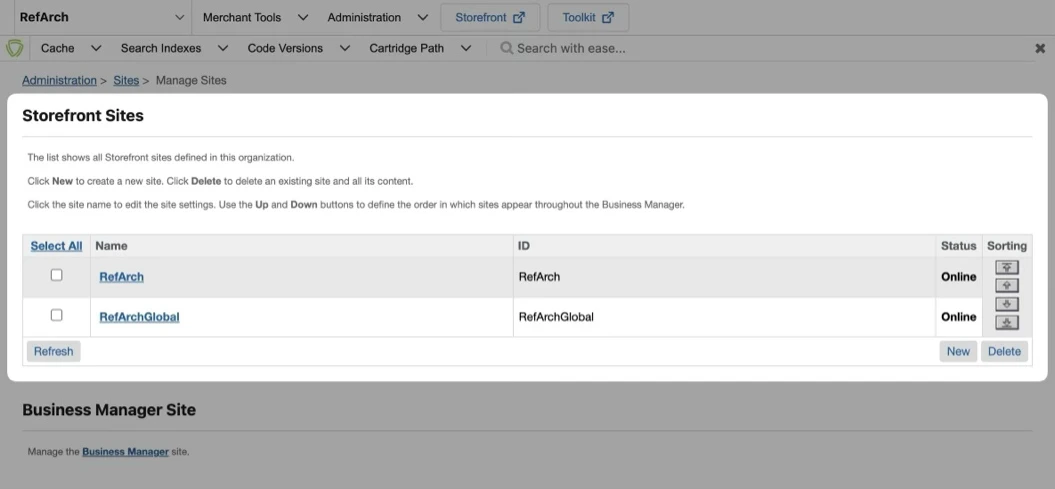
1. Gå til **Administration > Sites > Manage Sites**. Vælg dit site fra listen **Storefront Sites**:
4. Installér afhængigheder:
```bash theme={null}
cd /path/to/link_kleep
npm install
```
5. Kompilér frontend:
```bash theme={null}
npm run compile
```
6. Opret en `dw.json`-fil i samme mappe:
```json theme={null}
{
"hostname": "...",
"username": "...",
"password": "...",
"version": "..."
}
```
* **hostname** — dit sandbox, f.eks. `zzaa-001.sandbox.us01.dx.commercecloud.salesforce.com`
* **username / password** — dine account manager-legitimationsoplysninger
* **version** — den aktive kodeversion i **Administration > Code Deployment**, f.eks. `version1`
7. Upload cartridges:
```bash theme={null}
npm run uploadCartridges
```
8. Gå til **Administration > Development Setup > Folder Browser > Cartridges** og verificér uploaden.
## Tildel Cartridges til sitet
1. Gå til **Administration > Sites > Manage Sites**. Vælg dit site fra listen **Storefront Sites**:
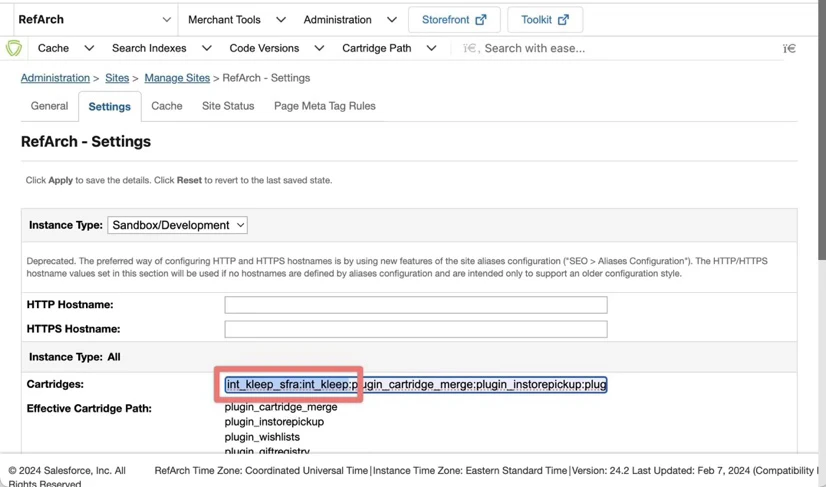
 2. Vælg fanen **Settings**. I begyndelsen af cartridge-stien tilføjes: `int_kleep_sfra:int_kleep`
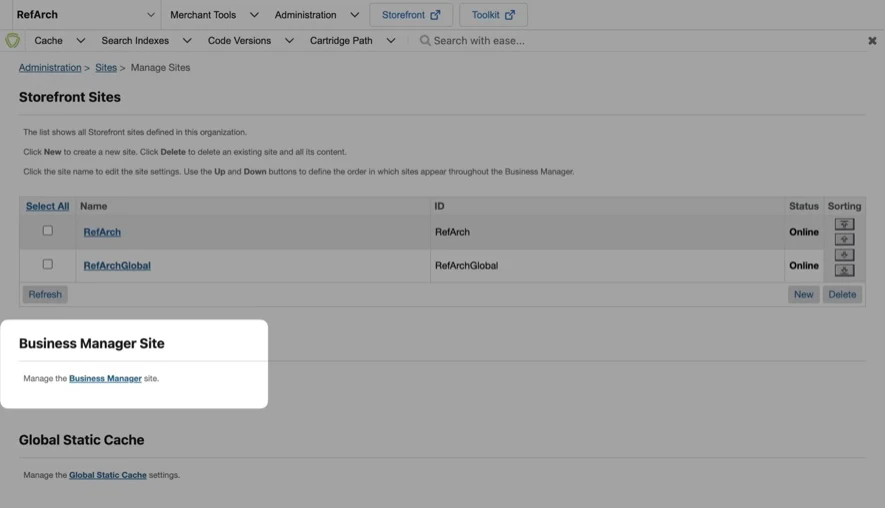
 3. Gå til **Administration > Sites > Manage Sites** og klik på linket i sektionen **Manage the Business Manager site**.
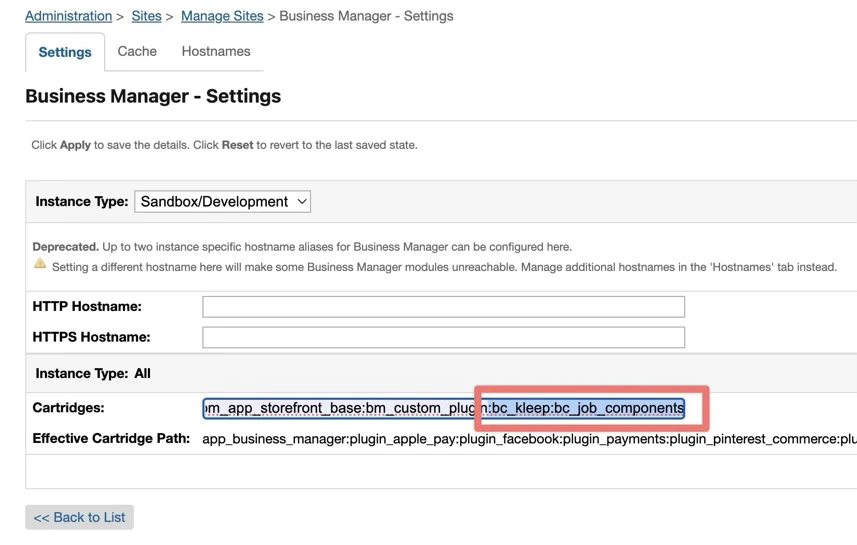
 4. Indtast `bc_kleep:int_kleep` i tekstboksen Cartridges (adskilt med `:` hvis du bruger flere cartridges):
 ## Importér Metadata
1. Gå til **Administration > Site Development > Site Import & Export**.
2. Upload `kleep-metadata.zip` indeholdende metadatamappen.
## Importér Metadata
1. Gå til **Administration > Site Development > Site Import & Export**.
2. Upload `kleep-metadata.zip` indeholdende metadatamappen.
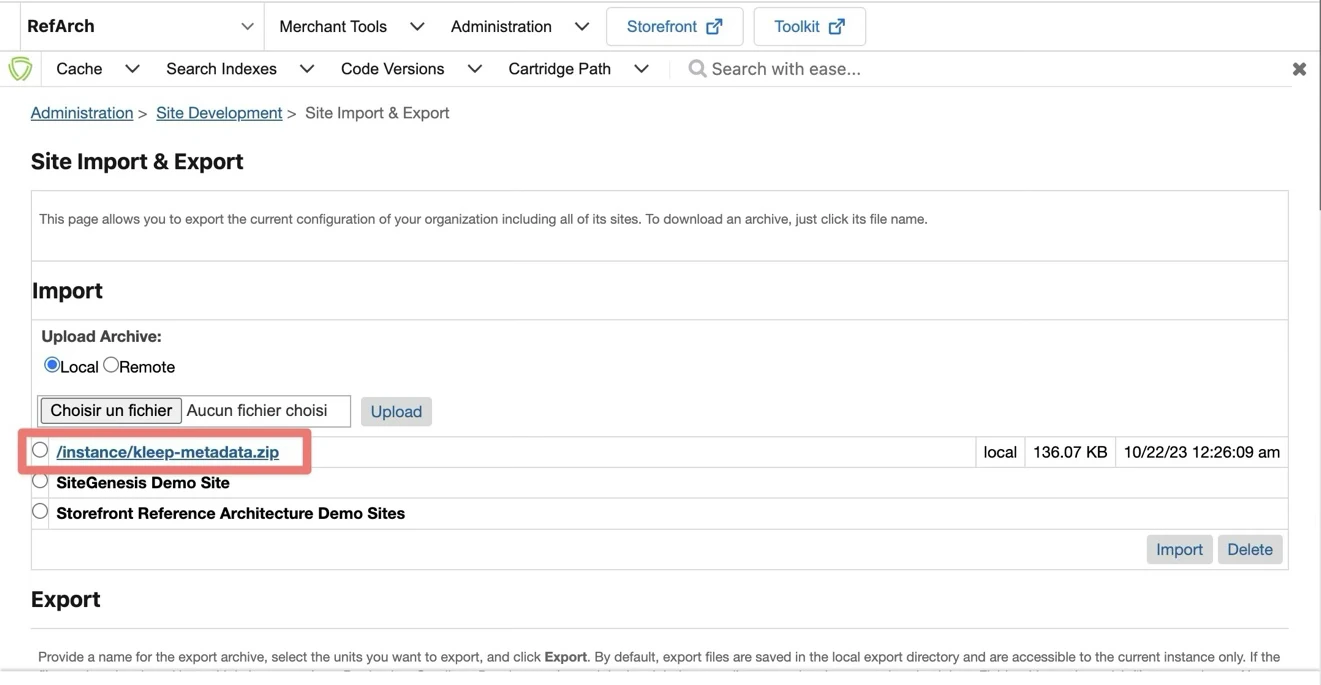 3. Vælg `kleep-metadata.zip` og afslut importen.