> ## Documentation Index
> Fetch the complete documentation index at: https://docs.kleep.ai/llms.txt
> Use this file to discover all available pages before exploring further.
# Similar Products
> Suggest relevant alternatives when a size is out of stock
## Overview
Similar Products suggests alternative products when a size is out of stock. This feature increases conversions by offering relevant alternatives to customers.
## Standard installation
**Available Display Modes**
| Mode | Description |
| ----------------------- | --------------------------------------------------------- |
| **Popup (auto)** | Automatic popup on size hover (desktop) / button (mobile) |
| **Button (auto)** | Automatic button near the cart when out of stock |
| **Custom buttons only** | You manually place buttons via the theme editor |
| **Popup + custom** | Automatic popup + additional custom buttons |
| **Button + custom** | Automatic button + additional custom buttons |
**Configuration**
**Step 1: Choose the Display Mode**
In the Kleep App Embed settings, find the **“Show recommended products”** option and select your desired mode from the dropdown menu.
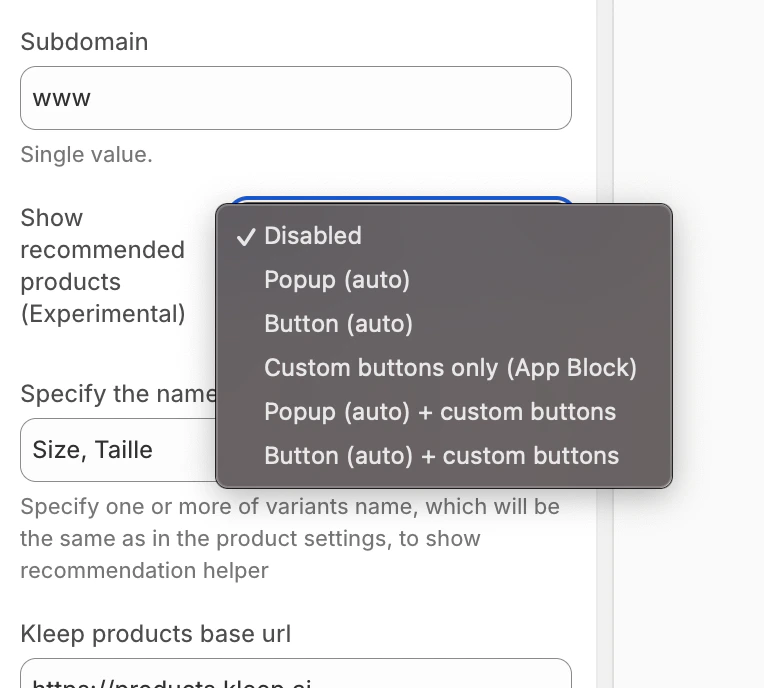 Similar Products Mode Selection
**Adding Custom Buttons (for custom modes)**
If you’ve chosen a mode with “custom”, you can add buttons at specific locations:
1. Go to the **Product page** template in the theme editor
2. In the desired section, click **Add block**
3. Click the **Apps** tab and select **“Kleep Similar Button”**
4. Position the block where you want it and save
Similar Products Mode Selection
**Adding Custom Buttons (for custom modes)**
If you’ve chosen a mode with “custom”, you can add buttons at specific locations:
1. Go to the **Product page** template in the theme editor
2. In the desired section, click **Add block**
3. Click the **Apps** tab and select **“Kleep Similar Button”**
4. Position the block where you want it and save
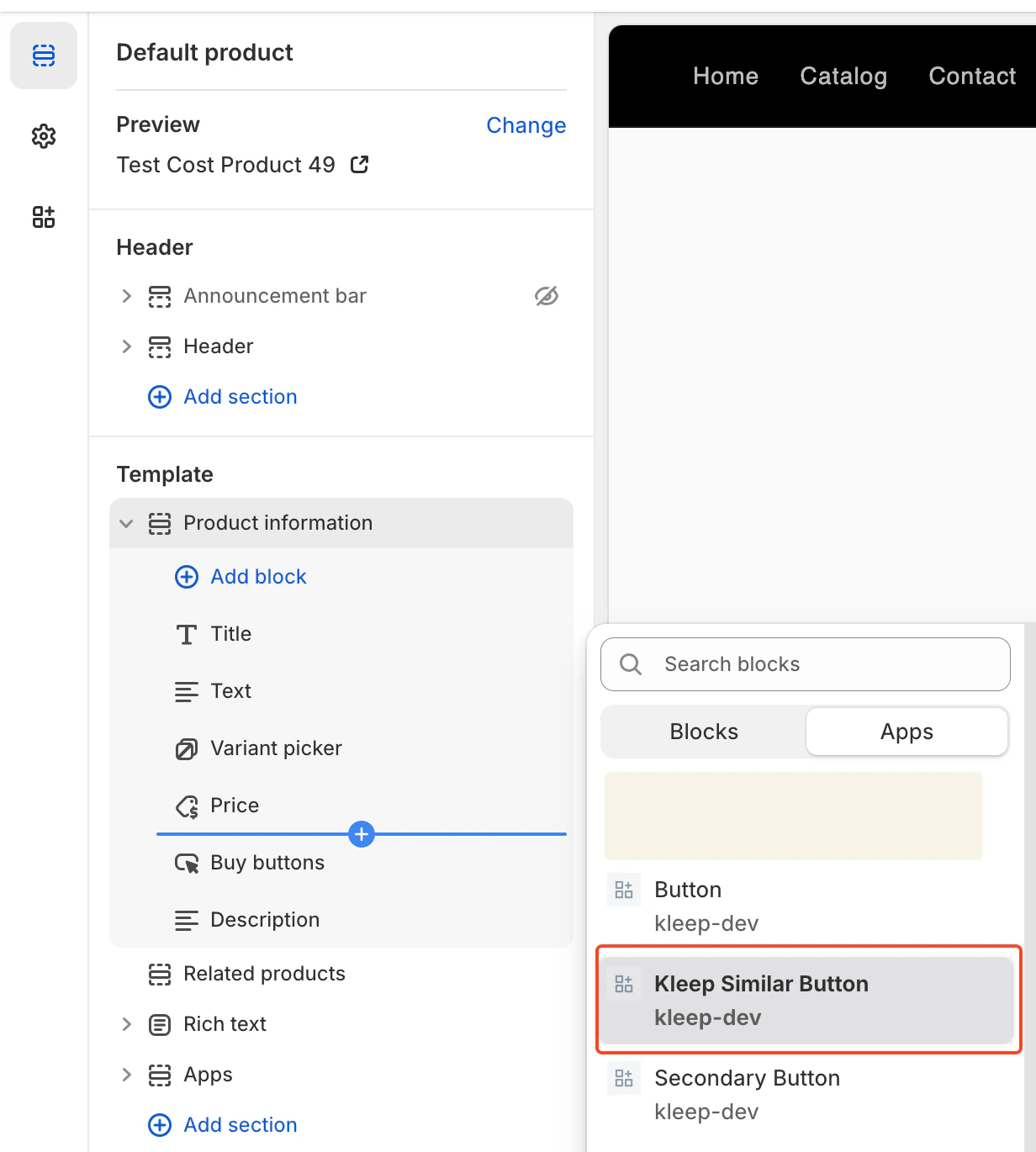 Add Kleep Similar Button Block
Similar Products buttons only appear when a variant is out of stock. It’s normal if you don’t see them on all products.
**Adding Multiple Buttons**
You can add any number of Similar Products buttons on the Product Page. To allow multiple buttons, the widget must be set to one of: `custom_buttons`, `popup+custom`, or `button+custom`.
For OS 2.0 themes:
* Go to **Online Store → Customize**
* Open the **Product page** template
* Click **Add block → Kleep Similar Button**
* Repeat if you want 2+ buttons on the page
Every button automatically appears only when the selected variant is out of stock.
For the complete technical walkthrough (including V1 / legacy themes), see the [advanced installation guide](/cms/cta-button).
## Manual installation
**Step 1: Create the Snippet**
Create a file `snippets/kleep-similar-button.liquid` with the following code:
```jsx theme={null}
{% assign cms = block.settings %}
{% assign domain = shop.domain %}
{% assign translated_similar = '' %}
{% assign translated_similar_missing = true %}
{%- assign domain_key = domain | prepend: 'www.' | append: '.recommended' -%}
{% assign raw_domain_similar = domain_key | t %}
{% unless raw_domain_similar contains 'Translation missing'
or raw_domain_similar contains domain
%}
{% assign translated_similar = raw_domain_similar %}
{% assign translated_similar_missing = false %}
{% endunless %}
{%- if translated_similar_missing -%}
{% assign raw_global_similar = 'kleep.recommended.text.btn' | t %}
{% unless raw_global_similar contains 'Translation missing' %}
{% assign translated_similar = raw_global_similar %}
{% assign translated_similar_missing = false %}
{% endunless %}
{%- endif %}
```
**Step 2: Render the Snippet**
Insert this line wherever you want the button to appear:
```jsx theme={null}
{% render 'kleep-similar-button' %}
```
Typical placement: under the variant selectors or near the Add to Cart form.
**Step 3: Enable the Correct Mode**
Because manual installation doesn't use OS 2.0 blocks, the widget must use one of:
* `custom_buttons`
* `popup+custom`
* `button+custom`
**Adding Multiple Buttons**
To create multiple buttons, simply place the snippet code in different areas of the product template:
```jsx theme={null}
{% render 'kleep-similar-button' %}
```
Each snippet call creates an additional button. Every button automatically appears only when the selected variant is out of stock.
Manual installation requires the Kleep translation keys in your theme locale files — see [Translations (i18n)](/cms/shopify/ai-sizing#translations-i18n).
## Troubleshooting
**Similar Products doesn’t appear**
* ☑️ Check that the mode isn’t set to “Disabled” in settings
* ☑️ Buttons only appear when a variant is out of stock
* ☑️ For “custom” modes, verify you’ve added an App Block
Still stuck? Contact [support@kleep.ai](mailto:support@kleep.ai).
Add Kleep Similar Button Block
Similar Products buttons only appear when a variant is out of stock. It’s normal if you don’t see them on all products.
**Adding Multiple Buttons**
You can add any number of Similar Products buttons on the Product Page. To allow multiple buttons, the widget must be set to one of: `custom_buttons`, `popup+custom`, or `button+custom`.
For OS 2.0 themes:
* Go to **Online Store → Customize**
* Open the **Product page** template
* Click **Add block → Kleep Similar Button**
* Repeat if you want 2+ buttons on the page
Every button automatically appears only when the selected variant is out of stock.
For the complete technical walkthrough (including V1 / legacy themes), see the [advanced installation guide](/cms/cta-button).
## Manual installation
**Step 1: Create the Snippet**
Create a file `snippets/kleep-similar-button.liquid` with the following code:
```jsx theme={null}
{% assign cms = block.settings %}
{% assign domain = shop.domain %}
{% assign translated_similar = '' %}
{% assign translated_similar_missing = true %}
{%- assign domain_key = domain | prepend: 'www.' | append: '.recommended' -%}
{% assign raw_domain_similar = domain_key | t %}
{% unless raw_domain_similar contains 'Translation missing'
or raw_domain_similar contains domain
%}
{% assign translated_similar = raw_domain_similar %}
{% assign translated_similar_missing = false %}
{% endunless %}
{%- if translated_similar_missing -%}
{% assign raw_global_similar = 'kleep.recommended.text.btn' | t %}
{% unless raw_global_similar contains 'Translation missing' %}
{% assign translated_similar = raw_global_similar %}
{% assign translated_similar_missing = false %}
{% endunless %}
{%- endif %}
```
**Step 2: Render the Snippet**
Insert this line wherever you want the button to appear:
```jsx theme={null}
{% render 'kleep-similar-button' %}
```
Typical placement: under the variant selectors or near the Add to Cart form.
**Step 3: Enable the Correct Mode**
Because manual installation doesn't use OS 2.0 blocks, the widget must use one of:
* `custom_buttons`
* `popup+custom`
* `button+custom`
**Adding Multiple Buttons**
To create multiple buttons, simply place the snippet code in different areas of the product template:
```jsx theme={null}
{% render 'kleep-similar-button' %}
```
Each snippet call creates an additional button. Every button automatically appears only when the selected variant is out of stock.
Manual installation requires the Kleep translation keys in your theme locale files — see [Translations (i18n)](/cms/shopify/ai-sizing#translations-i18n).
## Troubleshooting
**Similar Products doesn’t appear**
* ☑️ Check that the mode isn’t set to “Disabled” in settings
* ☑️ Buttons only appear when a variant is out of stock
* ☑️ For “custom” modes, verify you’ve added an App Block
Still stuck? Contact [support@kleep.ai](mailto:support@kleep.ai).