> ## Documentation Index
> Fetch the complete documentation index at: https://docs.kleep.ai/llms.txt
> Use this file to discover all available pages before exploring further.
# Installation
> Import cartridges, assign them to your site, and import metadata
## Import Cartridges
1. Download the cartridge source code.
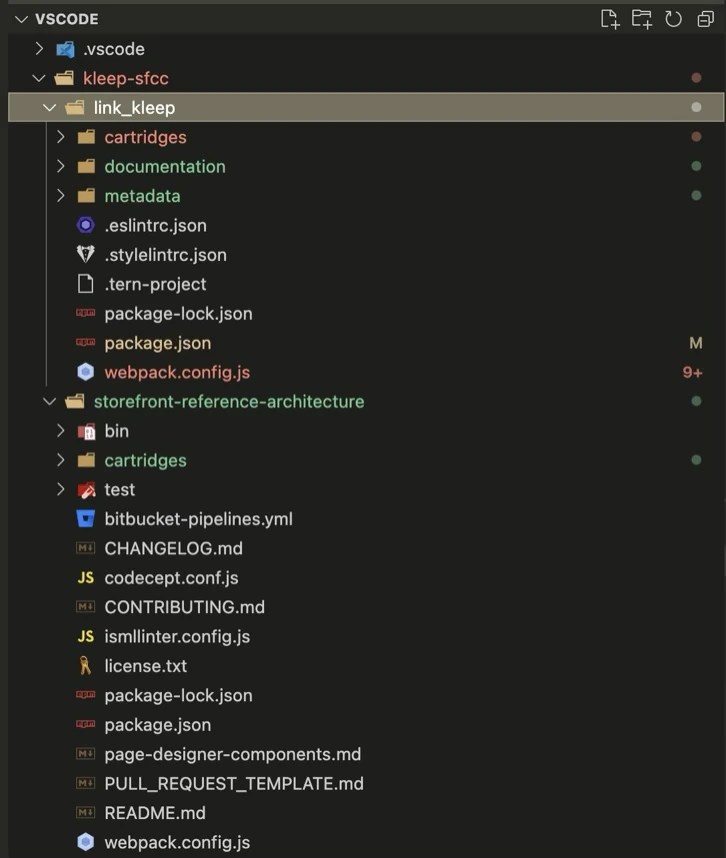
2. Extract the directory and move the **link\_kleep** folder at the same level as SFRA.
3. You can remove the SFRA project from the Kleep connector (`storefront-reference-architecture` folder) — it is only used for testing.
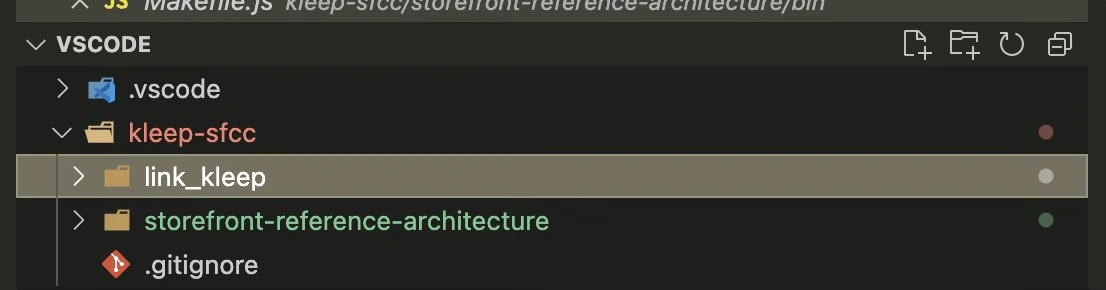 This should be the rendered cartridges structure:
 4. Install dependencies:
```bash theme={null}
cd /path/to/link_kleep
npm install
```
5. Compile the frontend:
```bash theme={null}
npm run compile
```
6. Create a `dw.json` file in the same directory:
```json theme={null}
{
"hostname": "...",
"username": "...",
"password": "...",
"version": "..."
}
```
* **hostname** — your sandbox, e.g. `zzaa-001.sandbox.us01.dx.commercecloud.salesforce.com`
* **username / password** — your account manager credentials
* **version** — the active code version in **Administration > Code Deployment**, e.g. `version1`
7. Upload the cartridges:
```bash theme={null}
npm run uploadCartridges
```
8. Go to **Administration > Development Setup > Folder Browser > Cartridges** and verify the upload.
## Assign Cartridges to the Site
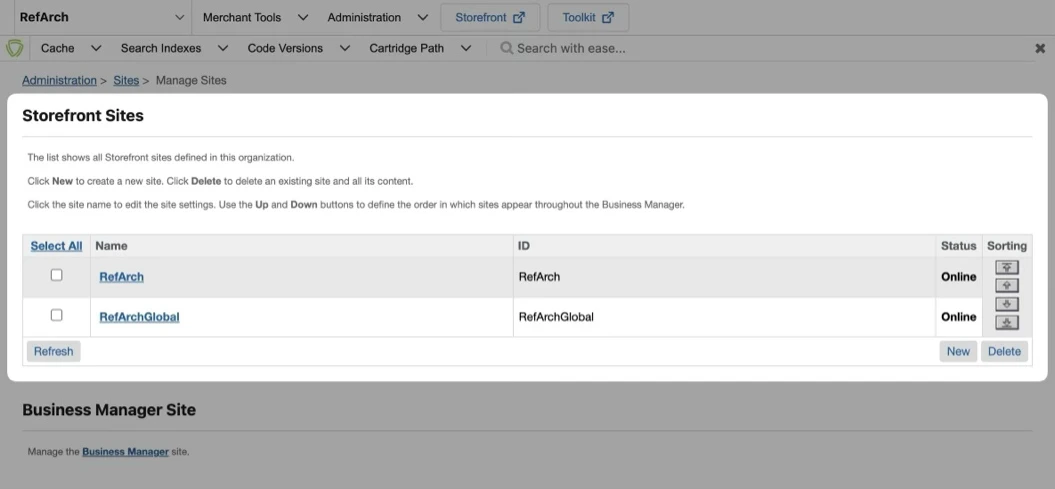
1. Go to **Administration > Sites > Manage Sites**. Select your site from the **Storefront Sites** list:
4. Install dependencies:
```bash theme={null}
cd /path/to/link_kleep
npm install
```
5. Compile the frontend:
```bash theme={null}
npm run compile
```
6. Create a `dw.json` file in the same directory:
```json theme={null}
{
"hostname": "...",
"username": "...",
"password": "...",
"version": "..."
}
```
* **hostname** — your sandbox, e.g. `zzaa-001.sandbox.us01.dx.commercecloud.salesforce.com`
* **username / password** — your account manager credentials
* **version** — the active code version in **Administration > Code Deployment**, e.g. `version1`
7. Upload the cartridges:
```bash theme={null}
npm run uploadCartridges
```
8. Go to **Administration > Development Setup > Folder Browser > Cartridges** and verify the upload.
## Assign Cartridges to the Site
1. Go to **Administration > Sites > Manage Sites**. Select your site from the **Storefront Sites** list:
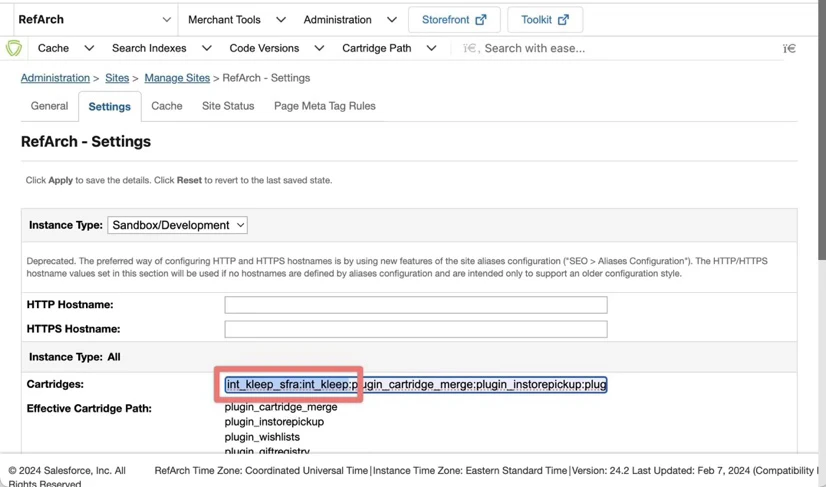
 2. Select the **Settings** tab. At the beginning of the cartridge path, add: `int_kleep_sfra:int_kleep`
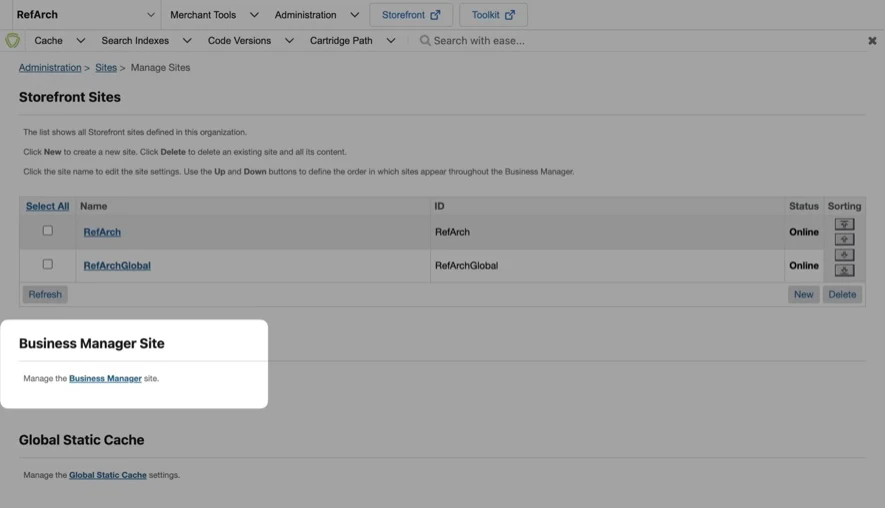
 3. Go to **Administration > Sites > Manage Sites** and click the link in the **Manage the Business Manager site** section.
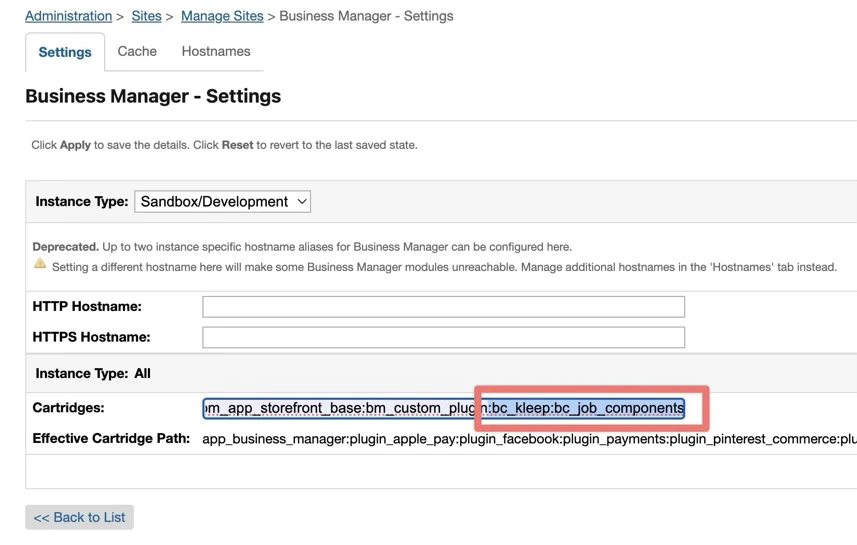
 4. Enter `bc_kleep:int_kleep` in the Cartridges textbox (separated by `:` if using multiple cartridges):
 ## Import Metadata
1. Go to **Administration > Site Development > Site Import & Export**.
2. Upload `kleep-metadata.zip` containing the metadata folder.
## Import Metadata
1. Go to **Administration > Site Development > Site Import & Export**.
2. Upload `kleep-metadata.zip` containing the metadata folder.
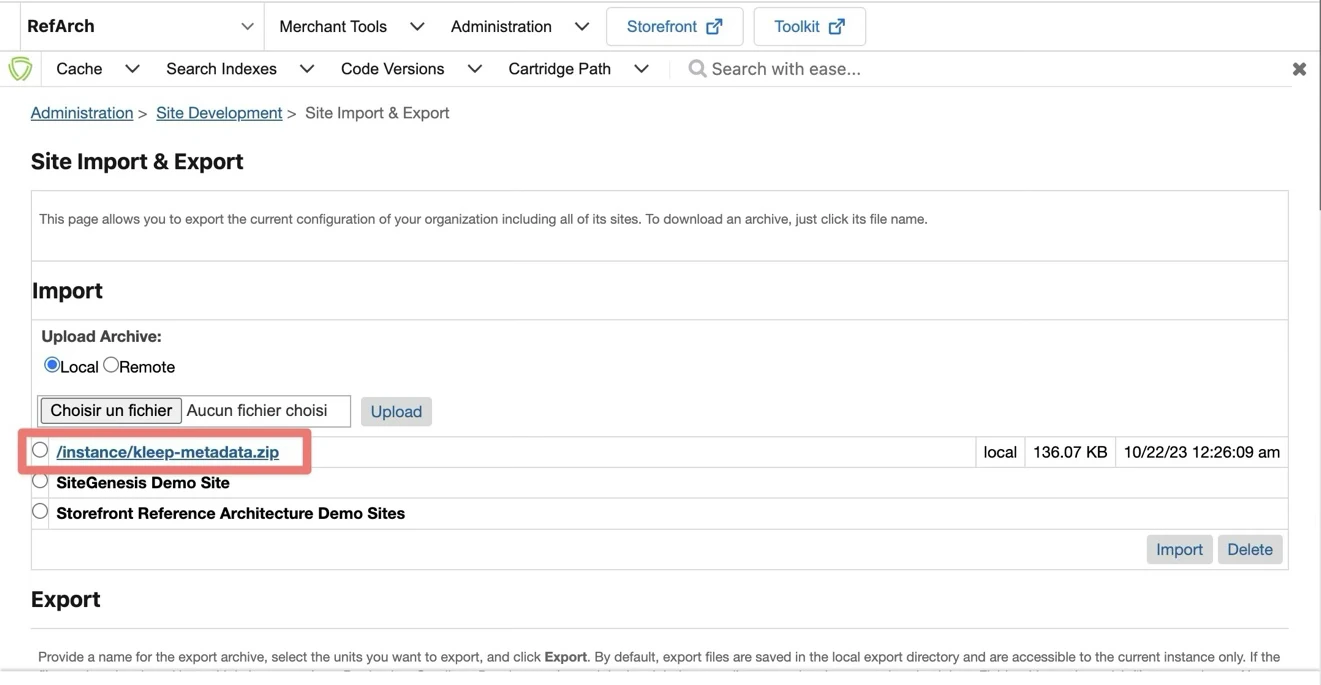 3. Select `kleep-metadata.zip` and finish the import.