> ## Documentation Index
> Fetch the complete documentation index at: https://docs.kleep.ai/llms.txt
> Use this file to discover all available pages before exploring further.
# Configuration
> Site preferences, services, certificates, export jobs, and live stock checks
## Custom Site Preferences
After metadata import, go to **BM > Merchant Tools > Site Preferences > Custom Preferences**.
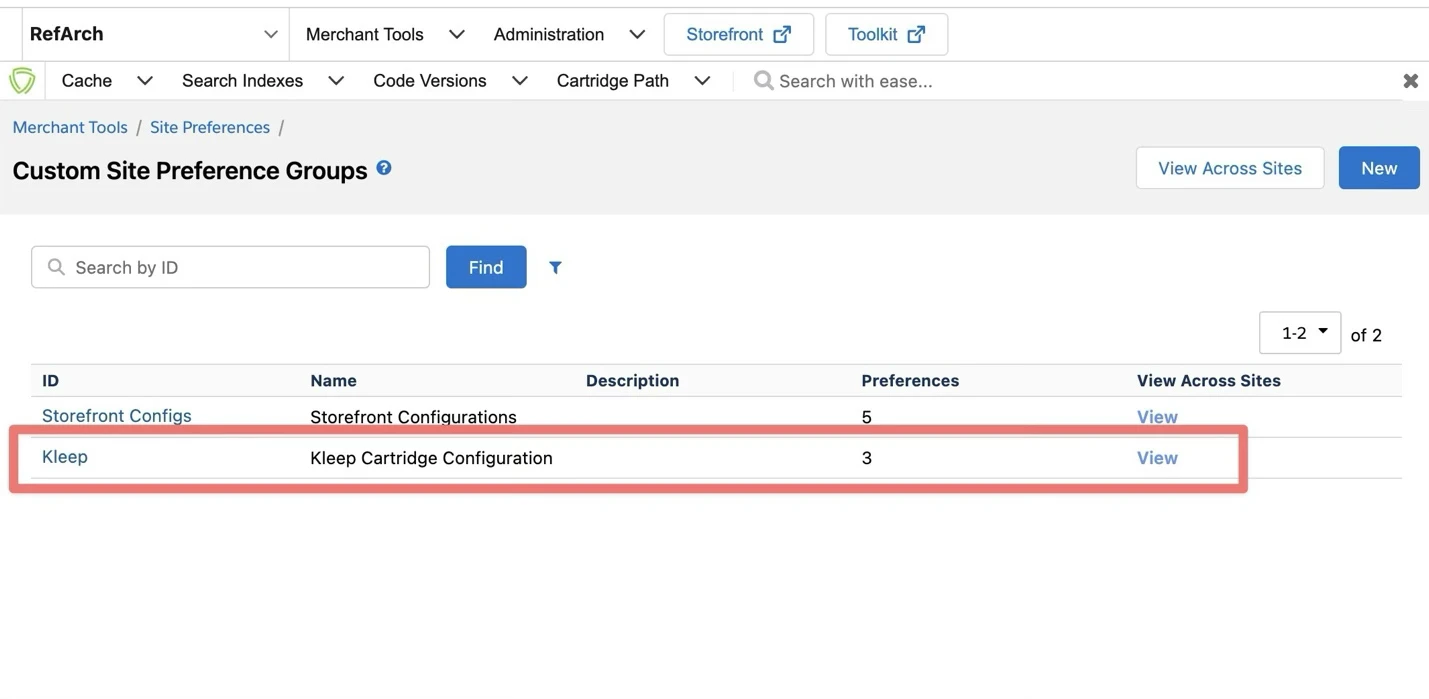 Select **Kleep**:
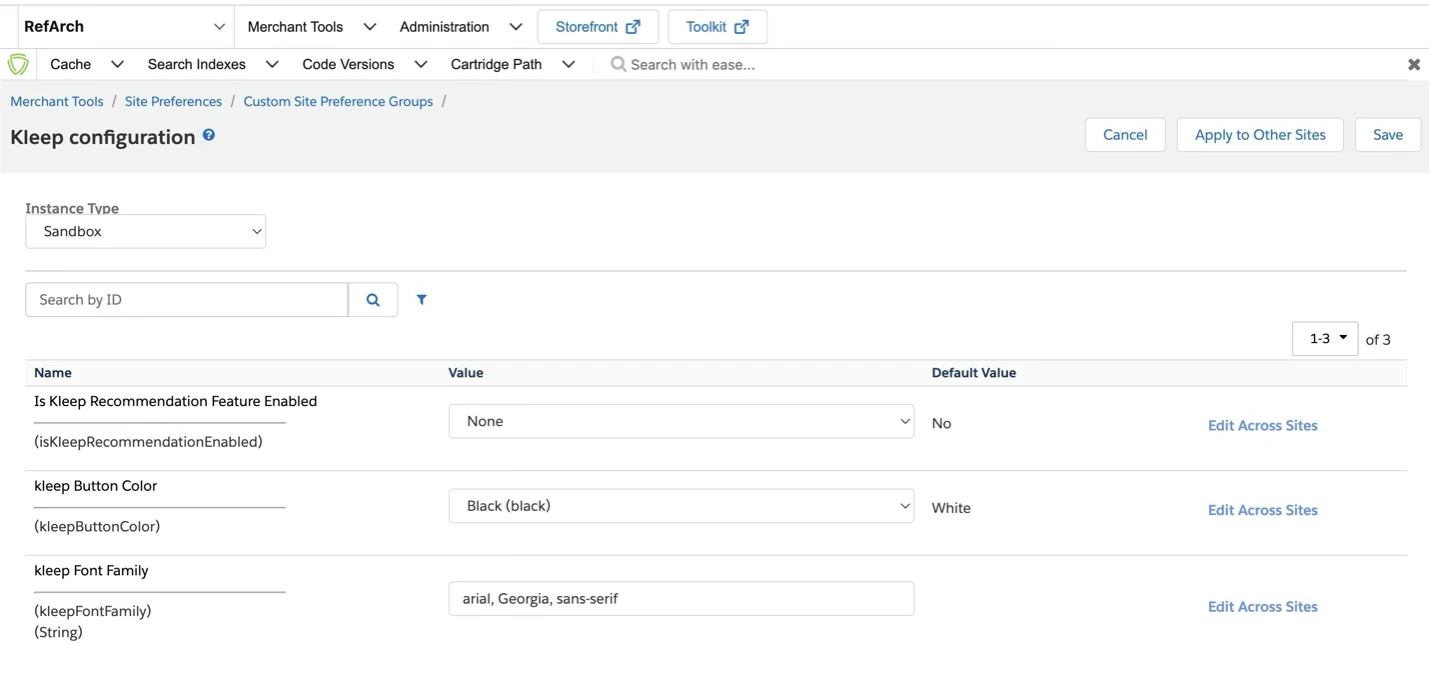 | Preference | Description |
| ------------------------------ | ------------------------------------------------------------------------------------------------------------------------------------------------------------------------------------------------------------------------------------------------------------------------------------------------------------------------------------------------------------------------------------------------------------------- |
| `kleepRetailerUUID` | **Mandatory.** Unique identifier for your retailer on the Kleep platform, provided by your Kleep Account Manager. Must be entered manually — it is sent in every Kleep API call and used as the `domain` parameter of the Recommendation iframe to resolve your account. No automatic fallback: if left empty, tracking, the Recommendation feature and the iframe will not work (a configuration error is raised). |
| `isKleepRecommendationEnabled` | Enable/disable the Kleep button in PDP. Does not affect tracking or job exports. |
| `kleepButtonColor` | Button color (Black or White). Override via CSS for custom styling. |
| `kleepFontFamily` | Font family for the Kleep button and iFrame. |
| `kleepCountryCode` | Market / Country Code ([ISO 3166 A-2](https://en.wikipedia.org/wiki/ISO_3166-1_alpha-2#Officially_assigned_code_elements)). |
## Services
Found in **Administration > Operations > Services**:
| Preference | Description |
| ------------------------------ | ------------------------------------------------------------------------------------------------------------------------------------------------------------------------------------------------------------------------------------------------------------------------------------------------------------------------------------------------------------------------------------------------------------------- |
| `kleepRetailerUUID` | **Mandatory.** Unique identifier for your retailer on the Kleep platform, provided by your Kleep Account Manager. Must be entered manually — it is sent in every Kleep API call and used as the `domain` parameter of the Recommendation iframe to resolve your account. No automatic fallback: if left empty, tracking, the Recommendation feature and the iframe will not work (a configuration error is raised). |
| `isKleepRecommendationEnabled` | Enable/disable the Kleep button in PDP. Does not affect tracking or job exports. |
| `kleepButtonColor` | Button color (Black or White). Override via CSS for custom styling. |
| `kleepFontFamily` | Font family for the Kleep button and iFrame. |
| `kleepCountryCode` | Market / Country Code ([ISO 3166 A-2](https://en.wikipedia.org/wiki/ISO_3166-1_alpha-2#Officially_assigned_code_elements)). |
## Services
Found in **Administration > Operations > Services**:
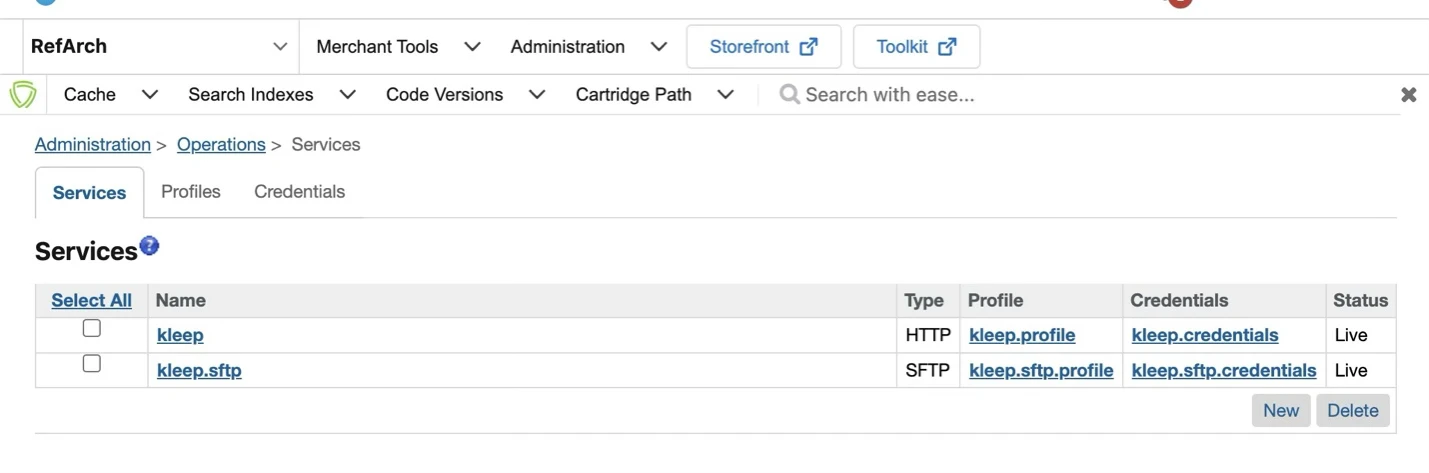 **`kleep.sftp`** — Sends export files from SFCC WebDAV to Kleep SFTP. Replace the user with the one provided by Kleep, along with the `.p12` certificate. Don't set any password.
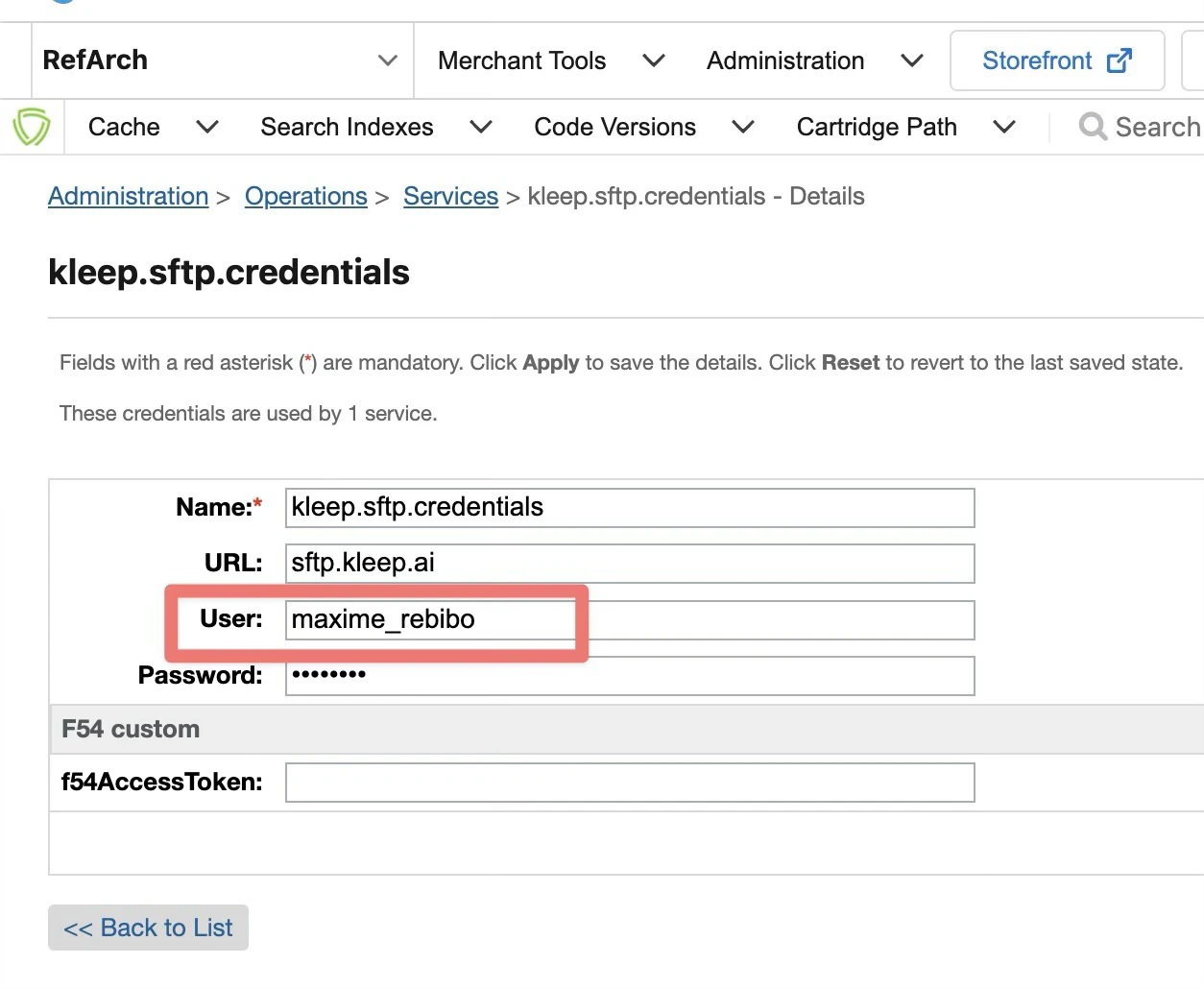 **`kleep`** — Used for all other features. No user/password needed — the request is authenticated by the `kleepRetailerUUID` site preference, sent in the payload of every Kleep API call to resolve your account.
## Private Key & Certificate
Go to **Administration > Operations > Private Keys and Certificates**:
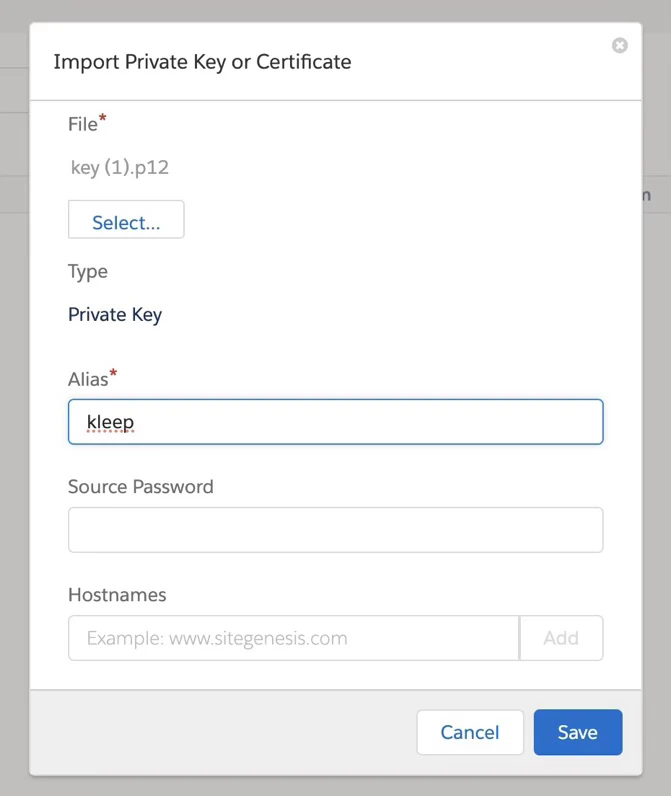
1. Click **Import**
2. Click **Select** and choose the `.p12` file provided by Kleep
3. Use `kleep` as the alias
4. Click **Save**
**`kleep`** — Used for all other features. No user/password needed — the request is authenticated by the `kleepRetailerUUID` site preference, sent in the payload of every Kleep API call to resolve your account.
## Private Key & Certificate
Go to **Administration > Operations > Private Keys and Certificates**:
1. Click **Import**
2. Click **Select** and choose the `.p12` file provided by Kleep
3. Use `kleep` as the alias
4. Click **Save**
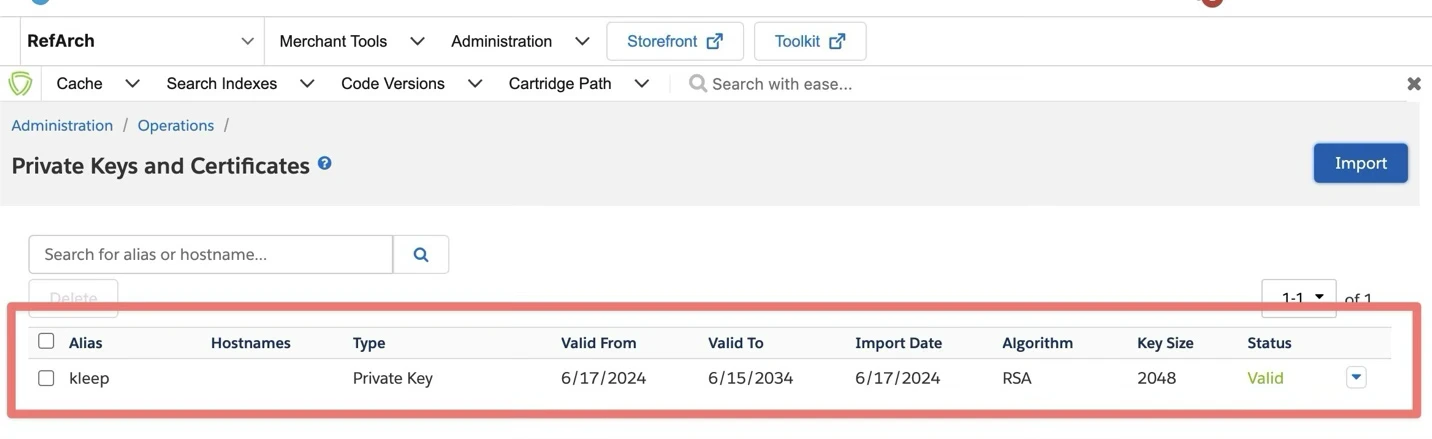
 The result should look like this — it must be valid and named `kleep`:
 ## Export Jobs
Go to **Administration > Operations > Jobs**. Two jobs are pre-configured:
* **KleepExportProductsCSV** — exports your site's products
* **KleepExportOrdersCSV** — exports your customers' order history
## Export Jobs
Go to **Administration > Operations > Jobs**. Two jobs are pre-configured:
* **KleepExportProductsCSV** — exports your site's products
* **KleepExportOrdersCSV** — exports your customers' order history
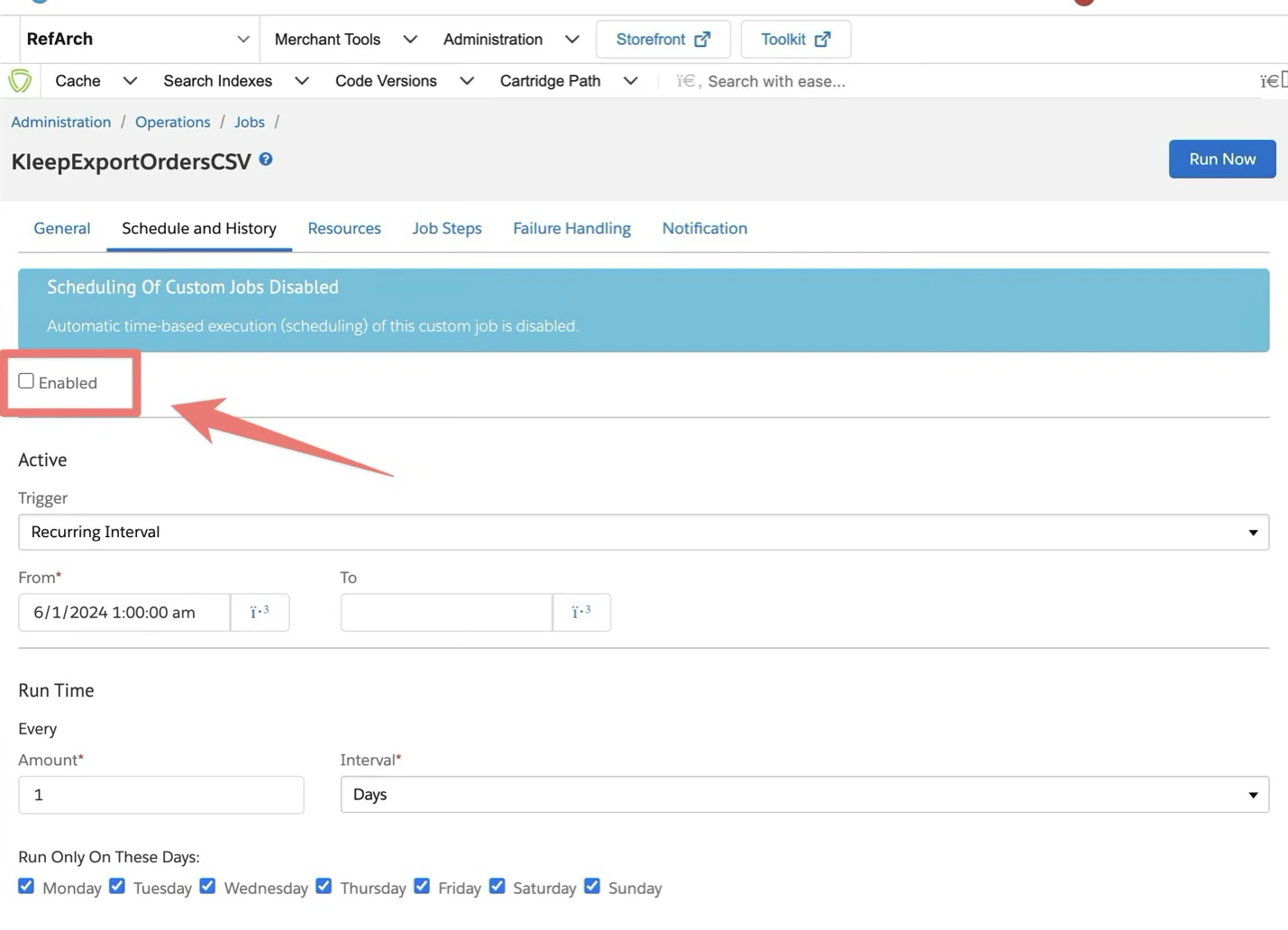
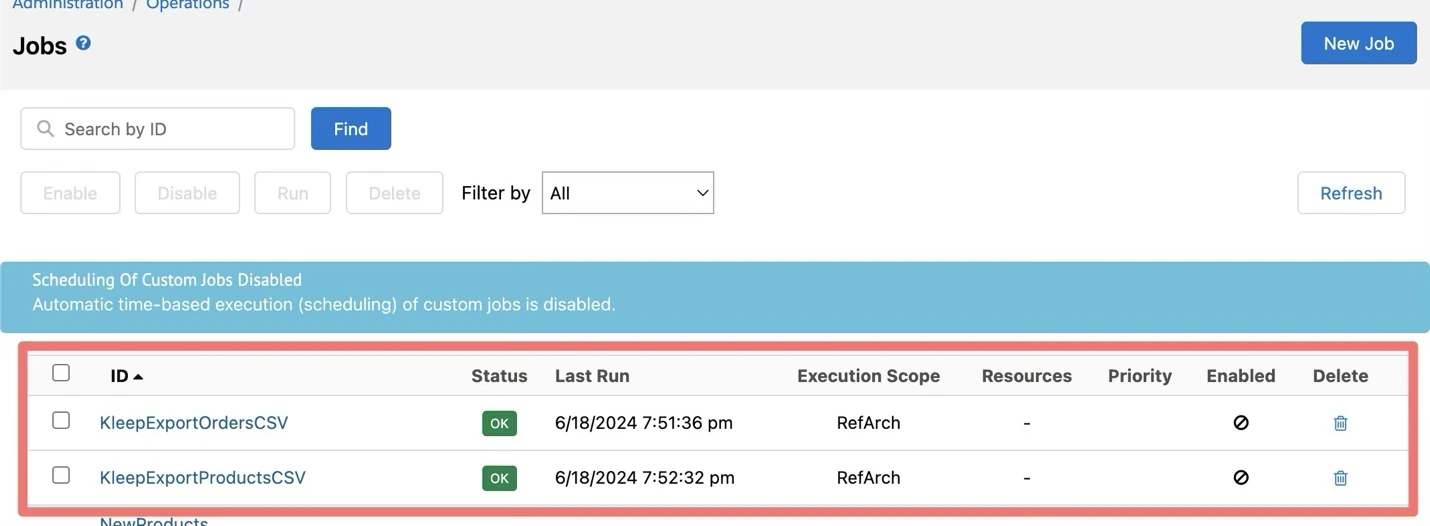 Both are **disabled by default**. Enable them to run once per day:
 ### Common settings (both jobs)
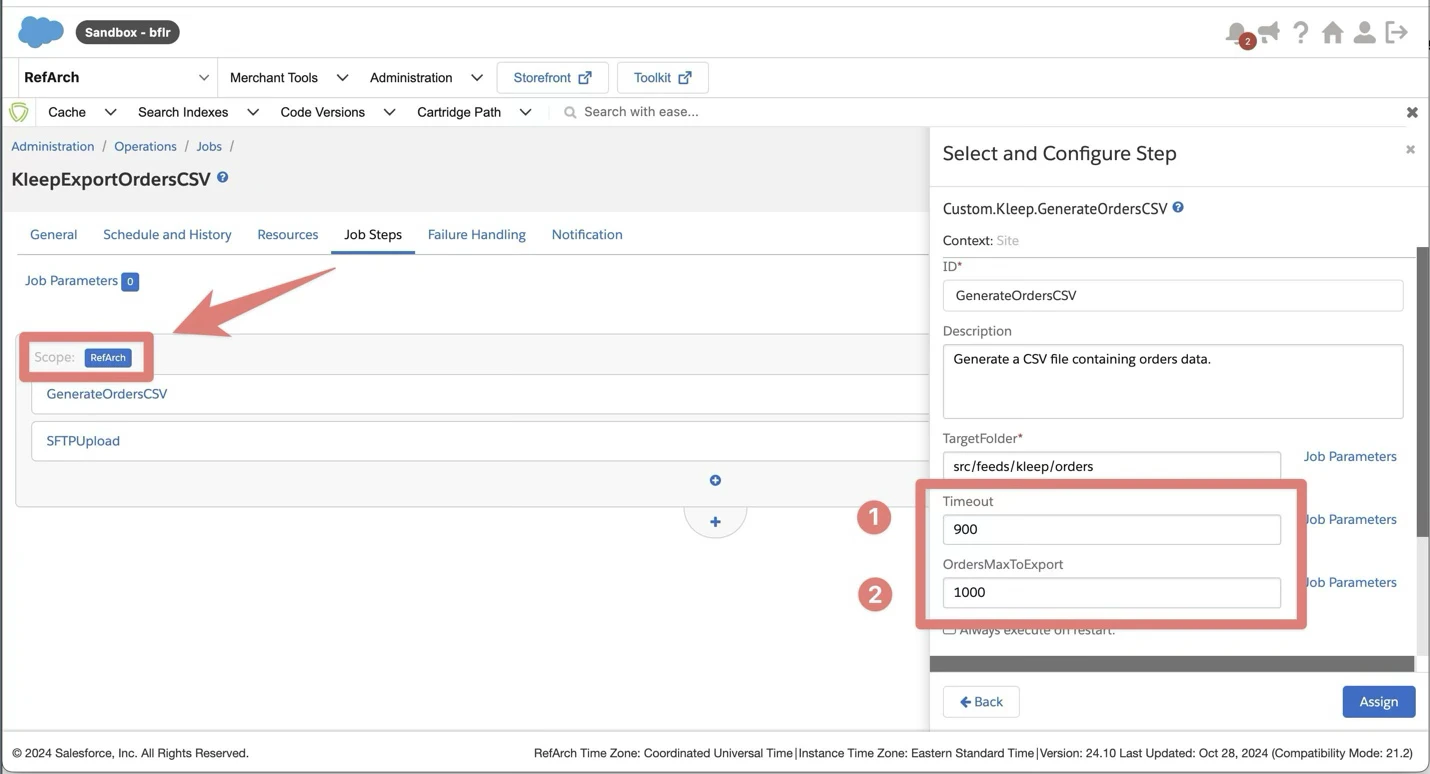
Go to the **Job Steps** tab → click **RefArch** to select the sites where you use Kleep.
* **Timeout** — seconds before stopping the export
* **OrdersMaxToExport** — max orders to export *(orders job only)*
### Common settings (both jobs)
Go to the **Job Steps** tab → click **RefArch** to select the sites where you use Kleep.
* **Timeout** — seconds before stopping the export
* **OrdersMaxToExport** — max orders to export *(orders job only)*
 ### KleepExportProductsCSV settings
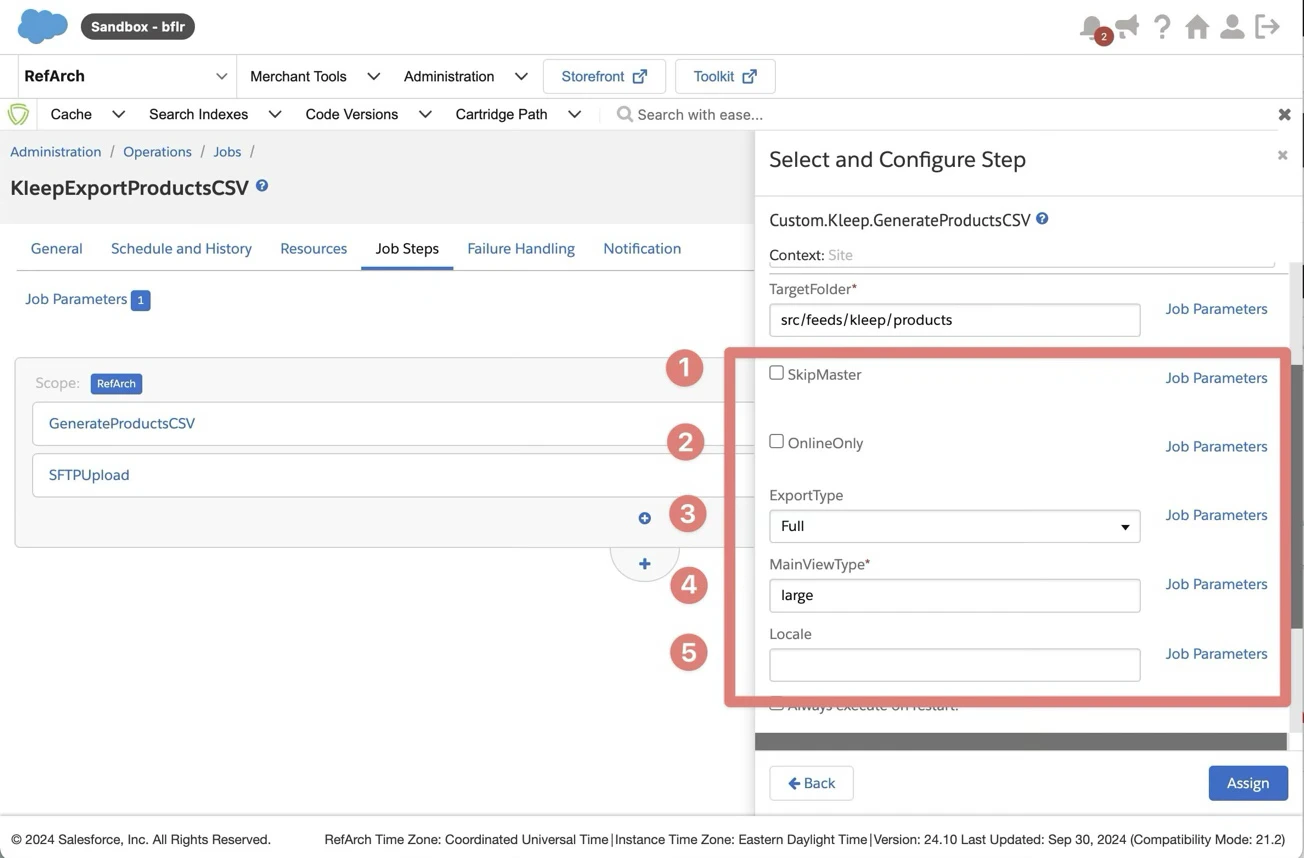 | Parameter | Description | Default |
| -------------- | ----------------------------------------------------------------- | -------- |
| `SkipMaster` | Ignore master product exports | Disabled |
| `OnlineOnly` | Export only online products | Disabled |
| `ExportType` | Delta (only updated since last export) or Full | Delta |
| `MainViewType` | Image view type for product images. Use the same one as your PDP. | `large` |
| `Locale` | Specific locale for export. Uses default if empty. | — |
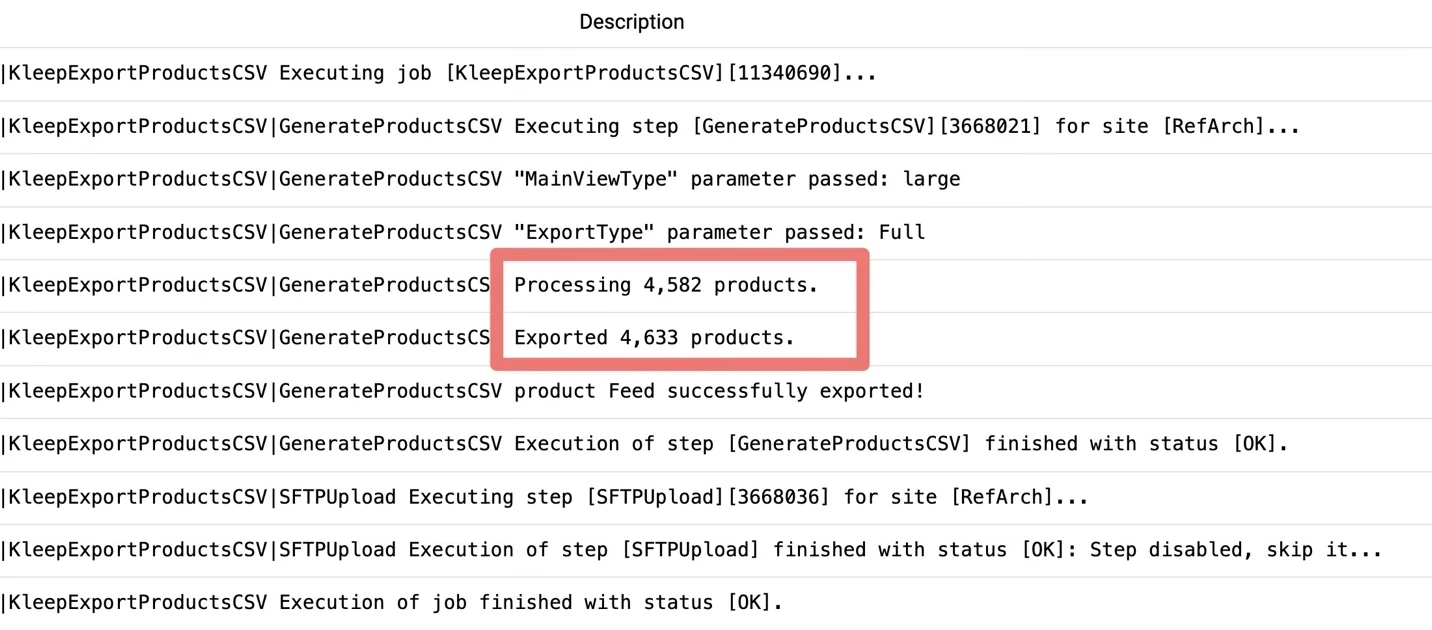
The number of exported products may exceed the number processed. This happens when uncategorized products are included through their association with a categorized VariationGroup.
Make sure the **MainViewType** parameter matches your shop's configuration. A mismatched view type leads to missing product images, which are required for AI analysis.
| Parameter | Description | Default |
| -------------- | ----------------------------------------------------------------- | -------- |
| `SkipMaster` | Ignore master product exports | Disabled |
| `OnlineOnly` | Export only online products | Disabled |
| `ExportType` | Delta (only updated since last export) or Full | Delta |
| `MainViewType` | Image view type for product images. Use the same one as your PDP. | `large` |
| `Locale` | Specific locale for export. Uses default if empty. | — |
The number of exported products may exceed the number processed. This happens when uncategorized products are included through their association with a categorized VariationGroup.
Make sure the **MainViewType** parameter matches your shop's configuration. A mismatched view type leads to missing product images, which are required for AI analysis.
 ### KleepResetLastExported (utility job)
A third job, **KleepResetLastExported**, is provided to force a **full re-export of orders**. Its `ResetKleepExportAttributes` step clears the export-tracking attributes on every order (`kleepLastExported` → empty, `isKleepExported` → false) so they are picked up again on the next `KleepExportOrdersCSV` run.
It is **disabled by default** and meant to be run manually, on demand (e.g. after a Kleep-side data reset). It takes no parameters.
## Live Stock Checks
Kleep queries stocks live to avoid recommending out-of-stock sizes. Configure access using **one** of the two methods below.
Not sure which one to pick? **OCAPI** is the traditional approach using the Business Manager Data API. **SCAPI (IAS)** is the newer Salesforce Commerce API with the Inventory Availability Service. Ask your Salesforce administrator if unsure.
Use this if your instance relies on **OCAPI** for inventory management.
**Step 1 — Open OCAPI Settings**
Navigate to **Administration > Site Development > Open Commerce API Settings**, then edit the **Data** API settings.
**Step 2 — Set Up Client ID**
For testing:
```
"client_id": "aaaaaaaaaaaaaaaaaaaaaaaaaaaaaa"
```
For production, generate a new client ID per the [Salesforce documentation](https://help.salesforce.com/s/articleView?id=cc.b2c_generate_api_client_id.htm\&type=5). [Video walkthrough](https://www.youtube.com/watch?v=Z3cZlQHWjtM).
**Step 3 — Configure Resource Access**
Add this to your OCAPI **Data** API configurations:
```
Authorizations
(GET) /inventory_lists/*
(GET) /inventory_lists/*/product_inventory_records/*
```
**Step 4 — Send credentials to Kleep**
* Client ID
* Client Secret
* Inventory IDs (one per market — provide your mapping)
* Production SBX URL (stock checks are enabled on production only)
Use this if your instance uses **SCAPI** with the **Inventory Availability Service (IAS)** / Omnichannel Inventory (OCI).
**Step 1 — Create an API Client**
1. Log into [Salesforce Account Manager](https://account.demandware.com).
2. Click **API Client** → **Add API Client**.
3. Display name: e.g. `Kleep Inventory`.
4. Token Endpoint Auth Method: `client_secret_post`.
5. Access Token Format: `JWT`.
6. Allowed Scopes: `sfcc.inventory.availability`
7. Assign to your Organization.
8. Save. **Copy the Client ID and Client Secret** — the secret is shown only once.
SCAPI and OCAPI clients cannot be shared. Each API framework requires its own client.
**Step 2 — Gather instance identifiers**
| Identifier | Where to find it | Example |
| --------------------- | ----------------------------------------------------------------------------- | ------------------------------ |
| **Short Code** | BM > **Administration > Site Development > Salesforce Commerce API Settings** | `kv7kzm78` |
| **Organization ID** | Same page, or Account Manager | `f_ecom_zzzz_prd` |
| **Tenant ID** | Account Manager > Organizations | `zzzz_prd` |
| **Location Group(s)** | BM > **Merchant Tools > Inventory > Inventory Availability** | `WAREHOUSE_FR`, `WAREHOUSE_US` |
**Step 3 — Send credentials to Kleep**
* Client ID & Client Secret
* Short Code
* Organization ID
* Tenant ID
* Location Group(s) (one per market — provide your mapping)
### KleepResetLastExported (utility job)
A third job, **KleepResetLastExported**, is provided to force a **full re-export of orders**. Its `ResetKleepExportAttributes` step clears the export-tracking attributes on every order (`kleepLastExported` → empty, `isKleepExported` → false) so they are picked up again on the next `KleepExportOrdersCSV` run.
It is **disabled by default** and meant to be run manually, on demand (e.g. after a Kleep-side data reset). It takes no parameters.
## Live Stock Checks
Kleep queries stocks live to avoid recommending out-of-stock sizes. Configure access using **one** of the two methods below.
Not sure which one to pick? **OCAPI** is the traditional approach using the Business Manager Data API. **SCAPI (IAS)** is the newer Salesforce Commerce API with the Inventory Availability Service. Ask your Salesforce administrator if unsure.
Use this if your instance relies on **OCAPI** for inventory management.
**Step 1 — Open OCAPI Settings**
Navigate to **Administration > Site Development > Open Commerce API Settings**, then edit the **Data** API settings.
**Step 2 — Set Up Client ID**
For testing:
```
"client_id": "aaaaaaaaaaaaaaaaaaaaaaaaaaaaaa"
```
For production, generate a new client ID per the [Salesforce documentation](https://help.salesforce.com/s/articleView?id=cc.b2c_generate_api_client_id.htm\&type=5). [Video walkthrough](https://www.youtube.com/watch?v=Z3cZlQHWjtM).
**Step 3 — Configure Resource Access**
Add this to your OCAPI **Data** API configurations:
```
Authorizations
(GET) /inventory_lists/*
(GET) /inventory_lists/*/product_inventory_records/*
```
**Step 4 — Send credentials to Kleep**
* Client ID
* Client Secret
* Inventory IDs (one per market — provide your mapping)
* Production SBX URL (stock checks are enabled on production only)
Use this if your instance uses **SCAPI** with the **Inventory Availability Service (IAS)** / Omnichannel Inventory (OCI).
**Step 1 — Create an API Client**
1. Log into [Salesforce Account Manager](https://account.demandware.com).
2. Click **API Client** → **Add API Client**.
3. Display name: e.g. `Kleep Inventory`.
4. Token Endpoint Auth Method: `client_secret_post`.
5. Access Token Format: `JWT`.
6. Allowed Scopes: `sfcc.inventory.availability`
7. Assign to your Organization.
8. Save. **Copy the Client ID and Client Secret** — the secret is shown only once.
SCAPI and OCAPI clients cannot be shared. Each API framework requires its own client.
**Step 2 — Gather instance identifiers**
| Identifier | Where to find it | Example |
| --------------------- | ----------------------------------------------------------------------------- | ------------------------------ |
| **Short Code** | BM > **Administration > Site Development > Salesforce Commerce API Settings** | `kv7kzm78` |
| **Organization ID** | Same page, or Account Manager | `f_ecom_zzzz_prd` |
| **Tenant ID** | Account Manager > Organizations | `zzzz_prd` |
| **Location Group(s)** | BM > **Merchant Tools > Inventory > Inventory Availability** | `WAREHOUSE_FR`, `WAREHOUSE_US` |
**Step 3 — Send credentials to Kleep**
* Client ID & Client Secret
* Short Code
* Organization ID
* Tenant ID
* Location Group(s) (one per market — provide your mapping)