> ## Documentation Index
> Fetch the complete documentation index at: https://docs.kleep.ai/llms.txt
> Use this file to discover all available pages before exploring further.
# Similar Products
> Display an out-of-stock cross-sell drawer via the Kleep JS library.
**Prerequisites** — before implementing Similar Products, complete the [Cookie consent](/cms/js-library#1-cookie-consent-legal-requirement) and [Installation](/cms/js-library#2-installation) steps on the [JS Library](/cms/js-library) page. Kleep must not load until the visitor has consented via your CMP, and the library must be loaded site-wide.
Similar Products is available on demand and is **not linked to sizing**. If you're unsure whether this feature is enabled for your account, contact your Kleep representative.
## What Similar Products does
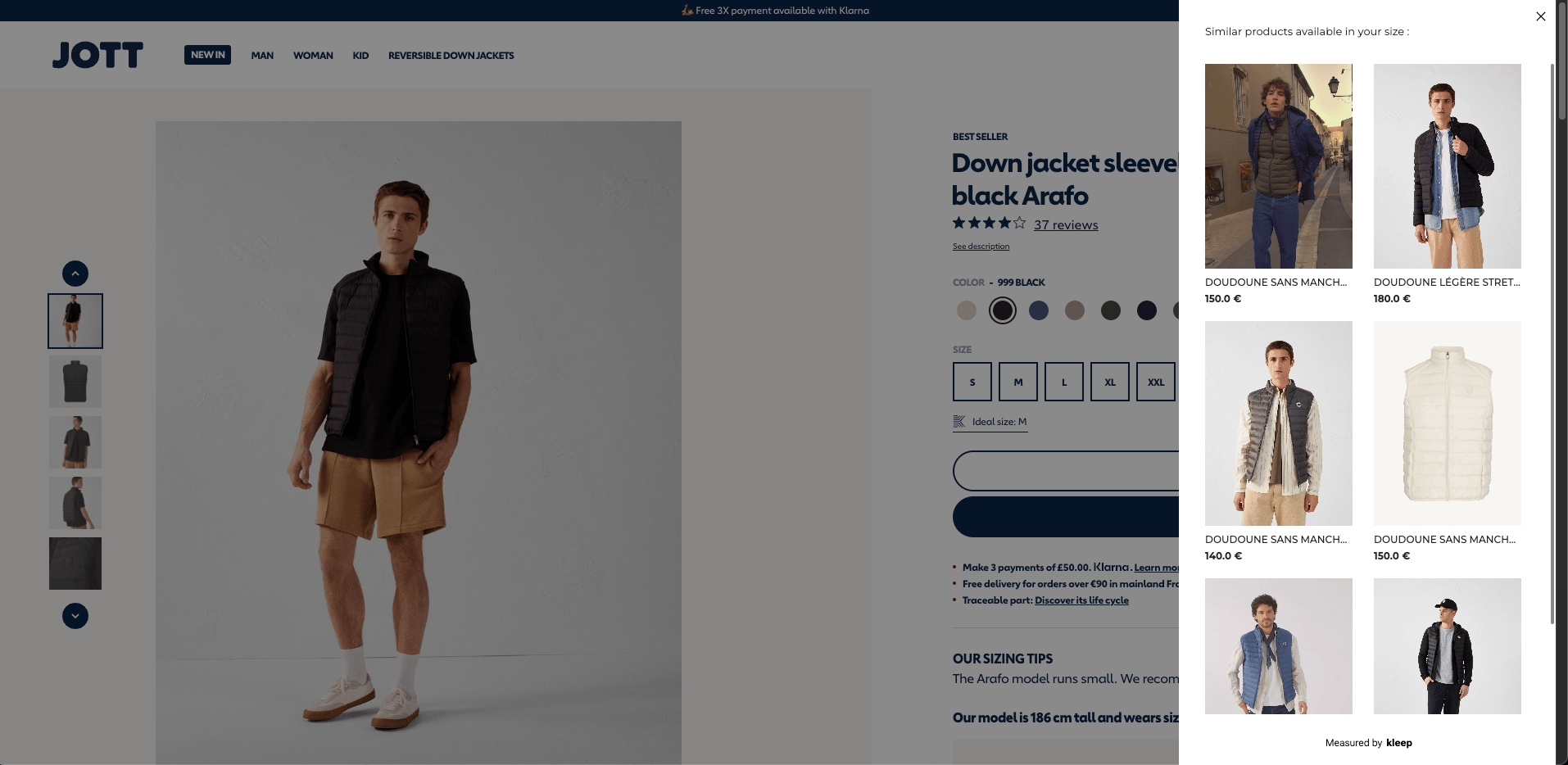
When a size on a product page is out of stock, Similar Products displays a **View similar** CTA. Clicking it opens the Kleep drawer with relevant alternatives the shopper is likely to buy — an on-page cross-sell that recovers otherwise-lost conversions.
## CTA display options
You can render the CTA in two ways:
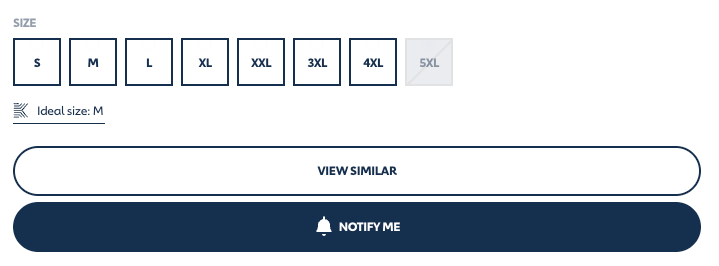
* **Option 1 — Fixed CTA**: a solid, always-visible button on the PDP (like the example above).
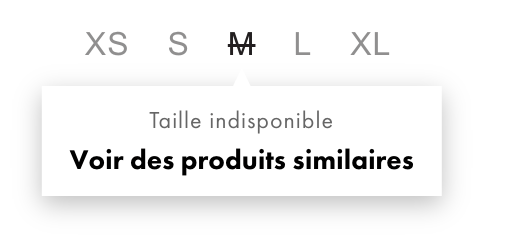
* **Option 2 — Hover CTA**: a button that appears when the shopper hovers an out-of-stock size selector.
Pick based on your product page layout. If your size menu is a dropdown (rather than a list of hoverable elements), Option 1 is the natural fit. **For mobile, always prefer Option 1** — hover isn't reliable on touch devices. You can enable both — Option 1 on mobile and Option 2 on desktop, for example.
## How to implement
**Step 1: Choose your option(s)**
Decide whether you want the fixed CTA (Option 1), the hover CTA (Option 2), or both.
**Step 2: Configure Option 1 (Fixed CTA)**
Add a button element where you want the CTA to render:
```html theme={null}
```
Then update your `kleep.load` call with a `selectors.similarProducts.fixed` entry:
```javascript theme={null}
kleep.load({
// ...existing params
selectors: {
sizing: "#kleep-container",
similarProducts: {
fixed: "#kleep-sp-fixed"
}
}
})
```
**Step 3: Configure Option 2 (Hover CTA)**
Add the `kleep-sp-hover` class to each of your size selector elements and set `data-variant-id` to the corresponding variant ID:
```html theme={null}
XS
S
M
L
XL
```
Then update your `kleep.load` call:
```javascript theme={null}
kleep.load({
// ...existing params
selectors: {
sizing: "#kleep-container",
similarProducts: {
hover: ".kleep-sp-hover"
}
}
})
```
## Build your own CTA with `kleep.showSimilarProducts`
If neither preset fits your layout, call `kleep.showSimilarProducts(variantId)` directly to open the drawer from any element you control:
```html theme={null}
```
The method takes a single `variantId` and opens the Kleep similar-products drawer for that variant.
***
## Cookies & data privacy
Kleep is fully gated by visitor consent: the script only loads **after** consent is collected through your CMP, and you must condition its loading accordingly. For the complete list of trackers, the data processed, the purposes and legal bases, hosting, subprocessors and security, see [Cookies, CMP & Data Privacy](/cookie-consent).
 ## CTA display options
You can render the CTA in two ways:
* **Option 1 — Fixed CTA**: a solid, always-visible button on the PDP (like the example above).
* **Option 2 — Hover CTA**: a button that appears when the shopper hovers an out-of-stock size selector.
## CTA display options
You can render the CTA in two ways:
* **Option 1 — Fixed CTA**: a solid, always-visible button on the PDP (like the example above).
* **Option 2 — Hover CTA**: a button that appears when the shopper hovers an out-of-stock size selector.