> ## Documentation Index
> Fetch the complete documentation index at: https://docs.kleep.ai/llms.txt
> Use this file to discover all available pages before exploring further.
# AI Search
> Integrate Kleep's AI-powered on-site search component on any storefront.
**Prerequisites** — before implementing AI Search, complete the [Cookie consent](/cms/js-library#1-cookie-consent-legal-requirement) and [Installation](/cms/js-library#2-installation) steps on the [JS Library](/cms/js-library) page. Kleep must not load until the visitor has consented via your CMP, and the library must be loaded site-wide.
Kleep AI Search integrates a search component into your storefront, powered by Kleep's AI algorithms. **Product Feeds must be created and deployed** before you start this integration — please confirm this with your Kleep representative before implementing.
## What AI Search delivers
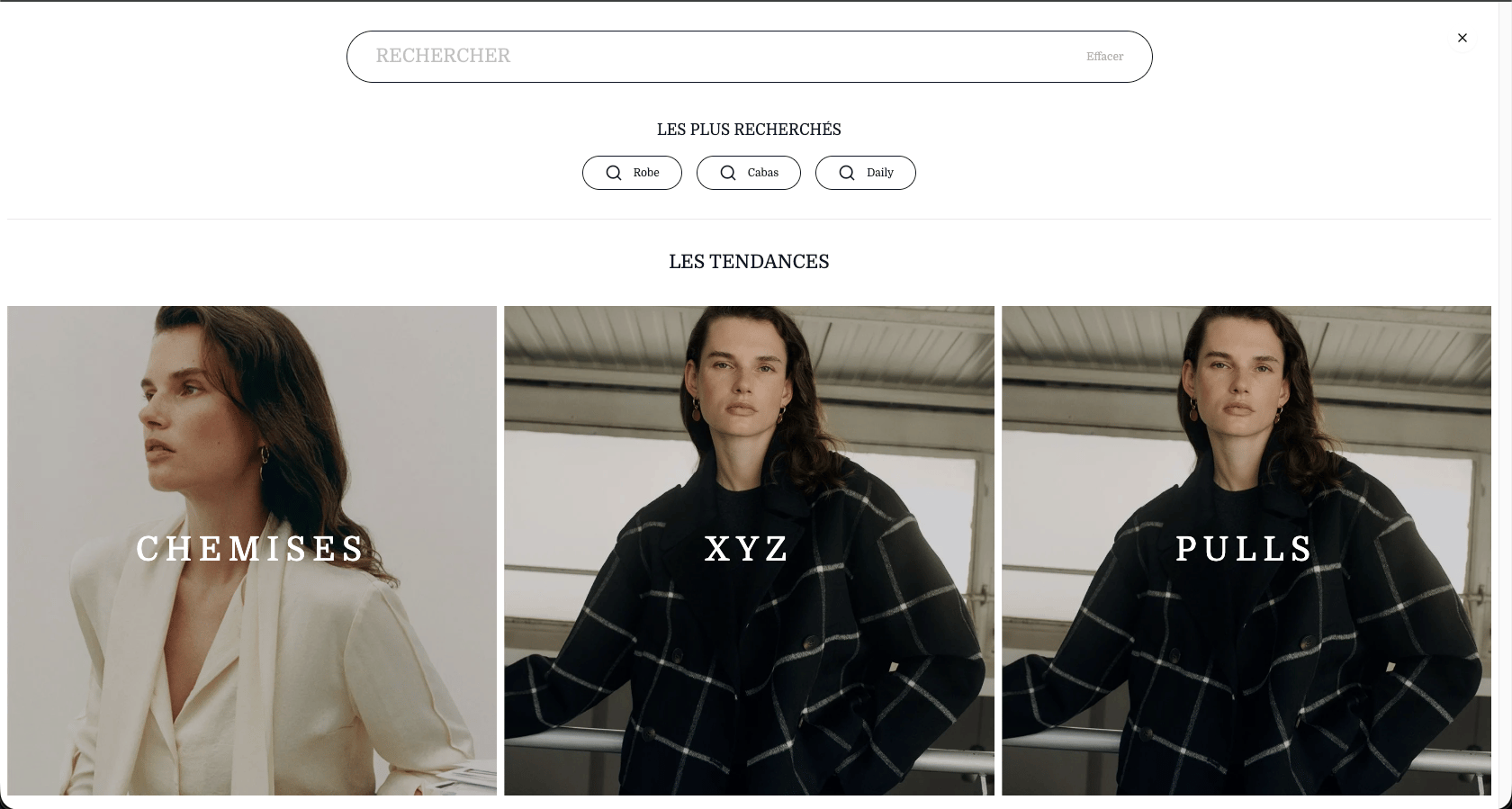
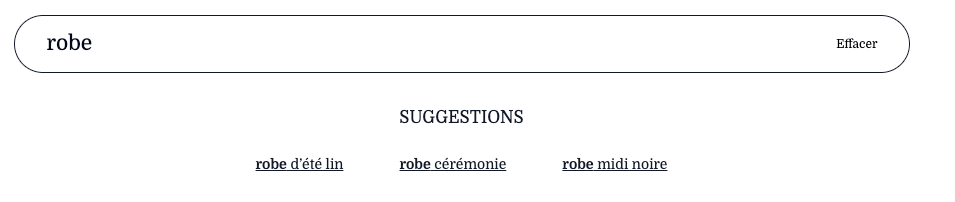
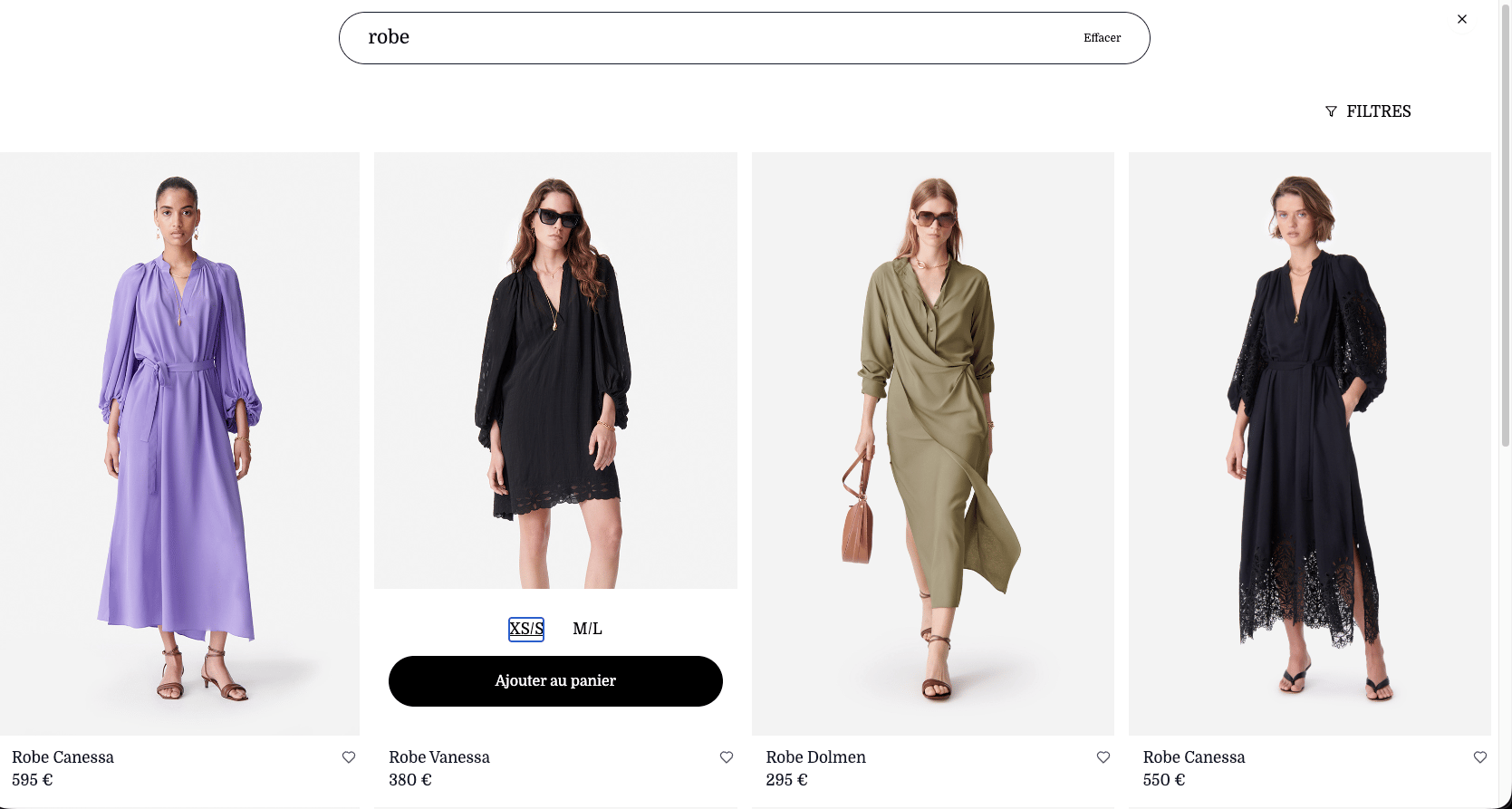 The product-list page supports two shopper actions through callbacks you implement:
**Add a size to the cart if it's in stock.** When the shopper taps **Add to cart** on a size, your `addToCart` callback runs with the variant reference.
* **Input** — reference of the variant (size) to add to the cart
* **Action** — add the reference to the cart like a regular add-to-cart
* **Output** — `true` on success, `false` otherwise
Checking if the variant is in stock is handled by Kleep — you don't need to verify availability yourself.
```typescript theme={null}
// Callback that you'll need to implement
addToCart: ('ref1_sizeS') => {
const success = addNewRefToCart('ref1_sizeS');
return success ? true : false;
}
```
**Add / remove a product from the wishlist.** When the shopper taps the heart icon, your `toggleWishlist` callback runs with the product reference.
* **Input** — reference of the product being toggled
* **Action** — if the reference is in the wishlist, remove it; if not, add it
* **Output** — `true` if the reference is now in the wishlist, `false` otherwise
```typescript theme={null}
// Callback that you'll need to implement
toggleWishlist: async ('ref1') => {
const check = wishlist.includes('ref1');
return check ? true : false;
}
```
## Method: `kleep.search`
**Step 1: Create the container**
Add the `div` where the search component should be attached:
```html theme={null}
```
**Step 2: Initialize with your credentials**
Call `kleep.search.init` with your account credentials:
```javascript theme={null}
kleep.search.init({
anonKey: 'your-anon-key',
retailerId: 'your-retailer-id',
shopLocale: 'fr', // lower case
countryCode: 'FR' // upper case
});
```
`anonKey` and `retailerId` are provided by your Kleep representative during onboarding.
**Step 3: Render the search box**
Call `kleep.search.renderBox` with the container ID and your callback implementations:
```javascript theme={null}
kleep.search.renderBox(
'#search-container',
{
toggleWishlist: async (product_ref) => boolean,
getWishlistItems: async () => string[],
addToCart: (variant_ref) => boolean,
onSearchSubmit: (query) => void
}
);
```
### Parameters & Callbacks
| Name | Type | Priority | Description |
| ------------------ | -------- | ------------- | -------------------------------------------------------------------------------------------------------------- |
| `addToCart` | Callback | **Mandatory** | Add a specific variant to the cart. Called when the shopper taps **Add to cart** on a result. |
| `toggleWishlist` | Callback | Optional | Add or remove a specific product from the shopper's wishlist. Called when the shopper taps the heart icon. |
| `getWishlistItems` | Callback | Optional | Return the list of product references currently in the shopper's wishlist so the wishlist state stays in sync. |
| `onSearchSubmit` | Callback | Optional | Called when the shopper submits a search query — use it for logging, analytics, or any other side effect. |
### Full example with callbacks
```javascript theme={null}
kleep.search.renderBox(
// Make sure to include "#" so Kleep can identify the tag type
'#search-container',
{
// Return the list of product references currently in the shopper's wishlist.
// See your dedicated "ID Recap Table" for the reference format to use.
getWishlistItems: async () => ['ref1', 'ref2'],
// Add or remove a product from the shopper's wishlist.
// Return true if the product is now in the wishlist, false otherwise.
toggleWishlist: async (product_ref) => {
const check = wishlist.includes(product_ref);
return check ? true : false;
},
// Add a specific variant to the cart.
// Return true if successful, false otherwise.
addToCart: (variant_ref) => {
const success = addNewRefToCart(variant_ref);
return success ? true : false;
},
// Optional — invoked whenever the shopper submits a search query.
// Useful for logging or analytics.
onSearchSubmit: (query) => {
analyticsTool.saveQuery(query);
}
}
);
```
Check your dedicated **ID Recap Table** (provided by your Kleep representative) for the exact reference format to pass to these callbacks.
If you're using AI Search on a Prestashop store, your Kleep webservice key needs a few extra `GET` permissions on top of the ones listed in the Prestashop integration guide:
| Resource | Permission | Used for |
| ------------------ | ---------- | ------------------------------- |
| `products` | GET | Pre-tax prices, quantity, ID |
| `stock_availables` | GET | Stock per combination / size |
| `taxes` | GET | Actual VAT rates |
| `tax_rules` | GET | Rules applicable per product |
| `tax_rule_groups` | GET | Rule groups |
| `specific_prices` | GET | Discounted / promotional prices |
***
## Cookies & data privacy
Kleep is fully gated by visitor consent: the script only loads **after** consent is collected through your CMP, and you must condition its loading accordingly. For the complete list of trackers, the data processed, the purposes and legal bases, hosting, subprocessors and security, see [Cookies, CMP & Data Privacy](/cookie-consent).
The product-list page supports two shopper actions through callbacks you implement:
**Add a size to the cart if it's in stock.** When the shopper taps **Add to cart** on a size, your `addToCart` callback runs with the variant reference.
* **Input** — reference of the variant (size) to add to the cart
* **Action** — add the reference to the cart like a regular add-to-cart
* **Output** — `true` on success, `false` otherwise
Checking if the variant is in stock is handled by Kleep — you don't need to verify availability yourself.
```typescript theme={null}
// Callback that you'll need to implement
addToCart: ('ref1_sizeS') => {
const success = addNewRefToCart('ref1_sizeS');
return success ? true : false;
}
```
**Add / remove a product from the wishlist.** When the shopper taps the heart icon, your `toggleWishlist` callback runs with the product reference.
* **Input** — reference of the product being toggled
* **Action** — if the reference is in the wishlist, remove it; if not, add it
* **Output** — `true` if the reference is now in the wishlist, `false` otherwise
```typescript theme={null}
// Callback that you'll need to implement
toggleWishlist: async ('ref1') => {
const check = wishlist.includes('ref1');
return check ? true : false;
}
```
## Method: `kleep.search`
**Step 1: Create the container**
Add the `div` where the search component should be attached:
```html theme={null}
```
**Step 2: Initialize with your credentials**
Call `kleep.search.init` with your account credentials:
```javascript theme={null}
kleep.search.init({
anonKey: 'your-anon-key',
retailerId: 'your-retailer-id',
shopLocale: 'fr', // lower case
countryCode: 'FR' // upper case
});
```
`anonKey` and `retailerId` are provided by your Kleep representative during onboarding.
**Step 3: Render the search box**
Call `kleep.search.renderBox` with the container ID and your callback implementations:
```javascript theme={null}
kleep.search.renderBox(
'#search-container',
{
toggleWishlist: async (product_ref) => boolean,
getWishlistItems: async () => string[],
addToCart: (variant_ref) => boolean,
onSearchSubmit: (query) => void
}
);
```
### Parameters & Callbacks
| Name | Type | Priority | Description |
| ------------------ | -------- | ------------- | -------------------------------------------------------------------------------------------------------------- |
| `addToCart` | Callback | **Mandatory** | Add a specific variant to the cart. Called when the shopper taps **Add to cart** on a result. |
| `toggleWishlist` | Callback | Optional | Add or remove a specific product from the shopper's wishlist. Called when the shopper taps the heart icon. |
| `getWishlistItems` | Callback | Optional | Return the list of product references currently in the shopper's wishlist so the wishlist state stays in sync. |
| `onSearchSubmit` | Callback | Optional | Called when the shopper submits a search query — use it for logging, analytics, or any other side effect. |
### Full example with callbacks
```javascript theme={null}
kleep.search.renderBox(
// Make sure to include "#" so Kleep can identify the tag type
'#search-container',
{
// Return the list of product references currently in the shopper's wishlist.
// See your dedicated "ID Recap Table" for the reference format to use.
getWishlistItems: async () => ['ref1', 'ref2'],
// Add or remove a product from the shopper's wishlist.
// Return true if the product is now in the wishlist, false otherwise.
toggleWishlist: async (product_ref) => {
const check = wishlist.includes(product_ref);
return check ? true : false;
},
// Add a specific variant to the cart.
// Return true if successful, false otherwise.
addToCart: (variant_ref) => {
const success = addNewRefToCart(variant_ref);
return success ? true : false;
},
// Optional — invoked whenever the shopper submits a search query.
// Useful for logging or analytics.
onSearchSubmit: (query) => {
analyticsTool.saveQuery(query);
}
}
);
```
Check your dedicated **ID Recap Table** (provided by your Kleep representative) for the exact reference format to pass to these callbacks.
If you're using AI Search on a Prestashop store, your Kleep webservice key needs a few extra `GET` permissions on top of the ones listed in the Prestashop integration guide:
| Resource | Permission | Used for |
| ------------------ | ---------- | ------------------------------- |
| `products` | GET | Pre-tax prices, quantity, ID |
| `stock_availables` | GET | Stock per combination / size |
| `taxes` | GET | Actual VAT rates |
| `tax_rules` | GET | Rules applicable per product |
| `tax_rule_groups` | GET | Rule groups |
| `specific_prices` | GET | Discounted / promotional prices |
***
## Cookies & data privacy
Kleep is fully gated by visitor consent: the script only loads **after** consent is collected through your CMP, and you must condition its loading accordingly. For the complete list of trackers, the data processed, the purposes and legal bases, hosting, subprocessors and security, see [Cookies, CMP & Data Privacy](/cookie-consent).