> ## Documentation Index
> Fetch the complete documentation index at: https://docs.kleep.ai/llms.txt
> Use this file to discover all available pages before exploring further.
# Shopify: CTA Button & Similar Products
## Shopify V2 Integration Guide
This section shows how to add Kleep AI Sizing to your Shopify Store.
Follow our Tango tutorial to add the Kleep button to your shop on Online Store 2.0 themes.
## Shopify V1 Integration Guide
## 1. Sizing
This section shows how to add Kleep AI Sizing to your Shopify codebase.
Watch the step-by-step Tango tutorial for installing Kleep on a Shopify V1 store.
### Steps
**Step 1: Enable the App Embed**
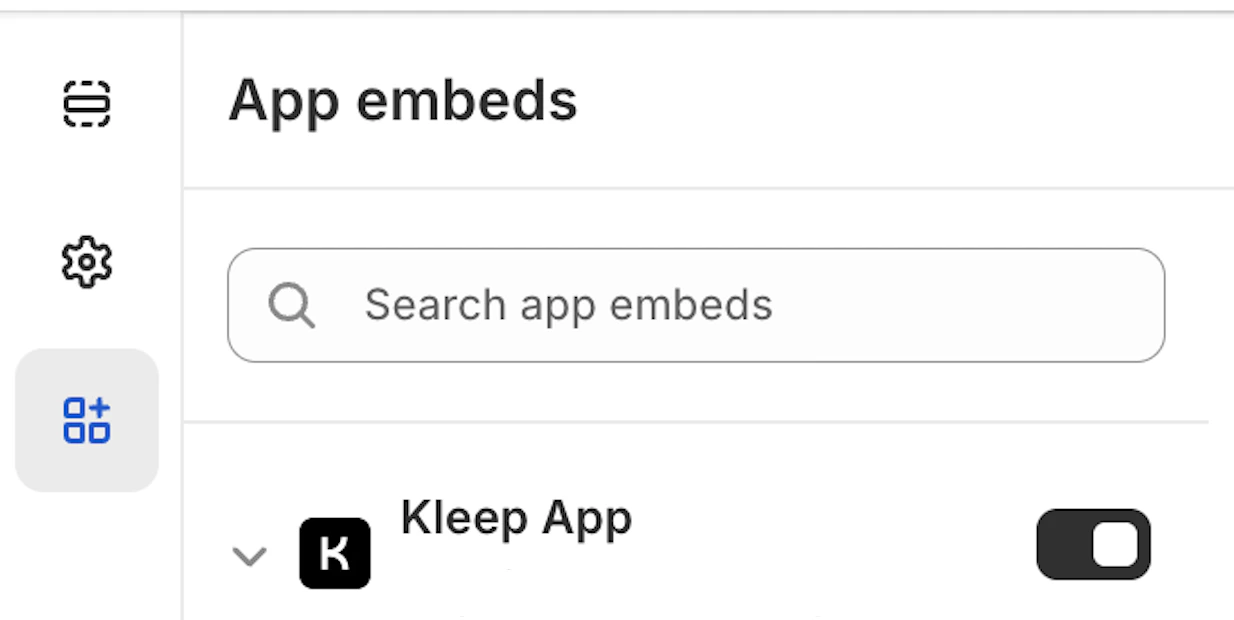
Make sure that the Kleep app is activated in your App embeds.
**Step 2: Render the button snippet**
Paste the following code where you want Kleep to appear. It must be part of the `Product info` block within the `snippets` folder.
```jsx theme={null}
{% render 'kleep-button', cms: section.settings %}
```
**Step 3: Create the button snippet file**
Create a new file named `kleep-button.liquid` within your `snippets` folder. Put the following content inside:
```jsx theme={null}
```
**Step 4: Add settings schema options**
Add the following options to your Settings schema at the end of the page:
```jsx theme={null}
{
"type": "header",
"content": "Button text",
"info": "If you enable this feature, the button text you enter will be replaced for all languages in your store"
},
{
"type": "checkbox",
"default": false,
"id": "custom_button_text_toggle",
"label": "Enable custom button text"
},
{
"type": "text",
"id": "custom_find_size_text",
"label": "Find my best size text",
"info": "What text will display instead of \"Find my best size\"?"
},
{
"type": "text",
"id": "custom_recommended_size_text",
"label": "Recommended size text",
"info": "What text will display instead of \"Recommended size\"?"
},
{
"type": "header",
"content": "Image"
},
{
"type": "url",
"id": "image_url",
"label": "Url Image"
},
{
"type": "range",
"id": "image_size",
"min": 0,
"max": 80,
"step": 2,
"unit": "px",
"label": "Image size (square)",
"default": 20
},
{
"type": "header",
"content": "CSS Styles"
},
{
"type": "checkbox",
"default": true,
"id": "default_font_family",
"label": "Font du thème",
"info": "Si coché, la variable css `--font-body-family` est utilisée"
},
{
"type": "font_picker",
"id": "font_family",
"label": "Font Family",
"default": "helvetica_n4"
},
{
"type": "select",
"id": "text_style",
"label": "Style texte",
"default": "normal",
"options": [
{
"label": "Normal",
"value": "normal"
},
{
"label": "Italic",
"value": "italic"
},
{
"label": "Oblique",
"value": "oblique"
}
]
},
{
"type": "select",
"id": "text_transform",
"label": "Texte transformation",
"default": "none",
"options": [
{
"label": "Normal",
"value": "none"
},
{
"label": "Capitalize",
"value": "capitalize"
},
{
"label": "Uppercase",
"value": "uppercase"
},
{
"label": "Lowercase",
"value": "lowercase"
}
]
},
{
"type": "select",
"id": "text_weight",
"label": "Poid texte",
"default": "400",
"options": [
{
"label": "100",
"value": "100"
},
{
"label": "200",
"value": "200"
},
{
"label": "300",
"value": "300"
},
{
"label": "400",
"value": "400"
},
{
"label": "500",
"value": "500"
},
{
"label": "600",
"value": "600"
},
{
"label": "700",
"value": "700"
},
{
"label": "800",
"value": "800"
},
{
"label": "900",
"value": "900"
}
]
},
{
"type": "range",
"id": "text_size",
"min": 2,
"max": 50,
"step": 2,
"unit": "px",
"label": "Taille police",
"default": 16
},
{
"type": "checkbox",
"id": "text_underline",
"label": "Texte soulignage",
"default": false
},
{
"type": "range",
"id": "text_underline_offset",
"min": 1,
"max": 20,
"step": 1,
"unit": "px",
"label": "Offset underline",
"default": 2
},
{
"type": "color",
"id": "text_color",
"label": "Couleur texte du bouton",
"default": "#ffffff"
},
{
"type": "color",
"id": "bg_color",
"label": "Couleur fond",
"default": "#000000"
},
{
"type": "color",
"id": "border_color",
"label": "Couleur bordures",
"default": "#000000"
},
{
"type": "range",
"id": "border_width",
"min": 0,
"max": 8,
"step": 1,
"unit": "px",
"label": "Épaisseur bordures",
"default": 0
},
{
"type": "header",
"content": "CSS Styles",
"info": "Espacements"
},
{
"type": "checkbox",
"id": "center",
"label": "Centrer le bouton",
"default": false,
"info": "Cela remplacera le 'Margin horizontal'"
},
{
"type": "range",
"id": "margin_y",
"min": 0,
"max": 80,
"step": 2,
"unit": "px",
"label": "Margin vertical",
"default": 0
},
{
"type": "range",
"id": "margin_x",
"min": 0,
"max": 80,
"step": 2,
"unit": "px",
"label": "Margin horizontal",
"default": 0
},
{
"type": "range",
"id": "padding_t",
"min": 0,
"max": 40,
"step": 2,
"unit": "px",
"label": "Padding top",
"default": 12
},
{
"type": "range",
"id": "padding_r",
"min": 0,
"max": 40,
"step": 2,
"unit": "px",
"label": "Padding right",
"default": 16
},
{
"type": "range",
"id": "padding_b",
"min": 0,
"max": 40,
"step": 2,
"unit": "px",
"label": "Padding bottom",
"default": 12
},
{
"type": "range",
"id": "padding_l",
"min": 0,
"max": 40,
"step": 2,
"unit": "px",
"label": "Padding left",
"default": 16
},
{
"type": "range",
"id": "border_radius",
"min": 0,
"max": 40,
"step": 2,
"unit": "px",
"label": "Bordures arrondies",
"default": 0
}
```
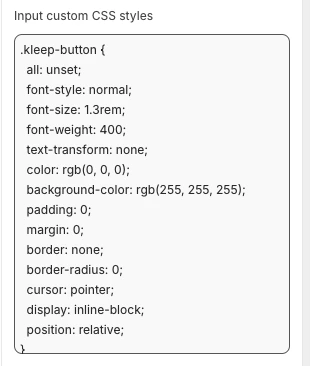
For add your own CSS styles:
* To change how it looks (colors, spacing, fonts, etc.), paste your CSS into the **"Input custom CSS styles"** box in the Kleep App Embed settings.
For example:
**Step 5: Add English translations**
Add English translations to your theme locales.
```jsx theme={null}
"kleep": {
"button": {
"text": {
"without_hash": "Find my ideal size",
"with_hash": "Ideal size"
}
},
"recommended": {
"text": {
"btn": "View similar",
"hint": "Size unavailable",
"link": "See similar products"
}
},
"search": {
"text": {
"inputPlaceholder": "Search...",
"productsBlockTitle": "Products",
"clearButton": "Clear"
}
},
"searchPage": {
"text": {
"header": "search results",
"query": "Results for",
"submit": "Search",
"input": "Search the store",
"viewProduct": "View product"
}
}
}
```
**Step 6: Add other language translations**
Add other translations to your theme locales.
```jsx theme={null}
"kleep": {
"button": {
"text": {
"without_hash": "Trouver ma taille idéale",
"with_hash": "Taille idéale"
}
},
"recommended": {
"text": {
"btn": "Voir similaire",
"hint": "Taille indisponible",
"link": "Voir des produits similaires"
}
},
"search": {
"text": {
"inputPlaceholder": "Recherche...",
"productsBlockTitle": "Produits",
"clearButton": "Effacer"
}
},
"searchPage": {
"text": {
"header": "résultats de la recherche",
"query": "Résultats pour",
"submit": "Recherche",
"input": "Rechercher dans la boutique",
"viewProduct": "Voir le produit"
}
}
}
```
```jsx theme={null}
"kleep": {
"button": {
"text": {
"without_hash": "Trova la mia taglia ideale",
"with_hash": "Taglia ideale"
}
},
"recommended": {
"text": {
"btn": "Visualizza simili",
"hint": "Taglia non disponibile",
"link": "Visualizza prodotti simili"
}
},
"search": {
"text": {
"inputPlaceholder": "Cerca...",
"productsBlockTitle": "Prodotti",
"clearButton": "Cancella"
}
},
"searchPage": {
"text": {
"header": "risultati della ricerca",
"query": "Risultati per",
"submit": "Cerca",
"input": "Cerca nel negozio",
"viewProduct": "Visualizza prodotto"
}
}
}
```
```jsx theme={null}
"kleep": {
"button": {
"text": {
"without_hash": "Finde meine ideale Größe",
"with_hash": "Ideale Größe"
}
},
"recommended": {
"text": {
"btn": "Ähnliche Ansicht",
"hint": "Größe nicht verfügbar",
"link": "Ähnliche Produkte ansehen"
}
},
"search": {
"text": {
"inputPlaceholder": "Suchen...",
"productsBlockTitle": "Produkte",
"clearButton": "Klar"
}
},
"searchPage": {
"text": {
"header": "Suchergebnisse",
"query": "Ergebnisse für",
"submit": "Suchen",
"input": "Durchsuchen Sie den Shop",
"viewProduct": "Produkt ansehen"
}
}
}
```
```jsx theme={null}
"kleep": {
"button": {
"text": {
"without_hash": "Encontrar mi talla ideal",
"with_hash": "Talla ideal"
}
},
"recommended": {
"text": {
"btn": "Ver similares",
"hint": "Talla no disponible",
"link": "Ver productos similares"
}
},
"search": {
"text": {
"inputPlaceholder": "Buscar...",
"productsBlockTitle": "Productos",
"clearButton": "Borrar"
}
},
"searchPage": {
"text": {
"header": "resultados de búsqueda",
"query": "Resultados para",
"submit": "Buscar",
"input": "Buscar en la tienda",
"viewProduct": "Ver producto"
}
}
}
```
```jsx theme={null}
"kleep": {
"button": {
"text": {
"without_hash": "自分に合うサイズを探す",
"with_hash": "好みのサイズ"
}
},
"recommended": {
"text": {
"btn": "類似商品を見る",
"hint": "サイズがありません",
"link": "類似商品を見る"
}
},
"search": {
"text": {
"inputPlaceholder": "検索...",
"productsBlockTitle": "商品",
"clearButton": "クリア"
}
},
"searchPage": {
"text": {
"header": "検索結果",
"query": "検索結果",
"submit": "検索",
"input": "ストアを検索",
"viewProduct": "商品を見る"
}
}
}
```
```jsx theme={null}
"kleep": {
"button": {
"text": {
"without_hash": "내 이상적인 사이즈 찾기",
"with_hash": "추천 사이즈"
}
},
"recommended": {
"text": {
"btn": "유사한 상품 보기",
"hint": "사용 불가",
"link": "유사한 상품 보기"
}
},
"search": {
"text": {
"inputPlaceholder": "검색...",
"productsBlockTitle": "상품",
"clearButton": "지우기"
}
},
"searchPage": {
"text": {
"header": "검색 결과",
"query": "다음에 대한 결과",
"submit": "검색",
"input": "매장 검색",
"viewProduct": "상품 보기"
}
}
}
```
```jsx theme={null}
"kleep": {
"button": {
"text": {
"without_hash": "Encontrar meu tamanho ideal",
"with_hash": "Tamanho recomendado"
}
},
"recommended": {
"text": {
"btn": "Ver similar",
"hint": "Tamanho indisponível",
"link": "Ver produtos similares"
}
},
"search": {
"text": {
"inputPlaceholder": "Pesquisar...",
"productsBlockTitle": "Produtos",
"clearButton": "Limpar"
}
},
"searchPage": {
"text": {
"header": "resultados da pesquisa",
"query": "Resultados para",
"submit": "Pesquisar",
"input": "Pesquisar na loja",
"viewProduct": "Ver produto"
}
}
}
```
1. Validate updates in the Shopify Theme Customize area. Configure visuals within product information block settings.
2. If you want to add secondary button you will need to create a new file named `kleep-secondary-button.liquid` within your `snippets` folder. Put the following content inside:
```
```
Paste the following code where you want Kleep to appear. It must be part of `Product info` block within `snippets` folder.
```jsx theme={null}
{% render 'kleep-secondary-button', cms: section.settings %}
```
## 2. Similar Products
***
### Install “Similar Products” for V1 Shopify Themes
In this case, you must add a Liquid snippet manually.
### Step 1 - Create a snippet
Create:
`snippets/kleep-similar-button.liquid`
Insert the following code:
```jsx theme={null}
{% assign cms = block.settings %}
{% assign domain = shop.domain %}
{% assign translated_similar = '' %}
{% assign translated_similar_missing = true %}
{%- assign domain_key = domain | prepend: 'www.' | append: '.recommended' -%}
{% assign raw_domain_similar = domain_key | t %}
{% unless raw_domain_similar contains 'Translation missing'
or raw_domain_similar contains domain
%}
{% assign translated_similar = raw_domain_similar %}
{% assign translated_similar_missing = false %}
{% endunless %}
{%- if translated_similar_missing -%}
{% assign raw_global_similar = 'kleep.recommended.text.btn' | t %}
{% unless raw_global_similar contains 'Translation missing' %}
{% assign translated_similar = raw_global_similar %}
{% assign translated_similar_missing = false %}
{% endunless %}
{%- endif %}
```
### Step 2 - Render the snippet inside the product template
Insert this line wherever you want the button to appear:
```jsx theme={null}
{% render 'kleep-similar-button' %}
```
Typical placement: under the variant selectors or near the Add to Cart form.
### Step 3 - Enable the correct mode for V1 themes
Because V1 themes cannot insert OS2.0 blocks, the widget must use one of:
* `custom_buttons`
* `popup+custom`
* `button+custom`
### **Install “Similar Products” for V2 (Online Store 2.0) Stores**
Modern Shopify themes support app embeds and custom blocks. No code changes are required.
### Step 1 — Enable the Kleep App Embed
1. Go to **Online Store → Themes → Customize**.
2. Open the **App embeds** section.
3. Enable the **Kleep App.**
4. Save the theme.
This activates the core script that manages Similar Products logic.
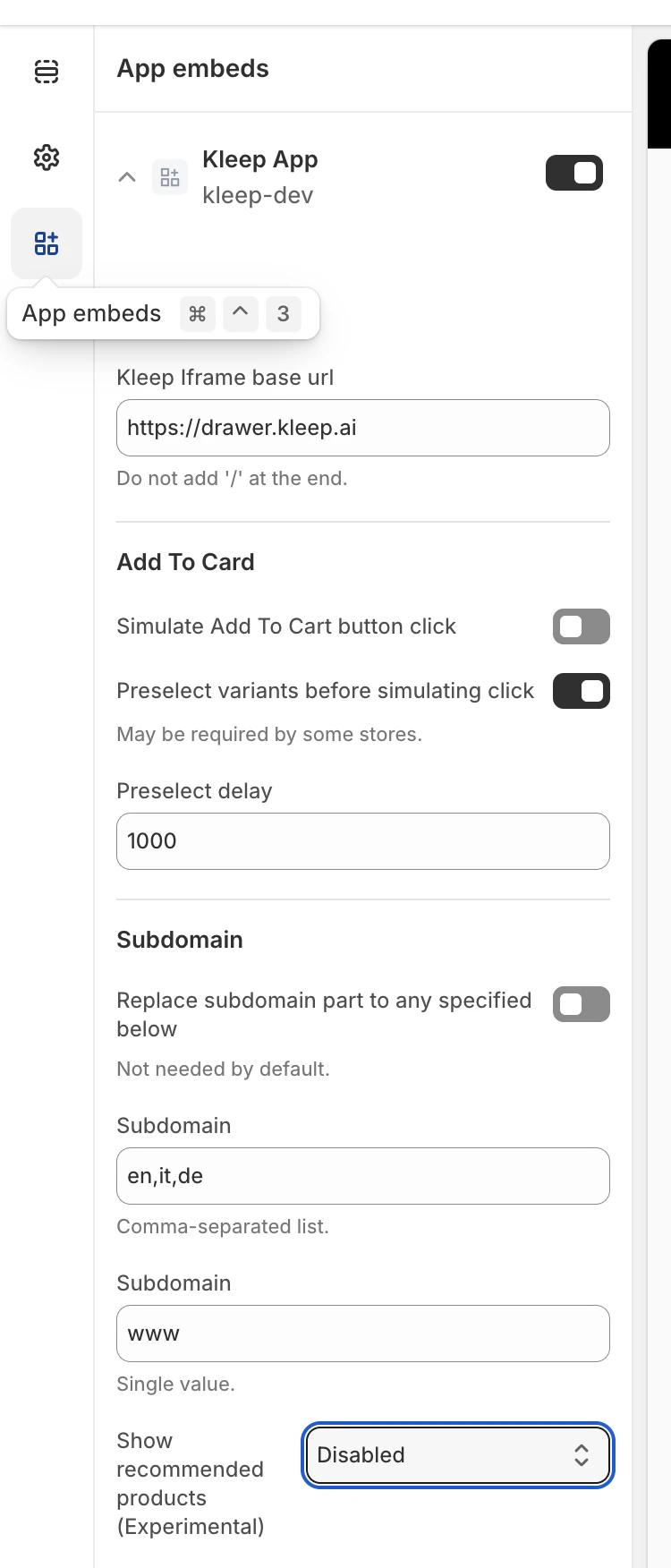
Next, locate the **“Show recommended products”**
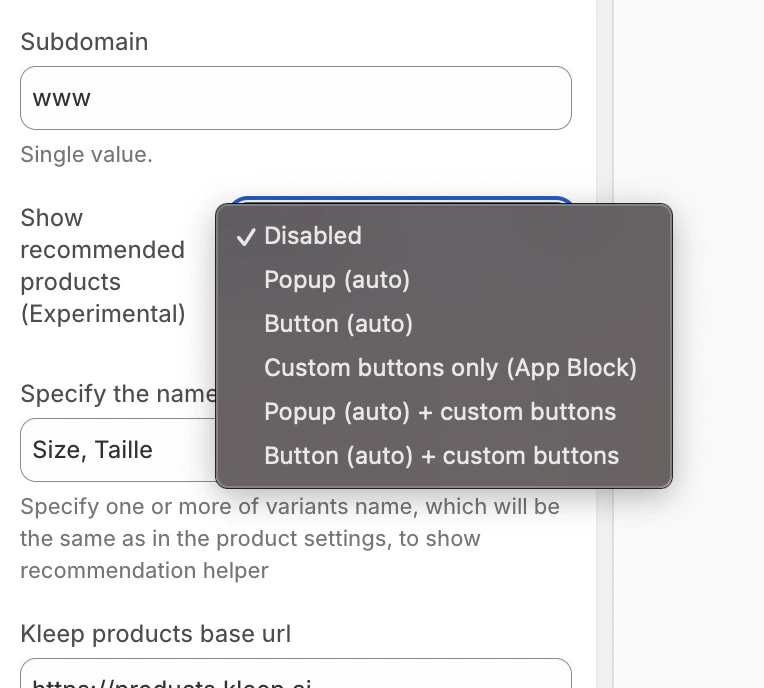
### Step 2 — Select the Similar Products display mode
Inside the Kleep widget configuration, choose how Similar Products should appear on the Product Page:
* disabled – completely turns off the feature
* popup – automatically adds a popup above variant/size selectors on desktop, and replaces the default button on mobile
* button – automatically inserts a CTA button near the Add to Cart area when the selected variant is out of stock
* custom\_buttons – disables all automatic placement; the merchant must add one or more “Kleep Similar Button” blocks manually
* popup+custom – keeps the automatic popup and also enables any custom buttons added in the theme
* button+custom – keeps the automatic CTA button and also enables any custom buttons added in the theme
After that, simply save the theme, and it will immediately appear in your store (Product page).
**Step 3 — Add Custom Buttons (only for custom\_buttons, popup+custom, button+custom)**
If your selected mode includes custom buttons:
1. Open **Online Store → Customize**.
2. Go to the **Product page** template.
3. In the desired section, click **Add Block**.
4. Select **Kleep Similar Button**.
5. Save the theme.
Custom buttons will only appear when the selected variant is out of stock.
## Adding Multiple “Similar Products” Buttons (Primary & Secondary)
You can add any number of Similar Products buttons on the Product Page.
This works for both OS 2.0 themes and V1 / legacy themes.
## Enable a Mode That Supports Custom Buttons
To allow multiple buttons, the widget must be set to one of:
* custom\_buttons
* popup+custom
* button+custom
These modes activate manual placement, so merchants can insert as many buttons as needed.
## For Online Store 2.0 (Modern Themes)
OS 2.0 themes allow adding buttons visually through the Theme Editor.
Steps:
* Go to Online Store → Customize
* Open the Product page template
* Click Add block → Kleep Similar Button
* Add the button anywhere you want
* Repeat if you want 2+ buttons on the page
Every button automatically appears only when the selected variant is out of stock.
## For V1 / Legacy Themes
Legacy themes do not support blocks, but you can render the snippet multiple times.
Insert this snippet wherever you want a button:
`{% render 'kleep-similar-button' %}`
To create multiple buttons, simply place this code in different areas of the product template.
Each snippet call creates an additional button.
### Summary
To add multiple Similar Products buttons:
Enable any mode with custom buttons → add several OS 2.0 blocks or multiple snippet calls → all buttons work automatically when the variant is out of stock.
***
**CTA Location on PDP**
The location is defined by DOM selectors inside `KleepSDK.getConstants().`
`targetProductInfoBlockQueries` – where the product info is. This is an array of selectors that point to the main container of product details (title, price, sizes, etc.).The script iterates through these selectors and uses the first one it finds as the insertion point for the CTA or popups.
`targetVariantQueries` – where size/variant options are:Once the product info block is found, the script searches inside it for variant elements (like size selectors).Each variant \
 **Step 2: Render the button snippet**
Paste the following code where you want Kleep to appear. It must be part of the `Product info` block within the `snippets` folder.
```jsx theme={null}
{% render 'kleep-button', cms: section.settings %}
```
**Step 3: Create the button snippet file**
Create a new file named `kleep-button.liquid` within your `snippets` folder. Put the following content inside:
**Step 2: Render the button snippet**
Paste the following code where you want Kleep to appear. It must be part of the `Product info` block within the `snippets` folder.
```jsx theme={null}
{% render 'kleep-button', cms: section.settings %}
```
**Step 3: Create the button snippet file**
Create a new file named `kleep-button.liquid` within your `snippets` folder. Put the following content inside:
 **Step 5: Add English translations**
Add English translations to your theme locales.
**Step 5: Add English translations**
Add English translations to your theme locales.
 Next, locate the **“Show recommended products”**
### Step 2 — Select the Similar Products display mode
Inside the Kleep widget configuration, choose how Similar Products should appear on the Product Page:
* disabled – completely turns off the feature
* popup – automatically adds a popup above variant/size selectors on desktop, and replaces the default button on mobile
* button – automatically inserts a CTA button near the Add to Cart area when the selected variant is out of stock
* custom\_buttons – disables all automatic placement; the merchant must add one or more “Kleep Similar Button” blocks manually
* popup+custom – keeps the automatic popup and also enables any custom buttons added in the theme
* button+custom – keeps the automatic CTA button and also enables any custom buttons added in the theme
Next, locate the **“Show recommended products”**
### Step 2 — Select the Similar Products display mode
Inside the Kleep widget configuration, choose how Similar Products should appear on the Product Page:
* disabled – completely turns off the feature
* popup – automatically adds a popup above variant/size selectors on desktop, and replaces the default button on mobile
* button – automatically inserts a CTA button near the Add to Cart area when the selected variant is out of stock
* custom\_buttons – disables all automatic placement; the merchant must add one or more “Kleep Similar Button” blocks manually
* popup+custom – keeps the automatic popup and also enables any custom buttons added in the theme
* button+custom – keeps the automatic CTA button and also enables any custom buttons added in the theme
 After that, simply save the theme, and it will immediately appear in your store (Product page).
**Step 3 — Add Custom Buttons (only for custom\_buttons, popup+custom, button+custom)**
If your selected mode includes custom buttons:
1. Open **Online Store → Customize**.
2. Go to the **Product page** template.
3. In the desired section, click **Add Block**.
4. Select **Kleep Similar Button**.
5. Save the theme.
Custom buttons will only appear when the selected variant is out of stock.
After that, simply save the theme, and it will immediately appear in your store (Product page).
**Step 3 — Add Custom Buttons (only for custom\_buttons, popup+custom, button+custom)**
If your selected mode includes custom buttons:
1. Open **Online Store → Customize**.
2. Go to the **Product page** template.
3. In the desired section, click **Add Block**.
4. Select **Kleep Similar Button**.
5. Save the theme.
Custom buttons will only appear when the selected variant is out of stock.
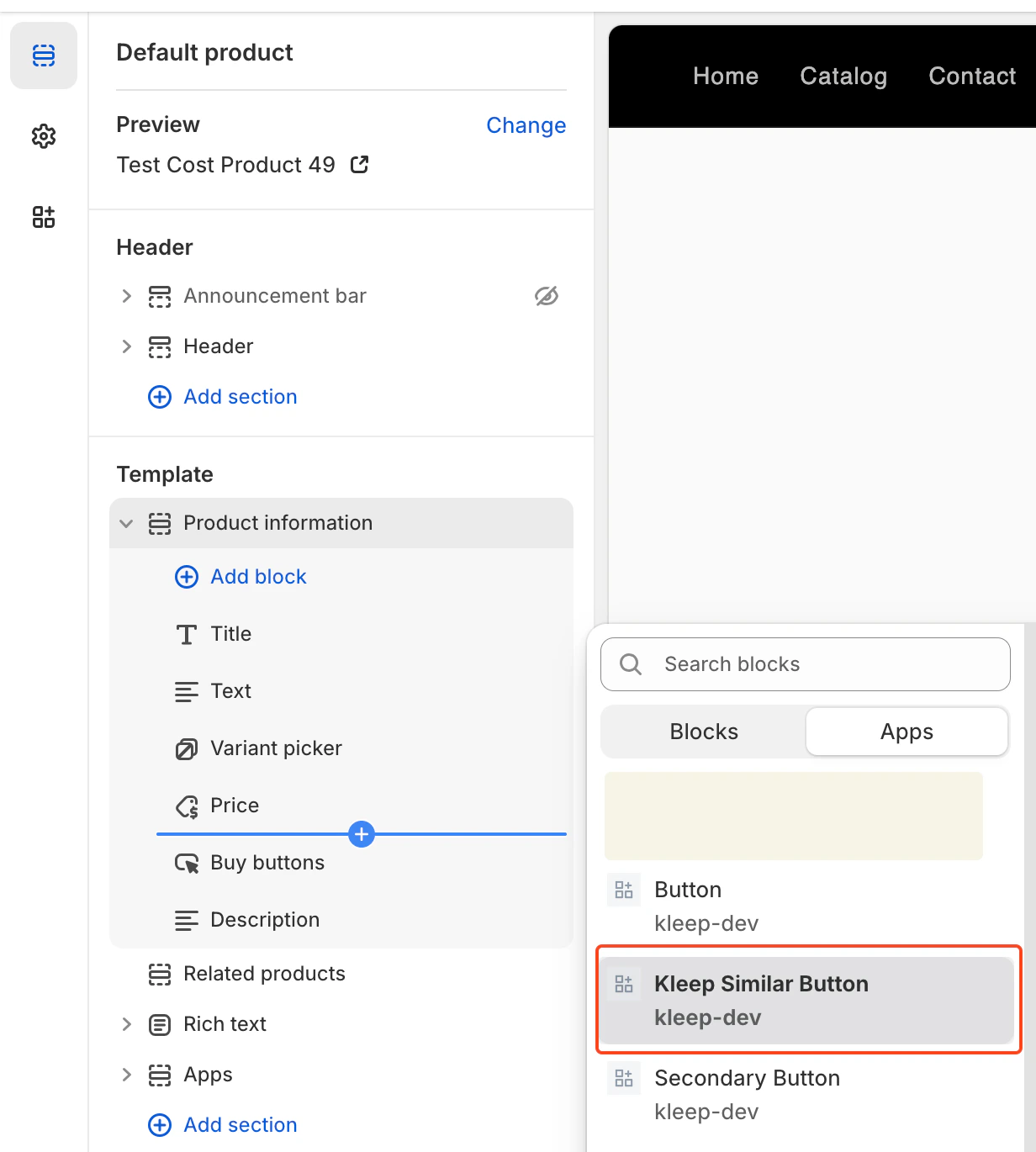 ## Adding Multiple “Similar Products” Buttons (Primary & Secondary)
You can add any number of Similar Products buttons on the Product Page.
This works for both OS 2.0 themes and V1 / legacy themes.
## Enable a Mode That Supports Custom Buttons
To allow multiple buttons, the widget must be set to one of:
* custom\_buttons
* popup+custom
* button+custom
These modes activate manual placement, so merchants can insert as many buttons as needed.
## For Online Store 2.0 (Modern Themes)
OS 2.0 themes allow adding buttons visually through the Theme Editor.
Steps:
* Go to Online Store → Customize
* Open the Product page template
* Click Add block → Kleep Similar Button
* Add the button anywhere you want
* Repeat if you want 2+ buttons on the page
Every button automatically appears only when the selected variant is out of stock.
## For V1 / Legacy Themes
Legacy themes do not support blocks, but you can render the snippet multiple times.
Insert this snippet wherever you want a button:
`{% render 'kleep-similar-button' %}`
To create multiple buttons, simply place this code in different areas of the product template.
Each snippet call creates an additional button.
### Summary
To add multiple Similar Products buttons:
Enable any mode with custom buttons → add several OS 2.0 blocks or multiple snippet calls → all buttons work automatically when the variant is out of stock.
***
**CTA Location on PDP**
The location is defined by DOM selectors inside `KleepSDK.getConstants().`
`targetProductInfoBlockQueries` – where the product info is. This is an array of selectors that point to the main container of product details (title, price, sizes, etc.).The script iterates through these selectors and uses the first one it finds as the insertion point for the CTA or popups.
`targetVariantQueries` – where size/variant options are:Once the product info block is found, the script searches inside it for variant elements (like size selectors).Each variant \
## Adding Multiple “Similar Products” Buttons (Primary & Secondary)
You can add any number of Similar Products buttons on the Product Page.
This works for both OS 2.0 themes and V1 / legacy themes.
## Enable a Mode That Supports Custom Buttons
To allow multiple buttons, the widget must be set to one of:
* custom\_buttons
* popup+custom
* button+custom
These modes activate manual placement, so merchants can insert as many buttons as needed.
## For Online Store 2.0 (Modern Themes)
OS 2.0 themes allow adding buttons visually through the Theme Editor.
Steps:
* Go to Online Store → Customize
* Open the Product page template
* Click Add block → Kleep Similar Button
* Add the button anywhere you want
* Repeat if you want 2+ buttons on the page
Every button automatically appears only when the selected variant is out of stock.
## For V1 / Legacy Themes
Legacy themes do not support blocks, but you can render the snippet multiple times.
Insert this snippet wherever you want a button:
`{% render 'kleep-similar-button' %}`
To create multiple buttons, simply place this code in different areas of the product template.
Each snippet call creates an additional button.
### Summary
To add multiple Similar Products buttons:
Enable any mode with custom buttons → add several OS 2.0 blocks or multiple snippet calls → all buttons work automatically when the variant is out of stock.
***
**CTA Location on PDP**
The location is defined by DOM selectors inside `KleepSDK.getConstants().`
`targetProductInfoBlockQueries` – where the product info is. This is an array of selectors that point to the main container of product details (title, price, sizes, etc.).The script iterates through these selectors and uses the first one it finds as the insertion point for the CTA or popups.
`targetVariantQueries` – where size/variant options are:Once the product info block is found, the script searches inside it for variant elements (like size selectors).Each variant \